
How to Transfer your Google Drive to a Personal Account
This guide explains how to move Google Drive files from your school account to a personal Google account. This is essential for teachers and students exiting Conroe ISD who wish to keep their work.

Important: You can only transfer items that you are the OWNER of. Any files shared with you by others will not be transferred.
Before You Begin:
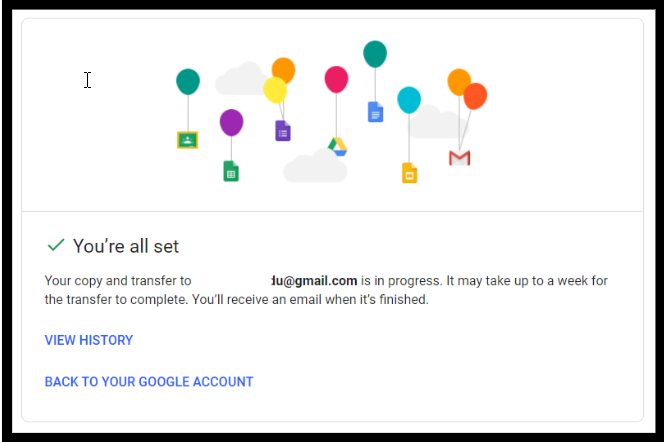
Time Sensitive: This process can take hours or even days depending on the amount of data. Please start this well ahead of your last day.
Storage Check: If using Option 1, ensure your personal account has enough free storage space to accept the transferred files.
Option 1: The Transfer Tool (Automated)
This is the best method for moving large amounts of data. It copies your content directly to another Google account.
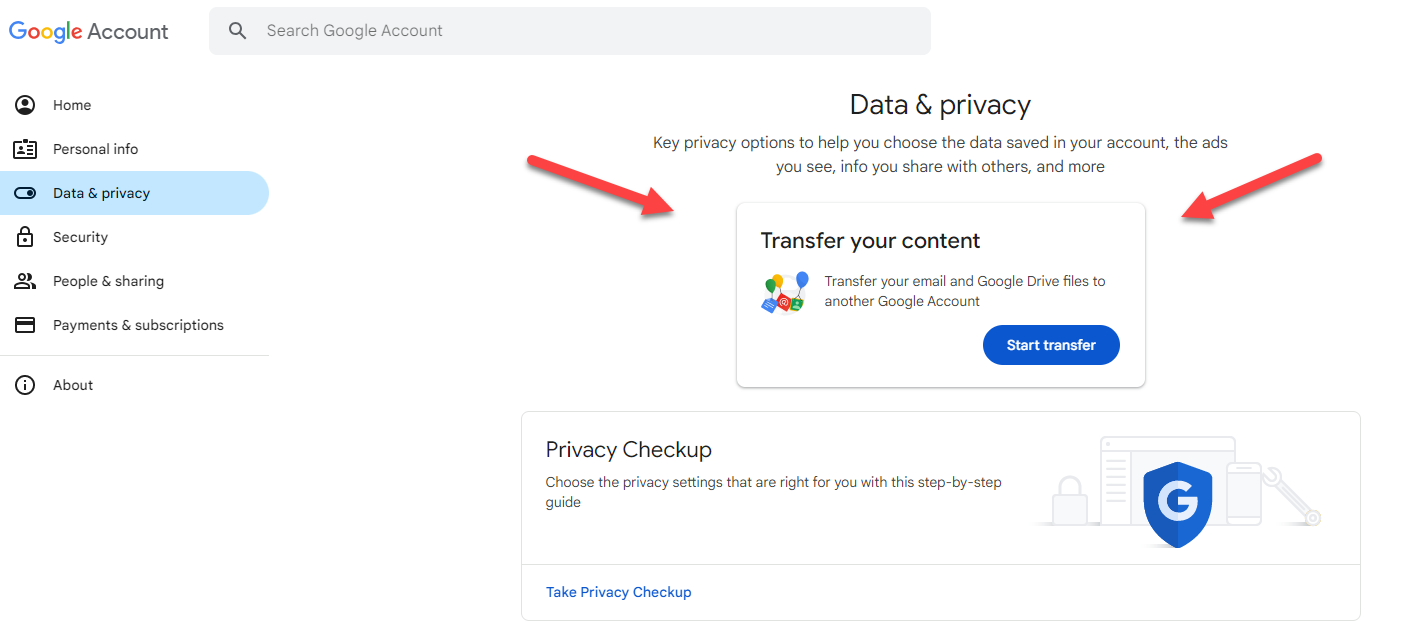
Step 1: Start the Transfer
Click the link to Start Transfer (typically accessed via your Google Account settings or takeout.google.com/transfer).
Step 2: Enter Destination
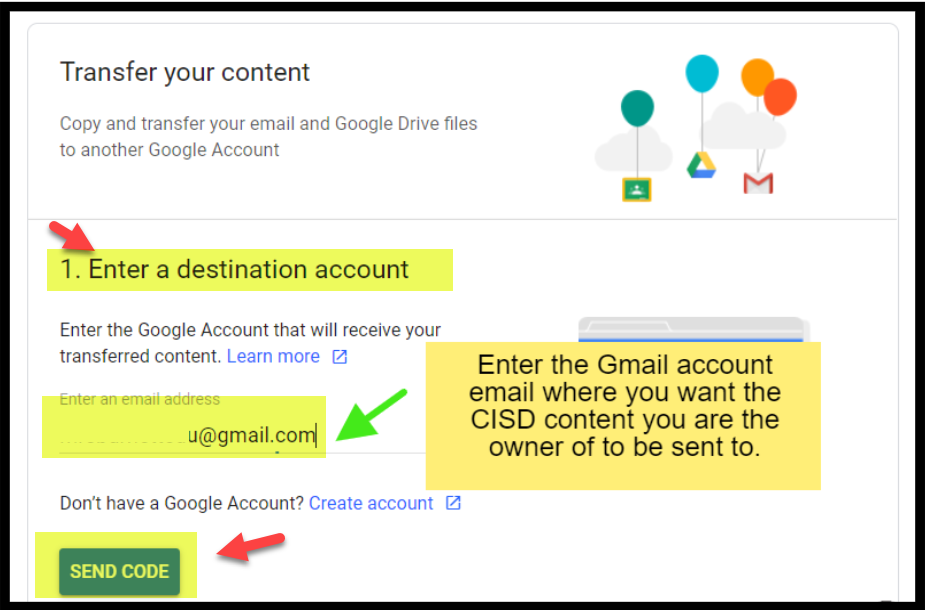
Enter the email address of your Destination Google Account (must be a personal
@gmail.comaccount).Select Send Code.
Step 3: Verify Your Account
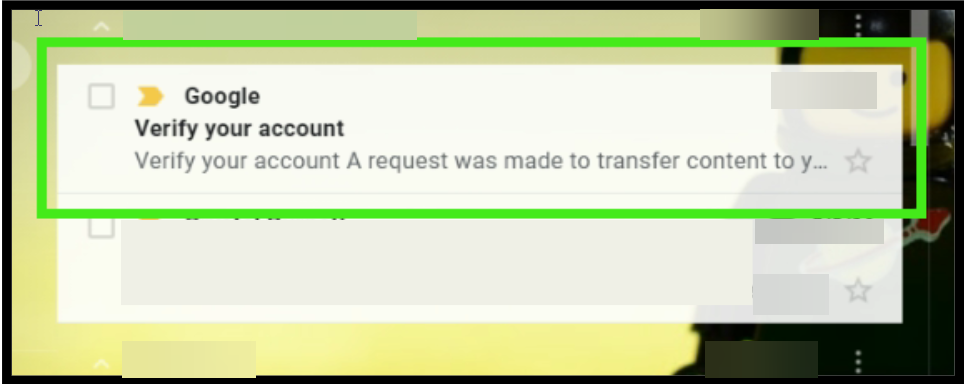
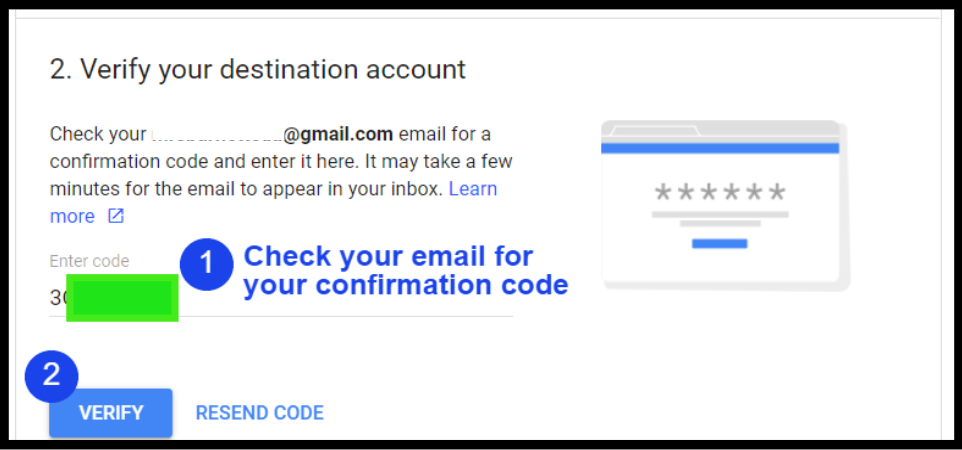
Check your personal email inbox for a confirmation code.
Enter the confirmation code into the school account window to verify your identity.
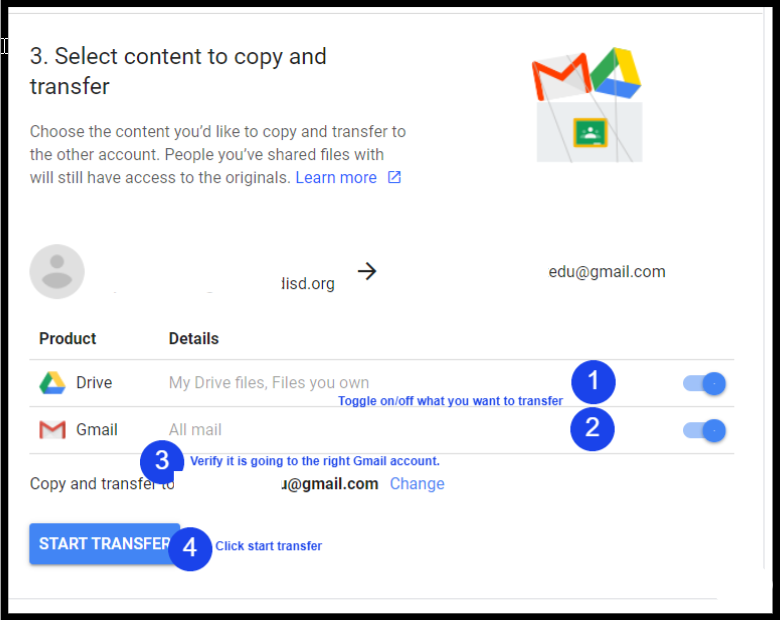
Step 4: Select Content
Toggle the switch to select Drive (and Email if desired).
Select Start Transfer.
Option 2: Download (Manual Selection)
Use this method if you do not want to take everything, but prefer to "pick and choose" specific files or folders.
Note: This is not recommended for transferring very large amounts of data.
Step 1: Download the Files
Log in to your school Google Drive.
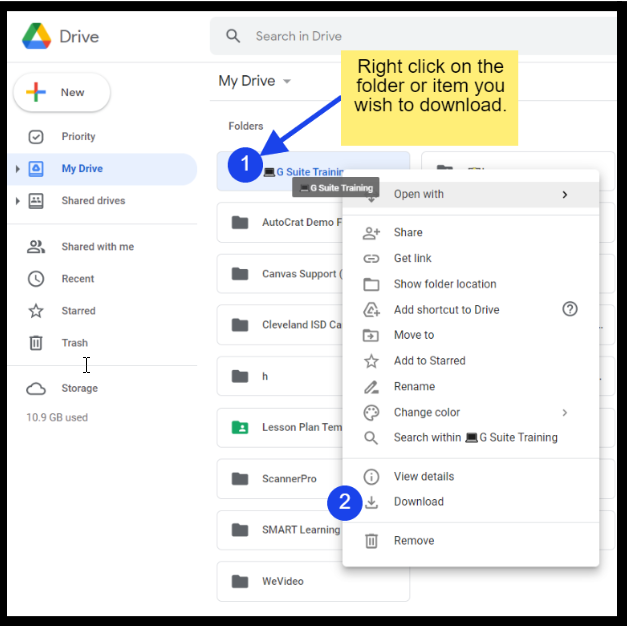
Select the specific file or folder you wish to keep.
Right-click on the item and select Download.
Save the file to your personal computer or a USB flash drive.
Step 2: Unzip and Restore
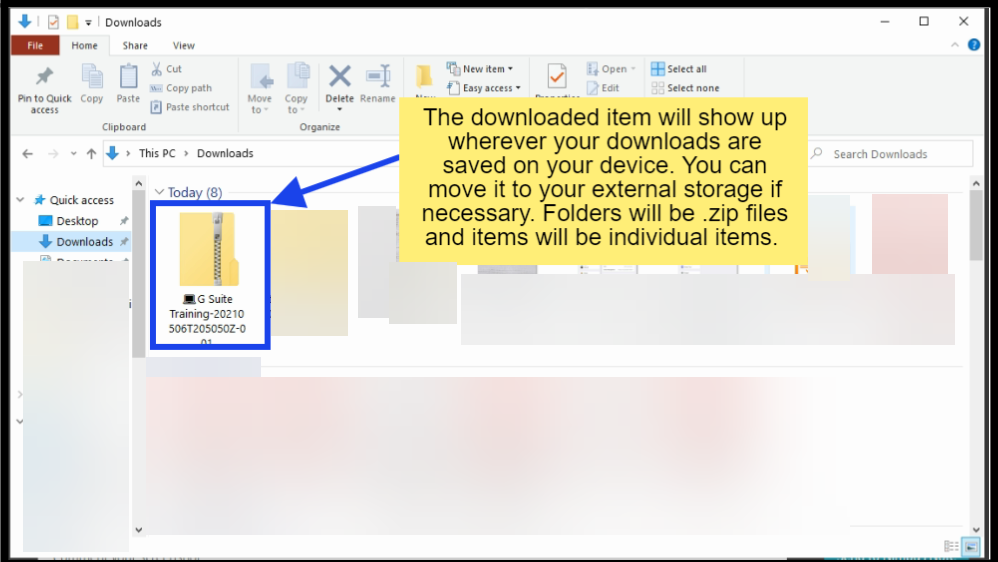
When you download folders, Google compresses them into a .zip file. You must unzip them to use them.
Locate the downloaded file on your computer.
Right-click the file and select Extract All or Unzip.
The folder will open, and your files will be accessible.

Tip: If you upload these files back into a personal Google Drive, they will convert back into editable Google formats (Docs, Sheets, Slides, etc.).

Need additional help? Click here for further assistance.