
This guide explains how to request ownership of Google Drive files from another employee. This is critical when a staff member is leaving the district to ensure important documents are not lost.
Urgent: After an employee leaves the district, their data is retained for only 20 days. Once their account is deleted, you will lose access to any files they shared with you unless ownership is transferred.
Why Transfer Ownership?
When a user creates a file in Google Drive, they are the "Owner." If they share that file with you, you have access only as long as their account exists.
-
The Issue: When a staff member leaves and their account is deleted, all files they owned are deleted, even if they appear in your drive.
-
The Solution: Request a transfer before the person leaves. This moves the files into your possession. The original user retains access, but you become the permanent owner.
How to Submit the Request
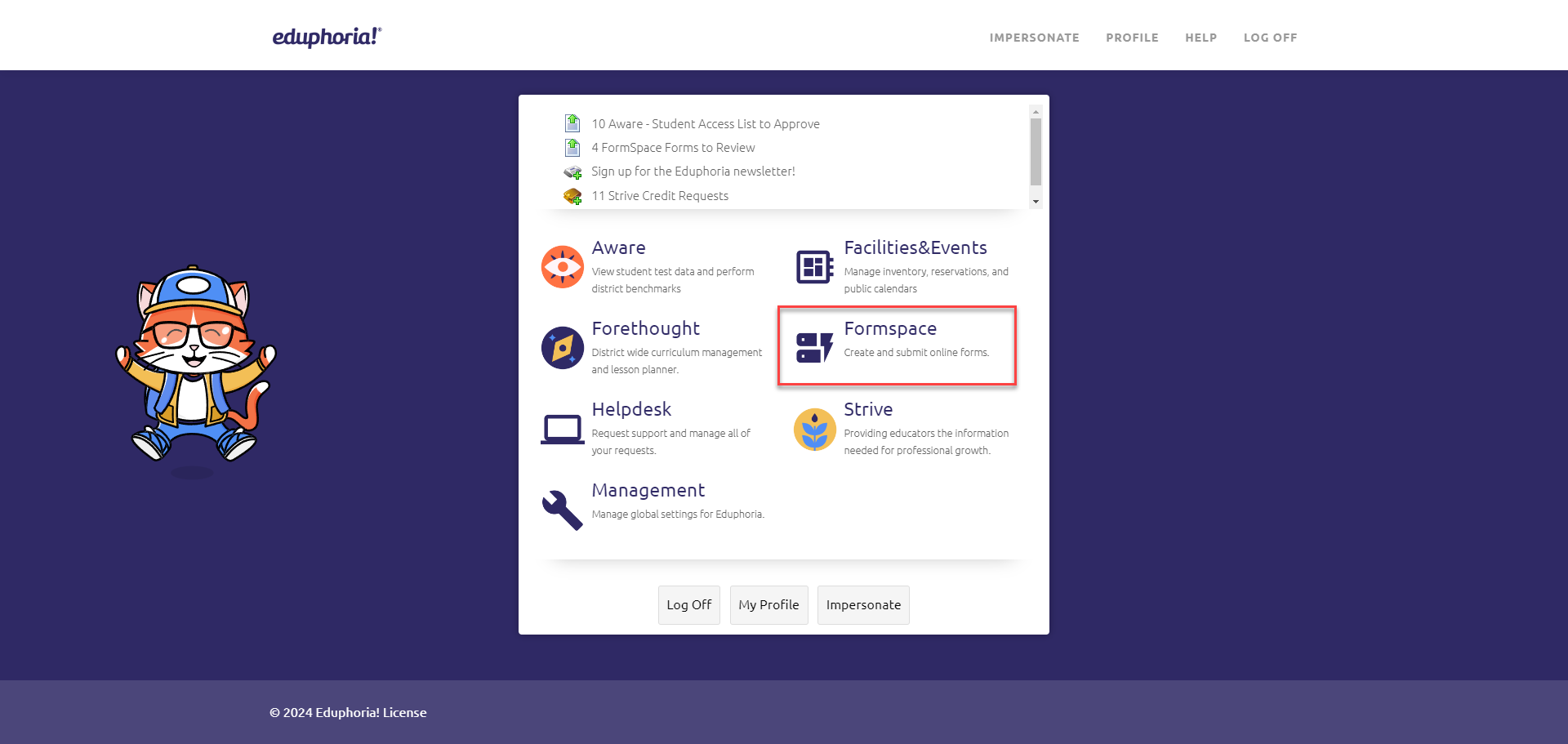
1. Access Eduphoria
Log in to Eduphoria and select Formspace.
2. Start a New Request
Select Submit New Form in the bottom corner.
3. Select Category
Select Instructional Tech: Access Request.
4. Select the Form
Select Google Drive Employee Transfer Request Form. Fill out the required information regarding the employee and the files needed.
What Happens Next?
-
Notifications: You will receive an email when the transfer is approved, and another when the transfer is physically completed.
-
File Location: Once complete, all transferred files will appear in a specific folder within Your Google Drive.
-
Sharing: You now own these files. You may share them with other team members as needed.
Best Practice: Make Copies
A quick way to secure important shared files without a formal transfer is to make a copy.
-
How: Open the shared file and select File > Make a copy.
-
Result: The copy is a completely new file owned by you. Even if the original owner leaves and their file is deleted, your copy will remain safe in your drive.
Need additional help? Click here for further assistance.