
Granting Employee Permissions by Principals in View-It
This guide explains how Principals can grant View-It access to employees assigned to their specific campus.
Principals can only manage permissions for staff members formally assigned to their building by Human Resources (HR). Please note that View-It permissions expire periodically and may need to be requested again every few years.

If you need to grant access to a Long-Term Substitute or an employee from another building, you will not see them in this list. Please submit a Formspace Request for these users.
If you need to review the specific permissions available to request via Formspace, please view the Permissions Reference List.
Steps to Modify User Access
1. Open the Admin Settings
Log in to View-It and select the Admin button.

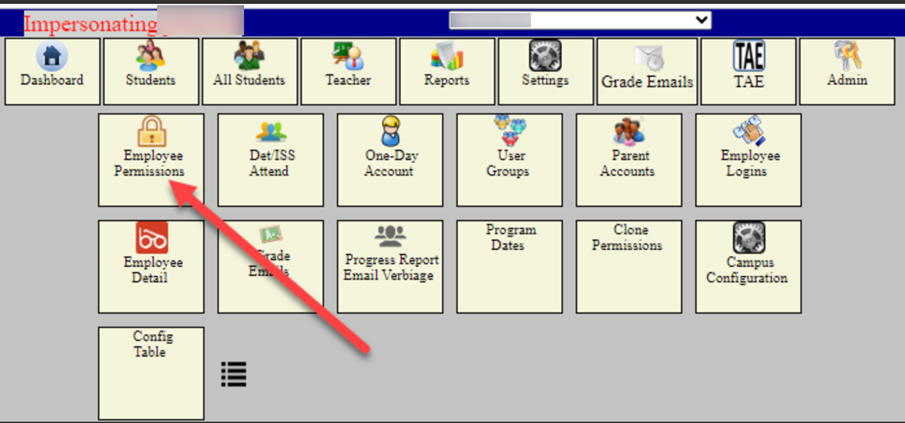
2. Select Employee Permissions
Select the option for Employees Permissions.
3. Select the User
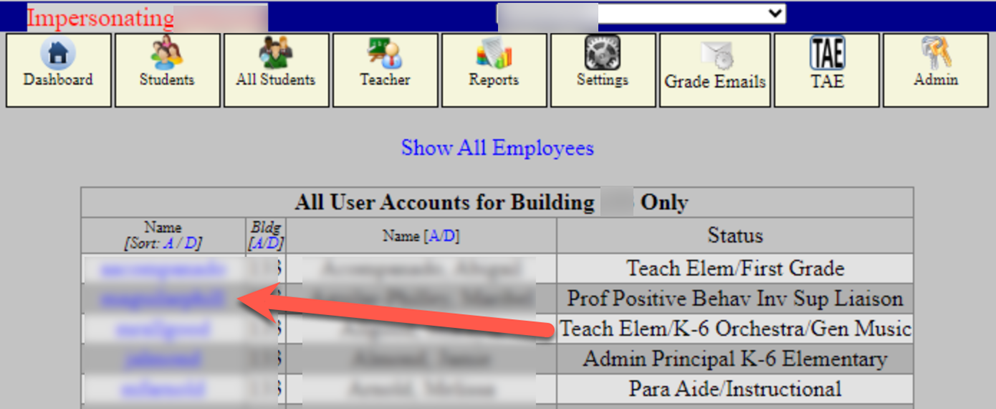
Locate the employee you wish to update and select their Username (this is a clickable link).
4. Choose Permissions
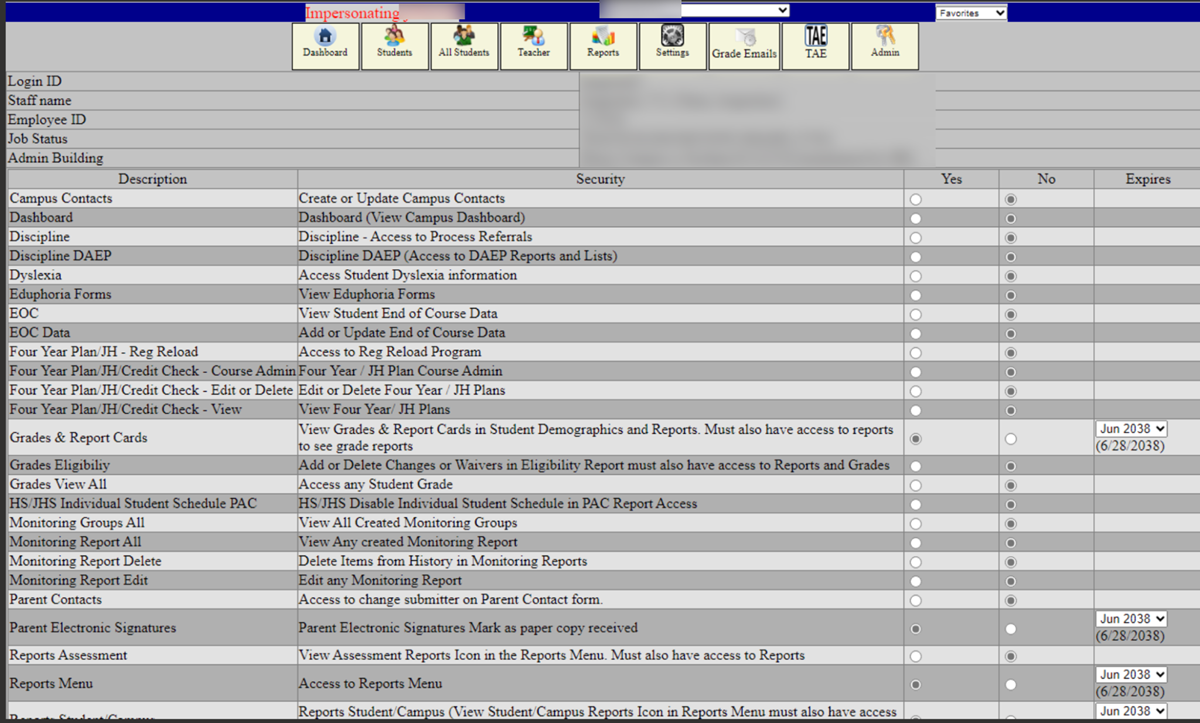
Check the boxes next to the specific access levels you want to grant to this user.
5. Save Changes
Scroll to the bottom of the page and select Edit This User. Please wait for the page to reload to ensure your changes are saved.

Need additional help? Click here for further assistance.