
How to Change or Fix Keyboard Language on a Chromebook
This guide explains how to change the keyboard input language for a specific user on a Chromebook.
Common Uses:
Fixing Issues: Teachers can use this to revert a student's keyboard back to English if it was accidentally changed (e.g., if keys are typing wrong characters).
ESL Support: Teachers can add specific language keyboards to support ESL students who need to type in their native language.

Note: These settings are specific to the user profile. You must be logged in as the student to make these changes.
Step 1: Access Keyboard Settings
Have the student log in to their Single Sign-On (SSO) on the Chromebook.
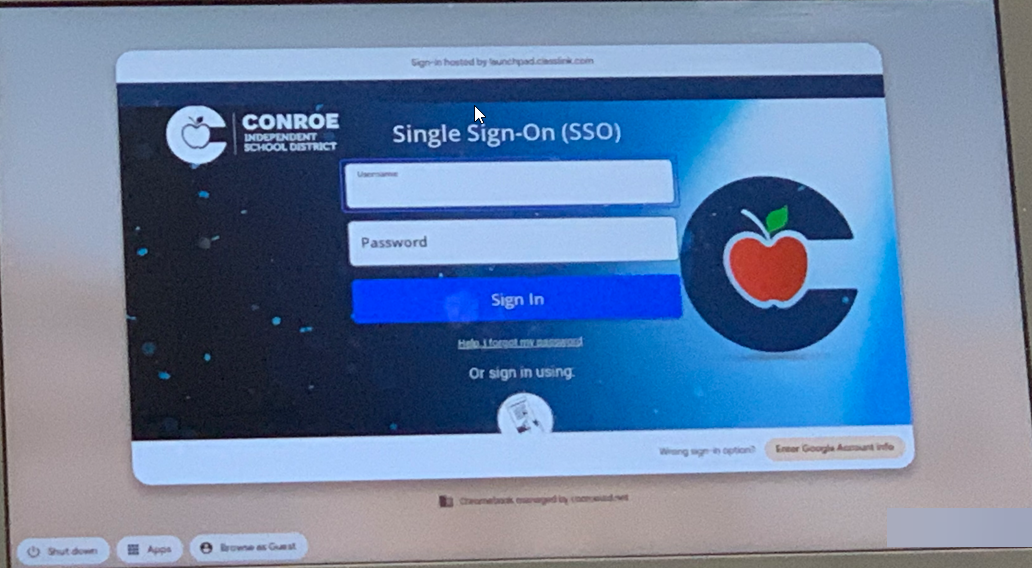
Once logged in, click on the Time in the bottom right corner of the screen.
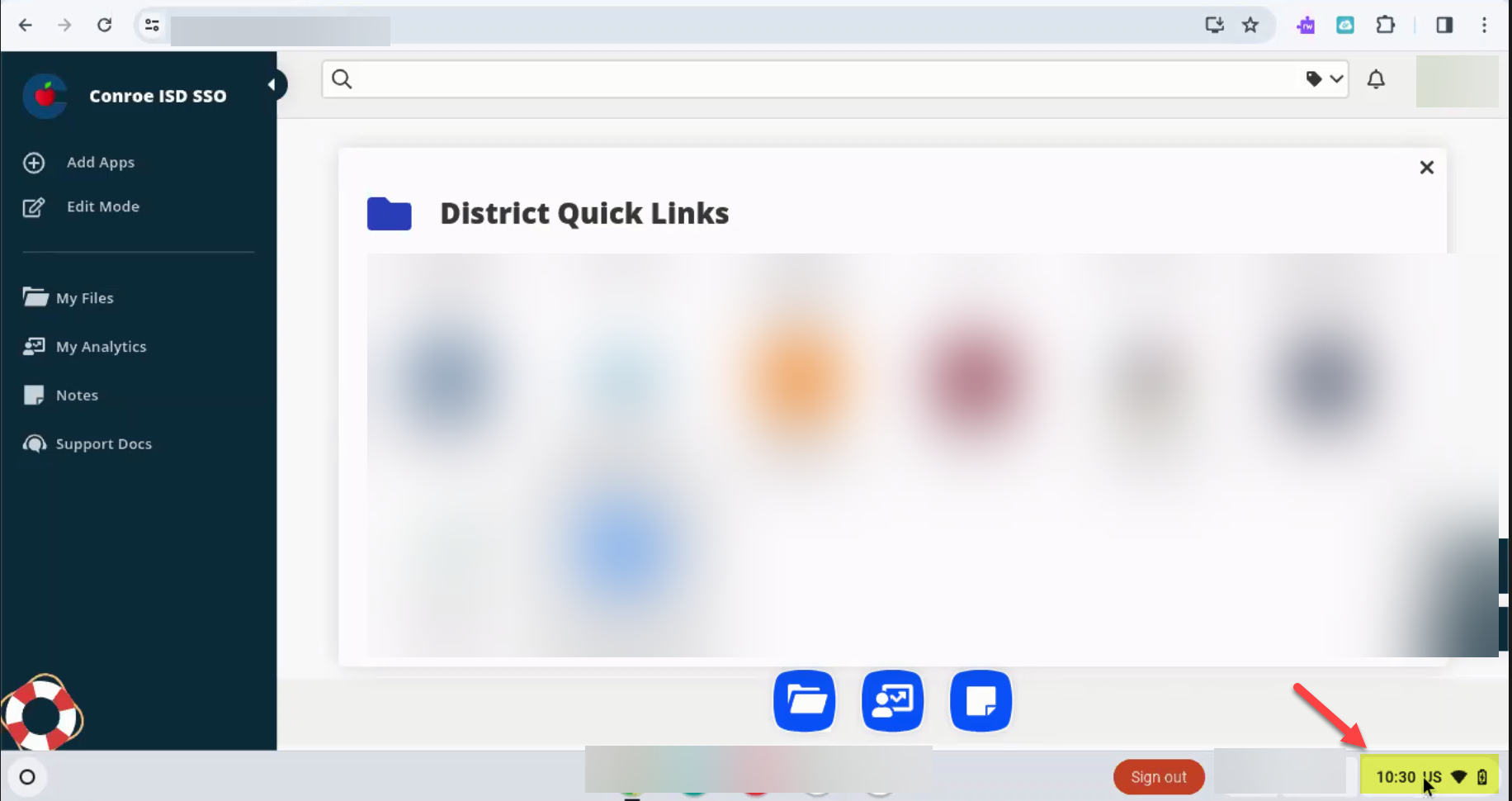
Click the Settings Wheel (gear icon).
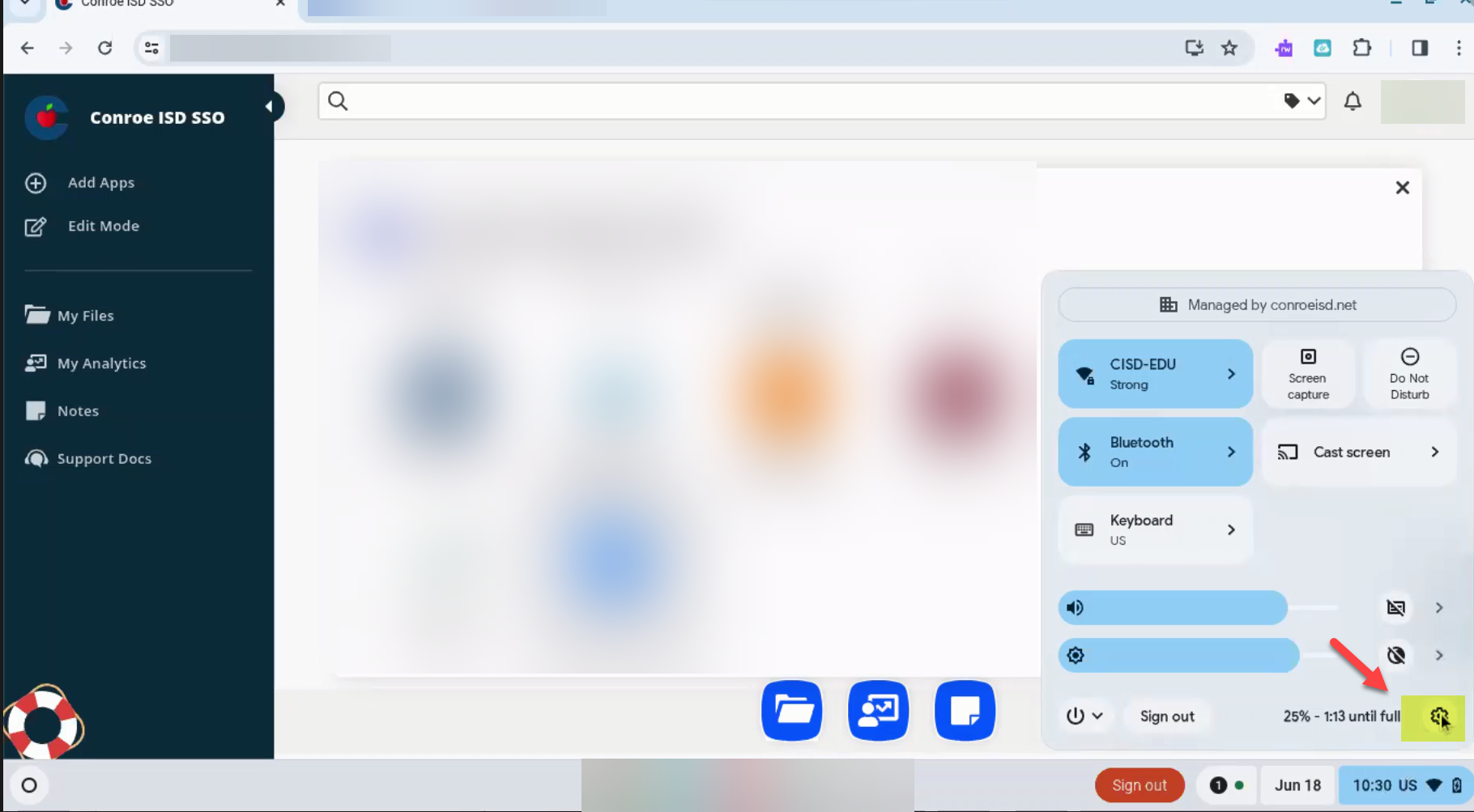
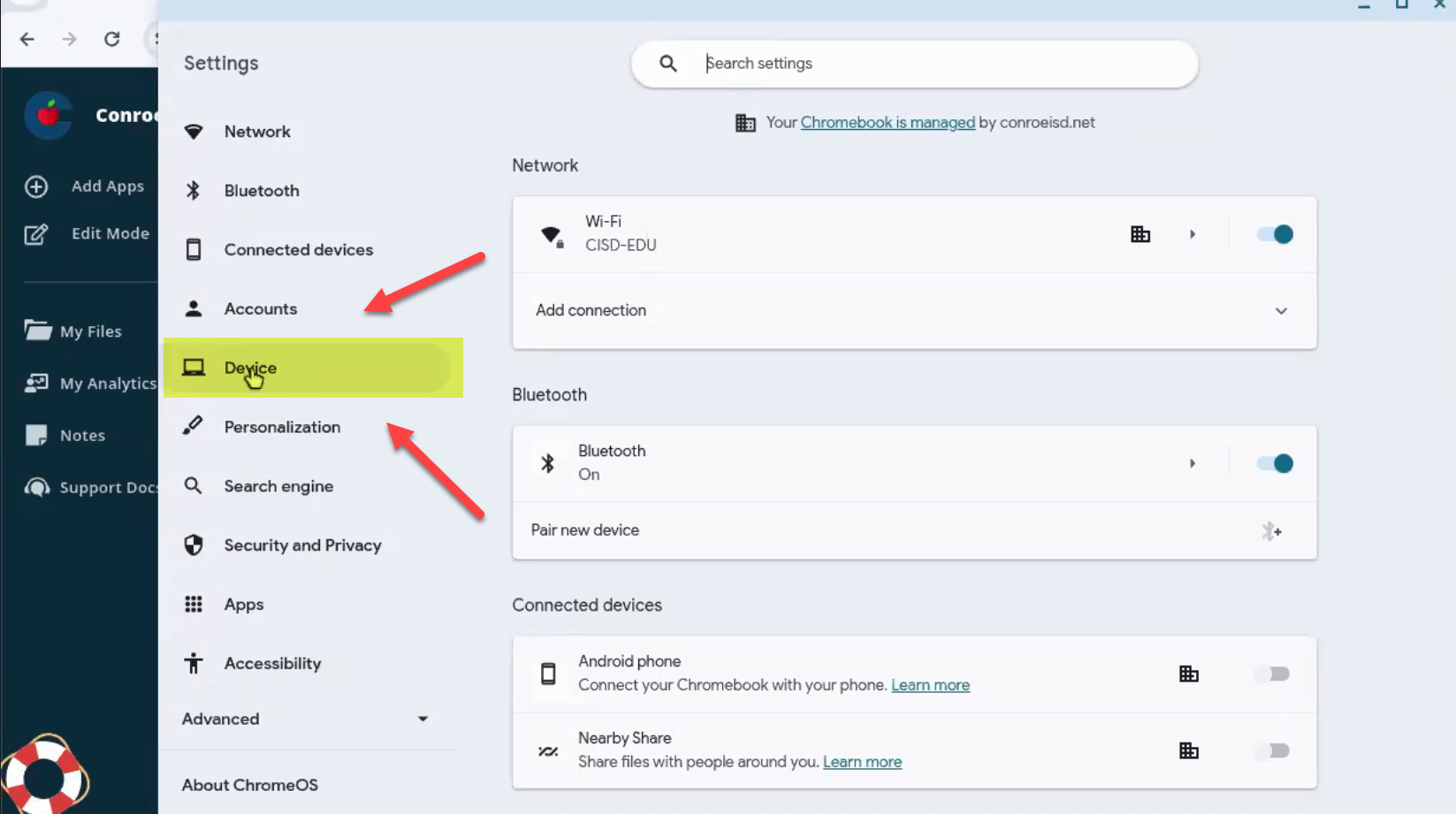
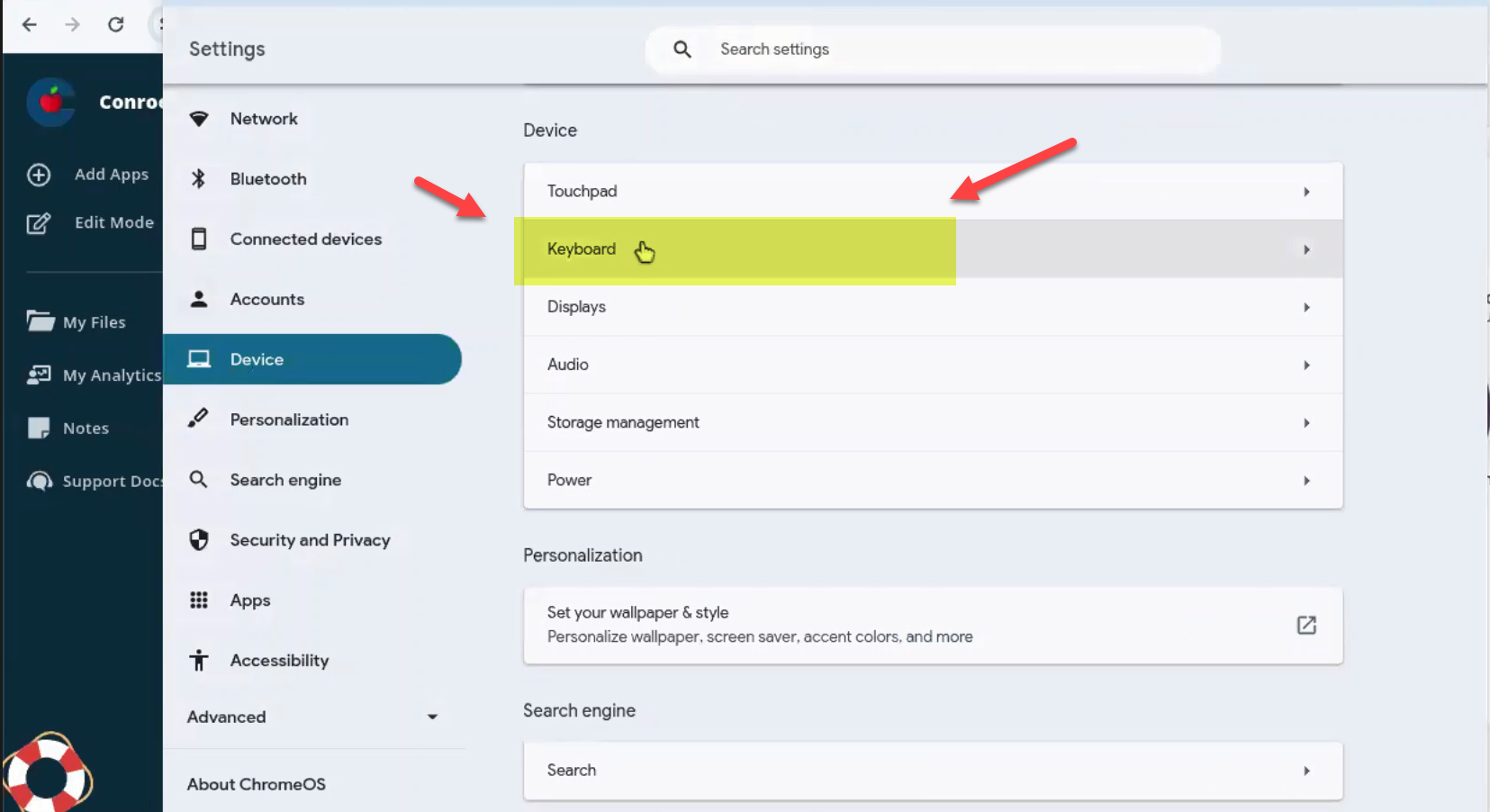
In the settings menu, select Device.
Select Keyboard.
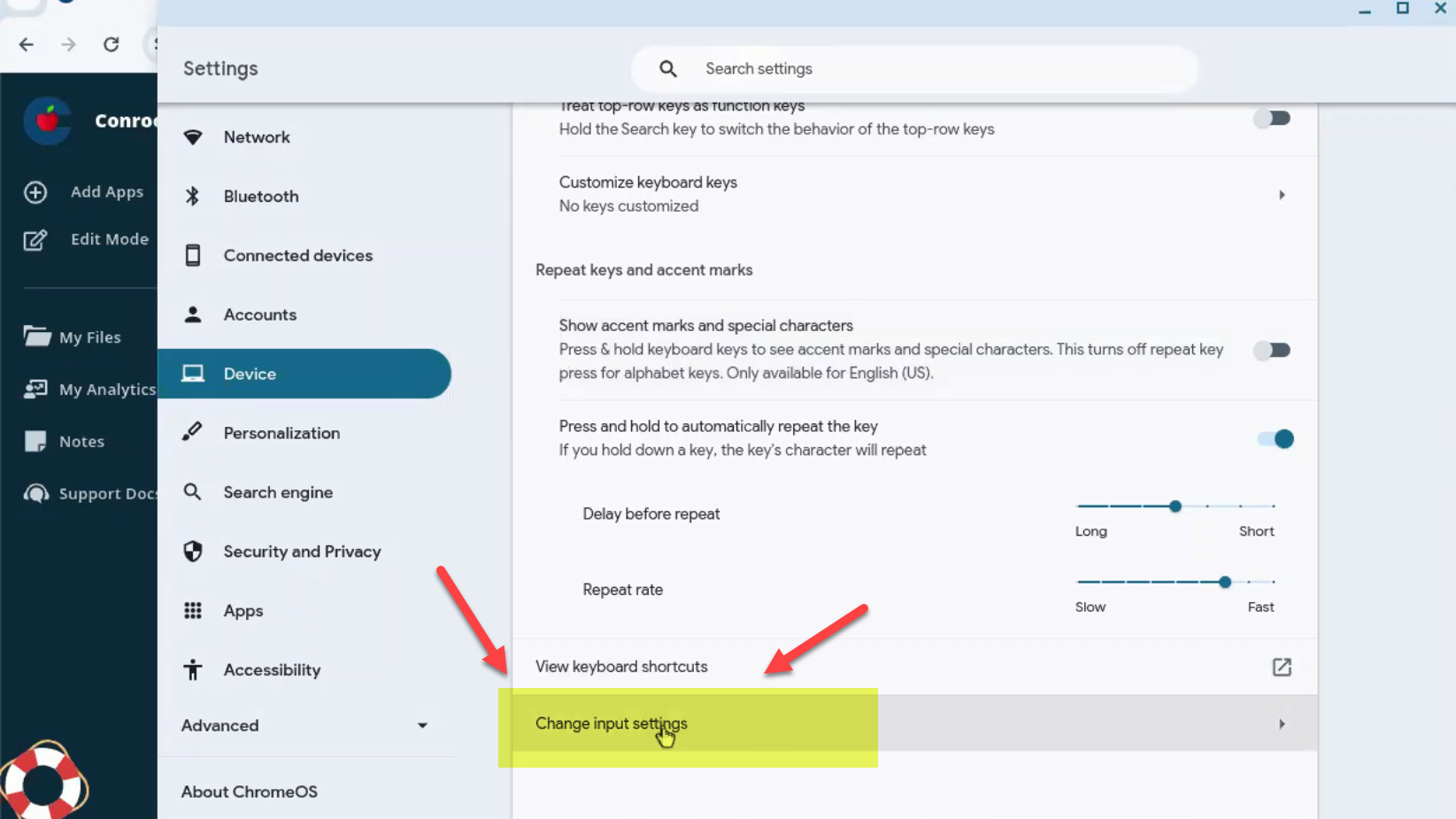
Scroll down and select Change Input Settings.
Step 2: Manage Languages
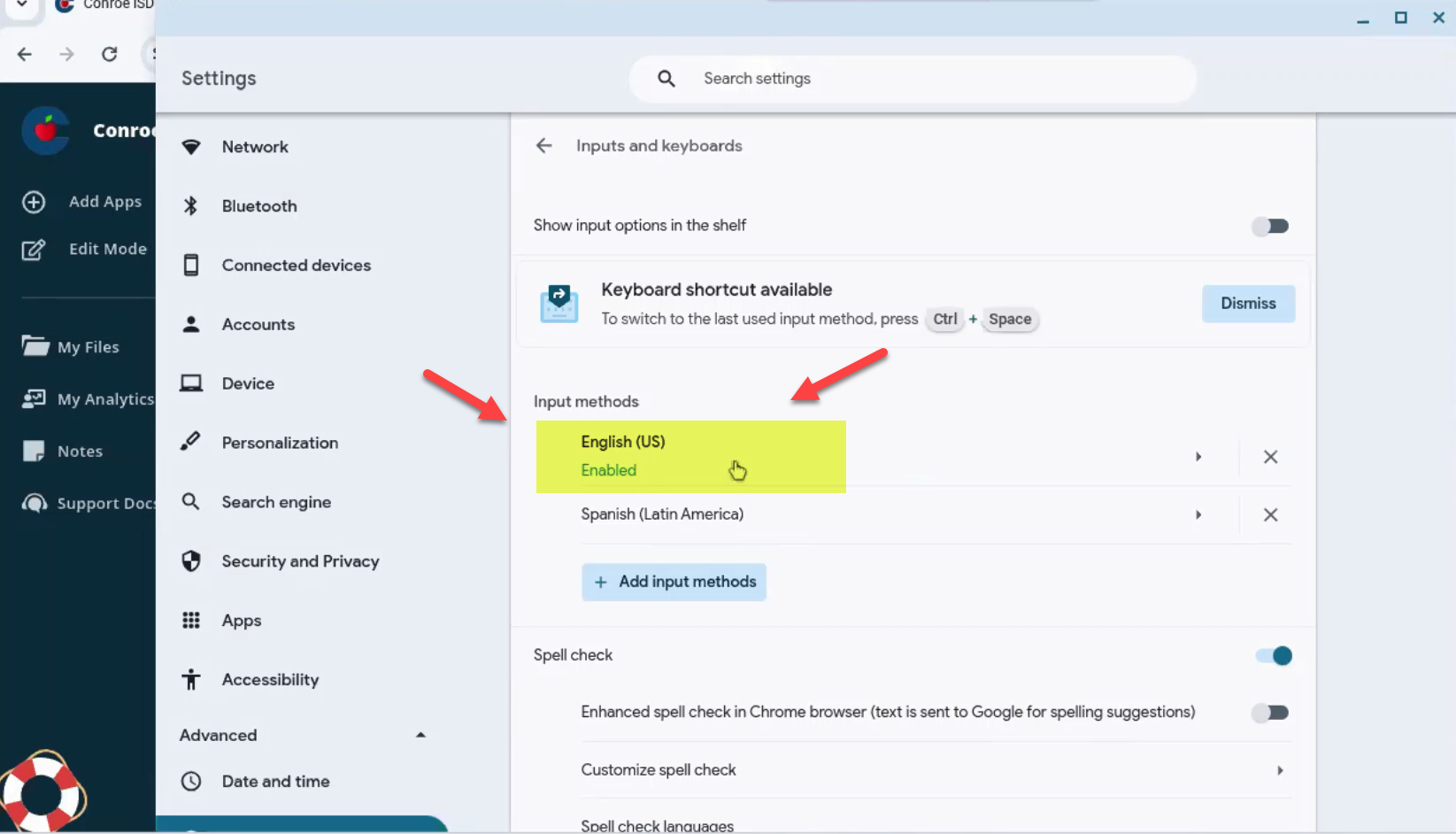
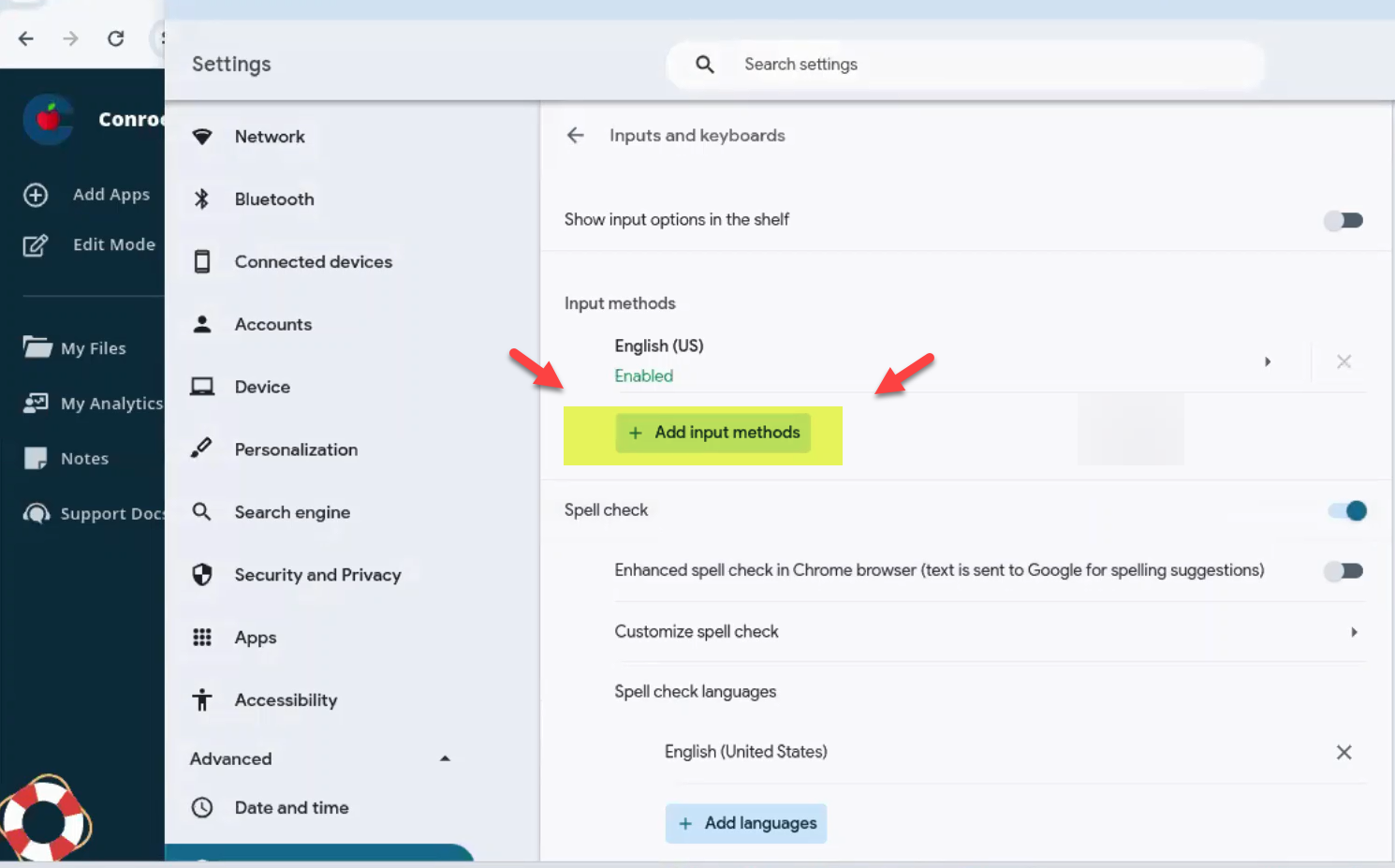
The "Input methods" list shows all keyboard languages currently added to the profile. The one marked Enabled is the active keyboard.
How to Switch Back to English
If a student accidentally switched to Spanish or another layout: 1. Locate English (US) in the list. 2. Click on it. 3. Verify that the green "Enabled" tag now appears next to English (US).
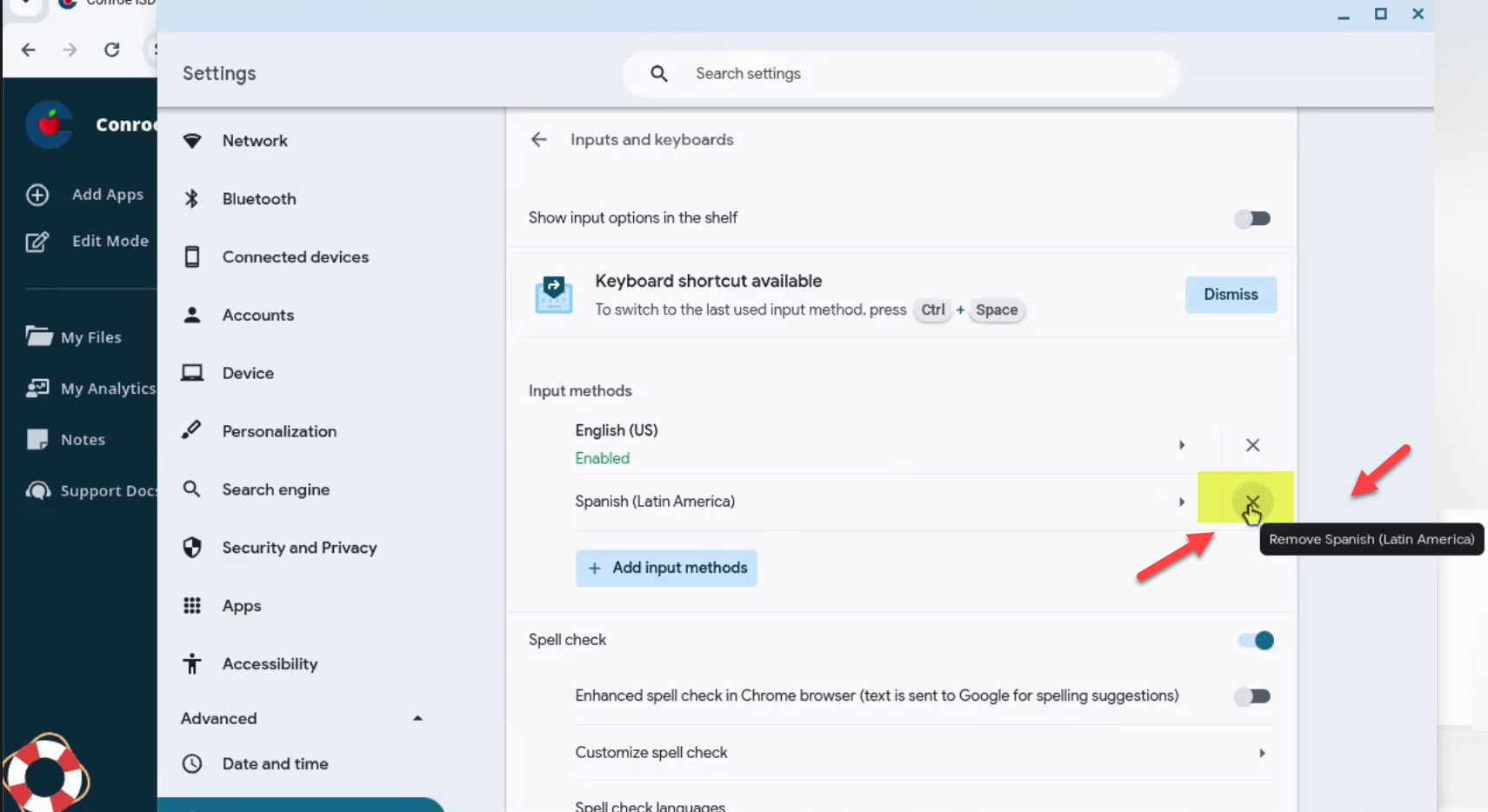
How to Remove Unwanted Languages
If a student has added multiple unnecessary keyboards: 1. Locate the language you want to remove. 2. Click the "X" icon next to that language.
How to Add a New Language (for ESL)
If a student needs a specific language layout not currently listed: 1. Click the + Add input methods button. 2. Search for and select the required language. 3. Click Add.

Need additional help? Click here for further assistance.