
Clearing your browser's history and cache can fix issues with websites not loading, old information appearing, or login errors. This process removes saved files that may be cluttering your browser.
Selecting 'All Time' as the time range is critical. If you only clear the last hour or day, the issue may not be resolved.
Instructions for Google Chrome
1. Open History Menu
-
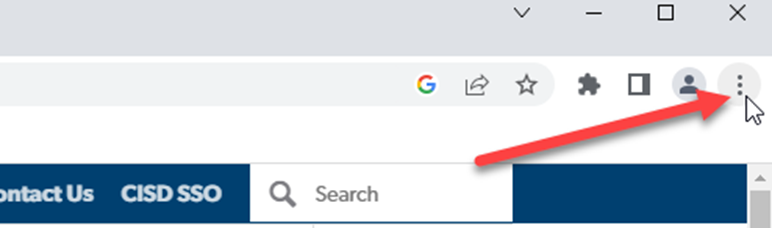
Open Chrome and select the three dots in the upper right corner.
-
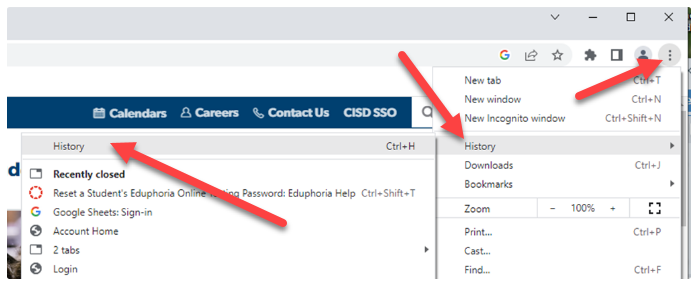
Hover your mouse over History. Select History from the list that pops up.
2. Open Clearing Options
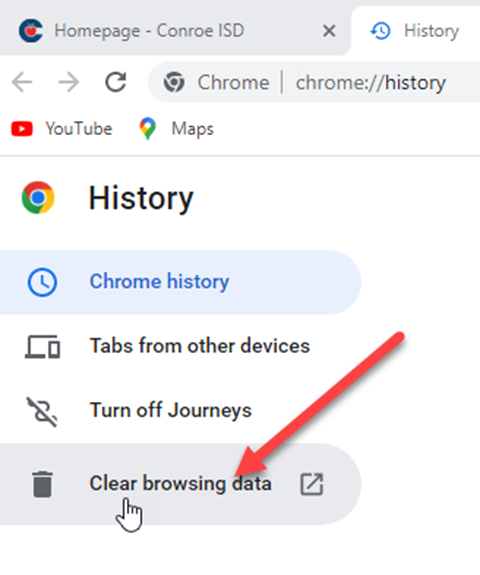
Select Clear browsing data on the left side of the screen.
3. Select Data to Clear
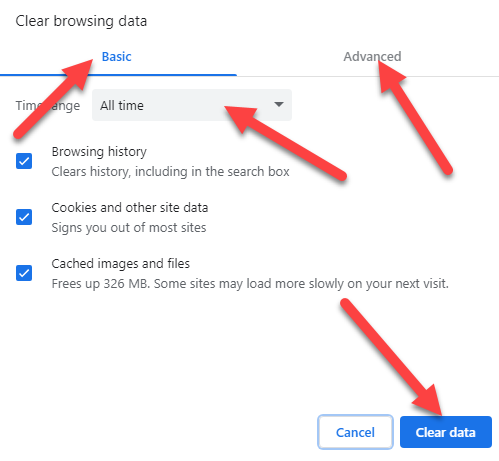
A new window will appear. You must configure settings in two tabs:
-
Time Range: Select the dropdown and choose All time.
-
Basic Tab: Check all boxes.
-
Advanced Tab: Check all boxes. (Note: You may uncheck "Passwords" if you do not want to erase your saved logins).
4. Clear the Data
Select the Clear data button. (Note: If you have not done this in a while, you may see a progress bar. Please wait for it to finish).
Instructions for Microsoft Edge
1. Open History Menu
-
Open Edge and select the three dots in the upper right corner.
-
Select History.
2. Access Clear Options
-
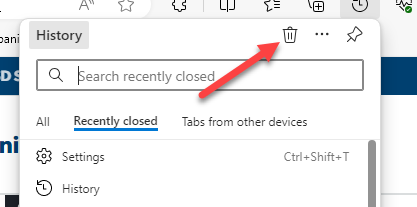
In the menu that appears, locate the Trash Can icon (Clear history) at the top.
-
Select the Trash Can.
3. Select Data to Clear
-
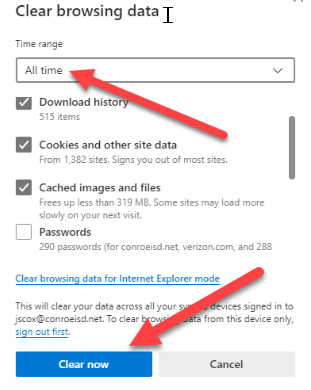
Time Range: Select the dropdown and choose All time.
-
Check all the boxes for the data you wish to remove. (Note: You may uncheck "Passwords" if you wish to keep them saved).
4. Clear the Data
Select Clear now.
Final Step: Restart Your Computer
Once the cleaning process is finished, please close all browser windows and restart your computer to ensure the changes take effect.
Need additional help? Click here for further assistance.