
How to Create a Public Google Form (No Sign-In Required)
This guide explains how to configure a Google Form so that respondents (such as parents or students) can access it without signing into a Google account.
Why use this? This is useful for public events or surveys where the audience may not have a specific district account or a Google account at all.

Security Warning: Disabling the sign-in requirement makes the form public. Anyone with the link can access it. Do not use this setting if the form collects sensitive information.
Step 1: Disable the Sign-In Requirement
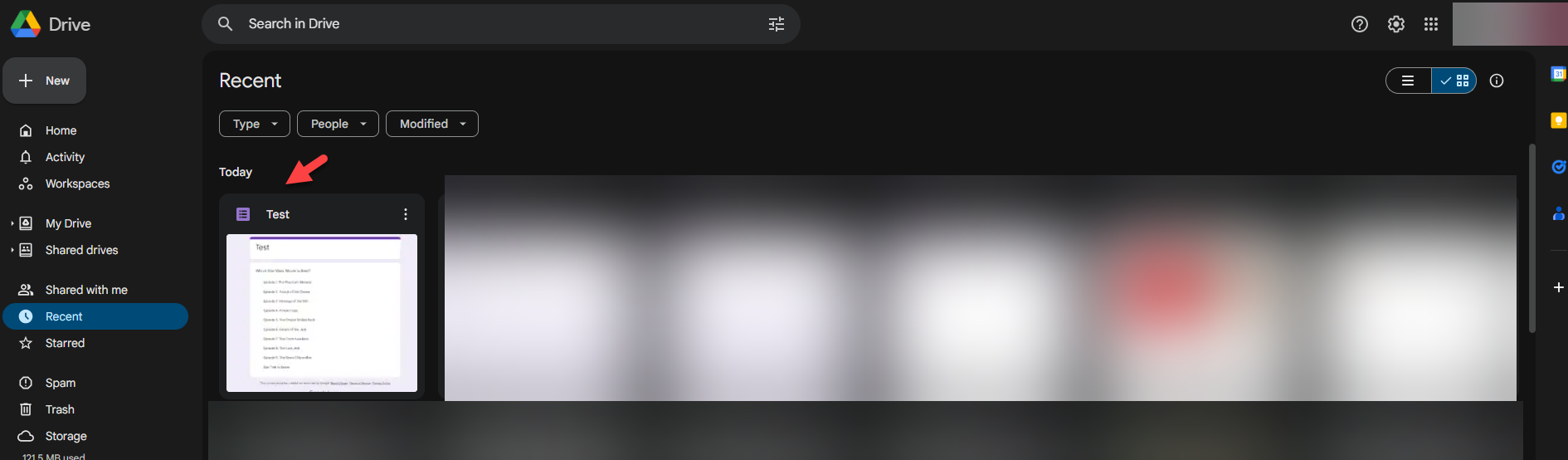
Find and Open your Google Form.
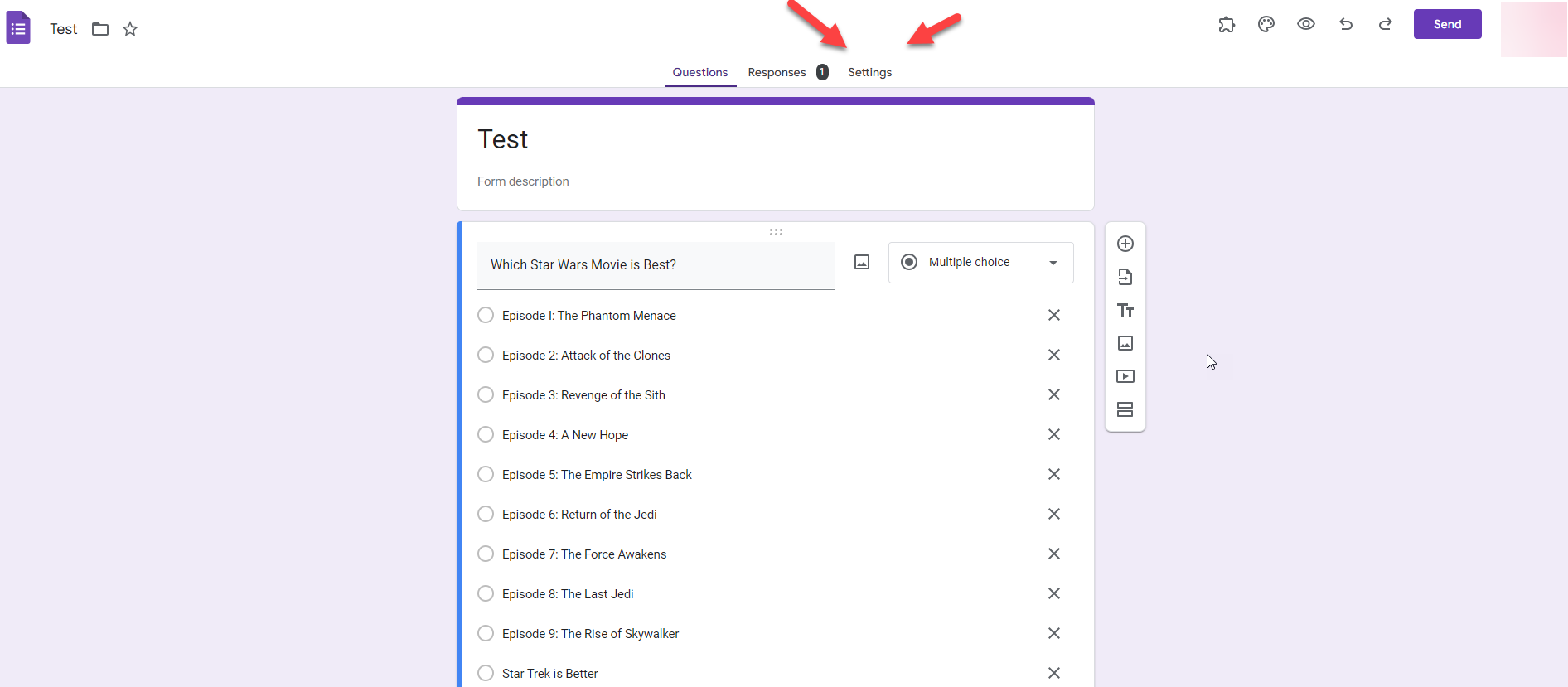
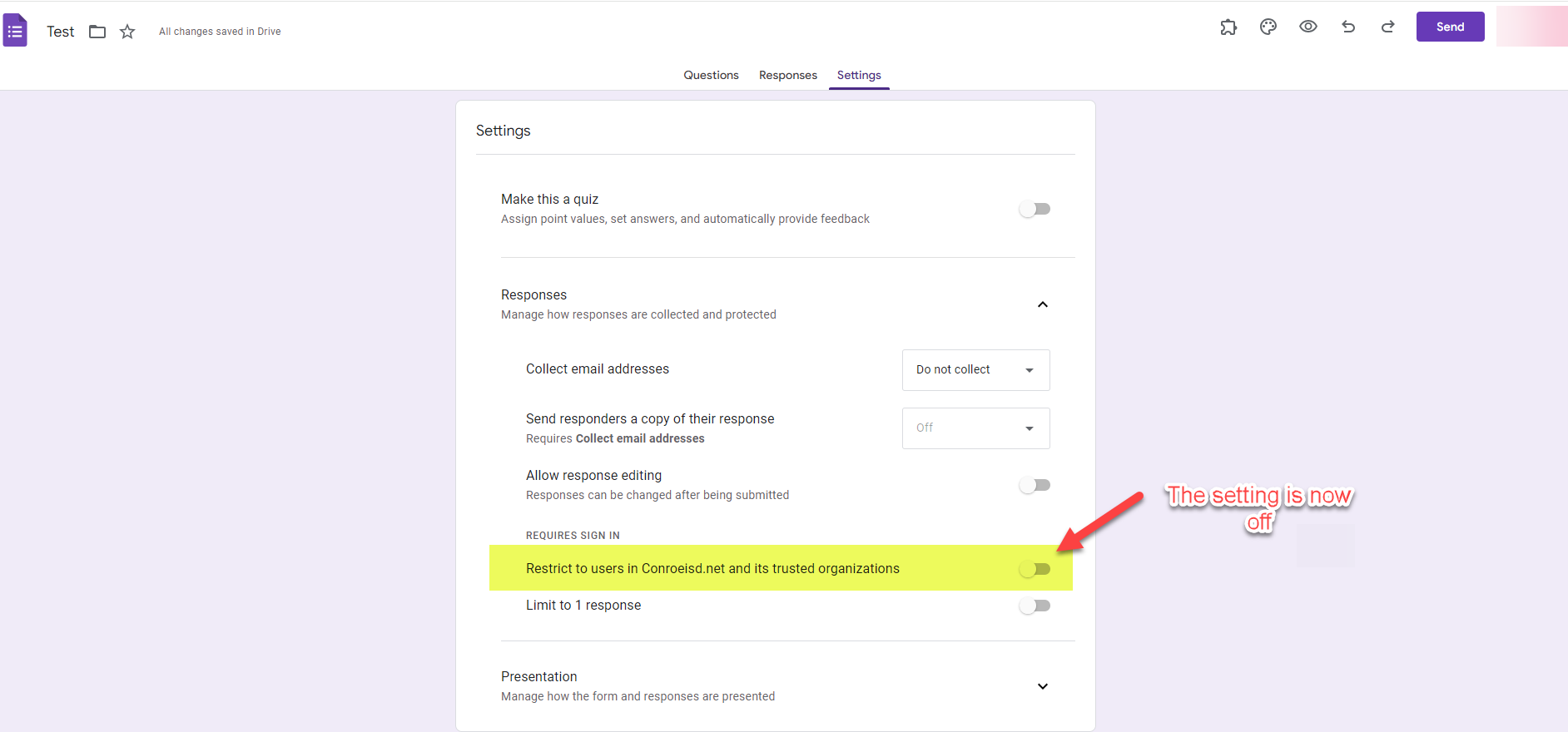
Click on the Settings tab at the top of the page.
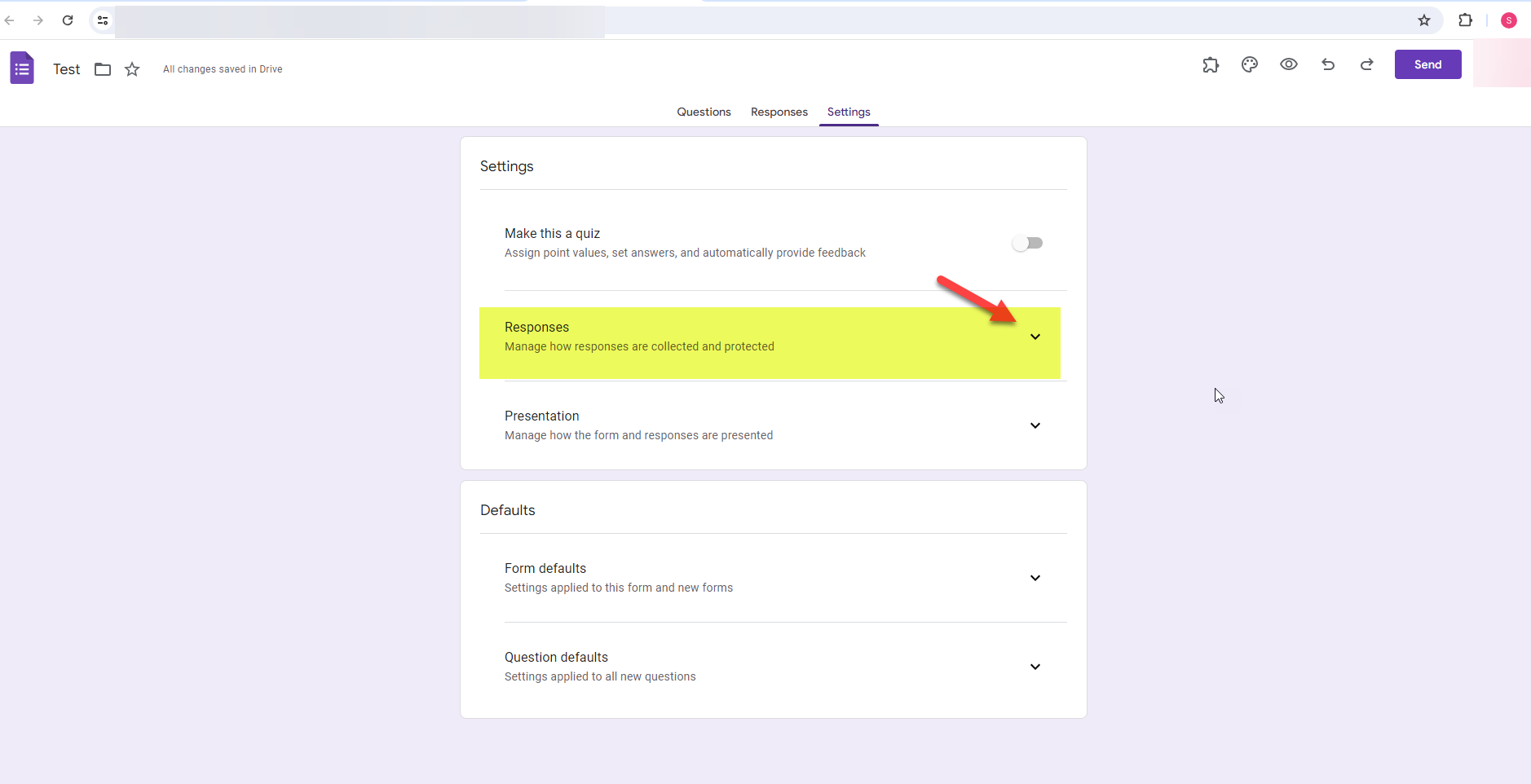
Click on the arrow next to Responses to expand the menu.
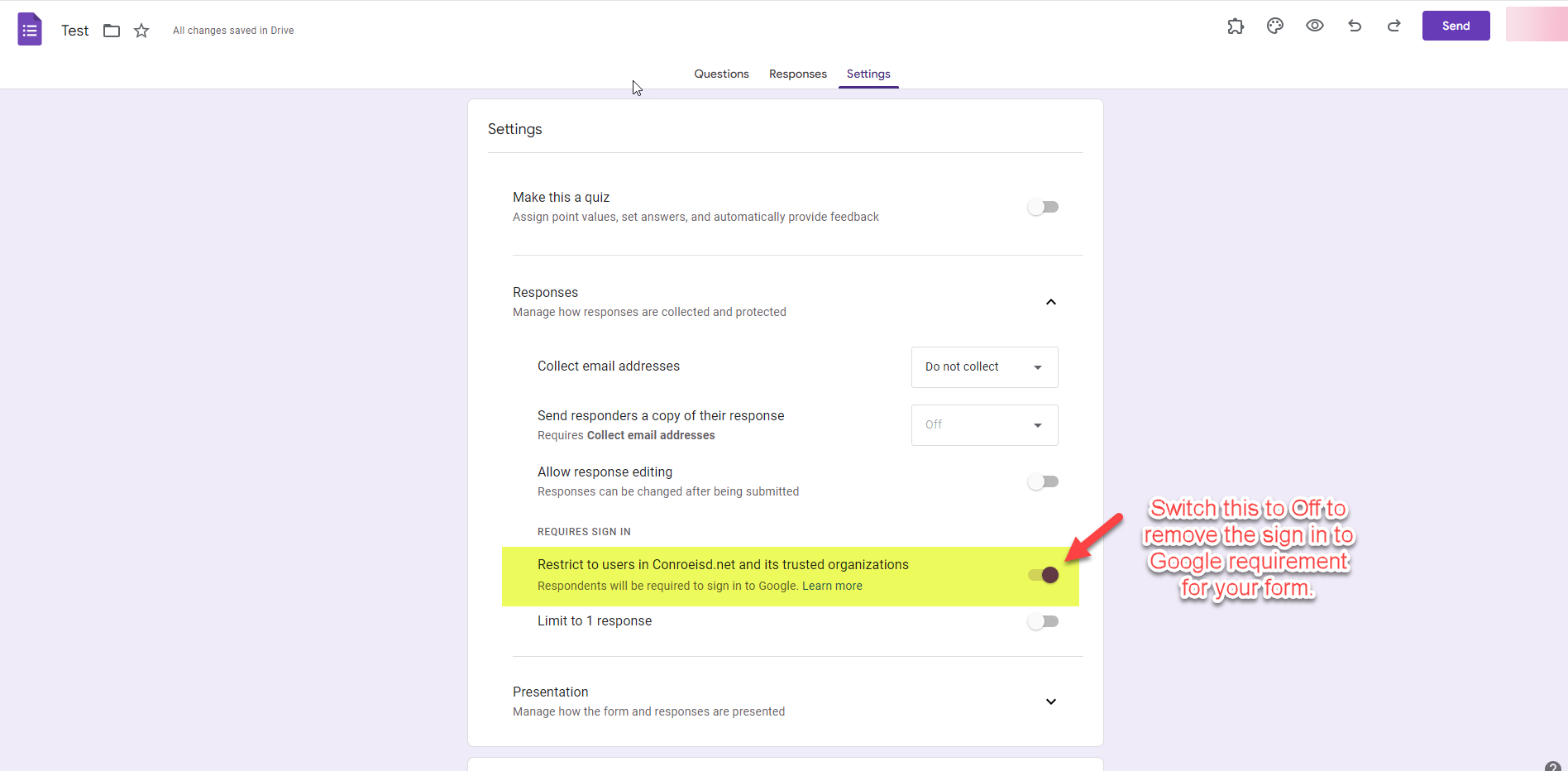
Under the "Requires Sign In" section, toggle the switch OFF for "Restrict to users in Conroe ISD and its trusted organizations".
Note: This disables the authentication check, allowing anyone to view the form.
Step 2: Additional Settings to Consider
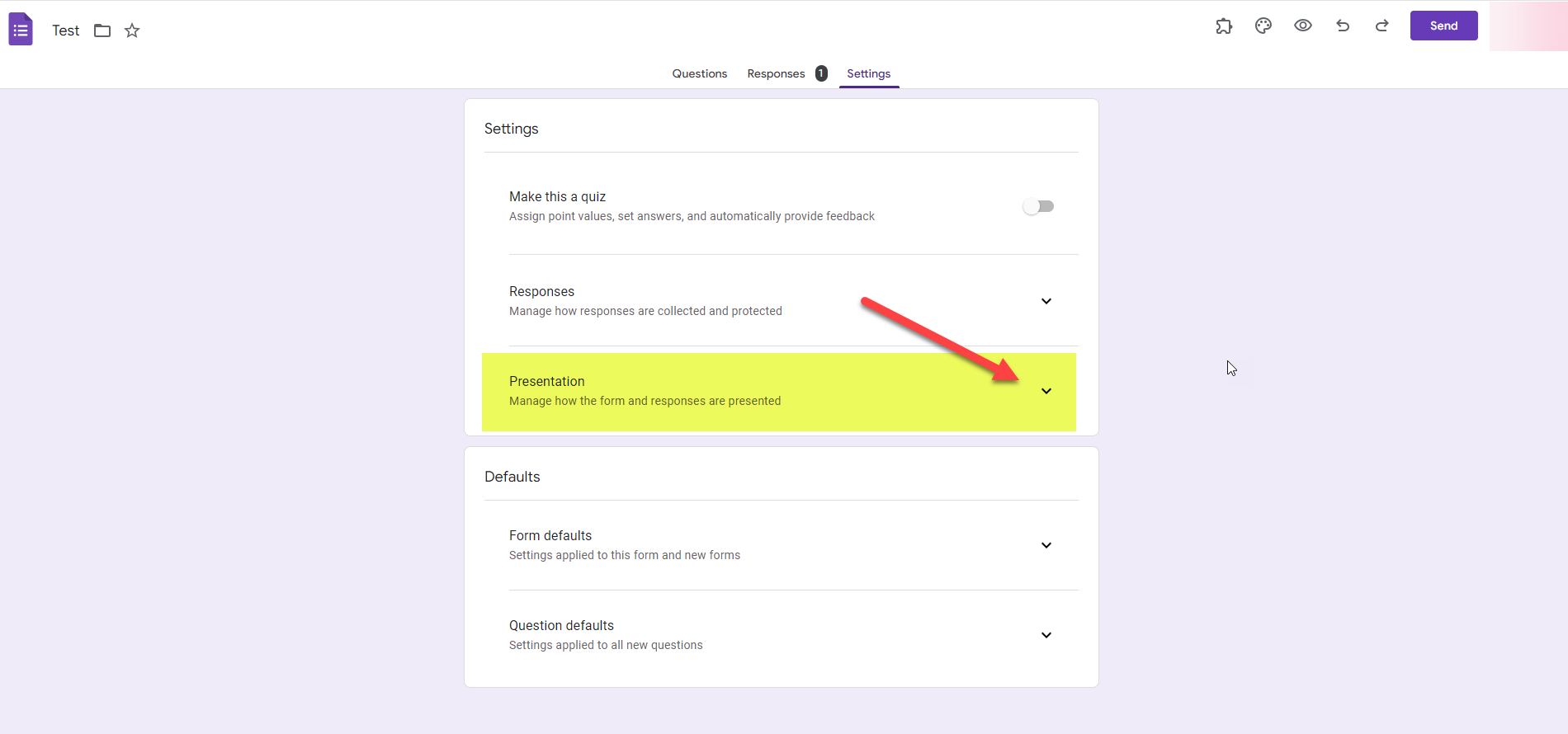
Click on the arrow next to Presentation to expand the menu.
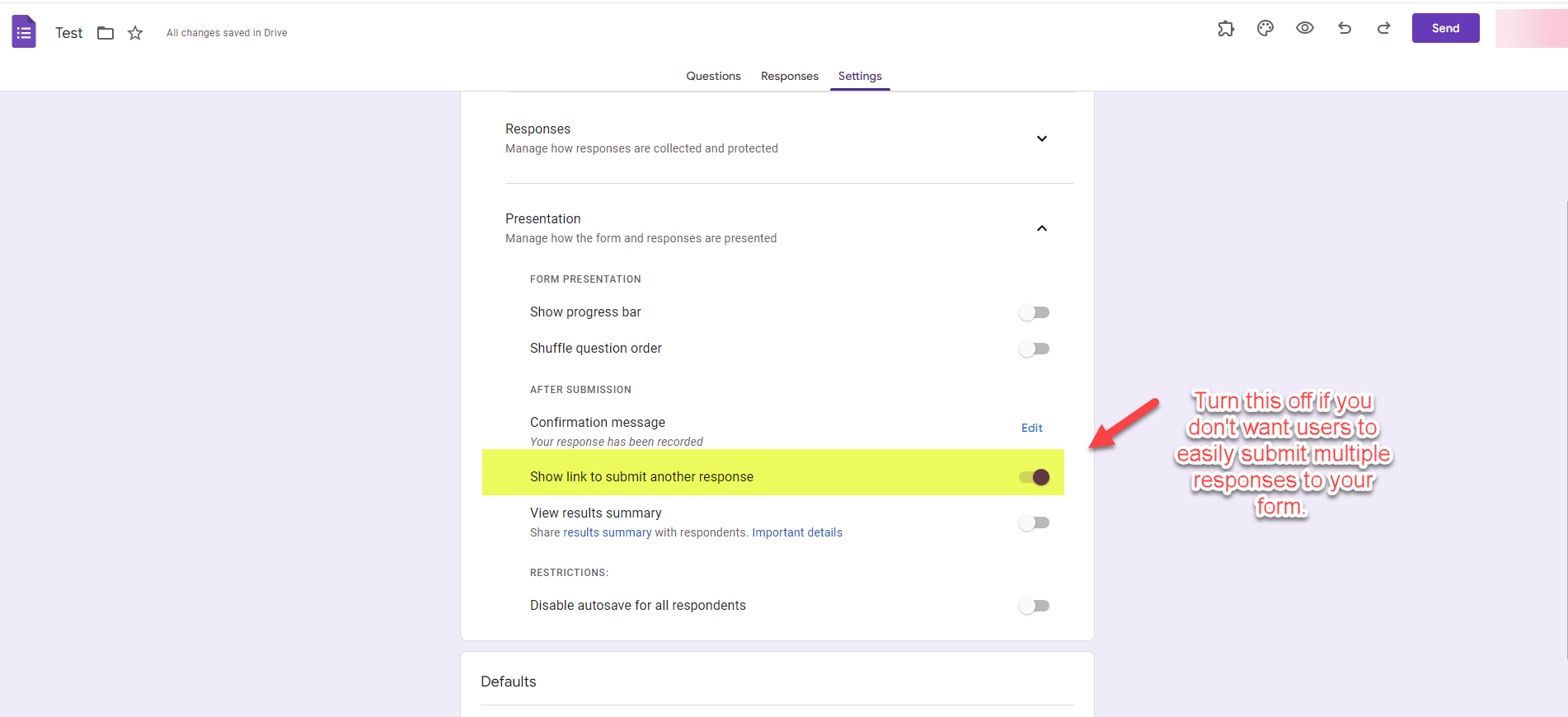
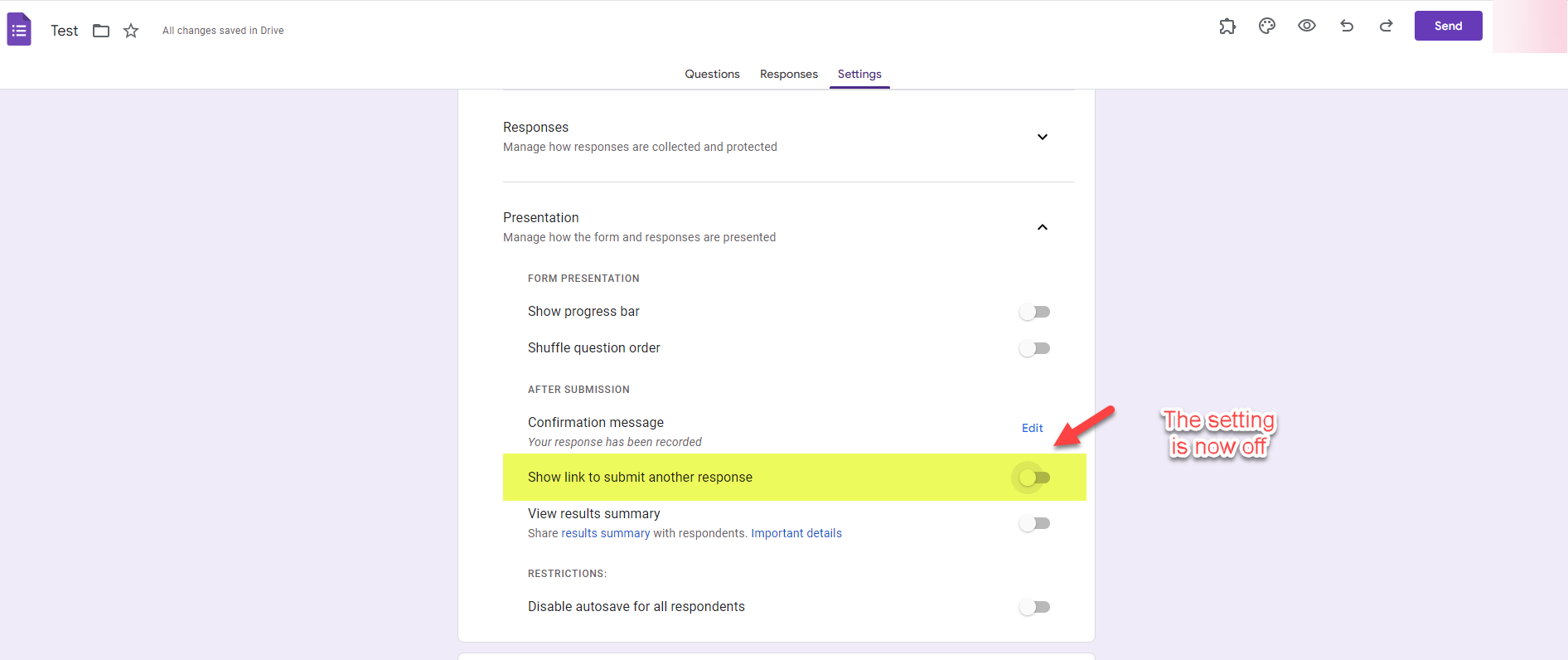
Toggle OFF "Show link to submit another response".
Why? This prevents users from easily spamming the form with multiple submissions immediately after finishing the first one.
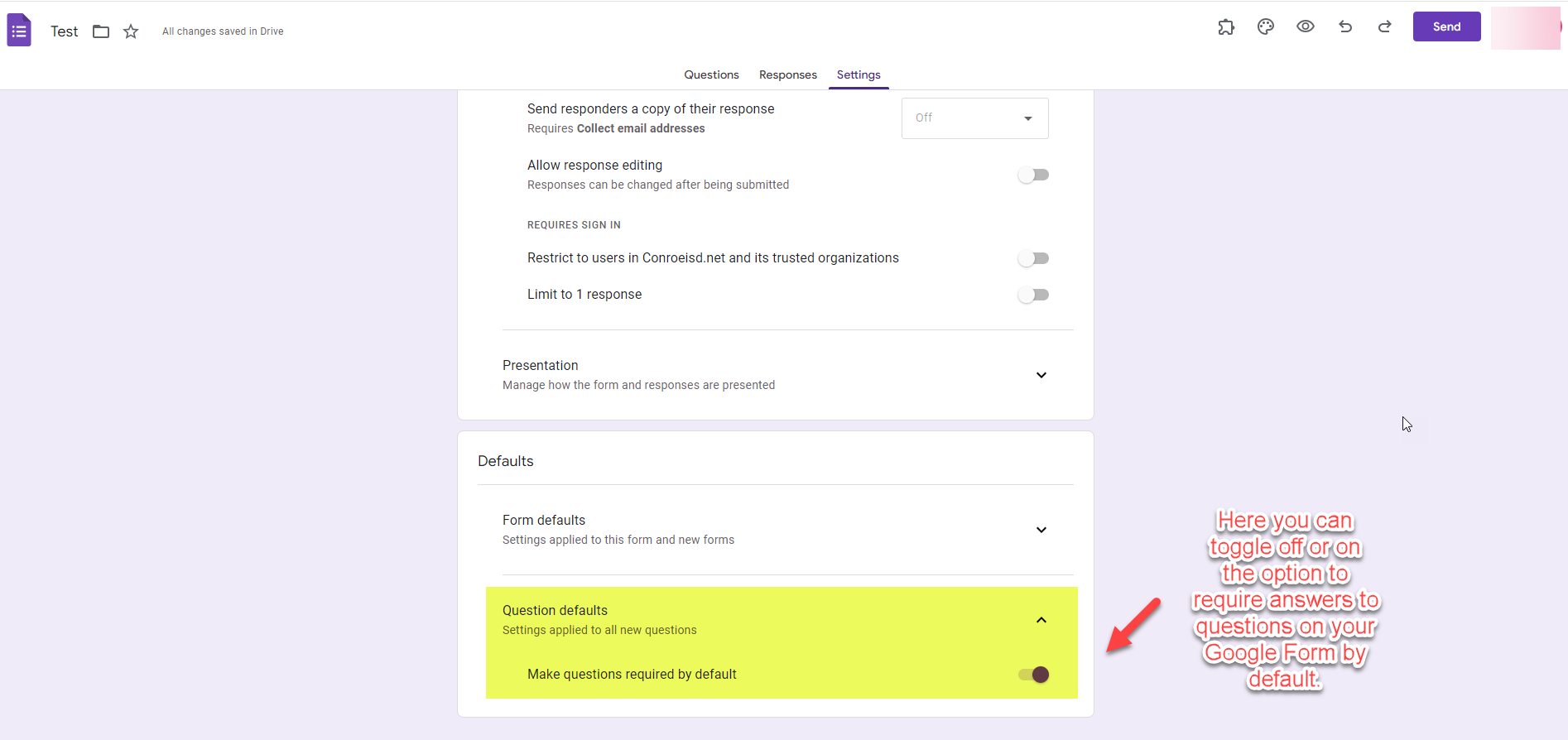
(Optional) Adjust Question Defaults.
You can toggle the requirement for questions to be "Required" by default. This saves time if you want every question on your form to be mandatory.
Step 3: Share the Form
Now that the settings are configured, you need to generate the shareable link.
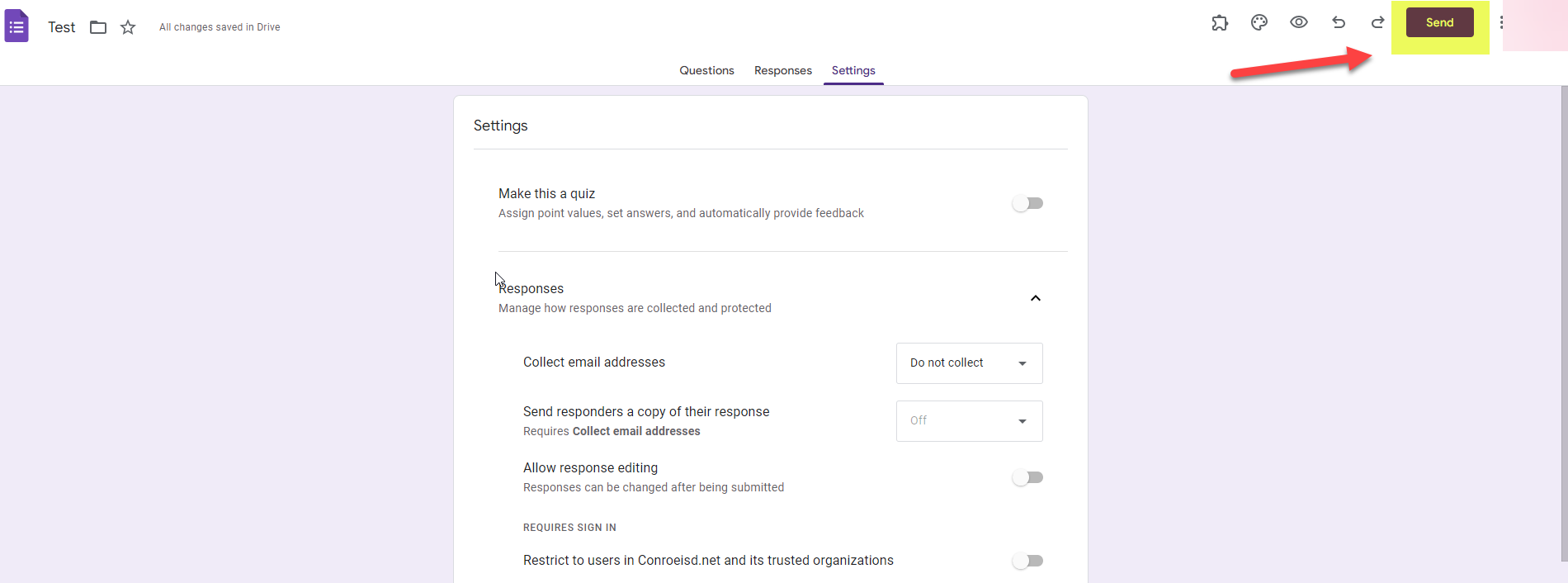
Click the Send button in the top right corner.
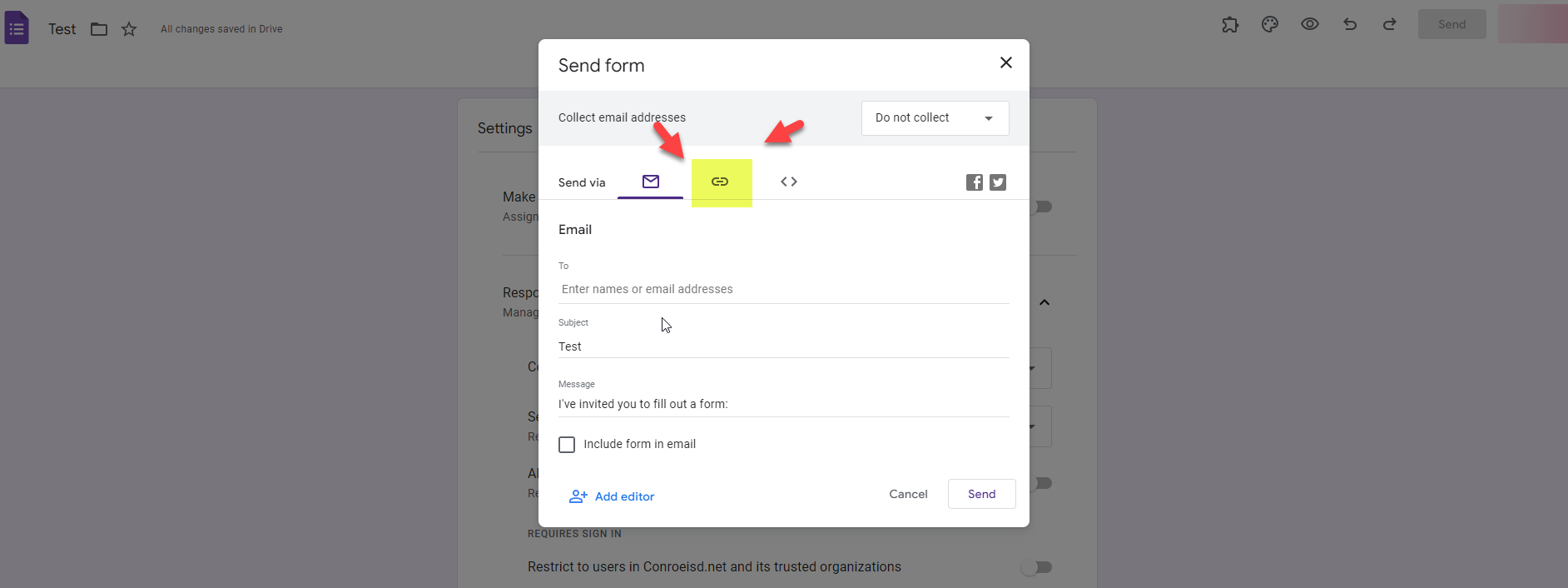
Click the Link Icon (the chain link symbol).
Click Copy.
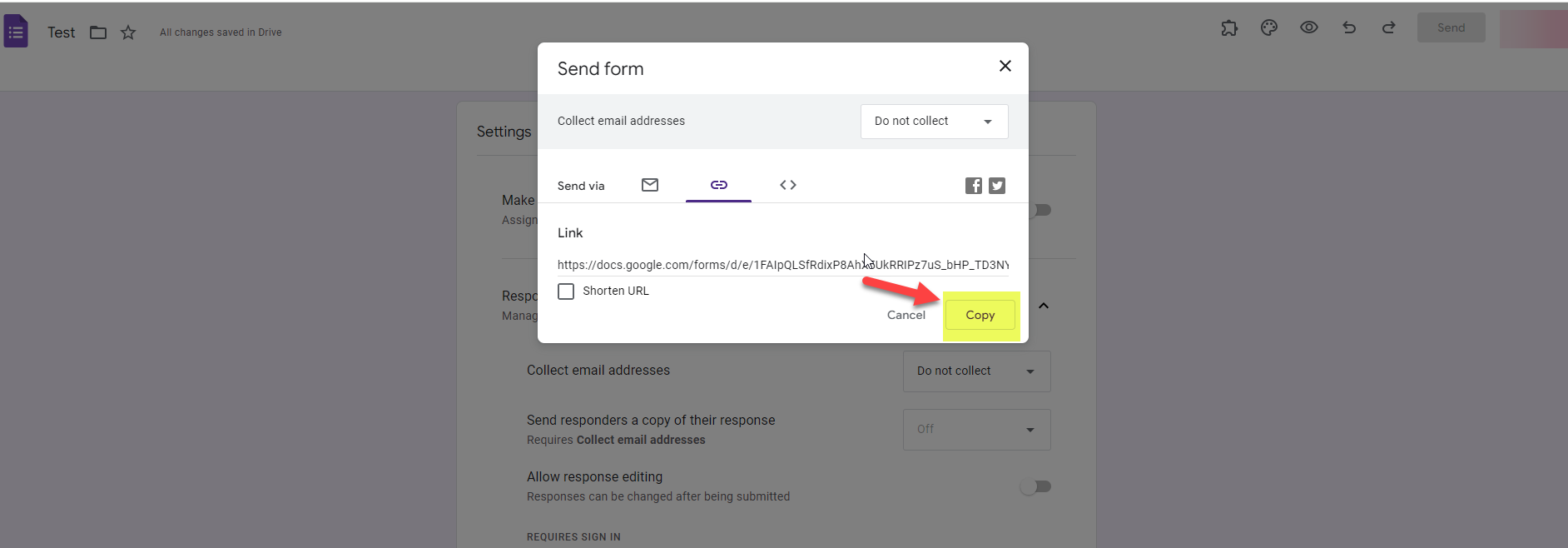
You can now paste this link in emails, newsletters, or websites. Users will be able to access the form immediately without logging in.

Need additional help? Click here for further assistance.