
How to Favorite (Star) Files and Folders in Google Drive
This guide explains how to "Star" a folder or file in Google Drive. This feature allows you to bookmark important items for quick access without moving them from their original location.
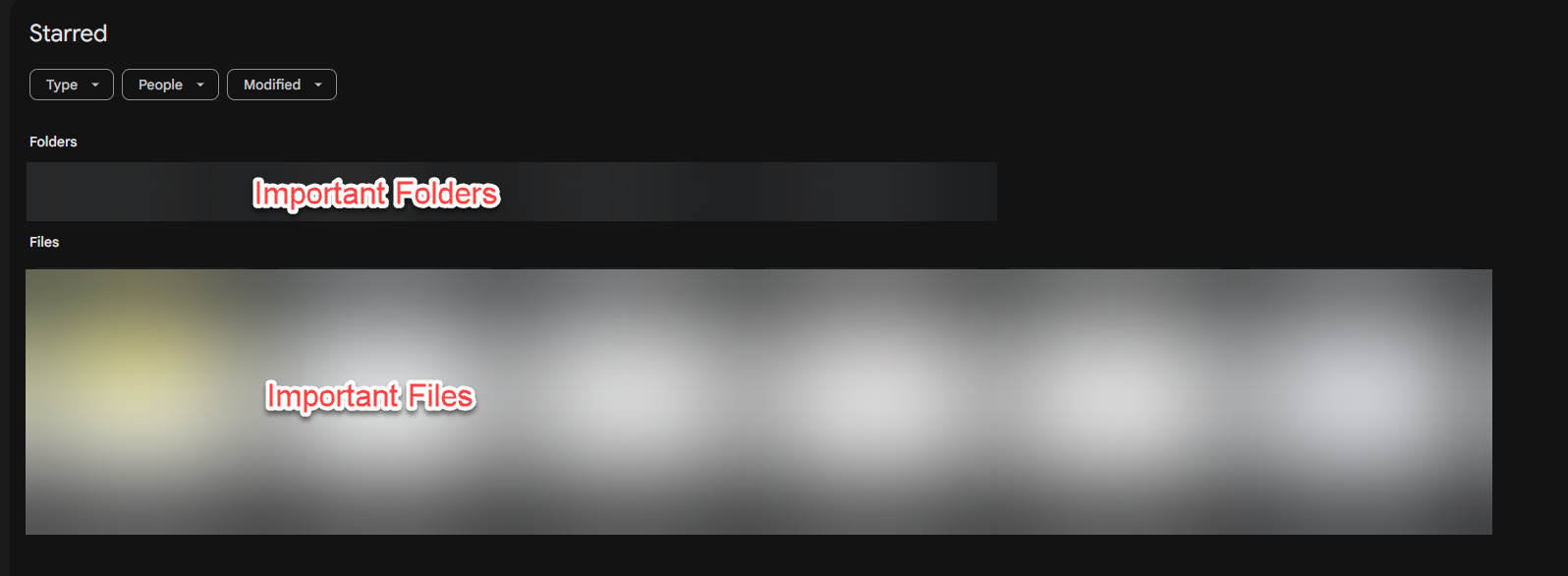
Why use this? Adding items to the Starred section creates a shortlist of your most frequently used or urgent documents, similar to "Favorites" in a web browser.
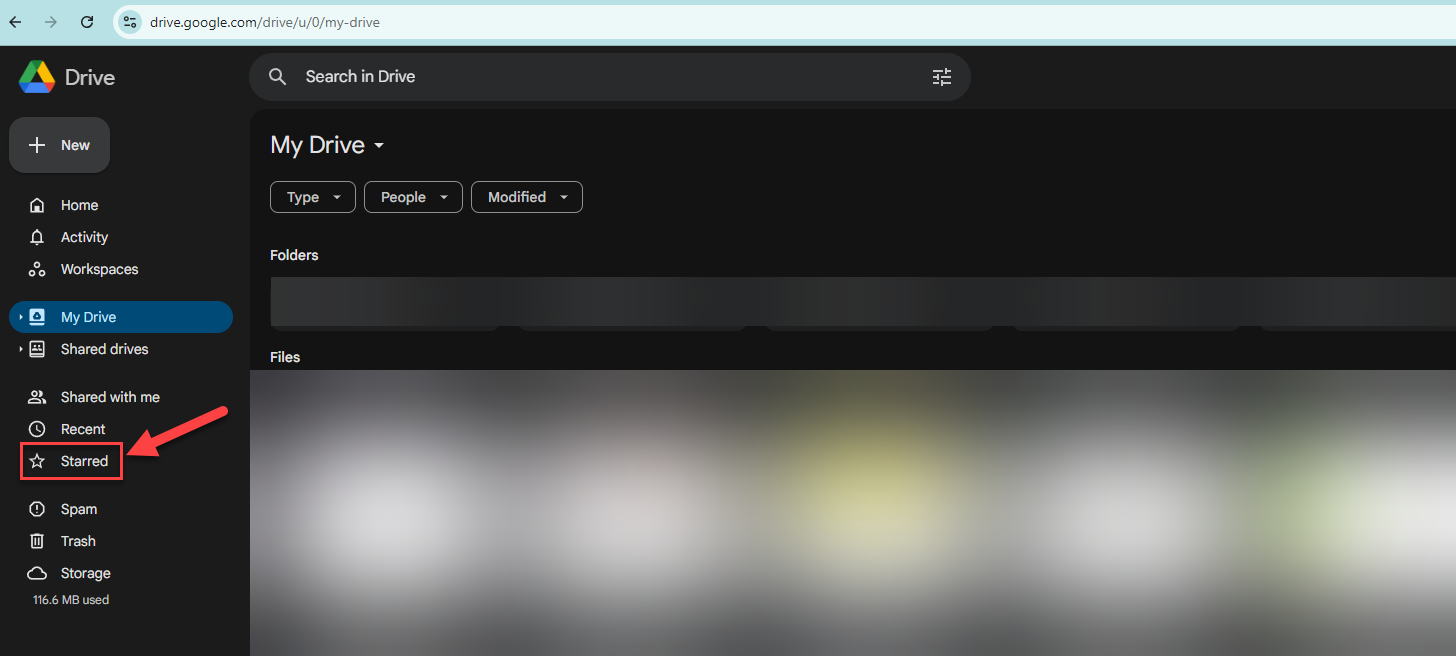
Step 1: Locate the Starred Section
The Starred section is located in the left-hand menu of your Google Drive, directly below "My Drive" and "Computers".
Step 2: Add an Item to Starred
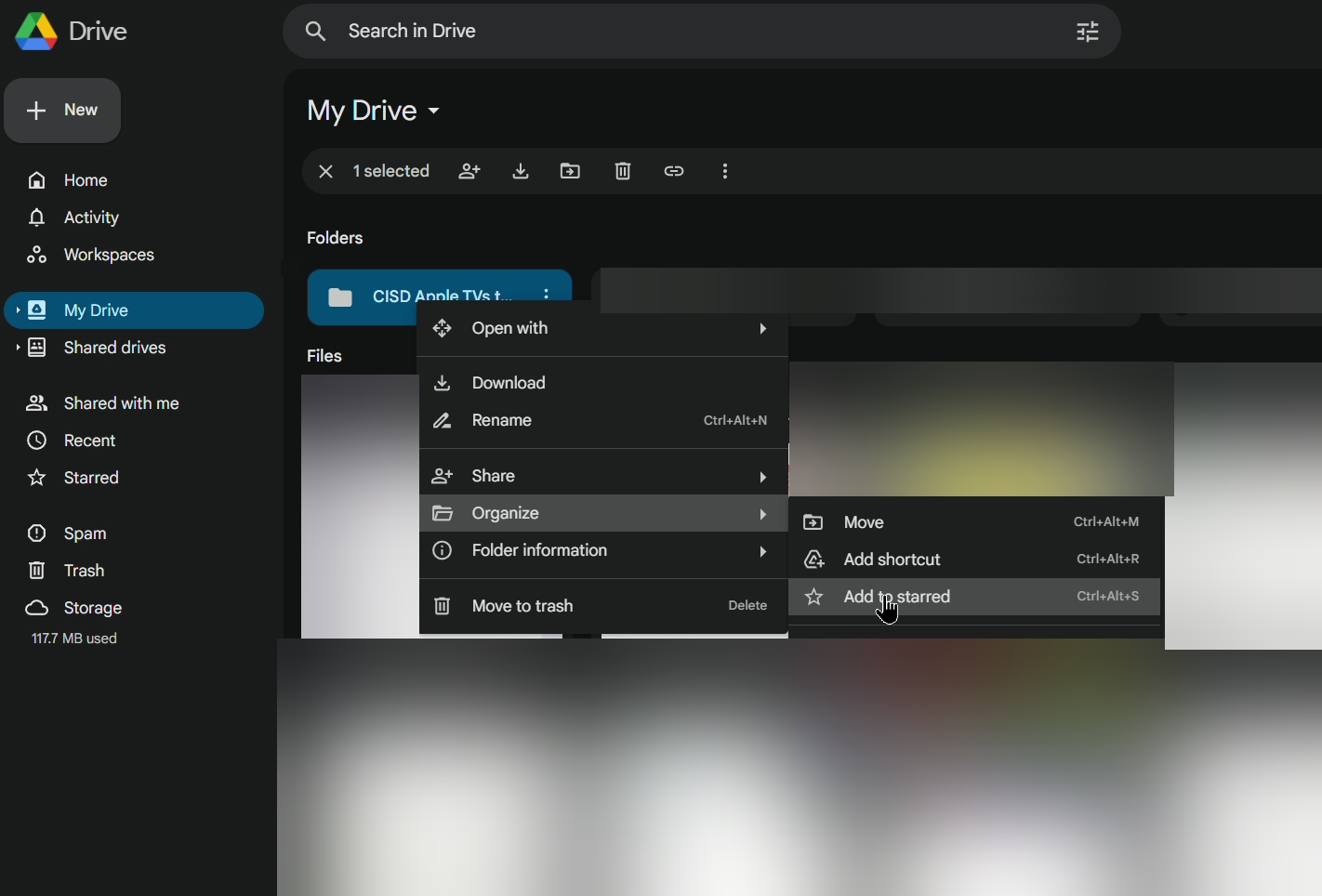
Right-click on the File or Folder that you want to bookmark.
Hover your mouse over Organize.
Select Add to Starred.
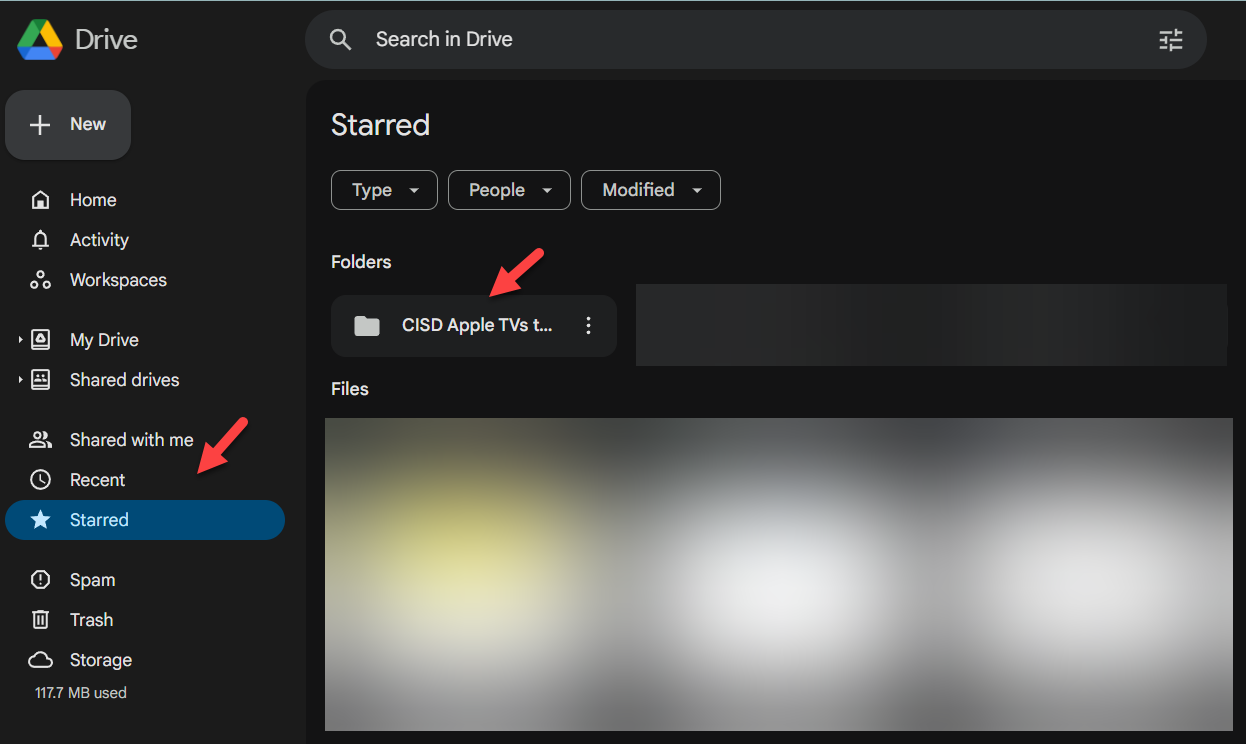
The file or folder will now be visible in the Starred section of your Drive.

Need additional help? Click here for further assistance.