
How to Fix the "Forgot Old Password" Error on Chromebooks
This guide explains how to resolve the "Forgot Old Password" error screen that students may encounter when logging into a Chromebook.
Why does this happen? Students typically see this screen if they changed their password while they were still logged into a session on another device or browser. The Chromebook is trying to unlock local data encrypted with the old password.

Following these steps will delete local data (like Downloads) on this specific Chromebook, but it will not delete anything saved to Google Drive.
Troubleshooting Steps
The student attempts to log in to the SSO on a Chromebook and encounters the error screen.
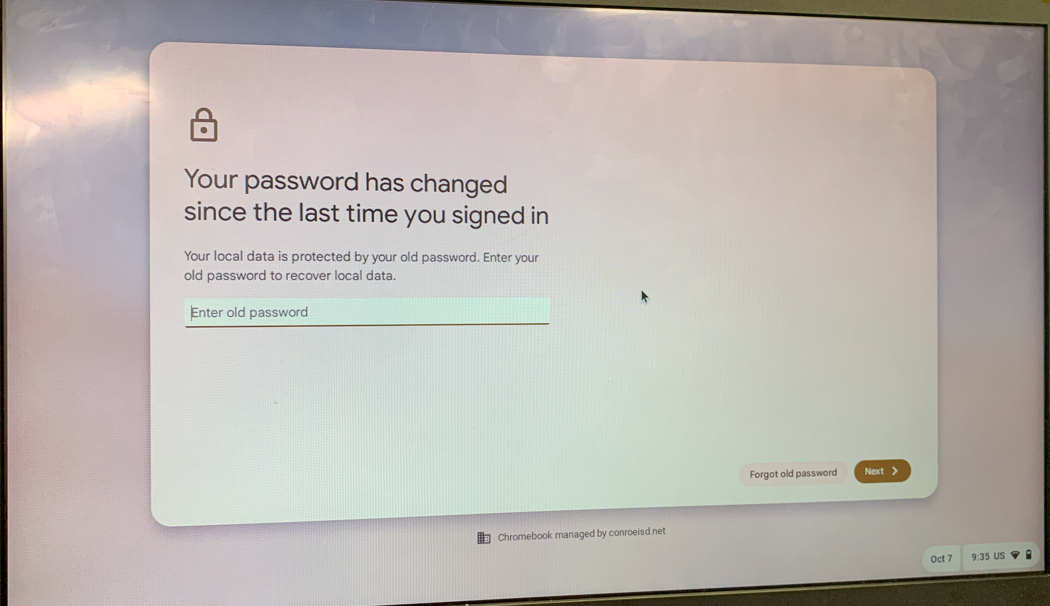
Leave the "Old Password" field BLANK. Do not try to guess the old password.
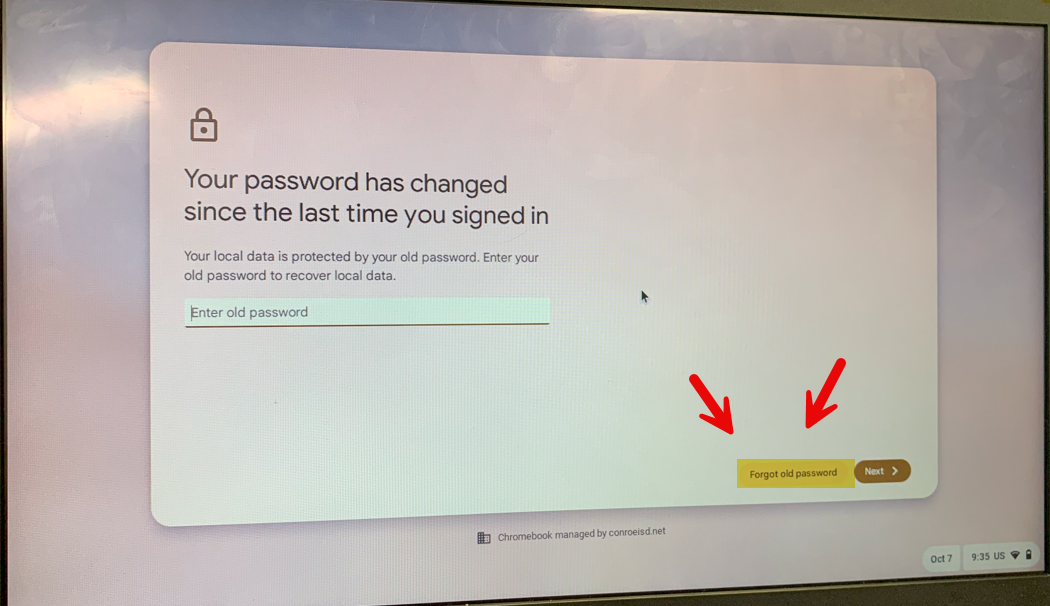
Click the button labeled Forgot Old Password.
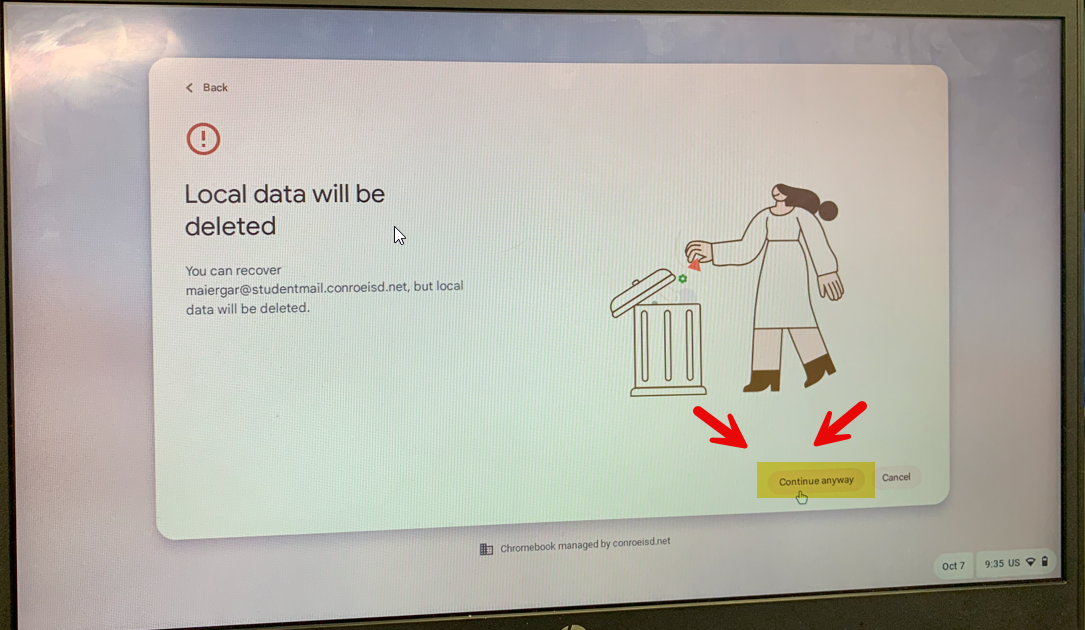
A warning screen will appear saying "Local data will be lost."
Click Proceed anyway (or "Continue Anyway").
The student should now be successfully logged into the Chromebook.
If the Issue Persists
For most students, the steps above will permanently fix the issue. However, if a student continues to see this screen after performing these steps:
Email: Shane Mitchell (
samitchell@conroeisd.net)Subject: Persistent Forgot Password Screen
Required Info: Please include the Student ID in your email so he can apply a fix to the account.

Need additional help? Click here for further assistance.