
How to Request the Approval of a Google App or Extension
This guide explains the process for requesting a new Google App or Chrome Extension for use on district Chromebooks. All requests undergo a safety review before approval.

Please note that the approval process is not immediate. The technology team must review each request to ensure the app or extension is safe for student and staff use.
Step 1: Access the Request Portal
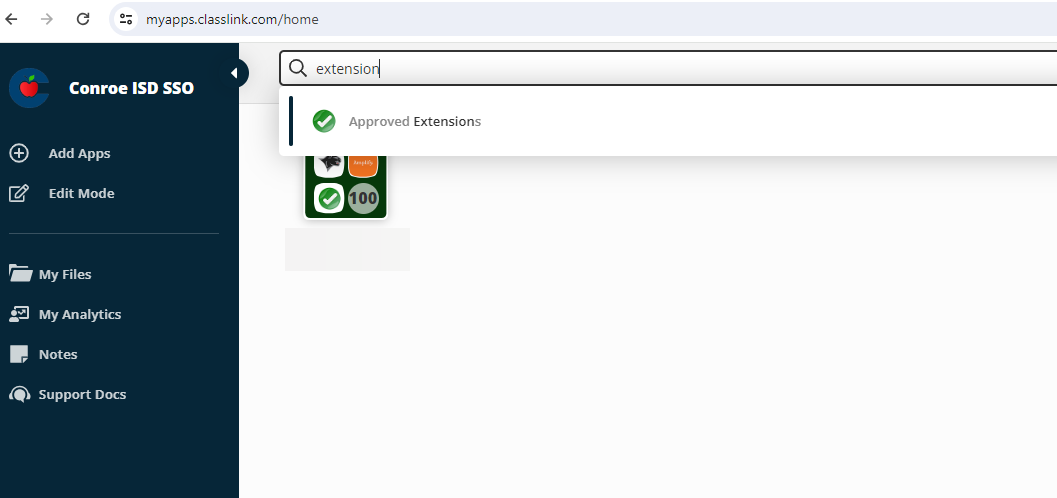
1. Open Approved Extensions
Log in to your Single Sign-On (SSO).
Search for extension.
Select the Approved Extensions application.
2. Log In
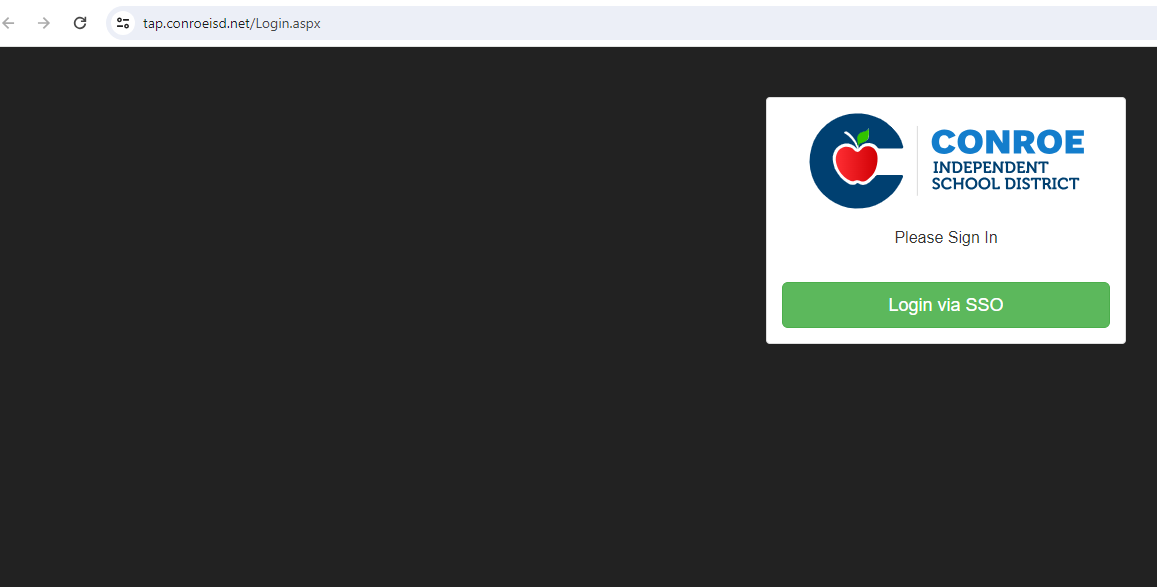
If prompted, select Login via SSO.
3. Start a New Request
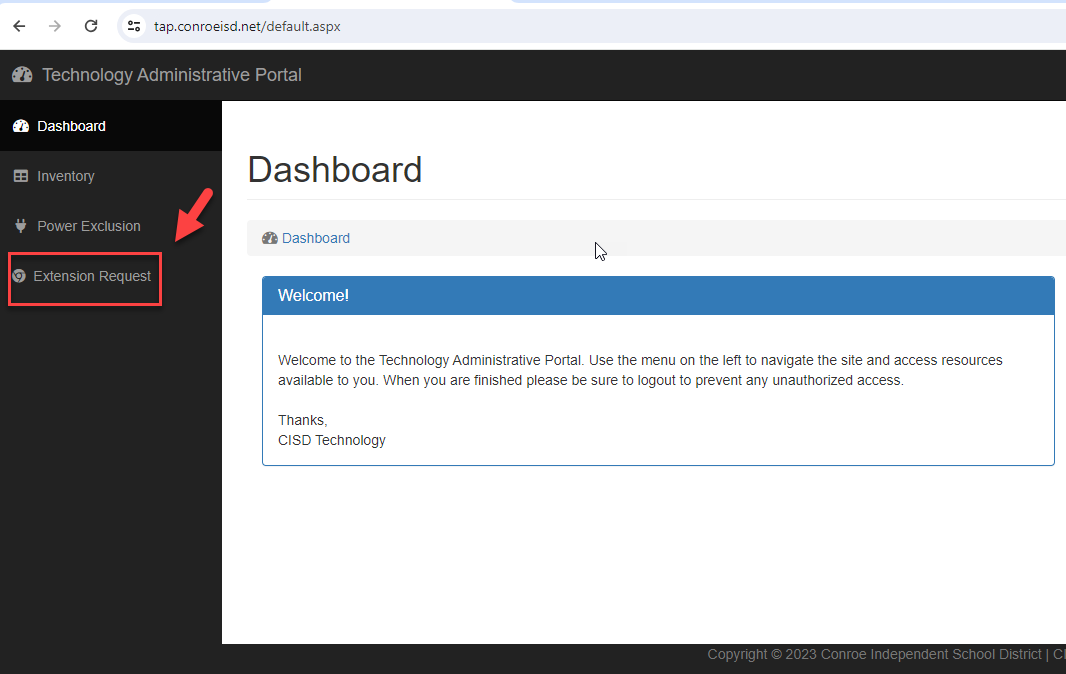
Select Extension Request from the menu.
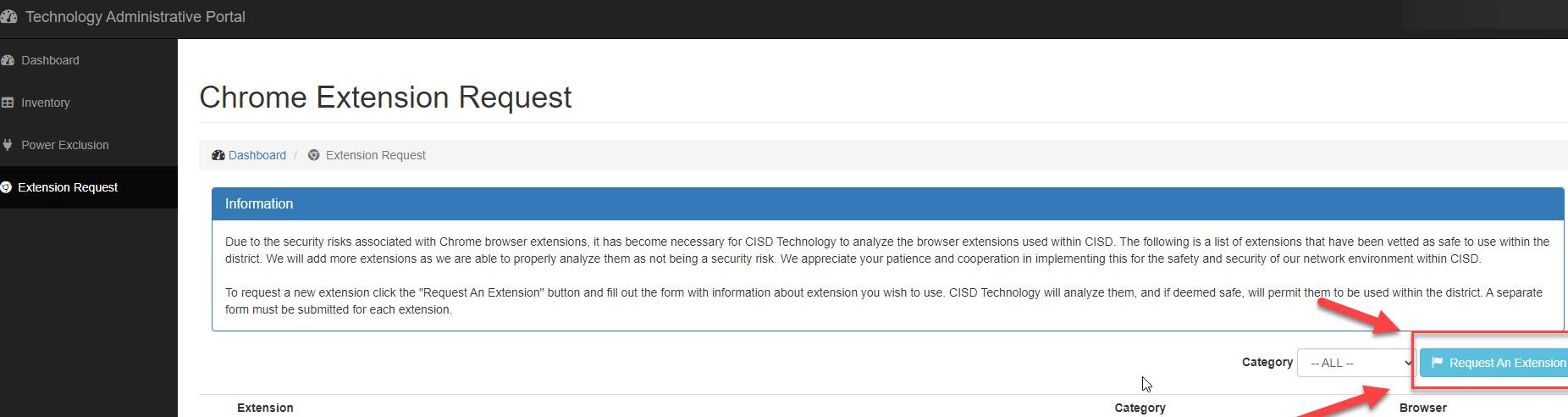
Select Request An Extension.
Step 2: Get the App URL
To complete the request form, you need the specific URL (web address) of the app or extension from the Chrome Web Store.
1. Open Chrome Web Store
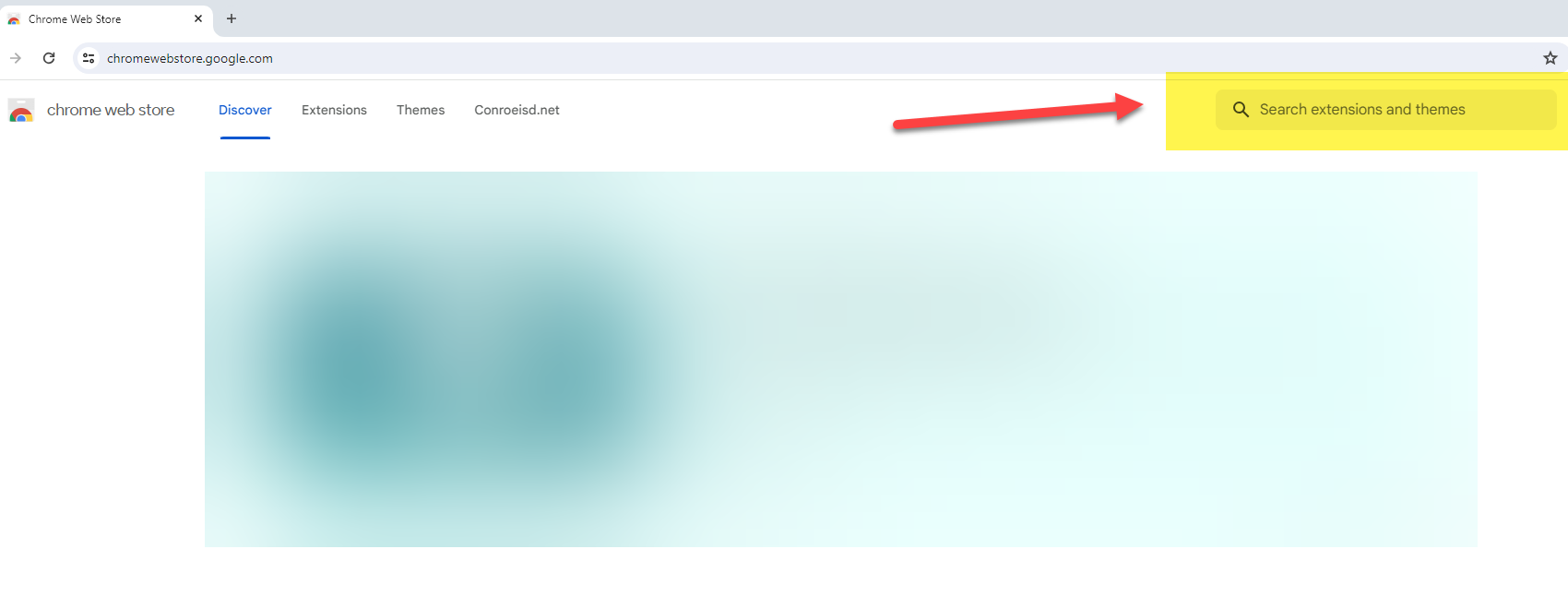
Open a new browser tab and go to the Chrome Web Store or chromewebstore.google.com. .
2. Search for the App
Type the name of the app or extension you need into the search bar.
Select the correct app from the list to open its details page.
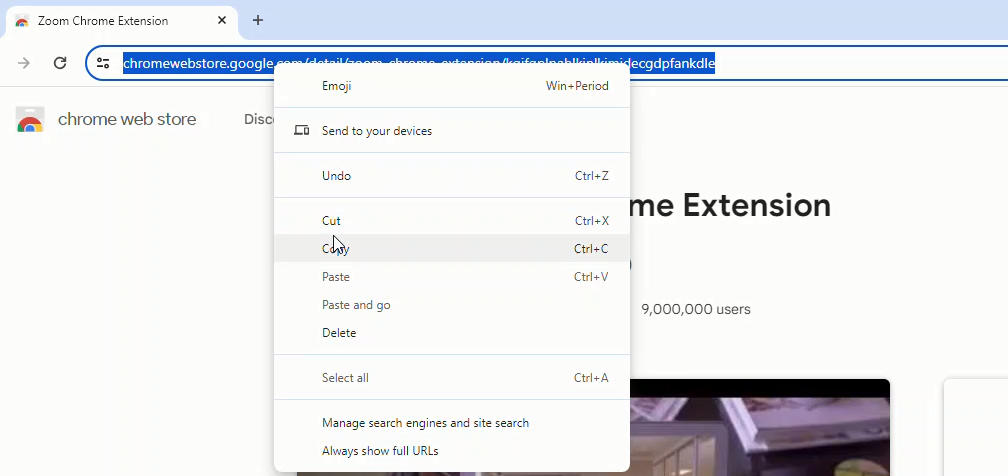
3. Copy the URL
Highlight and Copy the web address (URL) found at the top of your browser bar.
Step 3: Submit the Request
Return to the Approved Extensions tab to finish the form.
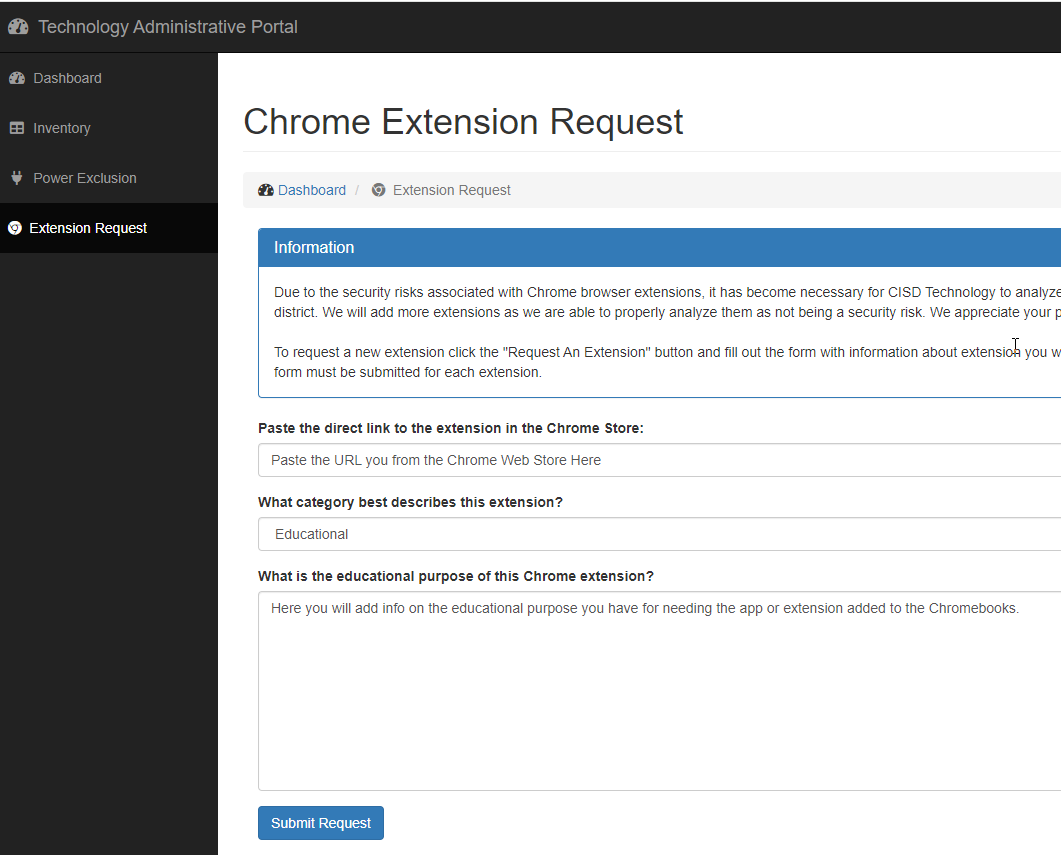
1. Fill Out Details
Paste the URL you copied into the form.
Select a Category: Choose the option that best describes the tool (e.g., Educational).
Description: Briefly explain the educational purpose or how you intend to use this tool.
2. Submit
Select Submit Request.
3. Notification
Once the technology team has reviewed your request:
You will receive an email notification regarding the decision.
If approved, the app or extension will be automatically pushed to the relevant Chromebooks.

Need additional help? Click here for further assistance.