
How to Update Contact Information in EAC (Employee Access Center)
This guide explains how to update your phone number, address, and email address in the Employee Access Center (EAC). Keeping this information current is essential for security verification and account recovery.

Please use your personal email address and personal phone number. Do not list your CISD work email or campus phone number. Help Desk needs an alternate way to contact you if you are locked out of your work account.
Accessing the Employee Access Center (EAC)
1. Log in to the Portal
Log in to your Conroe ISD SSO.
2. Locate the App
You can find the EAC app using one of two methods:
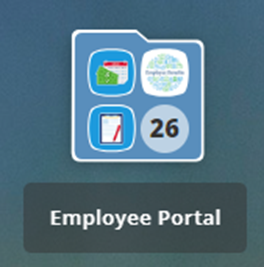
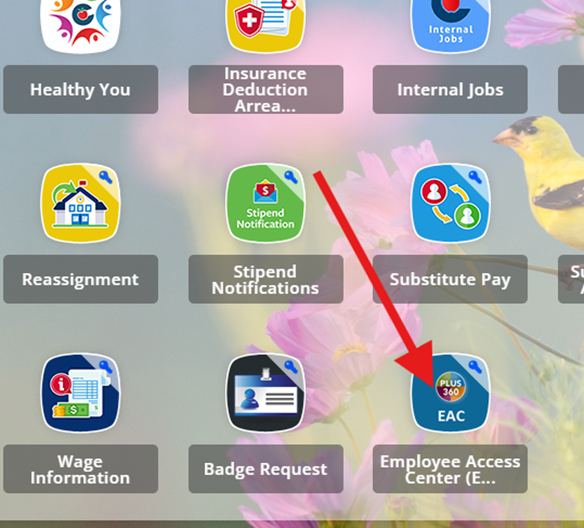
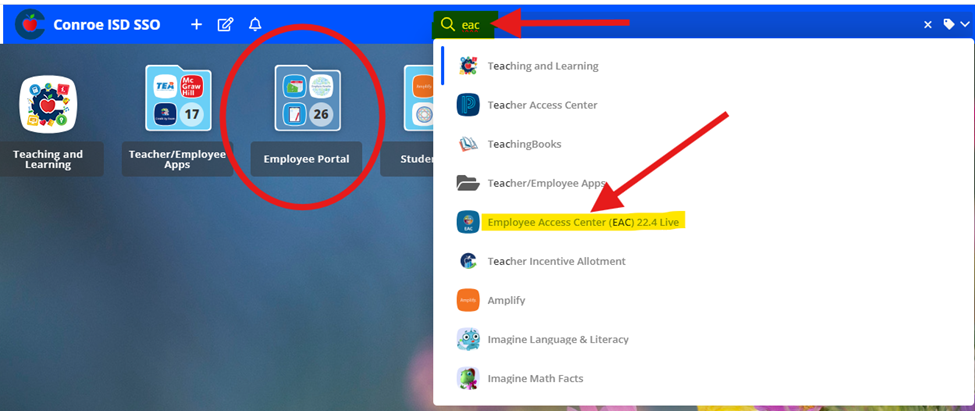
Open the Employee Portal Folder on your home page.
Type EAC into the search bar at the top of the screen.
3. Open the App
Select the EAC tile to launch the application.
Editing Your Information
1. Select Update
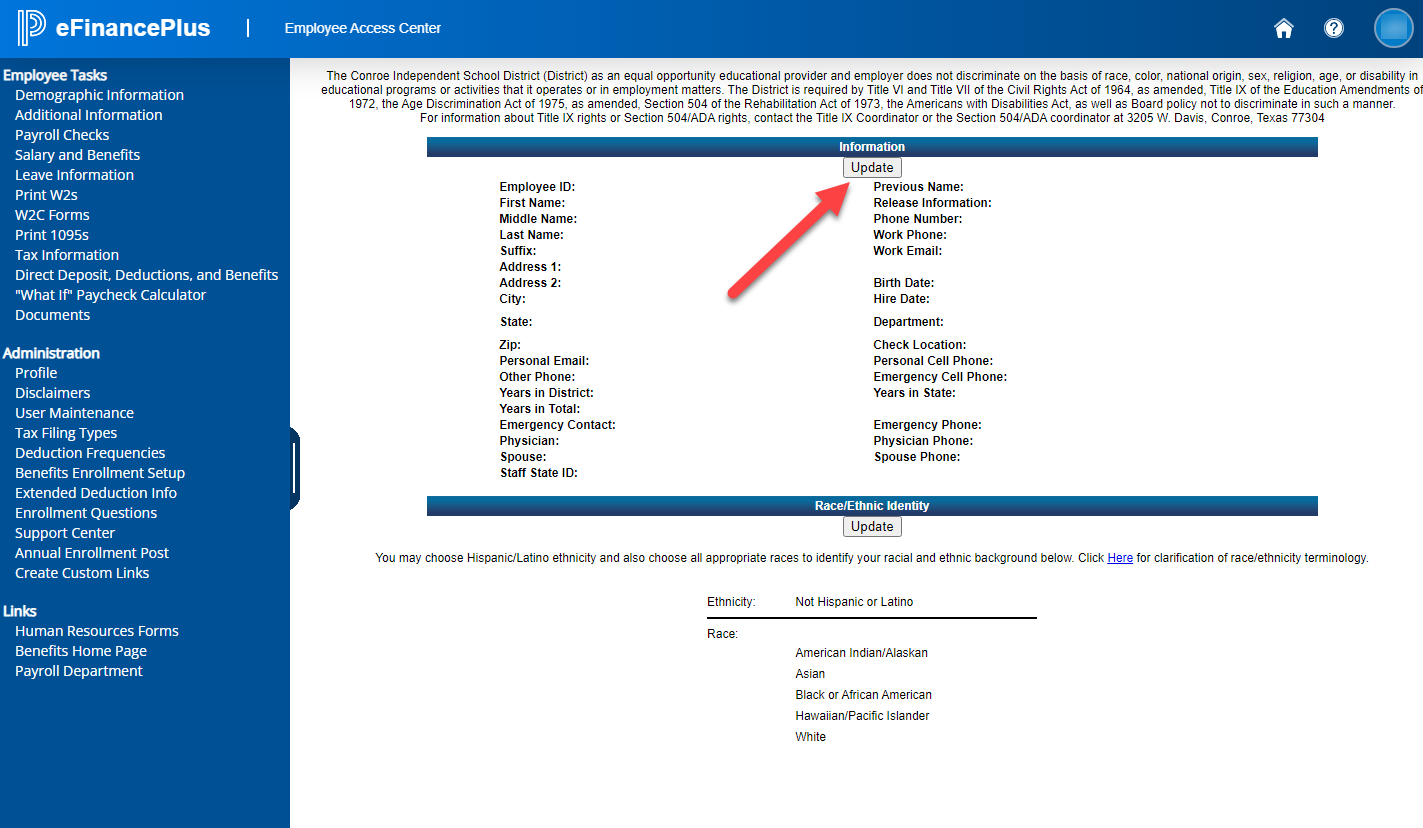
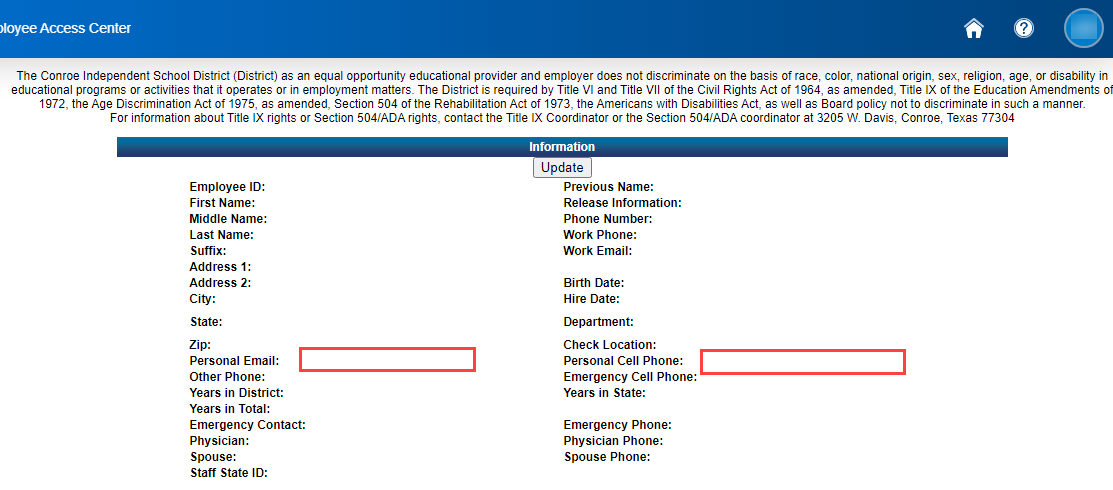
The application will open to your Main Demographics Information page. Click the Update button to begin editing.
2. Enter New Details
Update your personal information as needed. (Please do NOT list your CISD email or Campus Phone Number here.)

Remember to also update this contact information in your SSO Password Recovery Settings to ensure you can reset your password remotely. If you’re ever in need of assistance with any of your accounts, we’ll need an alternate way of contacting you. It also serves as a security verification for us to identify you.
3. Save Changes
Once you have verified the information is correct, click Save.

Need additional help? Click here for further assistance.