
Personalizing the Canvas Dashboard with Student Widgets
This guide provides instructions for students on how to enable, customize, and manage the new dashboard layout in Canvas. This will allow you to create a more personalized, high-level view of your coursework and communications through interactive widgets.
How to Enable the New Dashboard View
You can activate the new layout using either of the following two methods:
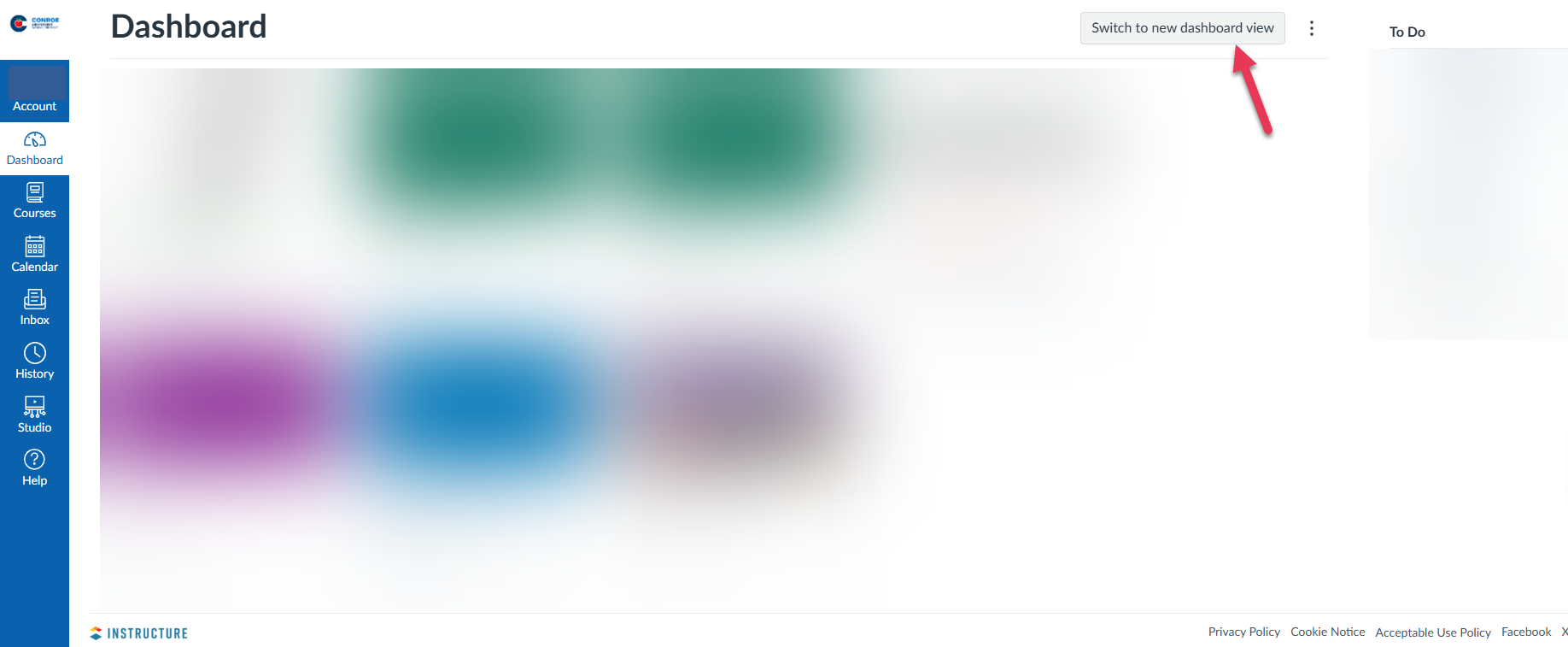
From the Dashboard: Click the Switch to new dashboard view button located at the top of your current Canvas Dashboard.
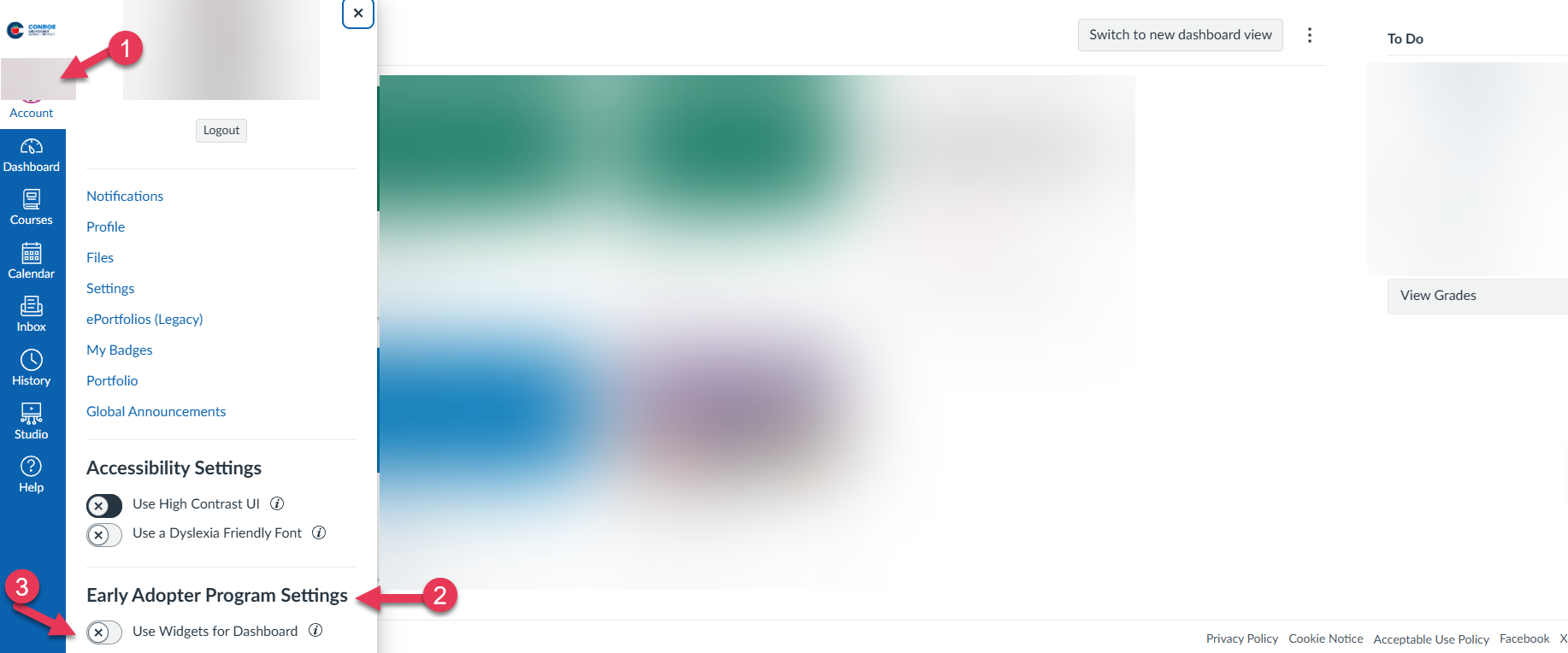
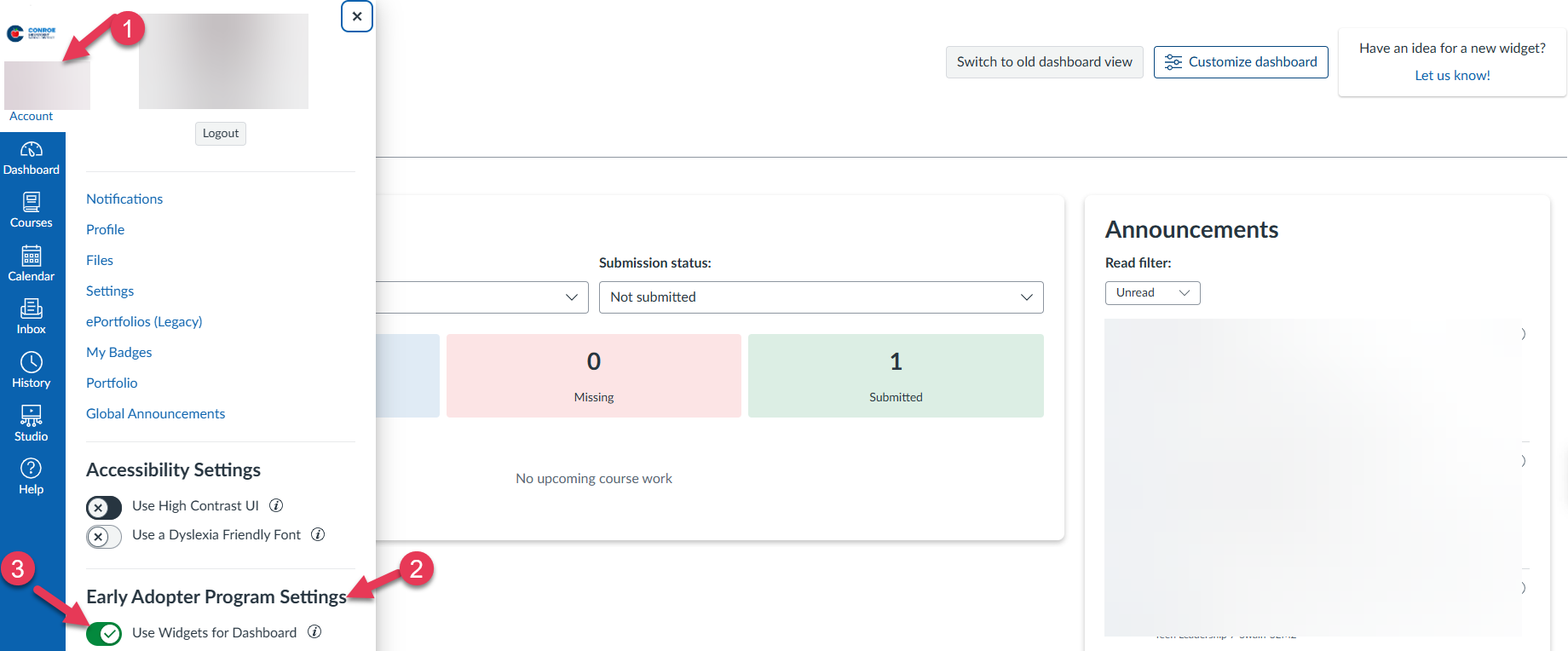
From Account Settings:
Click Account in the Global Navigation menu (the far-left sidebar).
Under Early Adopter Program Settings.
Locate the setting titled "Student Widgets for Dashboard" and toggle it to On.
2. Customizing Your Widgets
Once the new view is enabled, you can choose which information is most relevant to your daily workflow.
To add or remove widgets:
Navigate to your Dashboard.
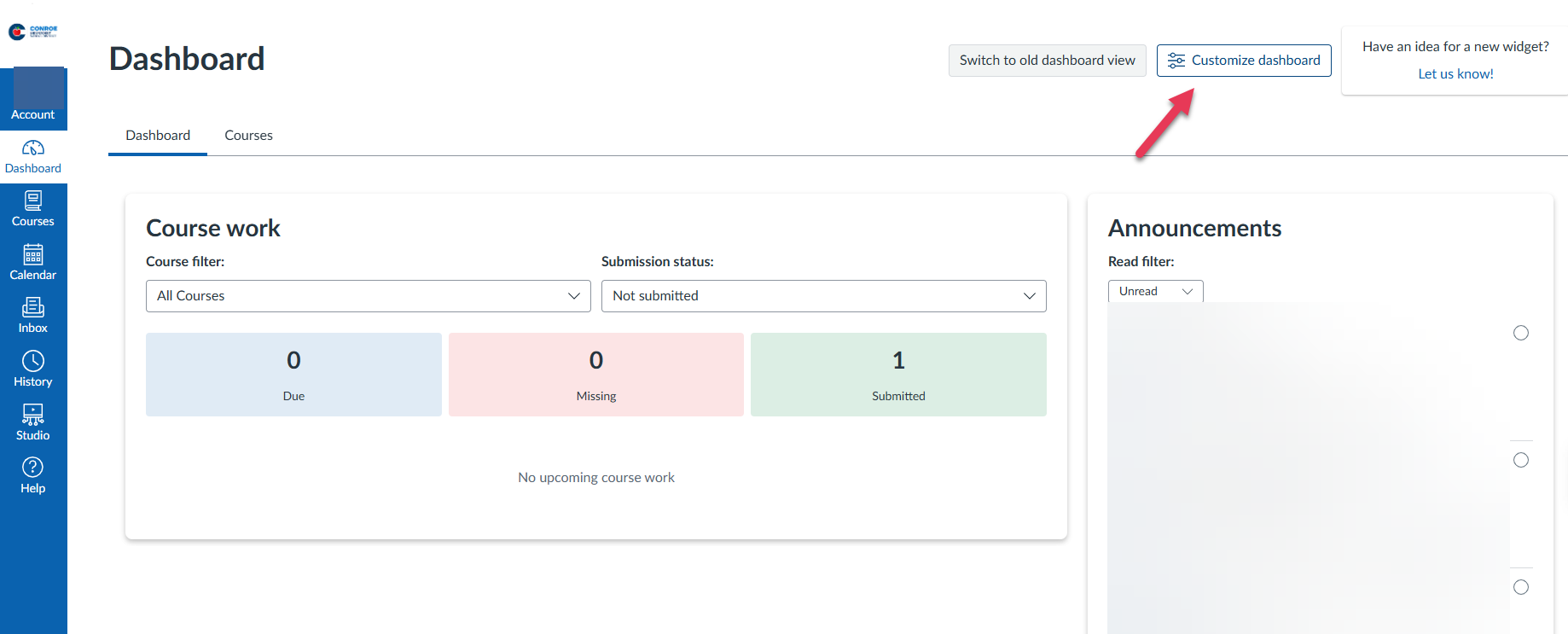
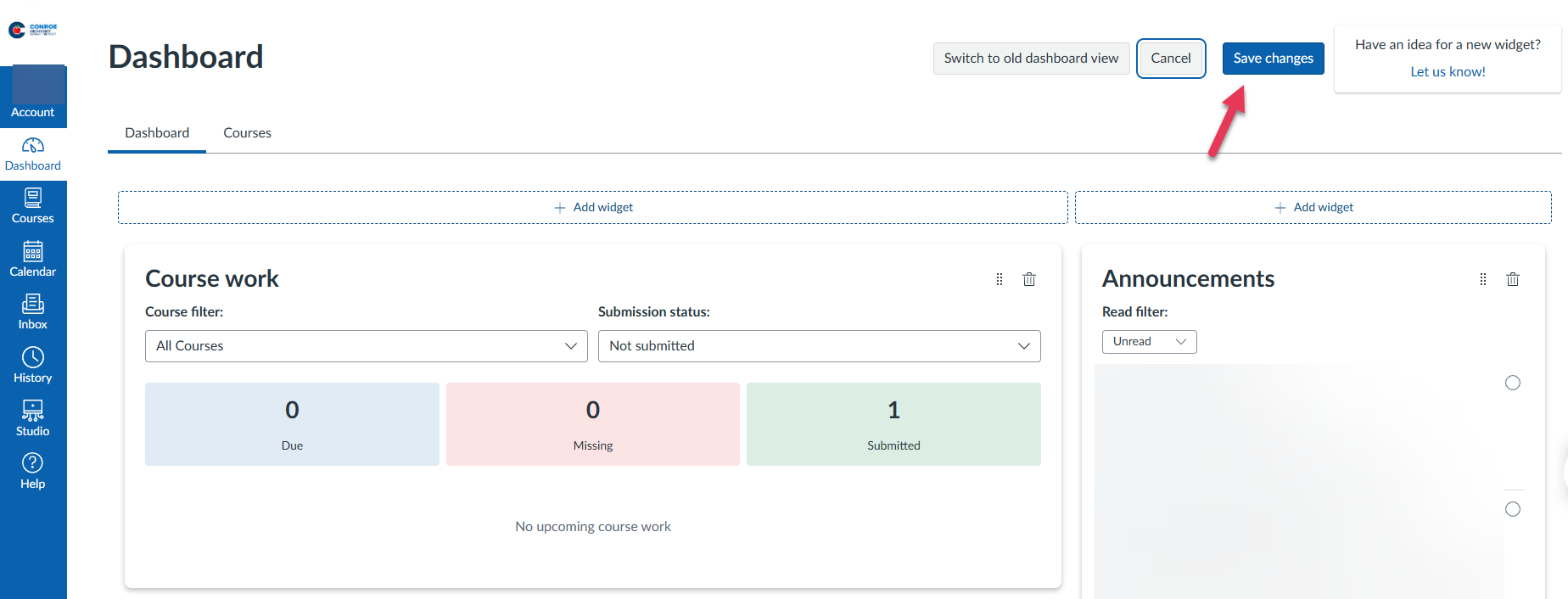
Click the Customize Dashboard button at the top of the page.
Select Add Widget on the dashboard,
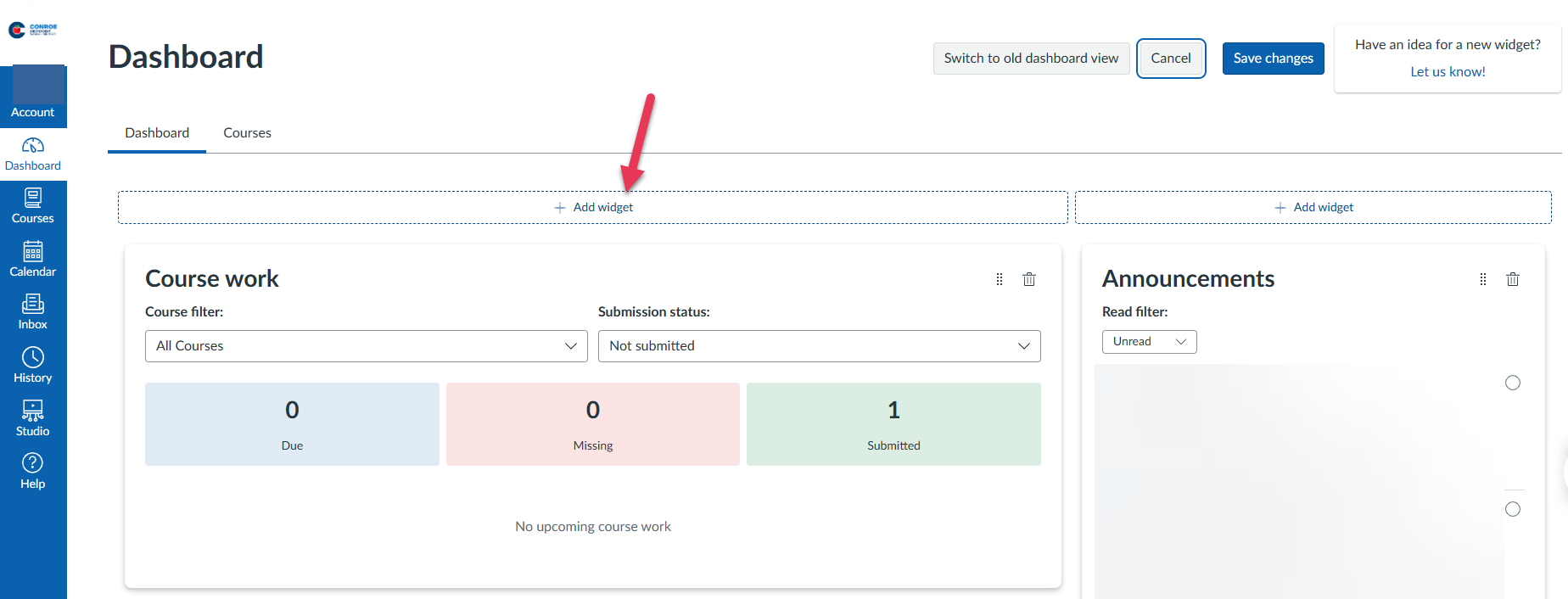
A new menu will open and the available widgets include:
Coursework: Quick access to active modules and assignments.
Announcements: The latest updates and news from your teachers.
People: Shortcuts to contact classmates or group members.
To-Do List: A prioritized list of upcoming tasks and deadlines.
Recent Grades and Feedback: A feed of your most recently scored assignments and teacher comments.
Progress Overview: A visual representation of your completion status across your courses.
Inbox: A preview of your most recent Canvas messages.
When you’ve selected the widgets you want, select Save Changes on your dashboard.

Note on Grading: The "Recent Grades and Feedback" widget is intended to show you individual assignment scores and commentary. This is not your official final grade.
How to Switch Back to the Previous View
If you prefer the classic Card View or List View, you can revert your Dashboard at any time using two different methods:
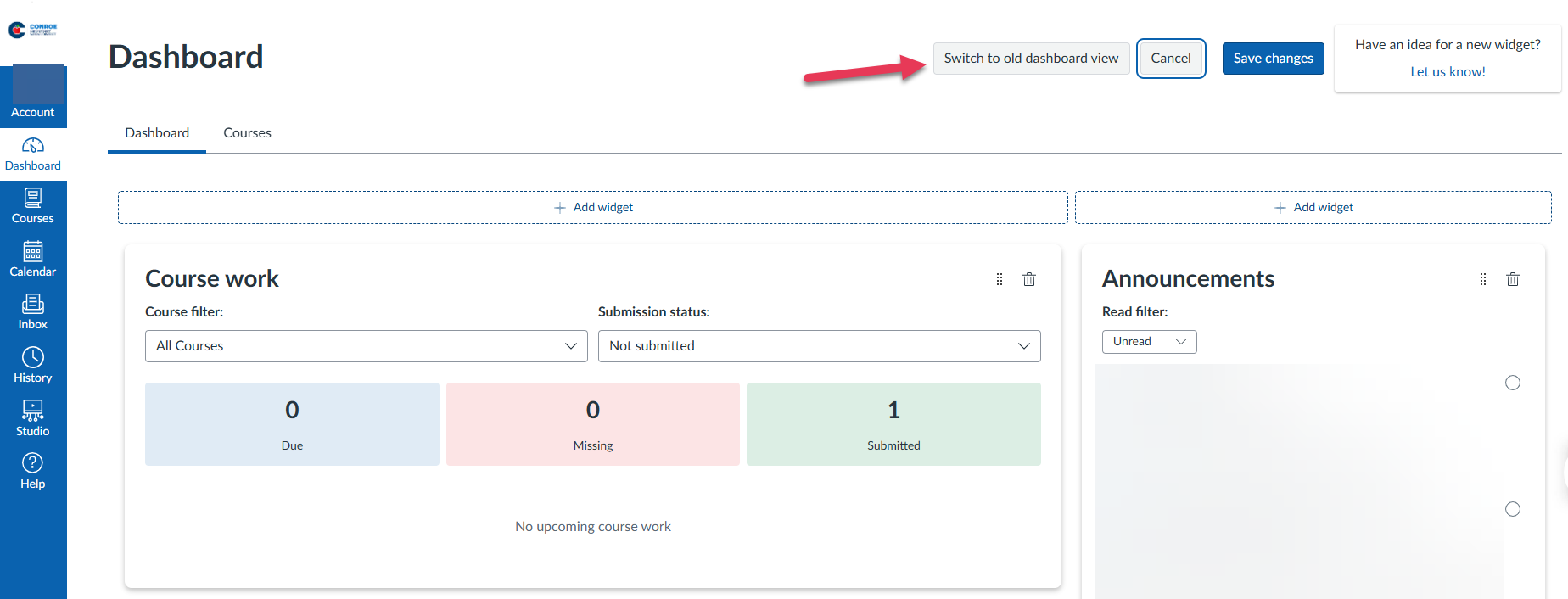
From the Dashboard: Click the Switch to old dashboard view button at the top of the page.
From Account Settings: Go to Account > Early Adopter Program Settings and toggle "Student Widgets for Dashboard" to Off.

Still have questions? Visit the Additional Help section for further assistance.