
Students: Missing Apps in ClassLink? Try This Troubleshooting Step
Why are my apps missing? If you log into your SSOand your LaunchPad is completely empty or missing your usual apps, your student profile might be temporarily set to the wrong "container" or grade level. Try these troubleshooting steps to fix it.
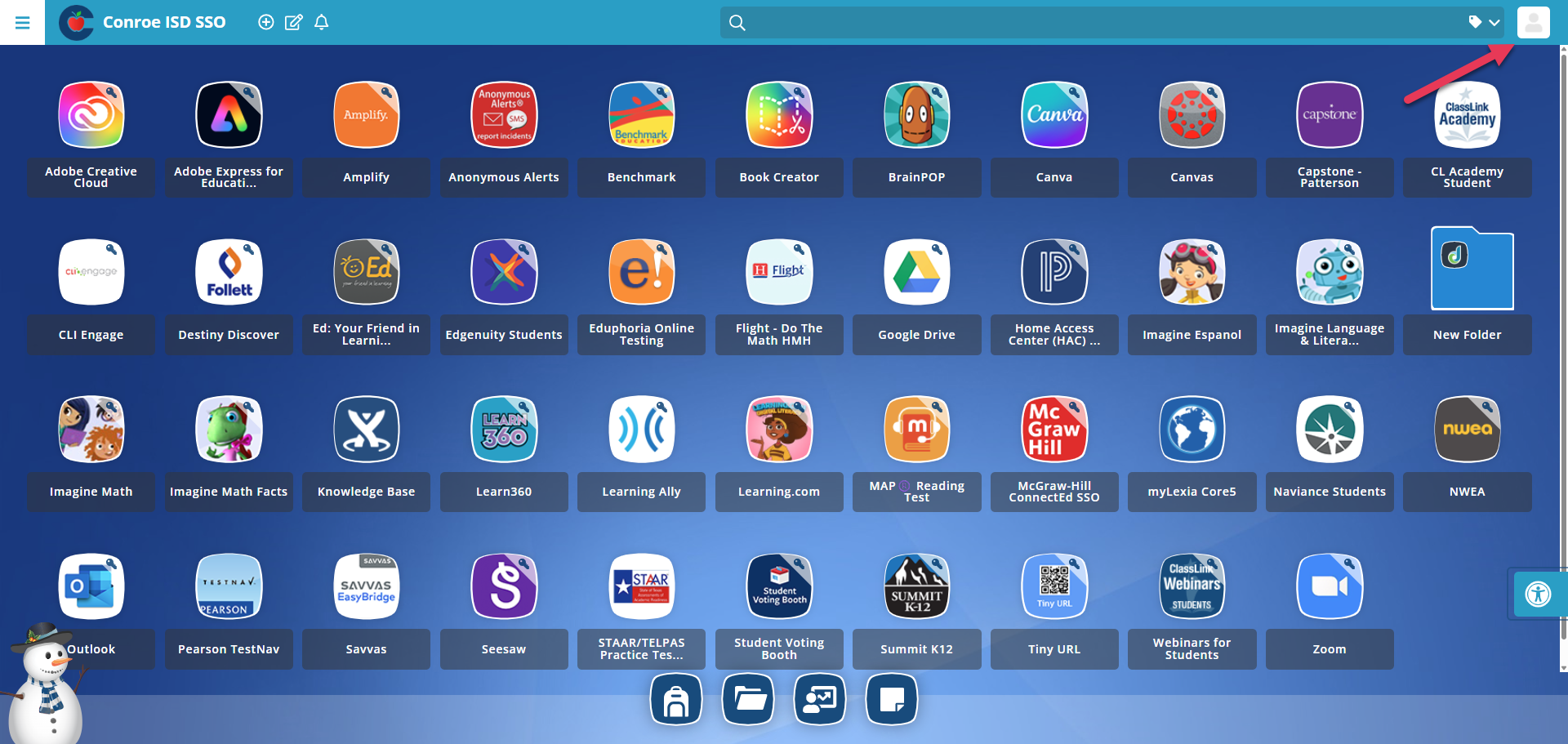
Step 1: Click Your Profile Picture
Look at the top right corner of your ClassLink screen and click on your Profile Icon (your avatar picture).
Step 2: Check Your Active Profile
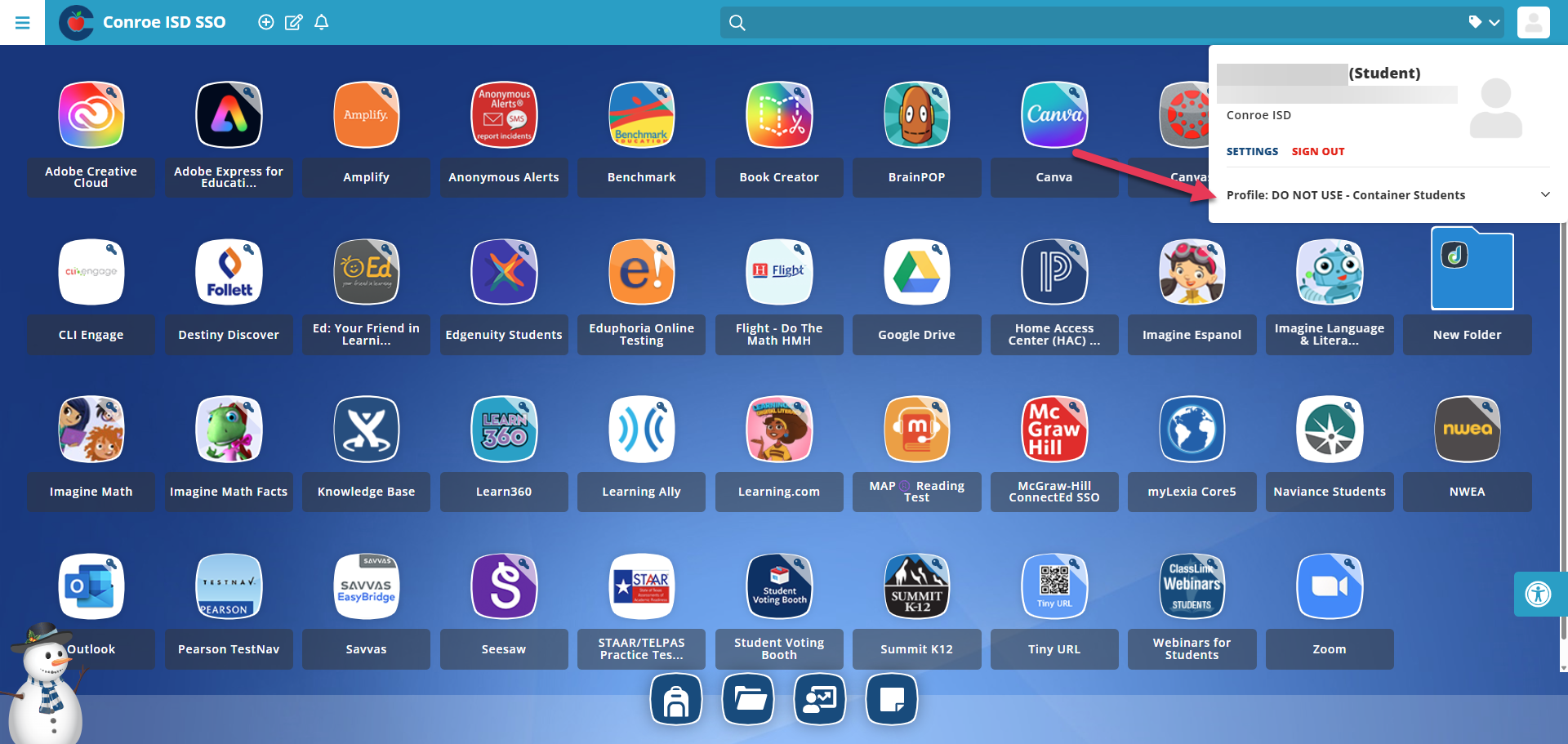
A small menu will drop down. Look at the text written directly under your profile picture. If it says "DO NOT USE - Container Students" or lists the wrong grade level, that is why your apps are missing.
Step 3: Change to Your Correct Grade
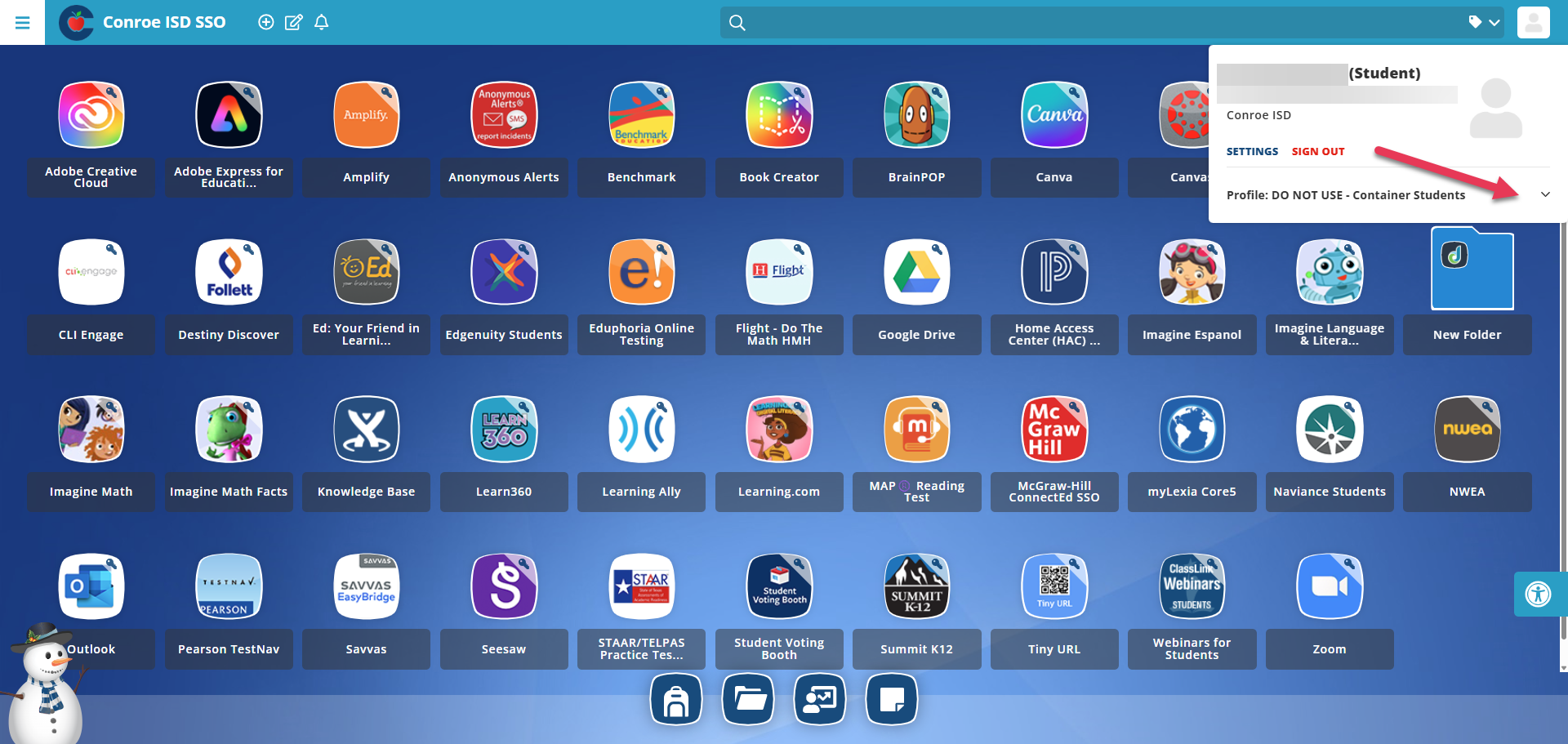
Click the drop-down arrow next to your current profile name. A list of options will appear. Find and click on your correct grade level (for example, if you are in 2nd grade, select "Students - 02").
Step 4: Let the Page Refresh
Once you click your correct grade level, the page will automatically refresh. Check your dashboard to see if your apps have returned.
Step 5: Still Missing Apps? Contact Your Teacher!
If you checked your profile container and it is correct, but you are still missing your apps, there might be a different issue going on. Please let your teacher know. They can look into it or submit a Incident IQ ticket for you.

Still have questions? Visit the Additional Help section for further assistance.