
This guide explains how to submit a request for View-It permissions for Long-Term Substitutes using Formspace. Unlike regular staff, substitutes do not appear on campus rosters, so Principals cannot manually grant them access; this form is required.
Principals cannot add access for substitutes directly in View-It because substitutes do not appear on the campus teacher roster. You must use the Formspace request below.
Please note that View-It permissions for substitutes are temporary and must be requested or reinstated for each specific substitution job.
Steps to Submit the Request
1. Open Formspace
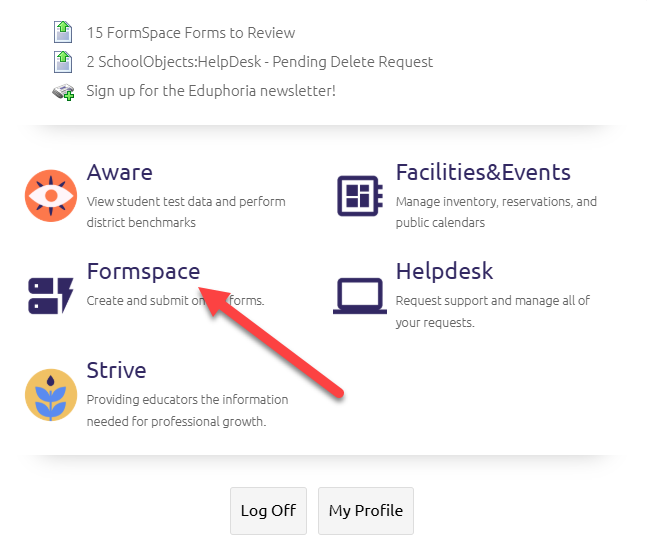
Log in to the Single Sign-On (SSO) portal and open the Eduphoria application. Select Formspace.
2. Start a New Form
Select Submit New Form located in the lower left corner of the screen.
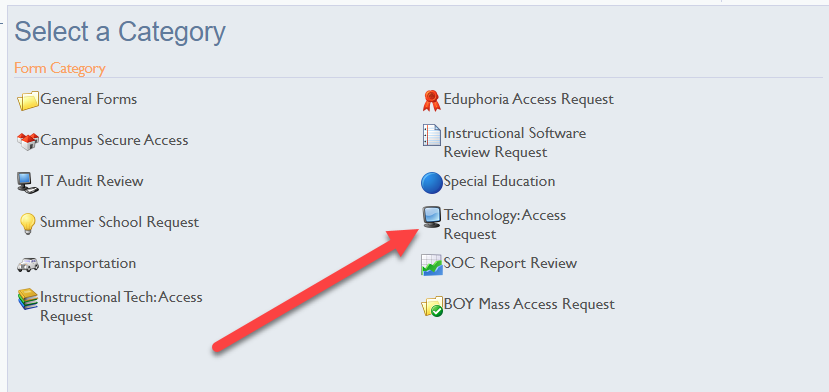
3. Select the Request Category
Select Technology: Access Requests.
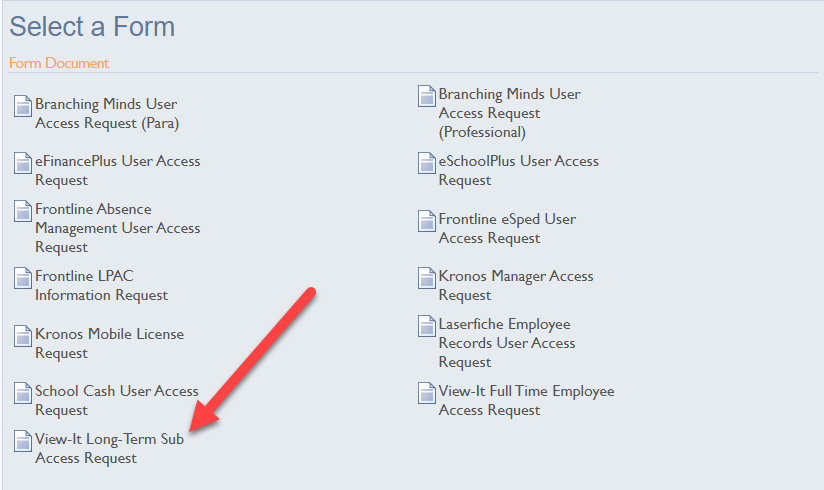
4. Select the Form
Select View-It Long-Term Sub Access Request to open the correct form.
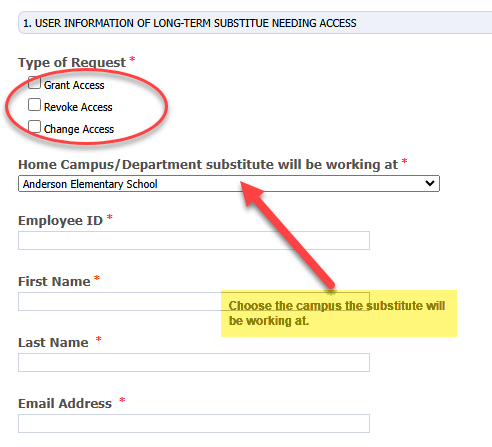
5. Complete Section 1: Job Details
-
Choose the Type of Request.
-
Select the Campus where the substitute will be working.
-
Fill in all other required fields regarding the assignment.
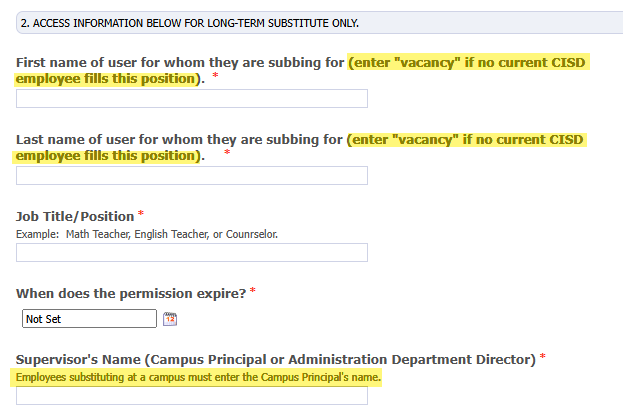
6. Complete Section 2: Principal Information
-
Answer all listed questions.
-
Enter the name of the Principal for the campus where the substitute will be working.
7. Complete Section 3: Access Configuration
-
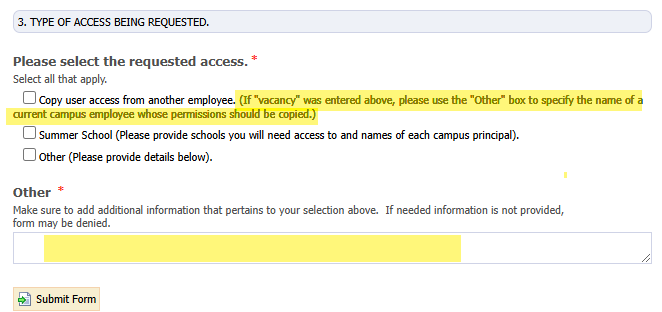
Select Copy User Access.
-
If copying a specific teacher: Ensure that teacher's name is listed in Section 2.
-
If the position is a Vacancy: Enter the word "Vacancy" in Section 2, and then provide the name of another campus employee in the "Other" field to model the permissions after.
8. Submit the Form
Select Submit Form to complete the process.
Need additional help? Click here for further assistance.