
Unable to Sign Evaluation (White Screen or Security Question Error)
If you are unable to sign your evaluation in Strive, it is almost always due to one of two specific issues. Please identify your scenario below to find the fix.
The Screen Turns White or Blank
The Symptom: You typed your password and answer, but when you tried to submit, the screen went completely white or blank.
The Cause: This is a known glitch that happens if you press the Enter key on your keyboard instead of clicking the “Sign” button with your mouse.
How to Fix It:
Refresh your browser page.
Type your Eduphoria Security Answer again.
Use your Mouse to click the Electronically Sign button on the screen.

If you press the Enter key, it will revert you back to the blank screen that you saw.
The System Says Your Answer is Wrong
The Symptom: You receive an error message saying your Security Question Answer is invalid, or you have forgotten what you typed years ago.
The Cause: You cannot reset this answer inside the Strive document. You must go to your Eduphoria Profile settings to update it.
How to Fix It:
1. Open Your Eduphoria Profile
Leave the Strive screen for a moment. Click the My Profile button in the main Eduphoria menu.

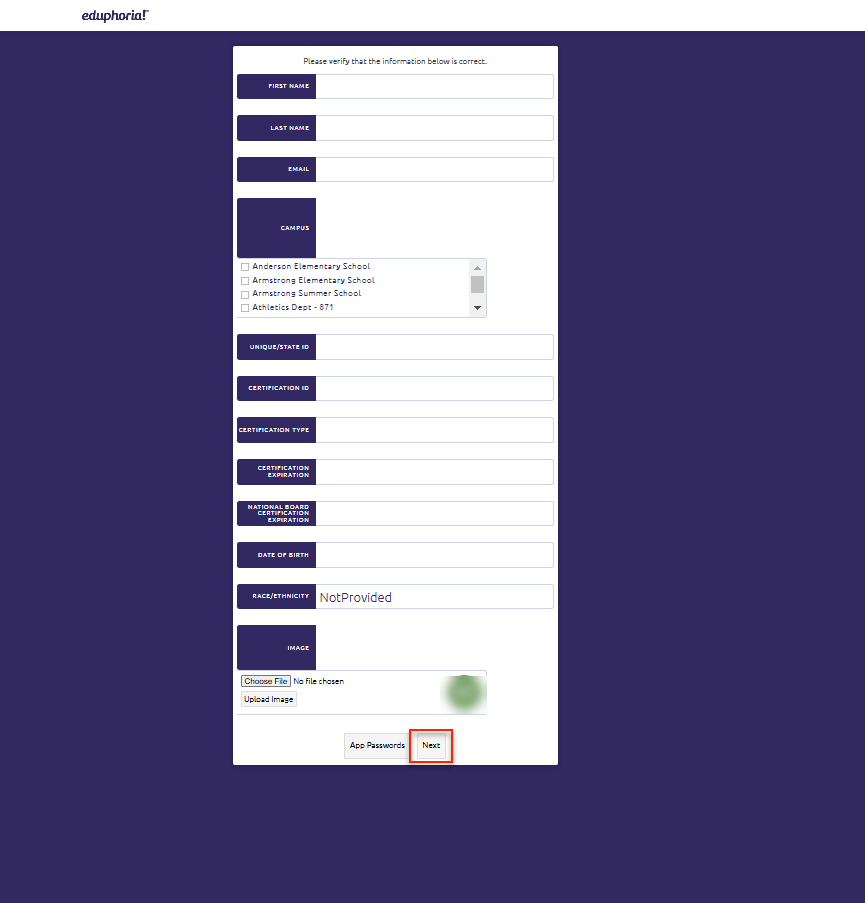
2. Click "Next" Through the Settings
Your Security Question is hidden on a later screen. You must verify your info to get to it.
Verify your Name, Email, and Campus. (Make sure only your current campus is checked).
Click the Next button at the bottom right.
Verify your Role and click Next.
(Teachers Only): Verify your Subject and Grade Level, clicking Next after each screen.
3. Update Your Security Question
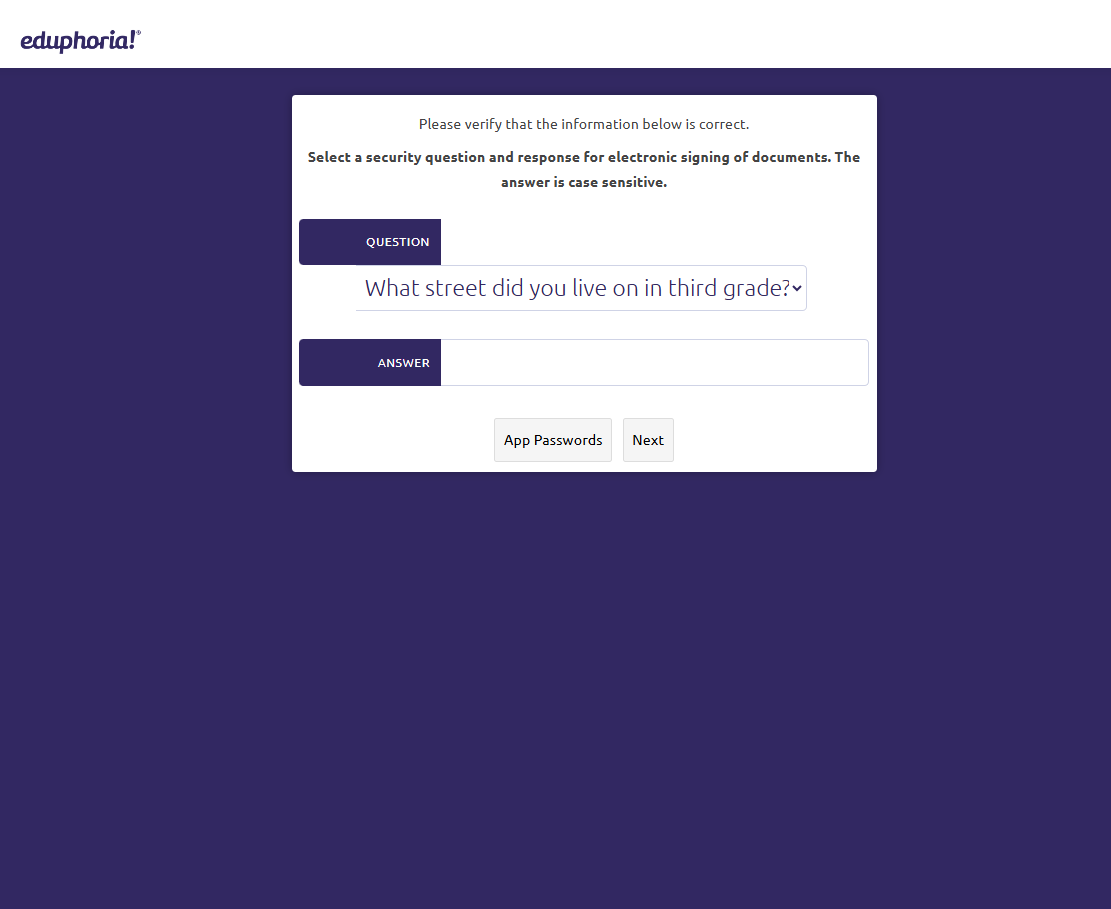
You will eventually arrive at the Security Question screen.
Select a question from the dropdown list.
Type your answer.
Click Next.
4. Save Changes
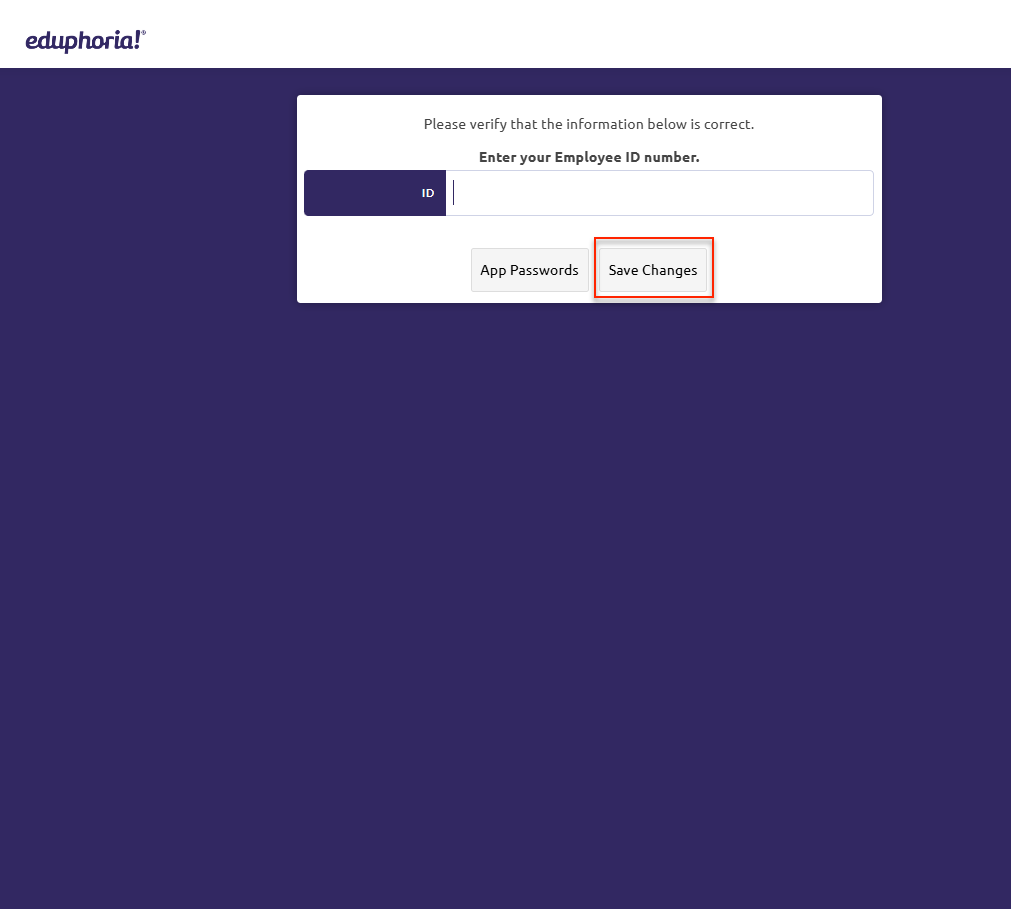
Verify your Employee ID Number.
Click the Save Changes button.
5. Return to Strive
Go back to Strive and open your evaluation document. Attempt to sign again using the new answer you just created.
Still have questions? Visit the Additional Help section for further assistance.