
Create a Room Custom View with Last Verification Date Column
Follow this guide to create a Custom View in Incident IQ that displays all assets in a specific room alongside their Last Verification Date. This view is especially useful during audit seasons.
Phase 1: Creating the Custom View
Step 1: Navigate to New View
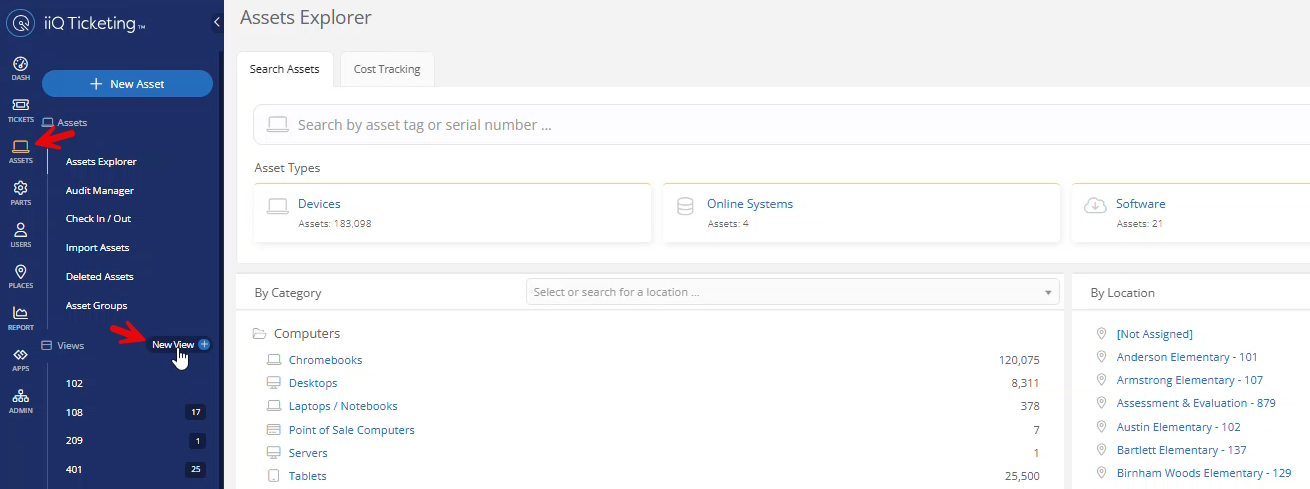
Log into Incident IQ. On the main navigation menu, click on the Assets tab, and then click on New View.
Step 2: Name the View and Add a Filter
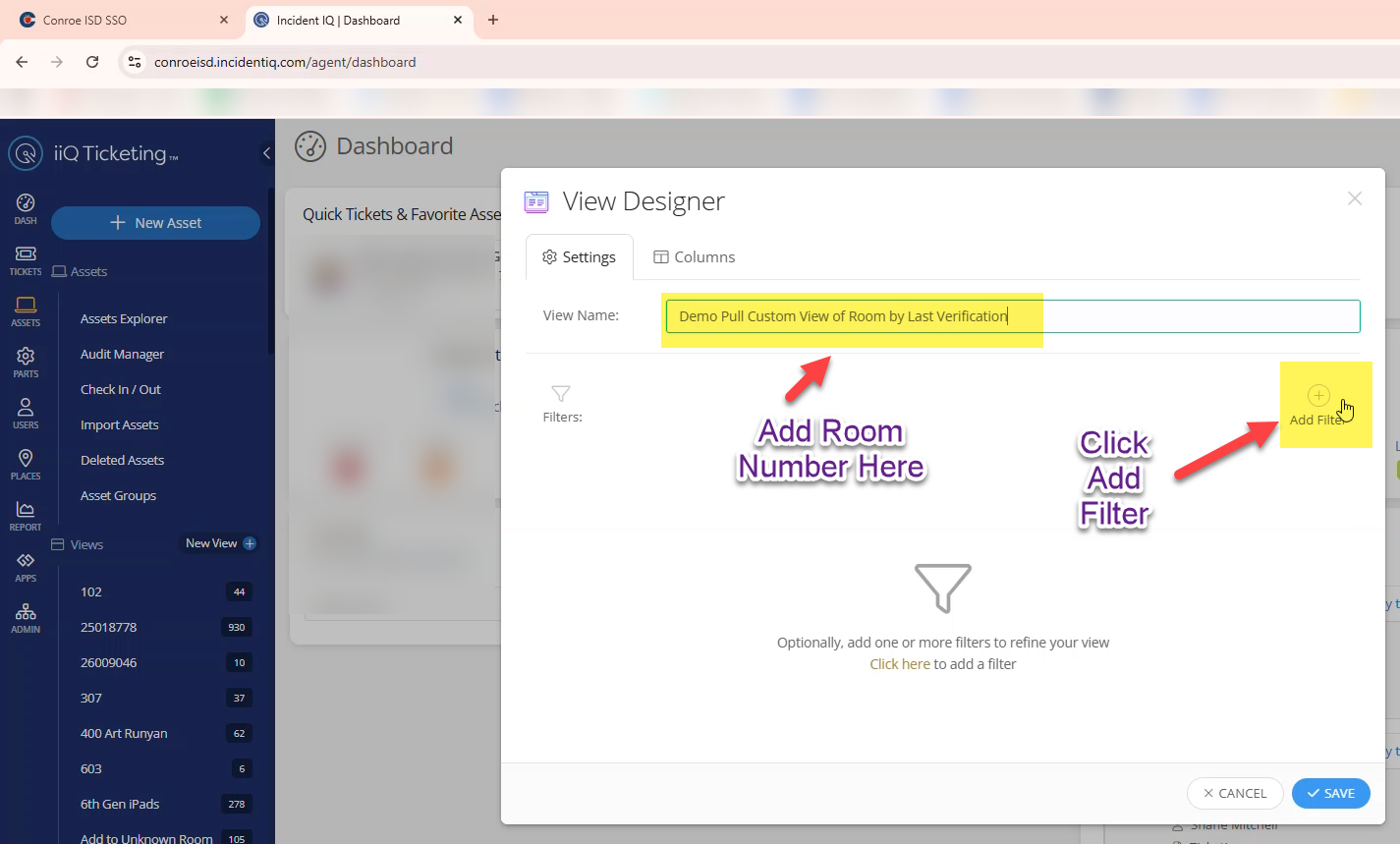
Change the name of the Custom View to the specific Room Number you are creating the view for (e.g., Room 104).
Click the Add Filter button.
Step 3: Add the Room Filter
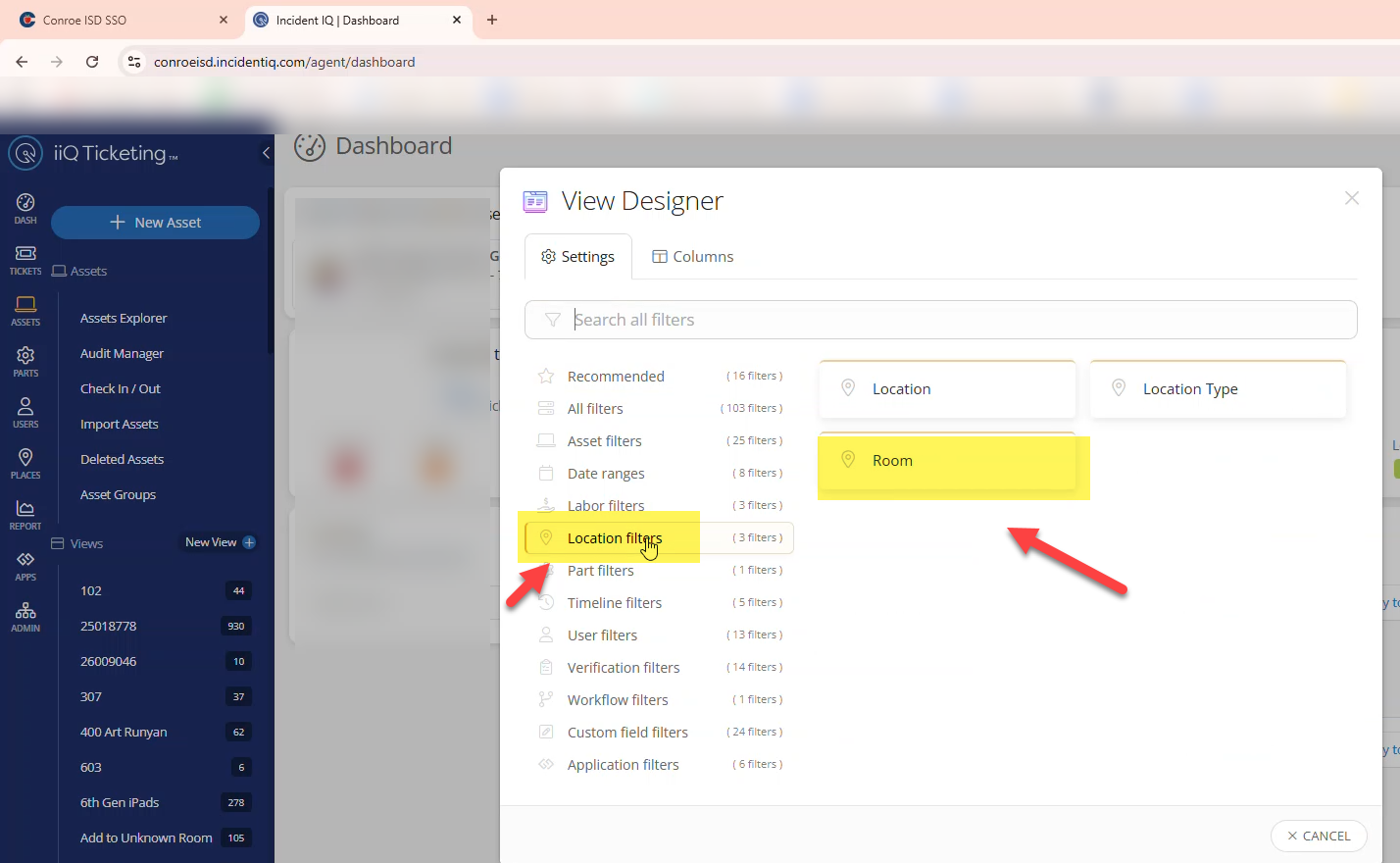
In the filter menu, click on Location Filters, and then select Room.
Step 4: Search and Select the Room
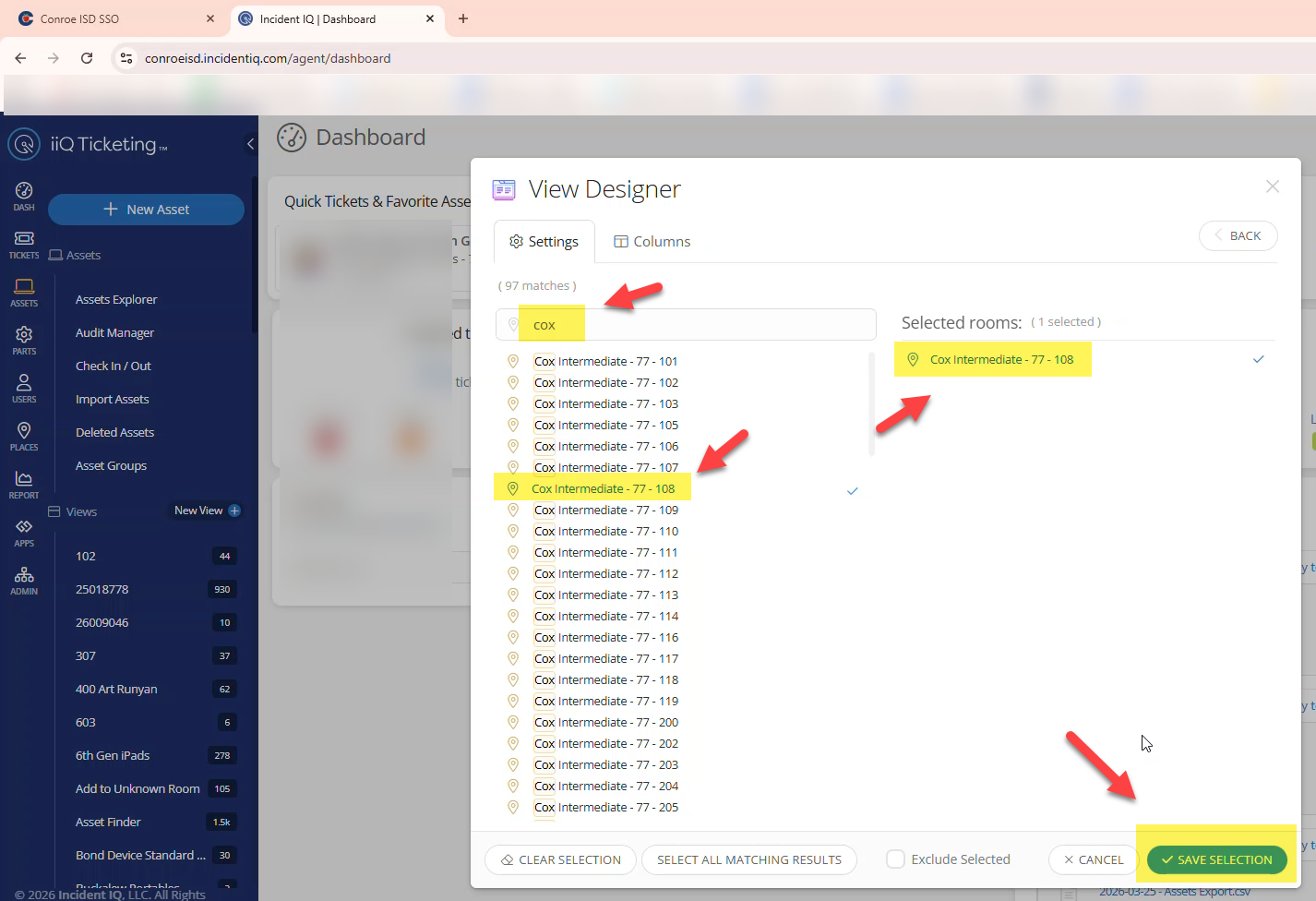
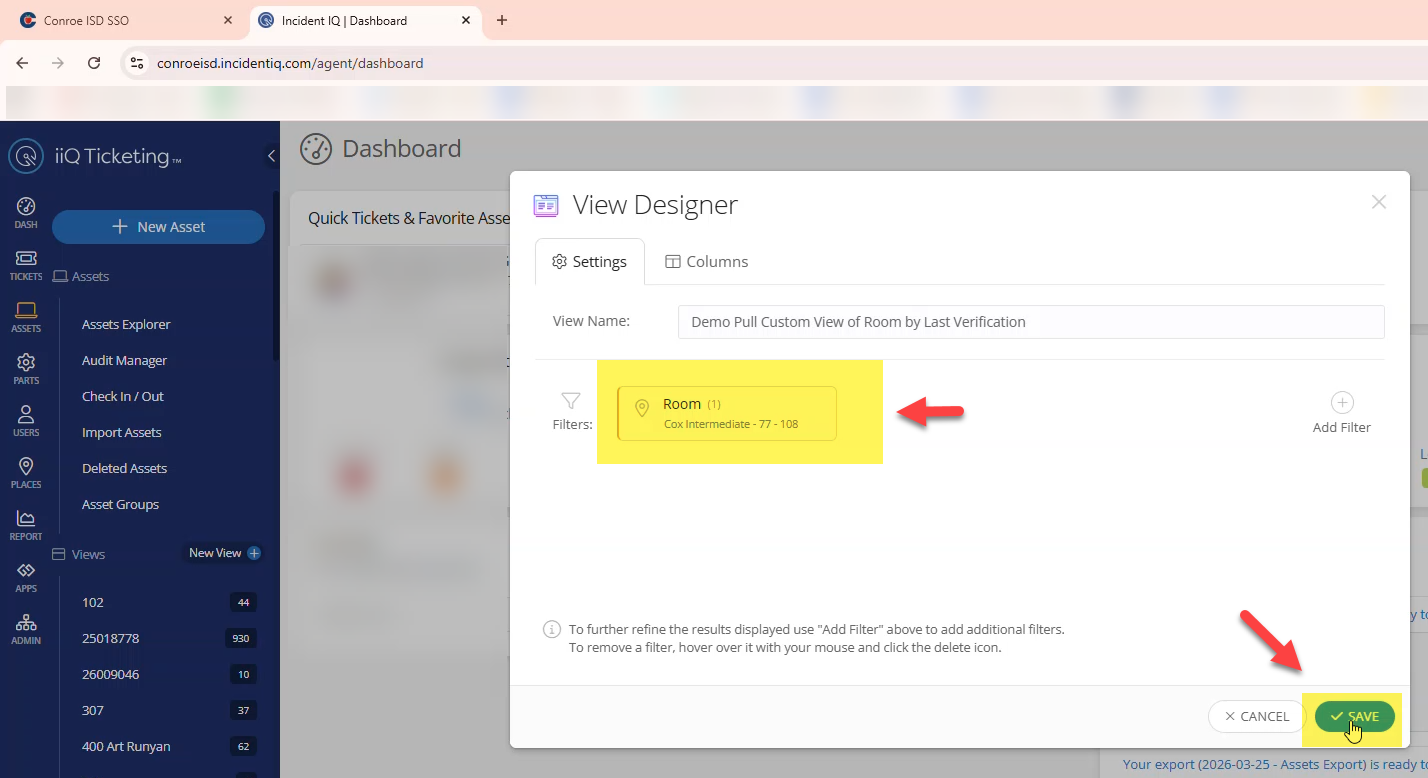
Add your Campus name in the search bar, and then select the specific room you are creating the custom view for.
Search Tip: If the room does not easily appear, you can type the actual room number directly into the search bar, locate the correct room for your specific campus, and then click Save Selection.
Step 5: Verify and Save
Double-check the top of your screen to ensure your custom view has the correct room selected, and then click Save to generate the view.
Phase 2: Formatting the Columns
Step 6: Open View Settings
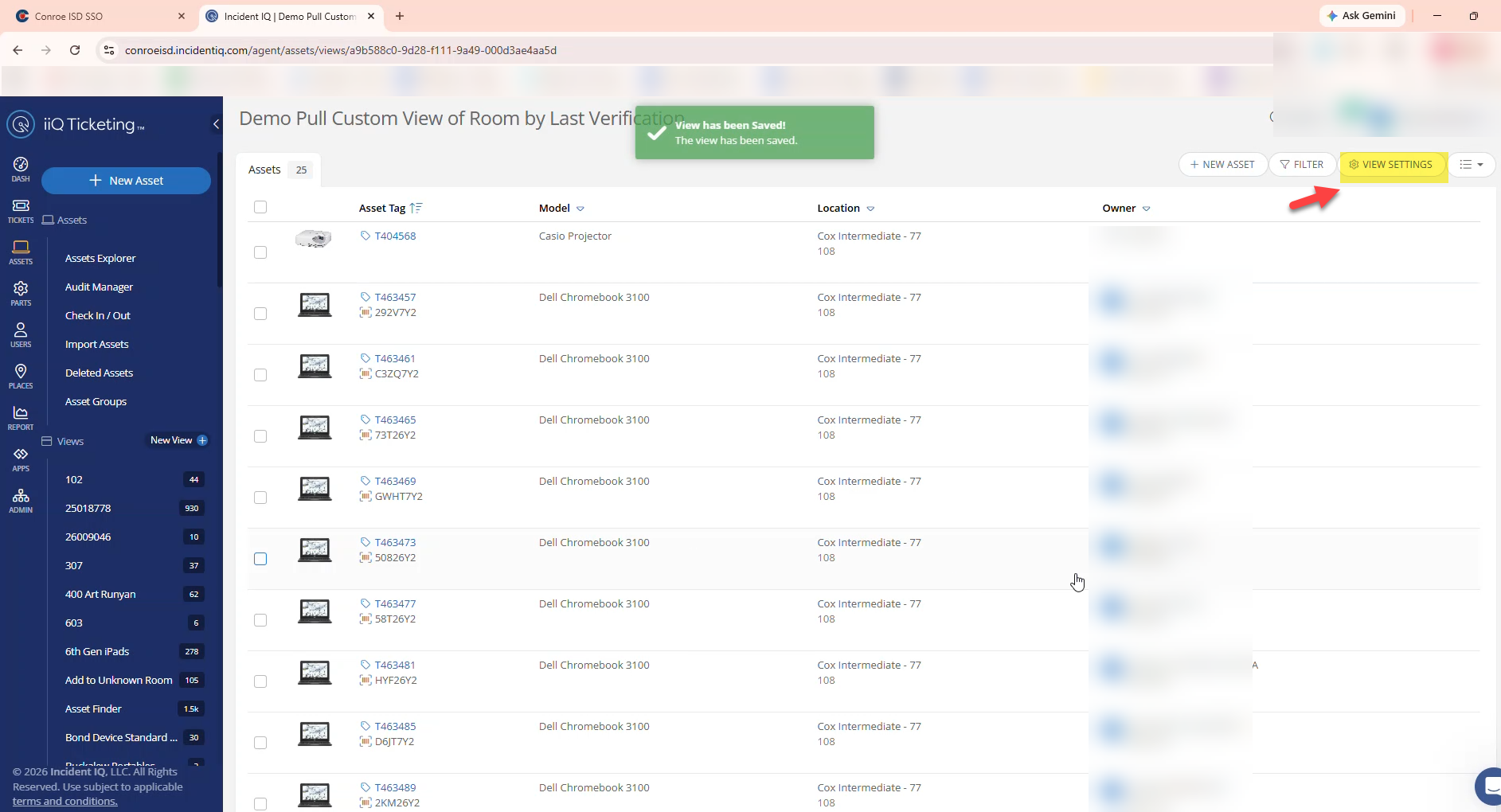
On your newly created Custom View page, click the View Settings button.
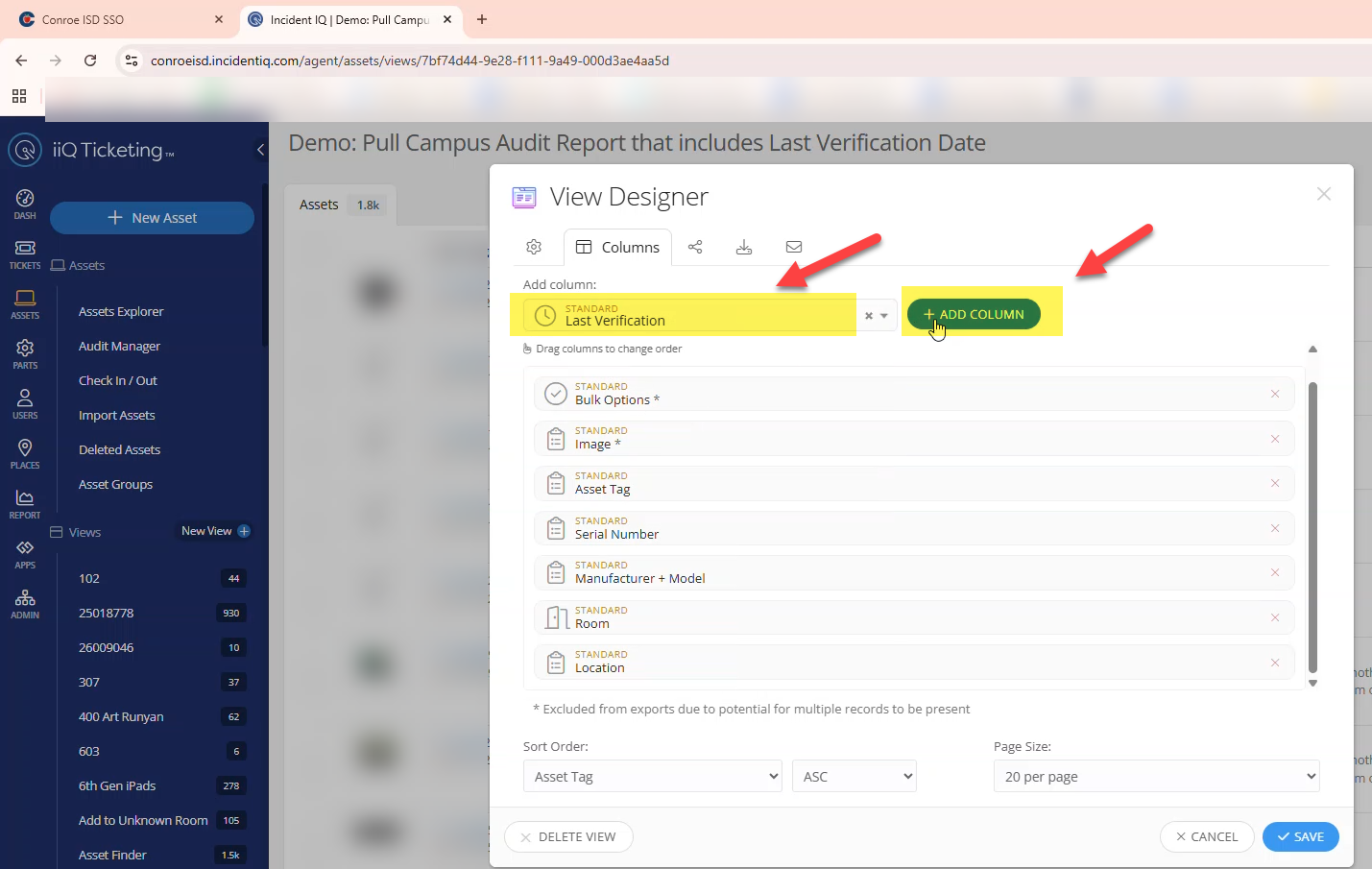
Step 7: Add Required Columns
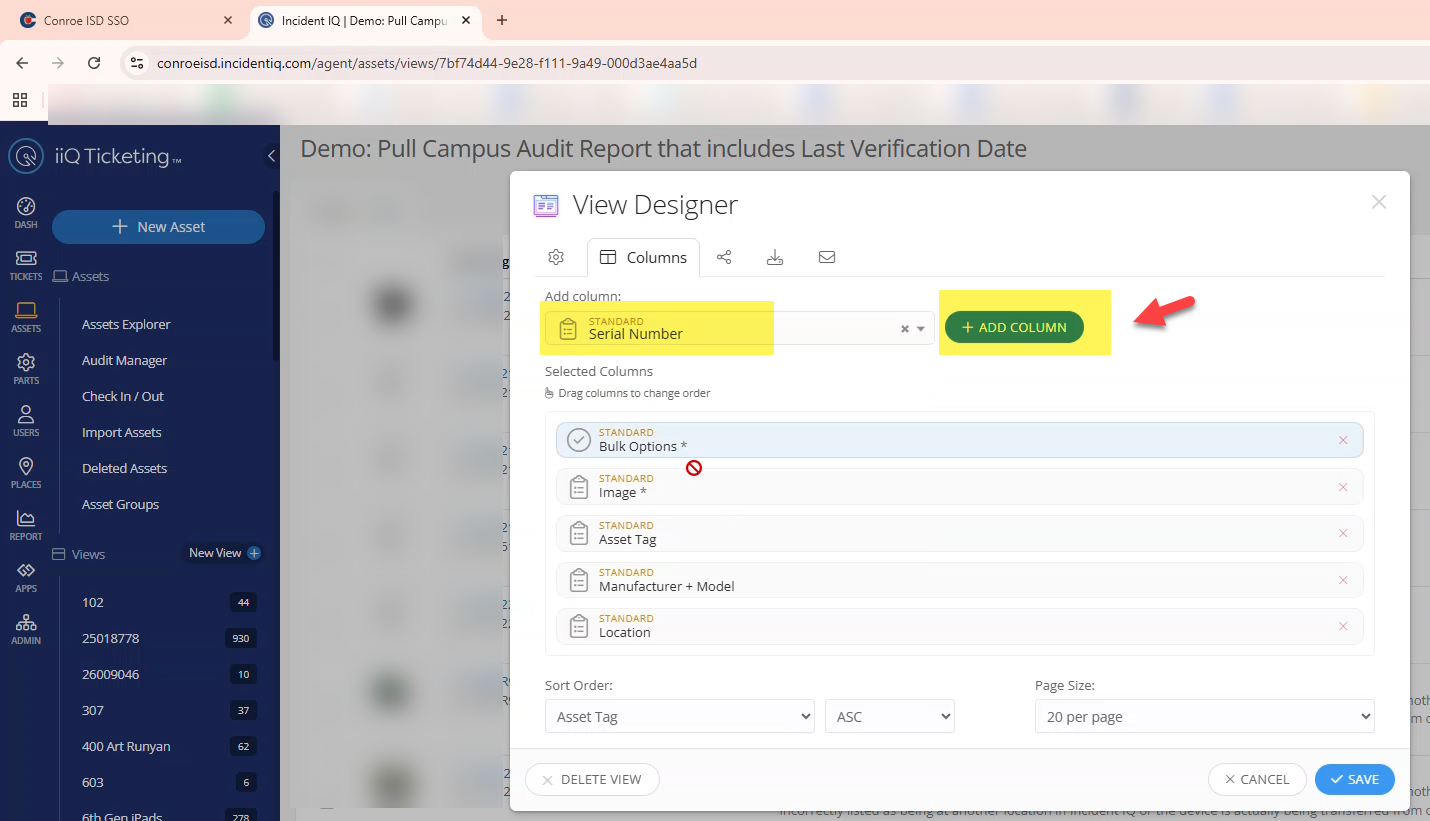
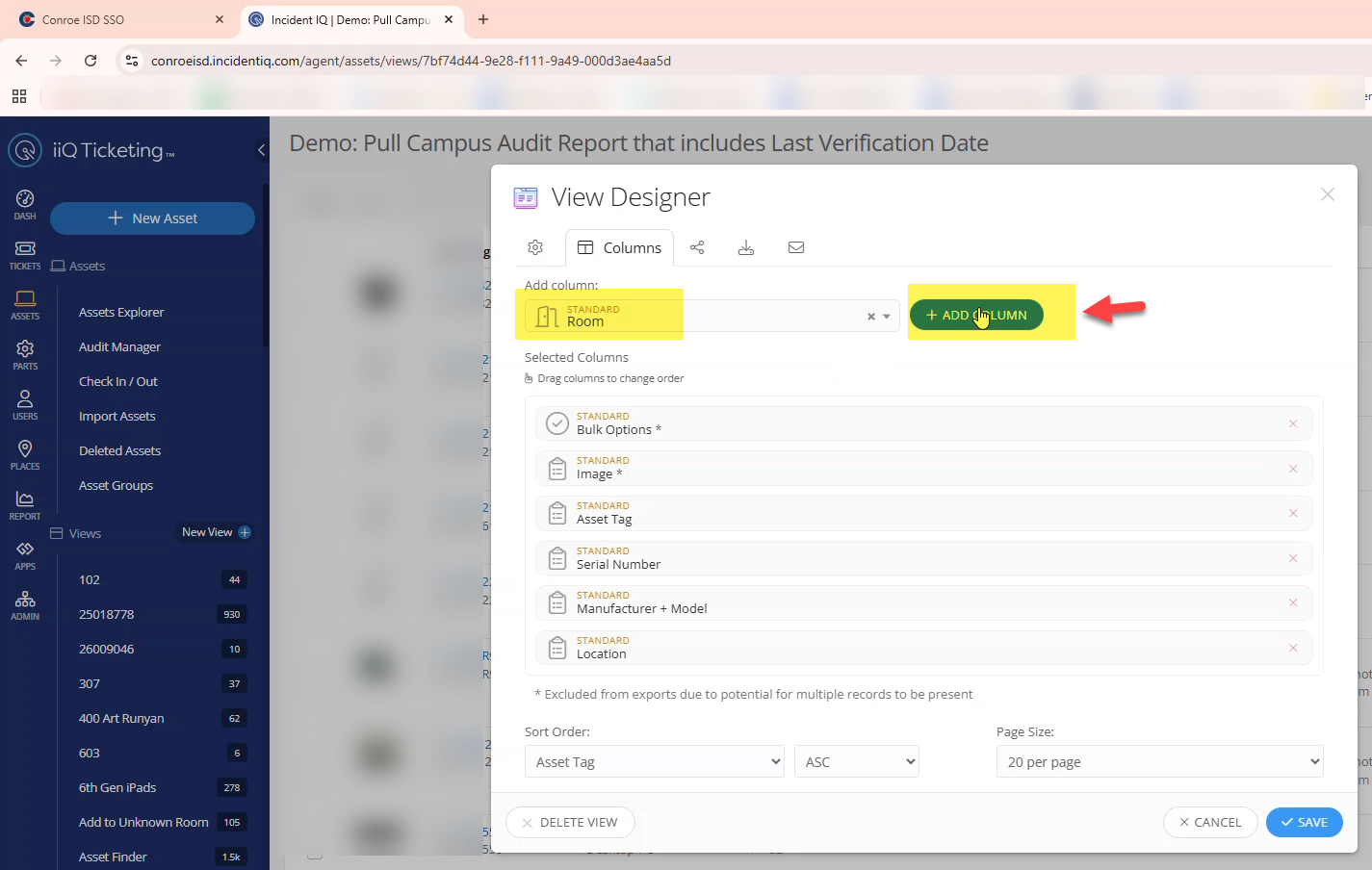
In the View Settings menu, you need to add three specific columns to your report. Search for and add the following:
Serial Number
Room Number
Last Verification
Step 8: Sort and Save
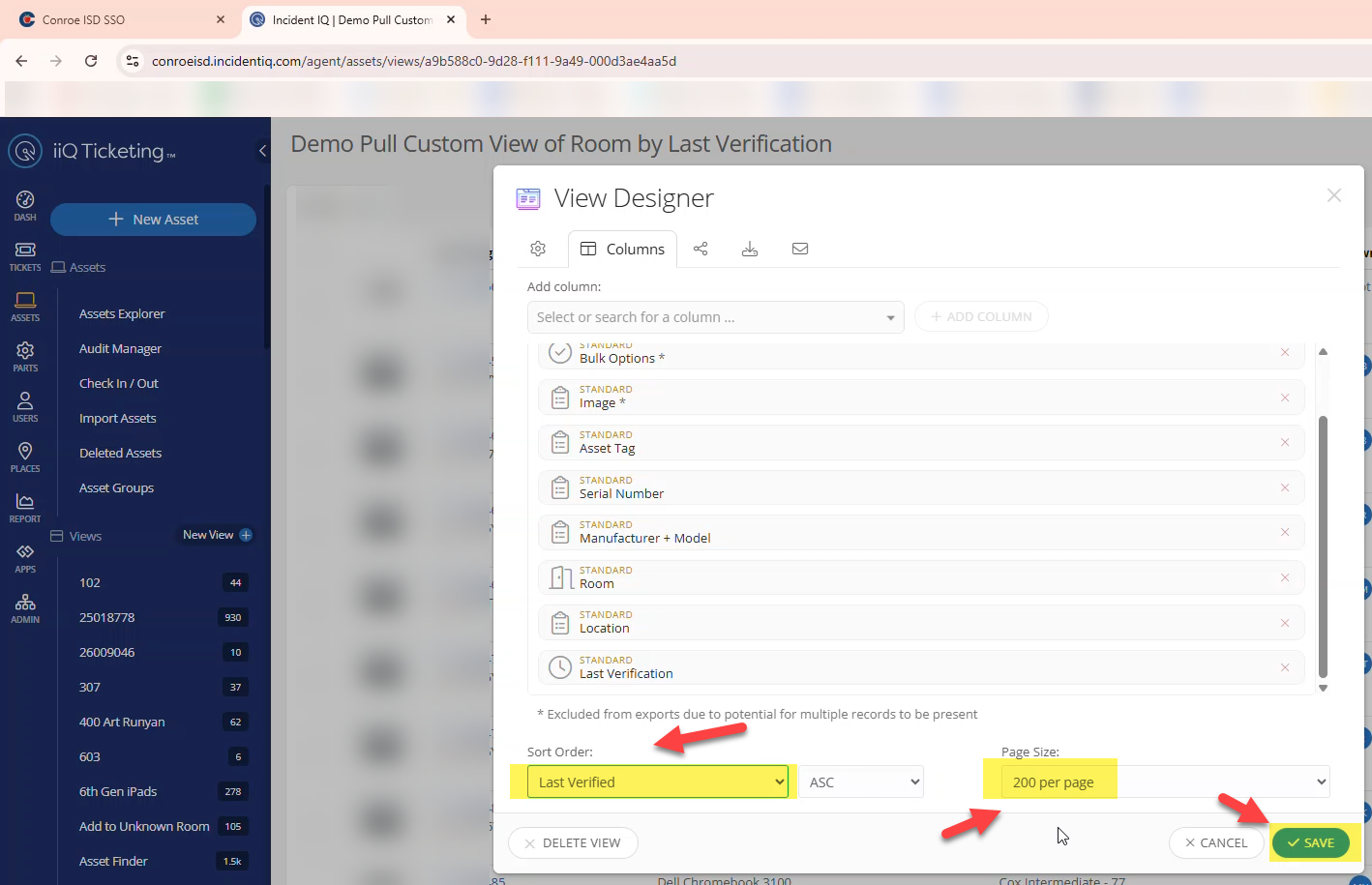
Change the "Sort Order" drop-down to Last Verification.
Change the "Page Size" to 200 per page.
Click Save.
Success & Audit Cleanup
You have successfully created a Custom View of a room featuring the Last Verification Date column!

Important EOY Audit Note: When using this process to check a room’s End of Year (EOY) Audit, any assets that have a verification date that is earlier than the official EOY Verification date for that room should be moved to your Unknown Room in Incident IQ.

Still have questions? Visit the Additional Help section for further assistance.