
This guide explains how to submit a request for View-It permissions for full-time employees using Formspace. View-It permissions have expiration dates and must be renewed periodically.
Campus Principals cannot approve access to a campus other than their own. If you need access to a different campus, the Principal of that specific campus must submit this request on your behalf.
Steps to Submit the Request
1. Open Formspace
Log in to the Single Sign-On (SSO) portal and select the Eduphoria application. Once inside, select Formspace.
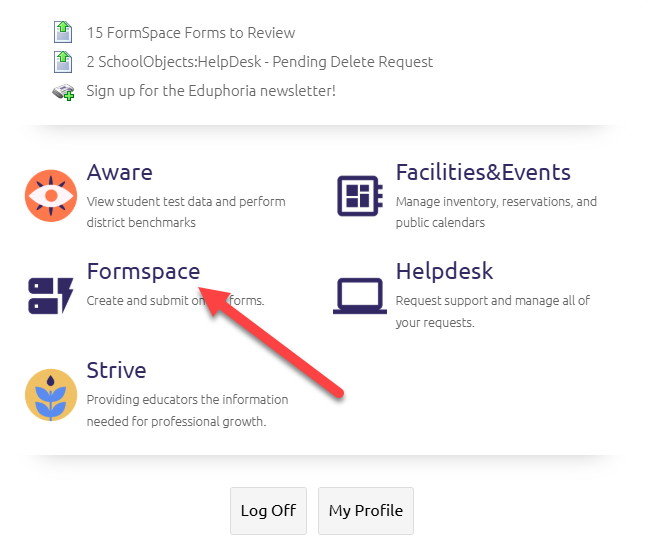
2. Start a New Form
Select Submit New Form located in the lower left corner of the screen.
3. Select the Request Category
Select Technology: Access Requests, then select View-It Full Time Employee Access Request.
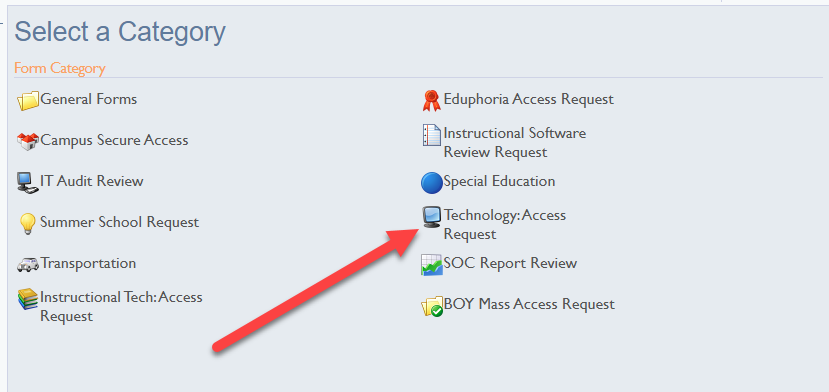
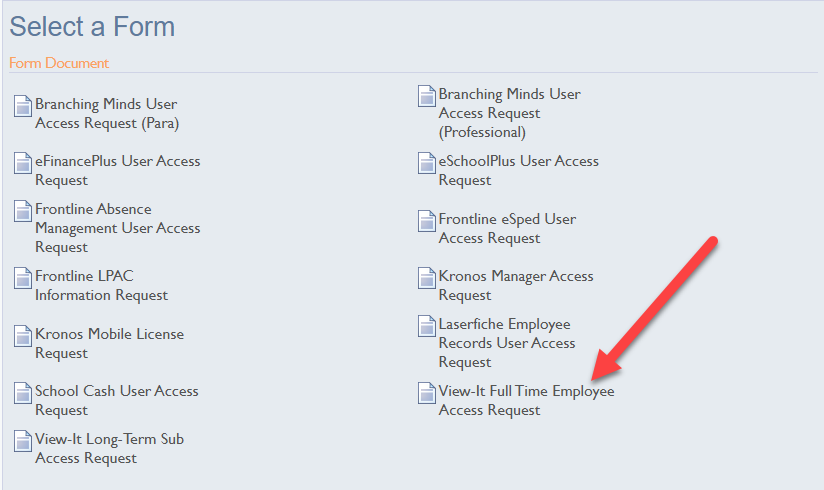
4. Complete Section 1: Employee Details
-
Choose the Type of Request.
-
Select the employee's Human Resources (HR) Designated Campus/Department.
-
Fill in all other required fields.
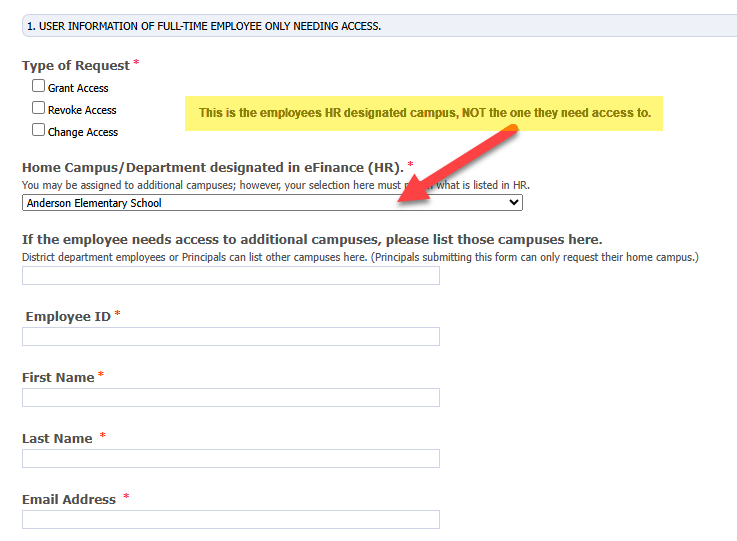
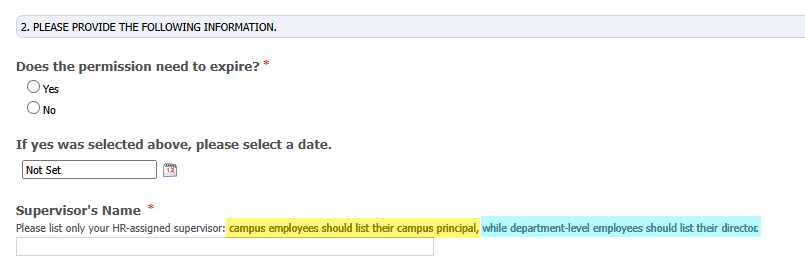
5. Complete Section 2: Approval Information
-
Answer all listed questions.
-
Enter the name of the Principal or Department Director/Coordinator responsible for the campus or department where access is needed.
6. Complete Section 3: Access Type
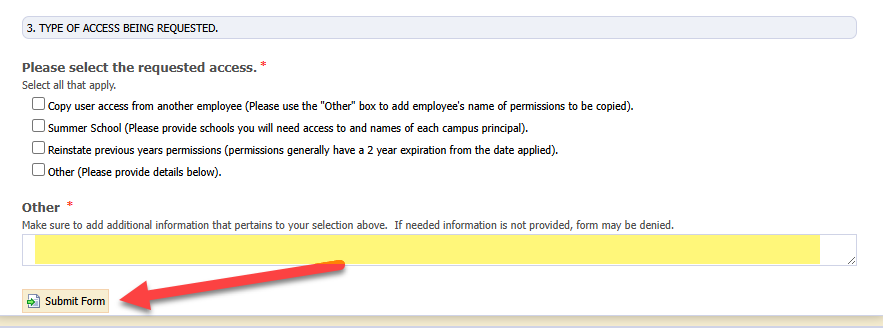
Select the specific permissions required.
-
Specific Permissions: If you are not copying another user, please refer to the Permissions Link located at the top of the form to determine exactly what is needed.
-
Copy User Access: If you select this option, you must enter the name of a current employee who already has the desired granted access in the "Other" field.
7. Submit the Form
Select Submit Form.
Approval Workflow
-
Campus Employees: Requests are automatically routed to the employee's HR-designated home campus Principal.
-
District Employees: Requests are reviewed and sent to the District Coordinator for approval.
Need additional help? Click here for further assistance.