
This guide covers how to submit a request for View-It access using Eduphoria Formspace. Please follow the instructions below to verify your profile and submit the correct form.
Please note, if you are assigned to a campus in HR, your campus principal has access to be able to grant permissions for you. The instructions for a principal are found here: Granting Employee Permissions by Principals in View-It
Your Eduphoria Profile must only show your HR Assigned Home Building. Even if you work at multiple campuses, please ensure only your primary HR home campus/department is checked in your profile. Your home campus Principal cannot approve access to other campuses.
Steps to Update Your Profile
Before submitting a request, please ensure your location settings are correct.
1. Access Your Profile
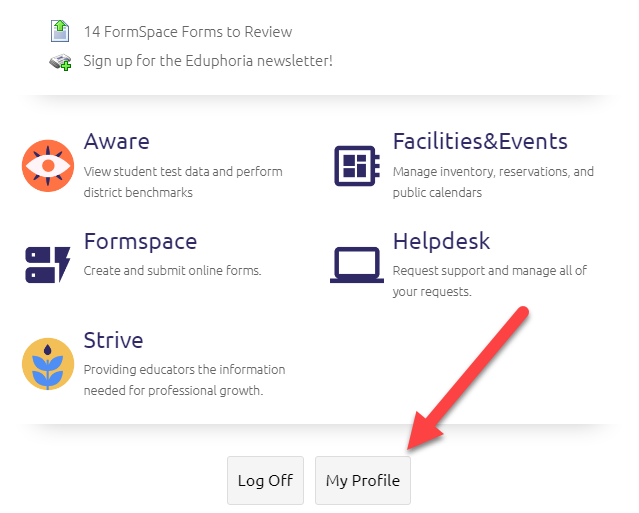
Open Eduphoria and select My Profile.
2. Verify Home Building
Ensure that only your HR Assigned Home Building is selected.
-
Example: If your HR home department is "877-Special Education," please check only that box.
-
Example: If your HR home campus is "Anderson," please check only Anderson.
Steps to Submit a Request
1. Open Formspace
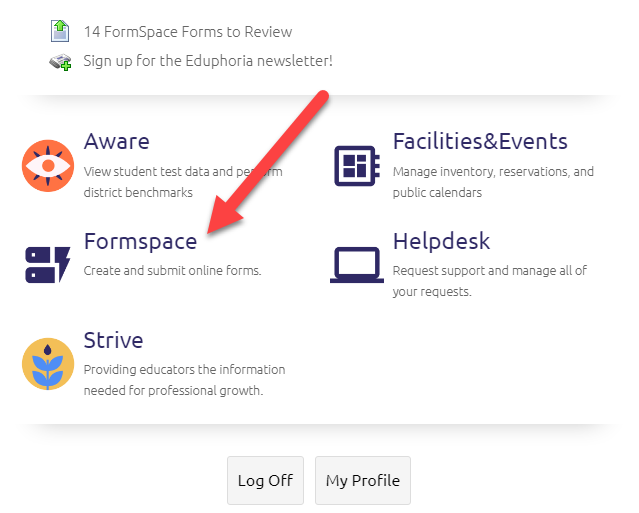
From your applications menu, select Formspace.
2. Start a New Form
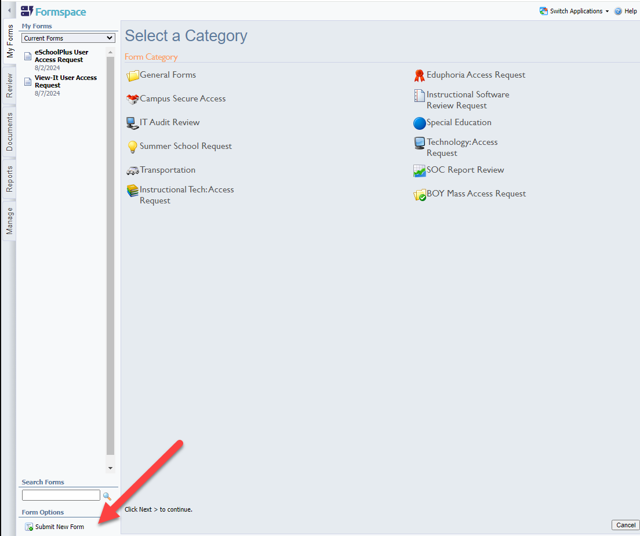
Select Submit a New Form.
3. Navigate to Access Requests
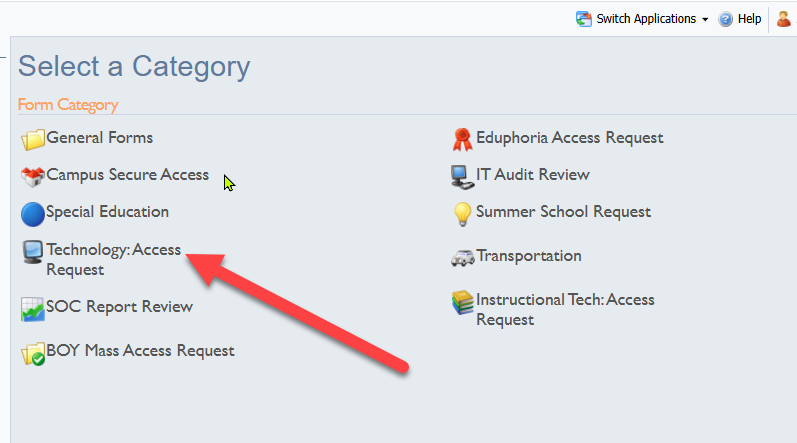
Select Technology: Access Requests.
4. Select the Correct Form
Choose the form that matches your status:
-
Full-Time Access Request
-
Long-Term Sub Access Request
Here are the specific instructions for Full-Time Employees or Long-Term Subs
5. Complete the Form
Fill in the required information. This data must be specific to the employee needing access and their HR Designated Building or Department.
6. Submit the Request
Once all questions are answered, select the Submit button located at the top or bottom of the form.

Troubleshooting
How to Edit or Correct a Request
If you need to make changes to a submitted form, or if a request was rejected:
-
Open the form and select the Recall button at the top of the page.
-
Make the necessary corrections.
-
Select Resubmit.

Understanding Rejection Notes
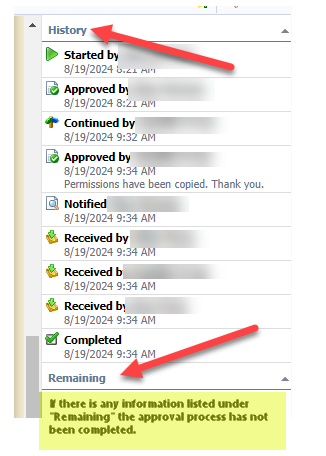
If your form is rejected, please check the History tab on the right side of the form. Read the notes there to understand what specific corrections are required before you resubmit.
Need additional help? Click here for further assistance.