
This guide explains how to use the advanced search filters in Google Drive to locate files shared with you by a specific person. This is particularly useful for finding important documents before a colleague leaves the district.
If you need to transfer a large number of files or entire folders from a leaving employee, it is better to submit a Request for Google Drive Ownership Transfer instead of copying files individually.
Step 1: Search for the Files
-
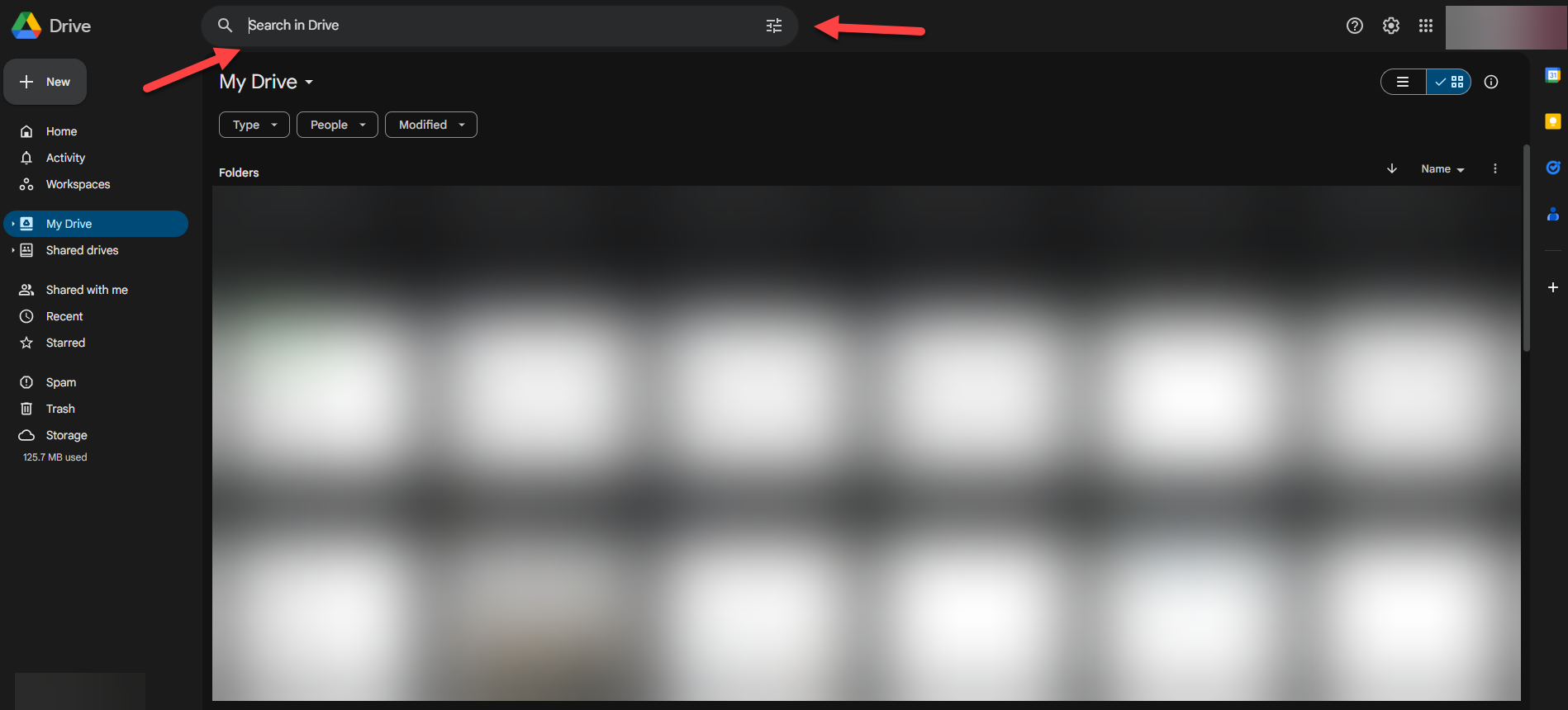
Click inside the "Search in Drive" box at the top of the screen and select the Filter Icon (three lines).
-
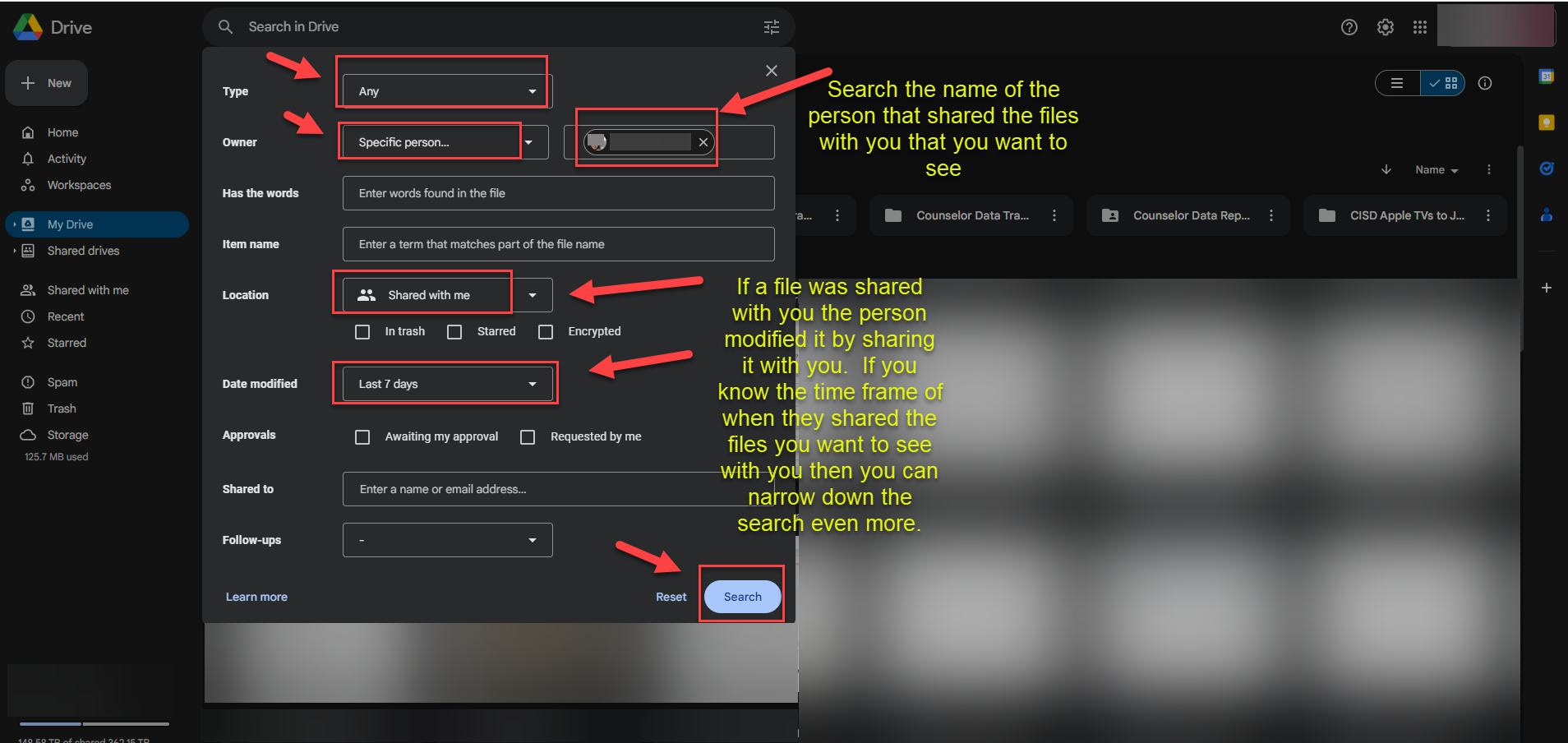
Configure the search filters:
-
Type: Leave as Any (unless you are looking for a specific format).
-
Owner: Click the drop-down arrow and select Specific Person.
-
Person: Type the name or email address of the colleague who shared the files.
-
Location: Select Shared with me.
-
Date Modified: Use this to narrow your search if you know when the files were shared.
-
Note: When someone shares a file, it counts as a "modification," so this filter is very effective.
-
-
Once the filters are set, click Search.
-
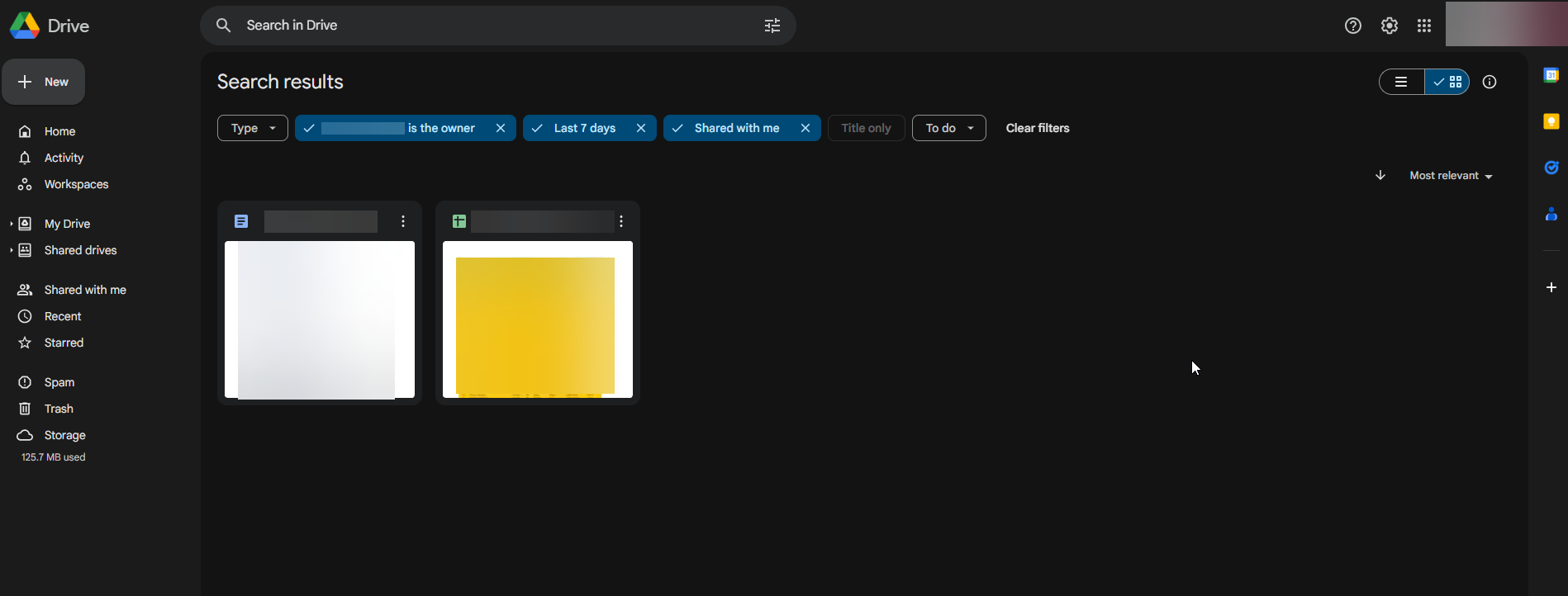
Review the results.
-
The files shared by that specific person will appear in the list.
If you don’t see the files, go back to the filters and change Date Modified to Any Time.
Step 2: Make Copies (To Retain Access)
Why do this? If the person who owns these files leaves the district, you will lose access to the originals. By making a copy, you become the Owner of the new file, ensuring it is never deleted from your drive.
-
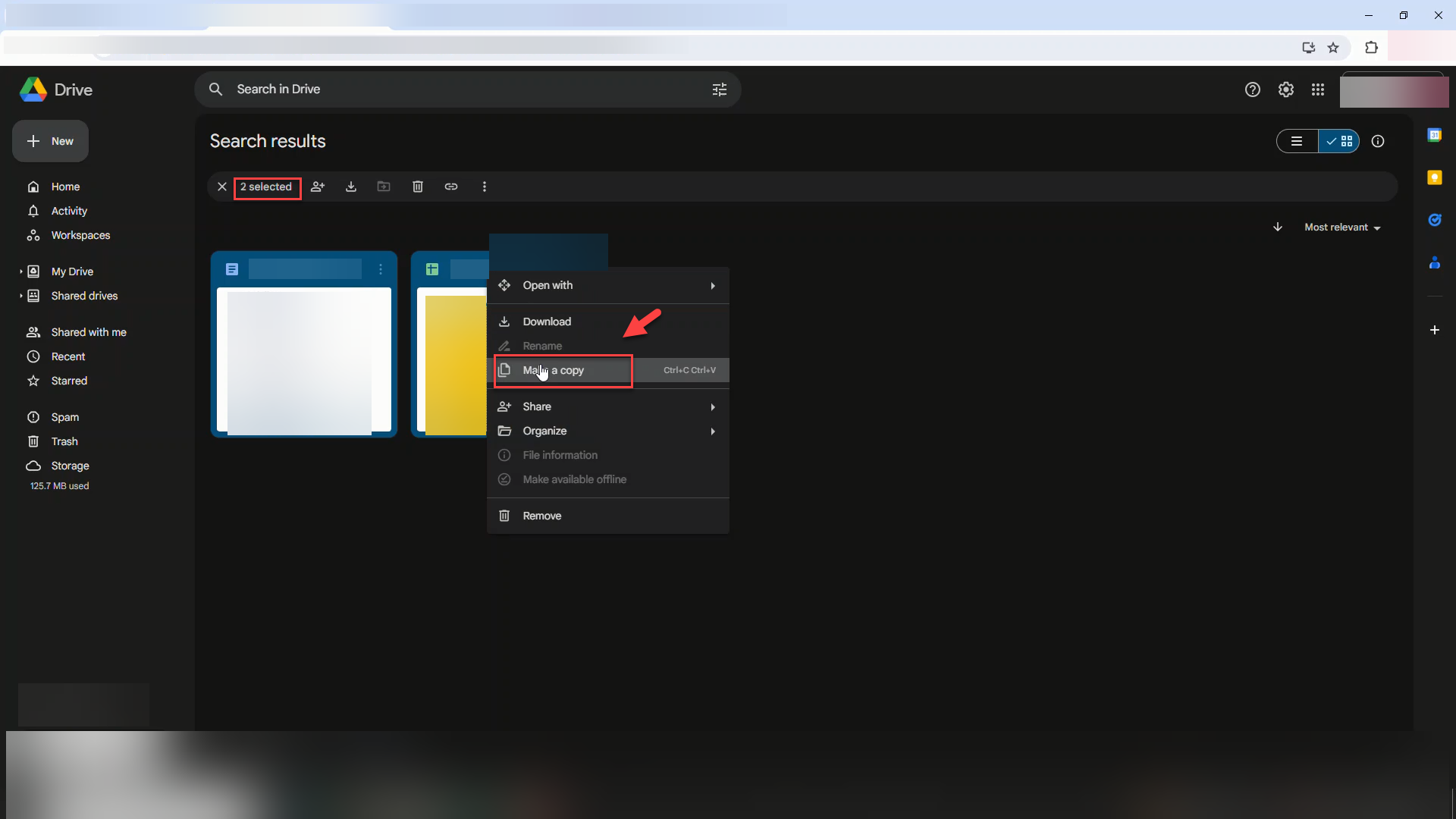
Select the files you want to keep.
-
Tip: Press Ctrl + A on your keyboard to select all files in the search results at once.
-
Right-click on the selected files and choose Make a copy.
-
This creates new versions of the files directly in your "My Drive."
Step 3: Locate Your New Copies
Since the copies are saved to your main drive, they might be hard to find immediately. Use search to group them.
-
Go back to the Search Filter icon.
-
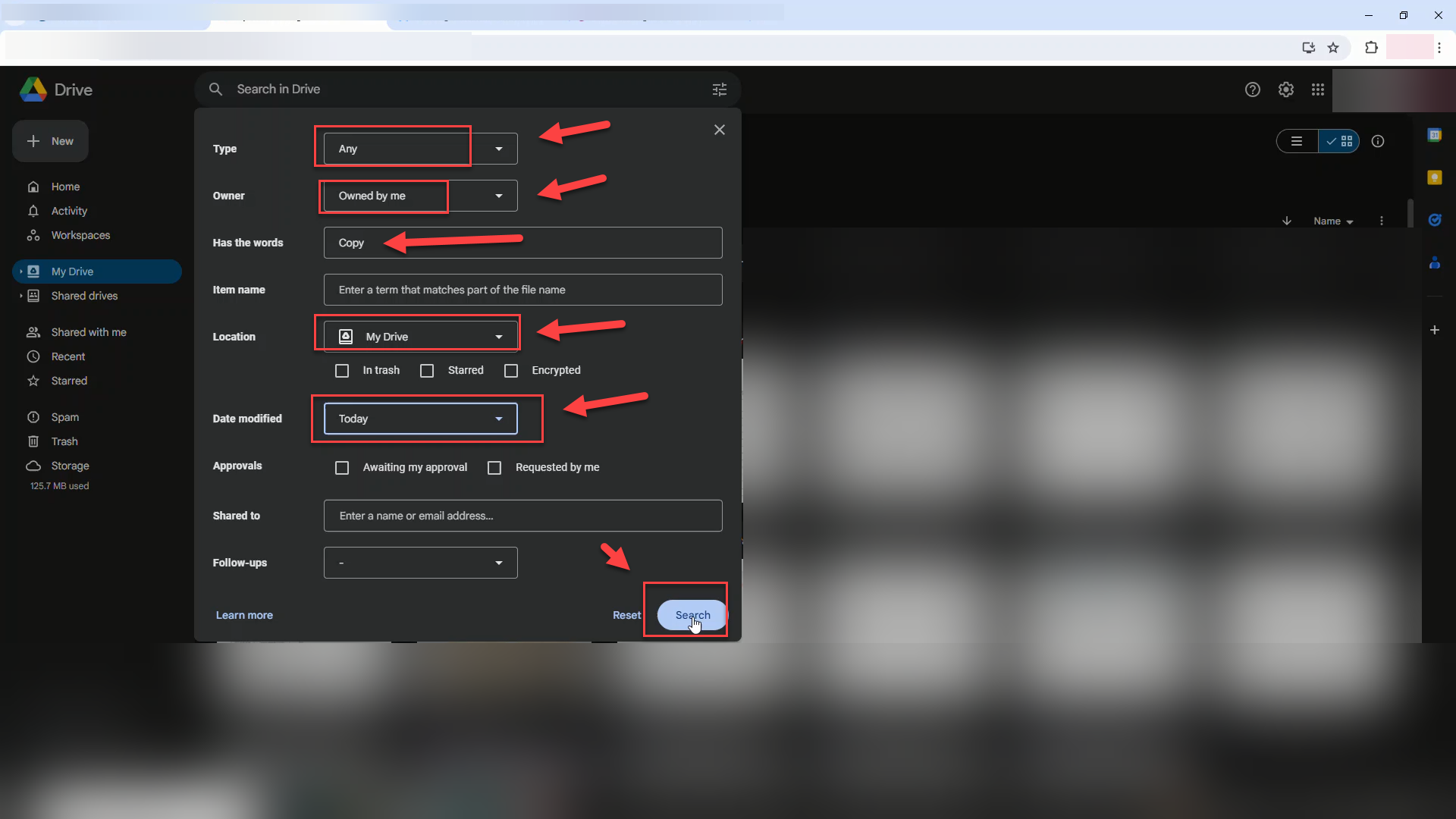
Configure the filters to find the new copies:
-
Owner: Select Owned by me.
-
Has the words: Type Copy (Google automatically adds "Copy of" to the filename).
-
Location: Select My Drive.
-
Date Modified: Select Today.
-
Click Search.
-
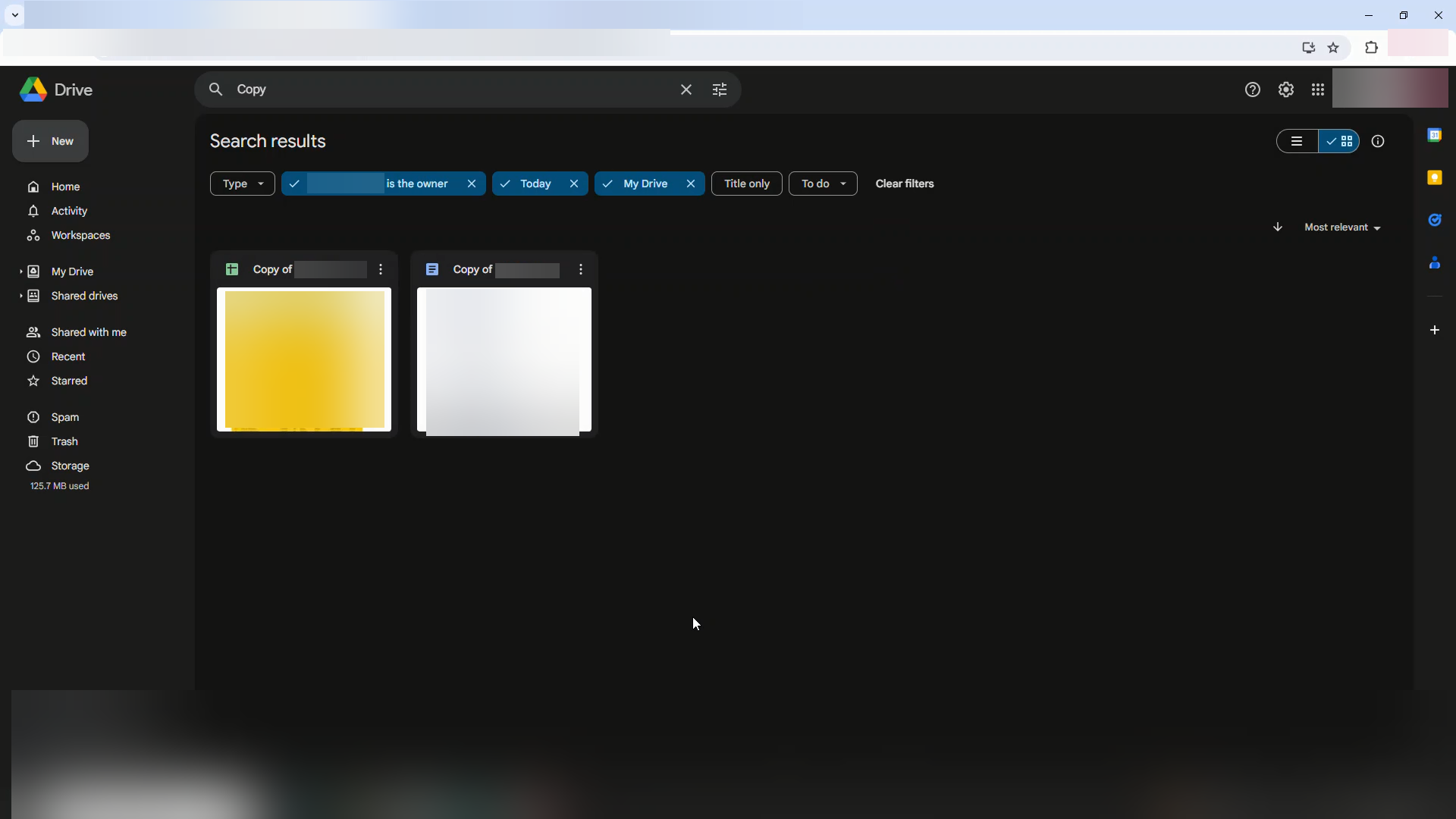
You will now see all the files you just copied.
-
You can now rename them, organize them into folders, or edit them.
-
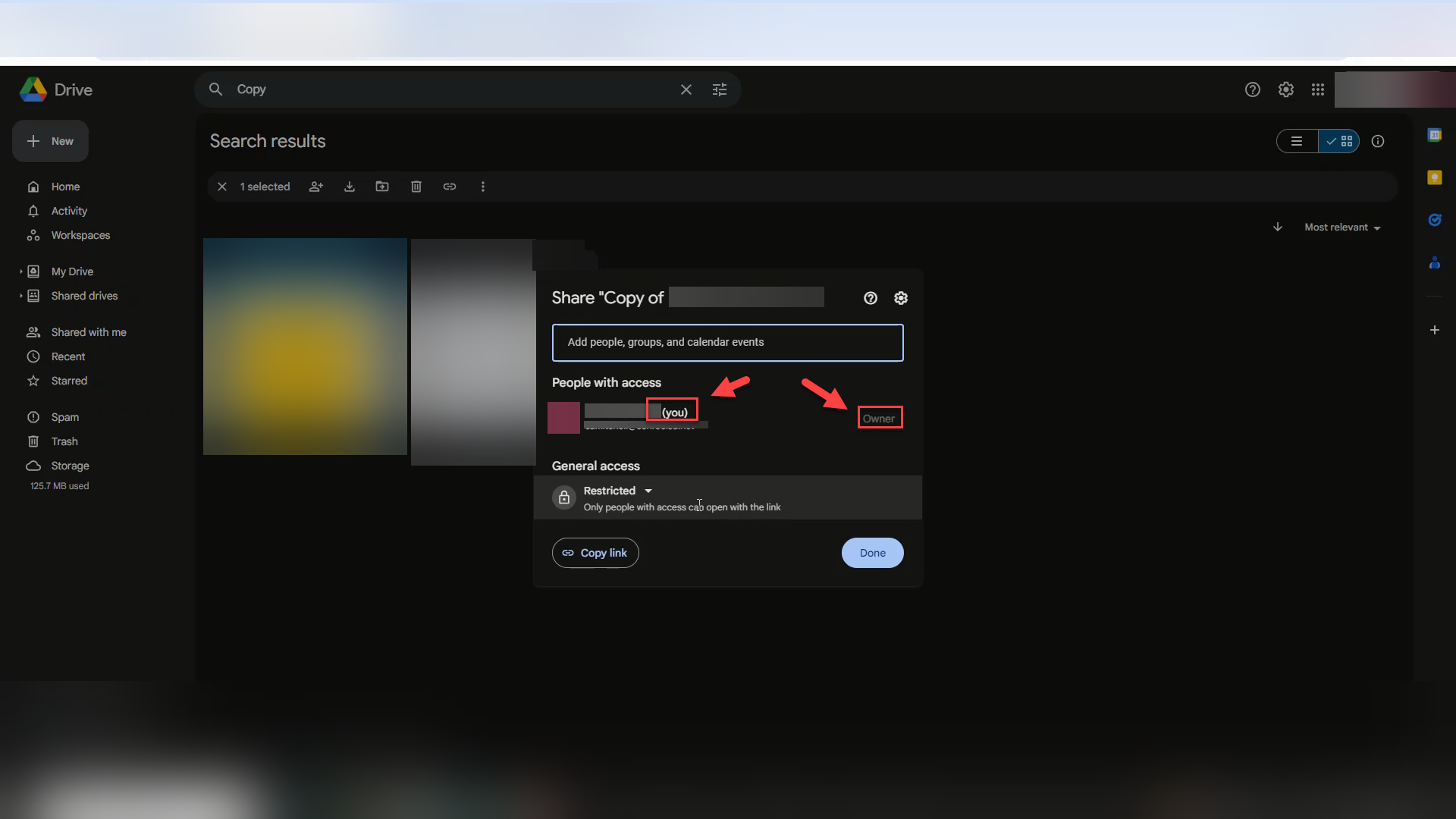
Verify Ownership.
-
Notice in the "Owner" column that it now says me. You are safe to keep these files indefinitely.
Need additional help? Click here for further assistance.