
This guide explains the process for getting an app approved and added to the JAMF School student app library.
Only Campus Techs and/or Librarians may submit the final 'iPad Scope App Request Form.' If you are a teacher, please ensure the app is approved in LearnPlatform, then notify your Campus Tech.
Phase 1: Verify App Approval (All Staff)
Before requesting installation, you need to verify that the app is approved for district use.
1. Check LearnPlatform
-
Log in to your Single Sign-On (SSO).
-
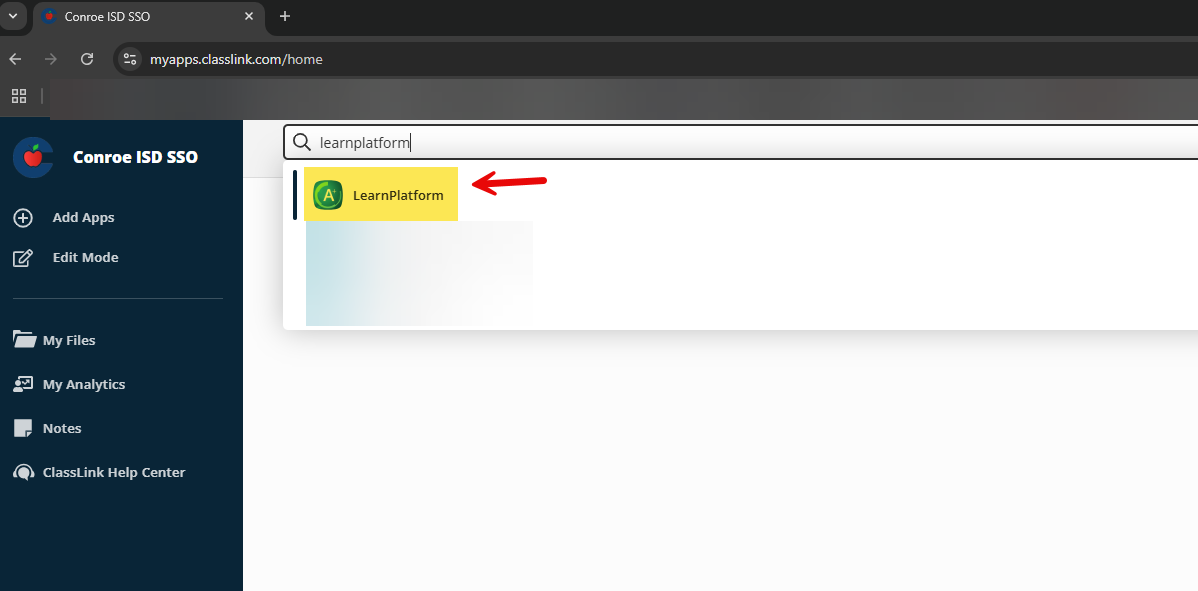
Open the LearnPlatform application.
-
Search for the app to see if it has been Reviewed or Approved.
-
Please refer to the LearnPlatform Guide for detailed search instructions.
-
2. Request Approval (If Needed)
If the app is not listed or approved, please request approval directly within LearnPlatform. (Any Staff can request a software for review) Once the app appears as "Approved," you may proceed to the next phase.
If an app is approved please email the campus tech and/or librarian to let them know so that they can fill out the iPad Scope App Request Form.
Phase 2: Submit the Scope Request (Campus Techs Only)
Once an app is approved in LearnPlatform, the Campus Tech and/or Librarian must submit the scope request form to deploy it to devices.
1. Access the Request Template
Open the iPad Scope App Request Form in Eduphoria Formspace.
2. Copy the Template
-
Select Make a Copy to save the Google Sheet to your Google Drive.
-
Rename the document using this format:
[Your School Name] iPad Scope App Requests.-
Example: Conroe High iPad Scope App Requests
-
Note: You may reuse this specific Google Sheet for future requests.
-
3. Configure the Scope
Fill out the sheet to determine which iPads receive the app.
-
Please select Scope to All iPads, Some iPads, or one iPad on Campus.
-
You will need to enter the TipWeb numbers for the specific iPads in the Google Sheet.
-
Free Apps: These are usually "on-demand" installations. For Free Apps you would usually select Scope to All iPads on Campus.
-
Paid Apps: These can be limited to specific devices. Paid apps can be scoped to one or some iPads and you only need to add the TipWeb number(s).
4. Download the File
-
Select File.
-
Select Download.
-
Select Microsoft Excel (.xlsx).
5. Upload and Submit
-
Open the official iPad Scope App Request submission form in Formspace.
-
Upload the Excel file you just created.
-
Submit the form.
6. Notify for Approval
Please inform your Principal that the form has been submitted. They are required to approve the request before the District Administrator can process it.
7. Final Processing
Once the Principal approves the request, the District Administrator will scope the app to the requested iPads (All, Some, or One).
Need additional help? Click here for further assistance.