
How to Troubleshoot Chromebook Wi-Fi Connection Issues
This guide provides solutions for Chromebooks that are not connecting to the CISD-EDU Wi-Fi network.

The CISD-EDU network is pushed to Chromebooks via a specific policy profile. Connecting to CISD-Guest or a hardwired internet connection often triggers this profile download.
Standard Connection Method
If the Chromebook is not connecting, try manually connecting to the Guest network to trigger the profile update.
1. Open Network Settings
Select the Time in the bottom right corner of the screen.
2. Connect to Guest
Select the Network drop-down arrow.
Select CISD-Guest.
3. Accept Terms
Select Accept on the pop-up window.
4. Wait for Automatic Switch
Wait a few minutes to ensure the connection was successful.
Close the window.
Monitor the network screen to see if the Chromebook automatically switches from CISD-Guest to CISD-EDU.
Force the Network Switch (Toggle Wi-Fi)
If the Chromebook does not switch automatically, try resetting the Wi-Fi connection.
1. Open Network Menu
Select the Wi-Fi menu bar in the bottom right corner.
2. Access Settings
Select the drop-down arrow under the Wi-Fi symbol.
3. Toggle Off and On
Use the Toggle Switch to turn the Wi-Fi Off.
Wait a moment.
Turn the Wi-Fi back On.
4. Verify Connection
The Chromebook should now attempt to connect to CISD-EDU.
Advanced Troubleshooting: Guest Browsing Mode
If the standard method fails (similar to the one in the image), use this method to force the connection page to load.
1. Forget "CISD-Wireless" (If Needed)
If the Chromebook is attempting to connect to CISD-Wireless, you must remove that network first. If it’s connected to CISD-Guest then proceed to the next step.
Open the network list.
Select the Network Symbol next to CISD-Wireless.
Select Forget.
Connect to CISD-Guest.
Open the network list. Select the Network Symbol next to CISD-Wireless.
Select Forget.
Connect to CISD-Guest.
2. Browse as Guest
Once connected to CISD-Guest, select Browse as Guest on the login screen.
3. Trigger the Portal
In the Guest browser, type
conroeisd.netinto the address bar and press Enter.If a "Your connection is not private" message appears, select Advanced.
Select the link that says Proceed to....
4. Accept and Wait
The Guest Wi-Fi Accept screen will appear. Select Accept.
When the screen says "Connection Successful," do nothing. Stay on this screen and wait.
The screen may change appearance or go blank. Continue waiting.
Eventually, the browser will close and the SSO Login page will appear. The device should now be connected to CISD-EDU.
The Guest Wi-Fi Accept screen will appear. Select Accept.
When the screen says "Connection Successful," do nothing. Stay on this screen and wait.
The screen may change appearance or go blank. Continue waiting.
Eventually, the browser will close and the SSO Login page will appear. The device should now be connected to CISD-EDU.
Alternative Method: Hardwire Connection
If you have an Ethernet cable and a USB adapter, you can force the update via a wired connection.
1. Connect the Device
Plug an Ethernet cable into an active internet wall jack.
Plug the Ethernet-to-USB adapter into the Chromebook.
Connect the cable to the adapter.
2. Wait for Update
Let the Chromebook sit for a few minutes while hardwired. This allows the device to download the correct Wi-Fi policies.
3. Disconnect
Remove the USB adapter. The Chromebook should switch over to CISD-EDU.
Note: If your campus does not have these adapters, they may be purchased via CDW here. Please reach out to your campus secretary who can help you order it: https://www.cdwg.com/product/startech.com-usb-3.0-to-gigabit-ethernet-nic-network-adapter-10-100-1000/2831337?pfm=srh
How to Reload Chromebook Policies
If the Wi-Fi issue persists, you can force the Chromebook to reload its system policies manually.
1. Open Browser
Log in to the Chromebook and open a new Chrome browser tab.
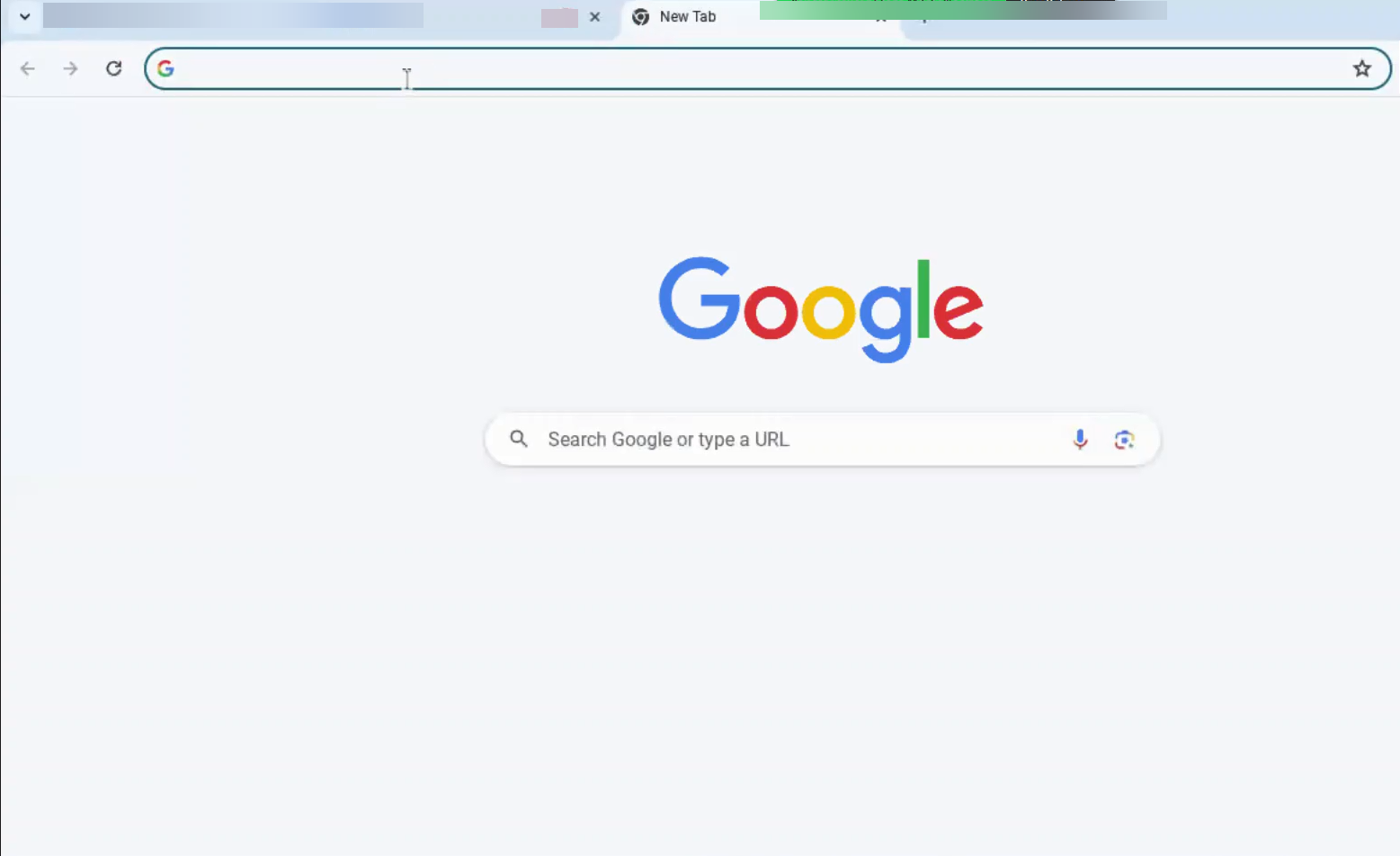
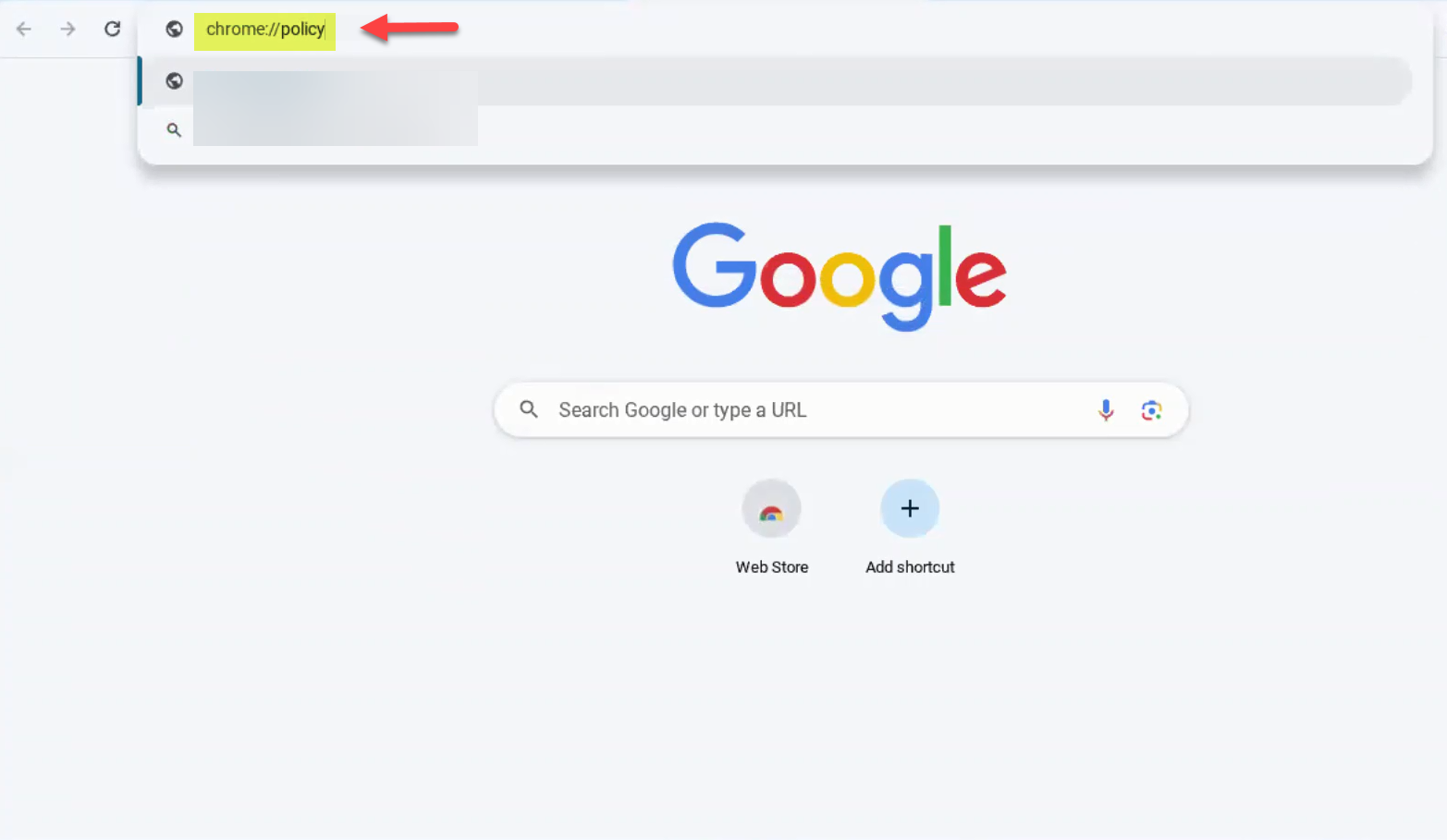
2. Enter Policy Command
Type
chrome://policyin the address bar.Press Enter.
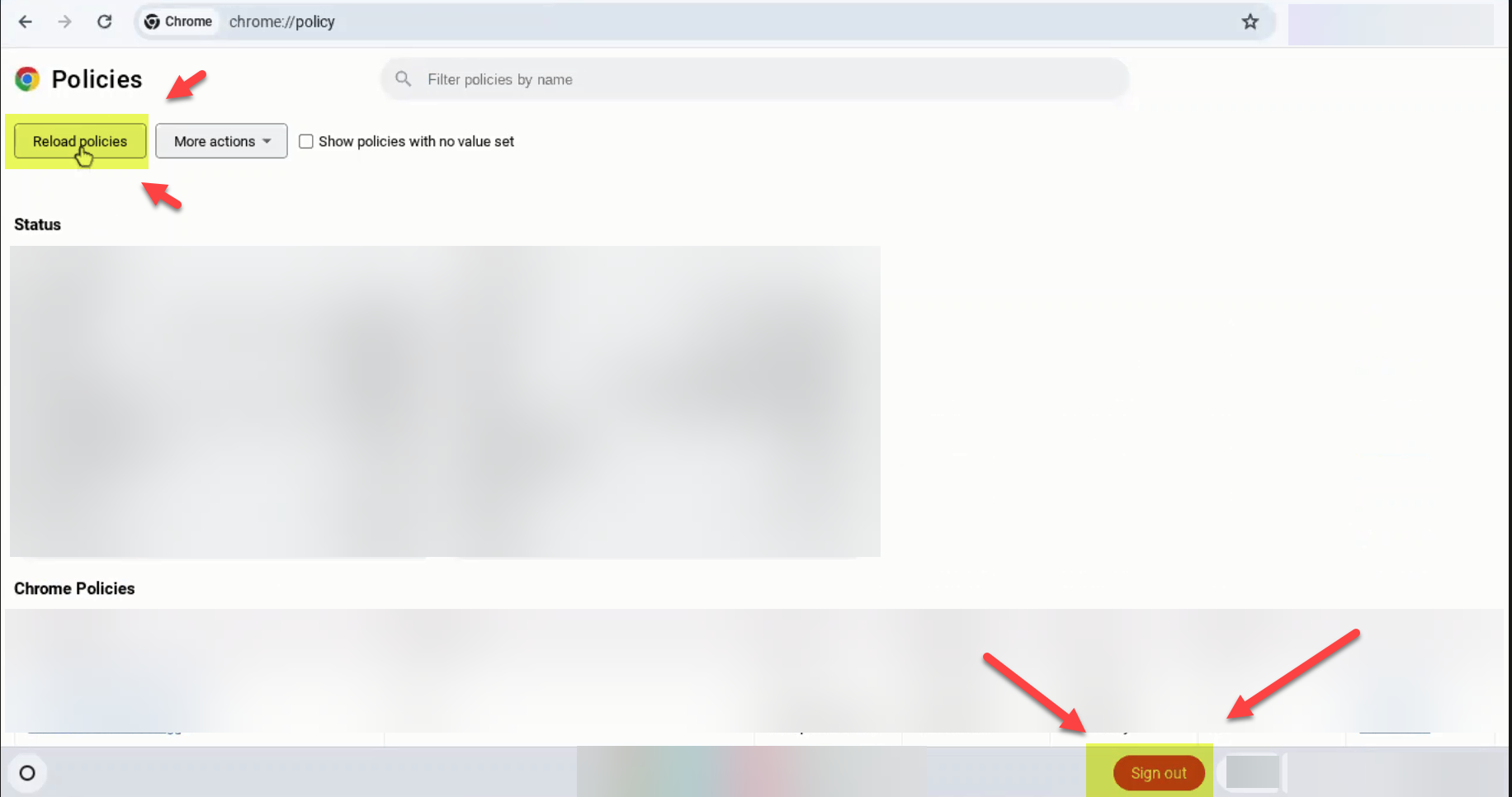
3. Reload and Sign Out
Select Reload Policies. You may click this once or twice.
Select Sign-Out to return to the login screen.
The Chromebook should now connect to CISD-EDU.
Troubleshooting
Issue Still Not Resolved?
If you have tried all steps (including the Advanced Guest Browsing method and reloading policies) and the Chromebook still will not connect, there may be a hardware issue.
Please submit a Incident IQ Ticket stating the device is "Unable to connect to Wi-Fi."
You can find more information here: How to Submit a Ticket on Your Room’s Assets (Claimed Room)
Send the Chromebook in for repair.

Need additional help? Click here for further assistance.