
How to Update Your MFA Settings (New Phone, Number, or Method)
This guide provides instructions for employees who need to update their Multi-Factor Authentication (MFA) settings within the ClassLink (SSO) portal. This is necessary if you have a new phone, a new phone number, or simply wish to change your authentication method.

Locked Out? If you cannot log in to your SSO to access these settings, please click here for immediate assistance.
Part 1: Accessing Your ClassLink Security Settings
Before making changes, ensure you are in the correct profile mode.
Log in to your SSO.
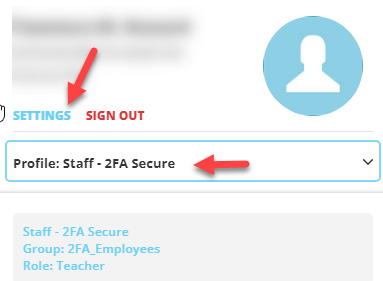
Check your Profile Type.
Click your profile image/icon in the upper right-hand corner.
Verify the profile is set to Staff-2FA (secure/relaxed).
Note: If it is set to "Group," please select Staff-2FA Secure. Your application icons may briefly reload.
3. Open Settings
Go back to your Profile and click Settings.
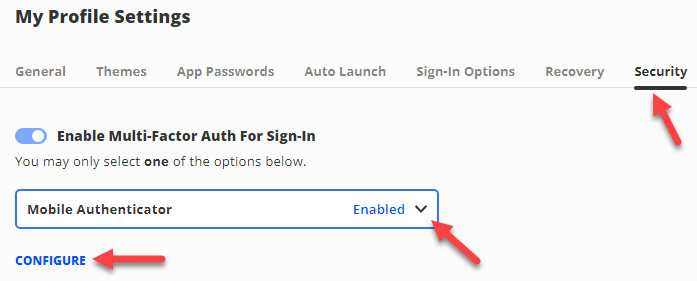
4. Navigate to Security.
In the Settings menu, click Security.
This page displays your current MFA and Recovery options.
Part 2: Choose Your Update Method
Select the option below that matches the change you need to make.
Option A: Updating Mobile Authenticator (Google Authenticator App)
Use this if you have a new phone device but still want to use the app.

The Google Authenticator app settings usually do not transfer automatically from old phones. You must set it up as a "new" connection.
If the app transferred from an old phone backup and isn't working, delete it and download a fresh copy.
Prepare the App on Your New Phone.
Download the Google Authenticator app.

Google Authenticator
Open the app:
Click Get Started.
Select Use Authenticator Without an Account (if prompted under your email).
Tap the Plus Sign (+) and select Scan a QR code.
Allow camera access if asked.
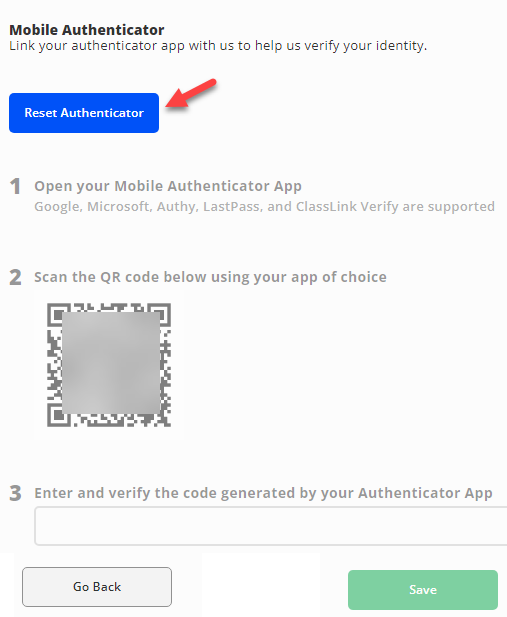
2. Reset the Connection in SSO.
In the SSO Security section (on your computer), locate Mobile Authenticator (Mobile).
Click Mobile.
Click Configure.
Click Reset Authenticator.
3. Scan and Verify.
Use the Google Authenticator app on your phone to scan the new QR code displayed on your computer screen.
The app will generate a 6-digit code.
Enter this code into the Verification Code field on your computer.
Click Save.
Option B: Updating Mobile SMS (Text Message)
Use these steps if your MFA option is Mobile SMS (text message) and you have a new phone number.
Remove the Old Number.
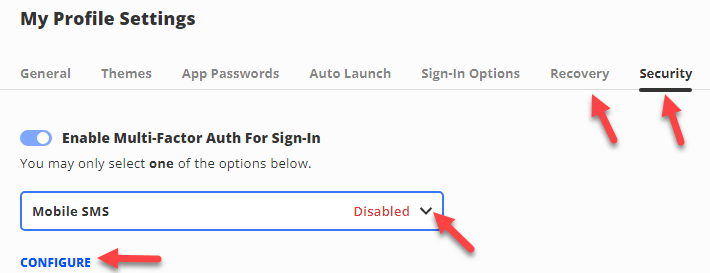
In the SSO Security section, locate Mobile SMS (text message).
Click the Delete (trash icon) or Remove option next to your old number.
Add the New Number.
Enter your new mobile phone number in the provided field.
Click Save.
Verify.
You will immediately receive a text message with a code. (Ensure your cellular device has full bars, or you won’t receive the code)
Enter this code into the Verification Code field.
Click Submit.
Option C: Changing to an Image or Updating Your Image
Use this if you want to switch to Image authentication or change your current MFA option to Image (if available to you).
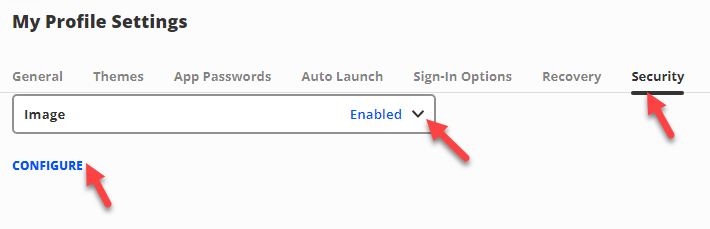
Select the Image Option.
In the SSO Security section, locate Image.
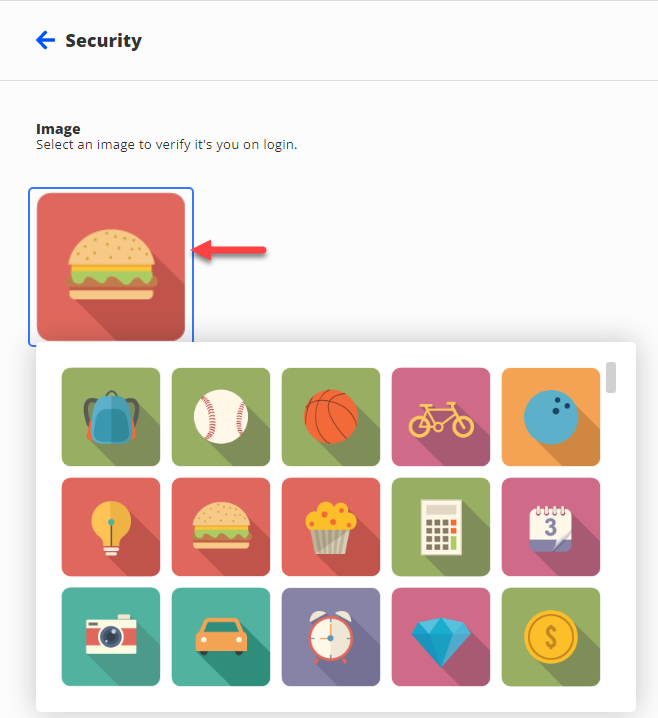
Choose a New Image.
Click on your current image to view the full gallery.
Select a new image from the available options.
Click Save.
Need additional help? Click here for further assistance.