
This guide explains how to reset your Single Sign-On (SSO) password from the login screen if you forgot it, and how to update it if you are already logged in. Passwords expire every 90 days.
If you have failed to log in 5 times, your account is locked for 15 minutes. Please wait for this time to expire before attempting to reset your password. Read more here: Locked Out of ClassLink (SSO): How to Regain Access
Instructions for Resetting Your Password (From the Login Screen)
1. Access the SSO login page
Go to the ClassLink login page: https://sso.conroeisd.net.
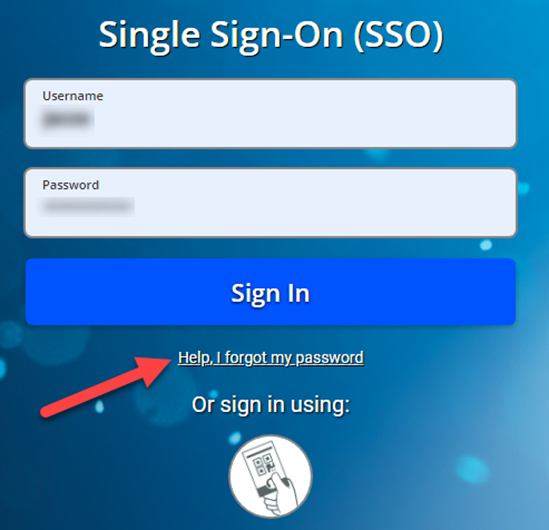
2. Select the help option
Select Help, I Forgot My Password.
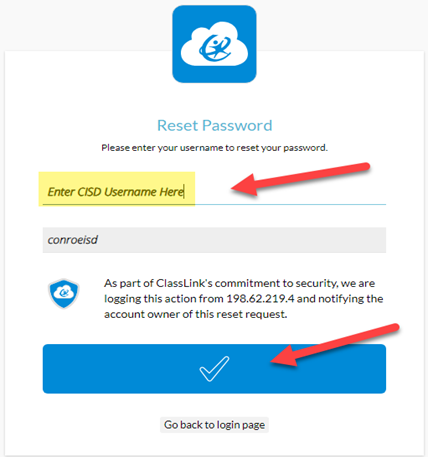
3. Verify your identity
Enter your Username and select the Checkmark button.
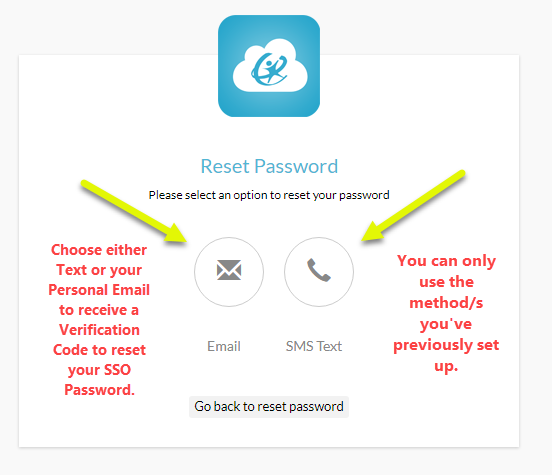
4. Enter Verification Code
-
Select your preferred recovery method: SMS (Text) or Email.
-
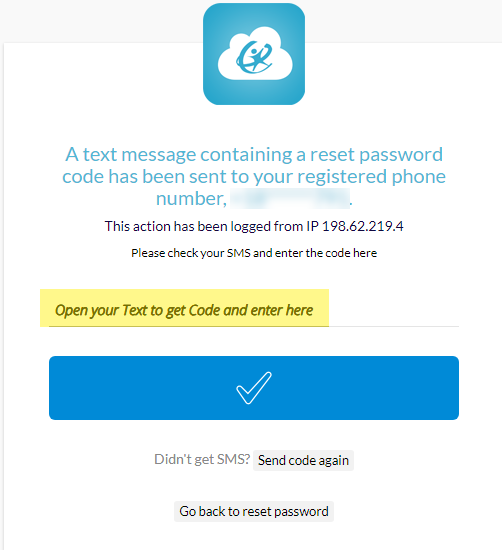
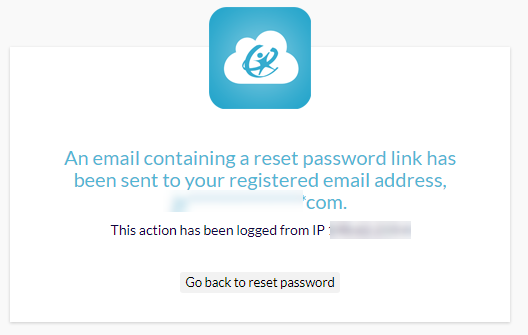
Retrieve the code sent to your phone or email.
-
Enter the code into the box on the screen.
5. Create a New Password
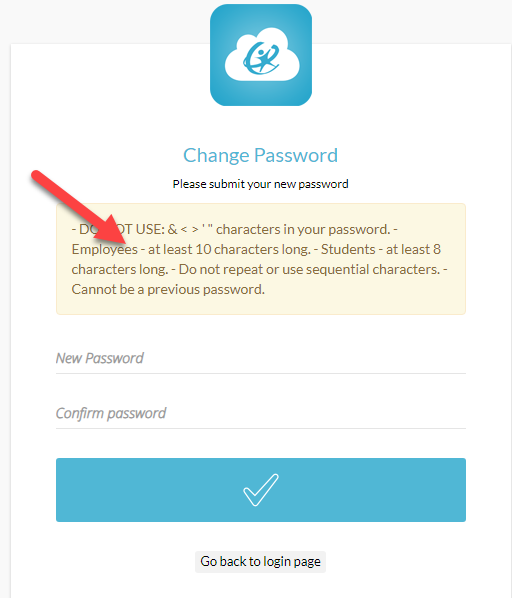
Enter a new password that meets the following requirements:
-
It must be 10 characters or more.
-
It must not contain 3 or more repetitive or sequential characters (e.g., avoid "abc", "123", "ccc").
6. Log In with New Password
-
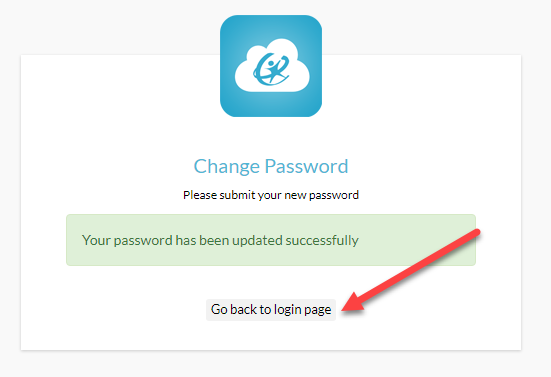
Once you see the "Password successfully reset" message, select Go Back to Login Page.
-
Enter your username and your new password.
-
Complete the Multi-Factor Authentication (MFA) using your Text, Google Authenticator, or Image.
7. Update Other Devices
Please manually update your new password on any other devices (like phones or tablets) where you are logged in. The system will not update them automatically.
Instructions for Changing Your Password (While Logged In)
1. Open your profile
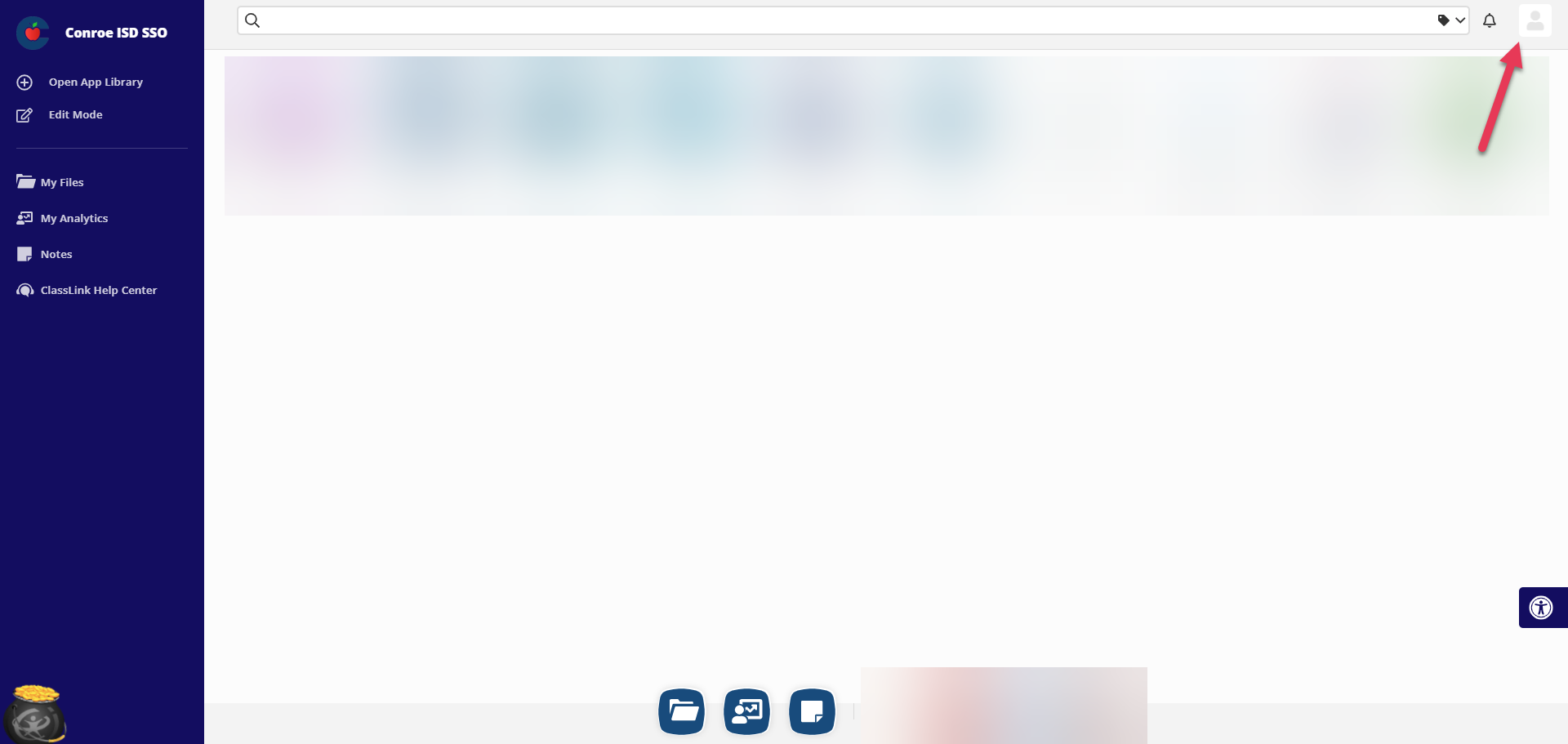
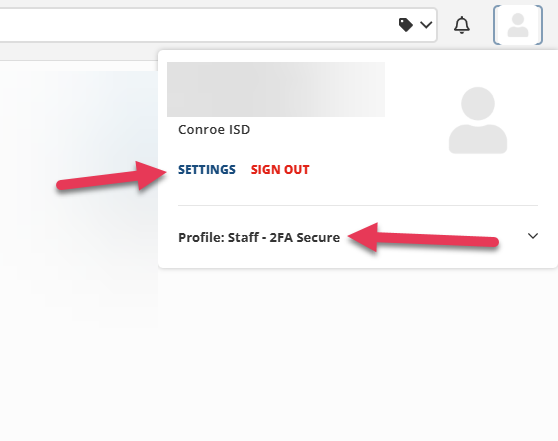
After logging into your SSO, select the profile icon located in the upper right corner.
2. Verify your profile and open Settings
Ensure your profile is set to Profile: Staff - 2FA Secure Staff then, select Settings.
3. Select Recovery
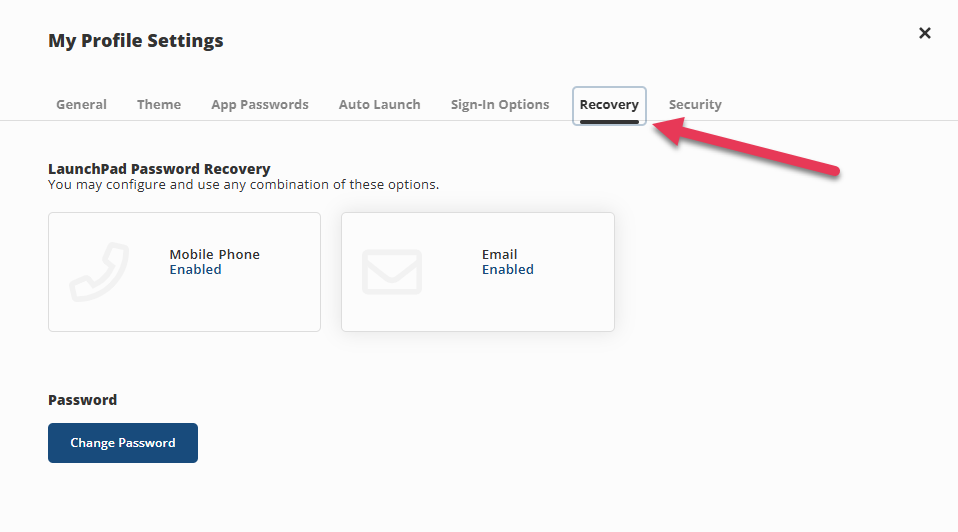
Choose the Recovery option.
We highly recommend adding a personal email address here so you have an alternate way to reset your password if you’re unable to receive SMS text messages. In some cases, cellular service may be unavailable, so having a backup option is important.
4. Change your password
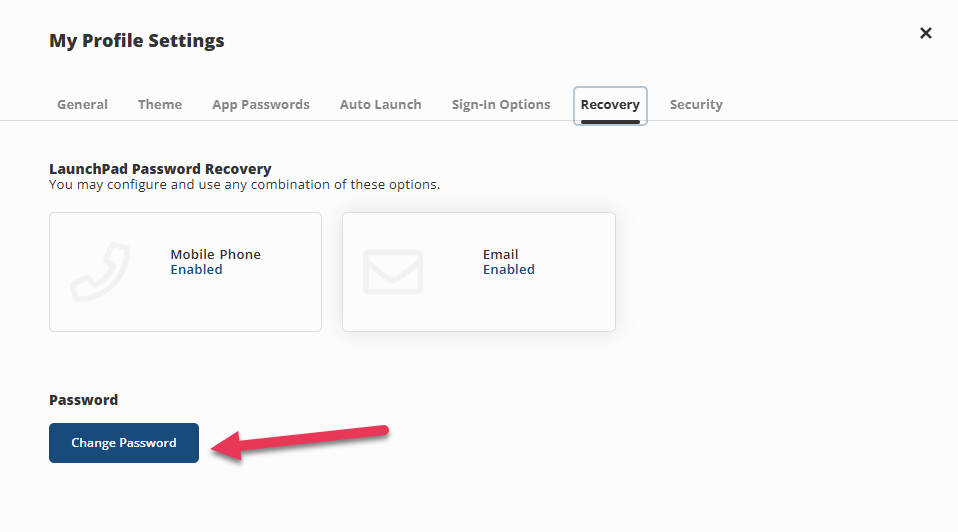
Select Change Password and follow the prompts to complete your update.
Troubleshooting
Reset Not Working on iPhone
If you use Safari on a phone to reset your password, it may not link correctly to your account. If you see a "successfully reset" message but cannot log in, please try the process again using a different browser such as Chrome or Microsoft Edge or a different device.
Password Not Working on Other Devices
New passwords do not update automatically on other devices or phones. Please manually update your password on every device you use.
Need additional help? Click here for further assistance.