
ClassLink Single Sign-On (SSO) has a security feature that may lock your account if you remain logged in on multiple devices (including personal phones or computers) without signing out. A lockout will also occur after five failed login attempts.
If you are locked out, you will need to wait 15 minutes. Please avoid attempting to log in again until this time has passed, or the timer may reset.
Account Lockout Details
-
Wait Time: 15 minutes after a security trigger (check the error message for time remaining).
-
Security Limit: Lockout occurs after 5 failed login attempts.
-
Recommendation: Use Google Chrome or Microsoft Edge.
-
Locked Out? Consider Resetting your SSO Password while you wait.
Instructions for Account Lockouts
Reset Your Password
If the 15-minute lockout period has expired and you are still unable to log in, please attempt to reset your credentials using the Reset SSO Password Link.
Instructions for Managing Active Sessions
To prevent future lockouts, please ensure you sign out of ClassLink correctly rather than simply closing your browser window. You can also remotely log out of other devices if you forgot to sign out previously.
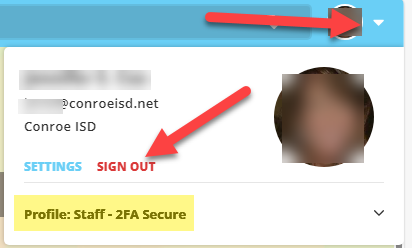
1. Sign Out of Your Current Session
-
Locate the profile dropdown menu in the upper right corner of the ClassLink screen.
-
Select Sign Out.
2. Access Settings for Remote Logout
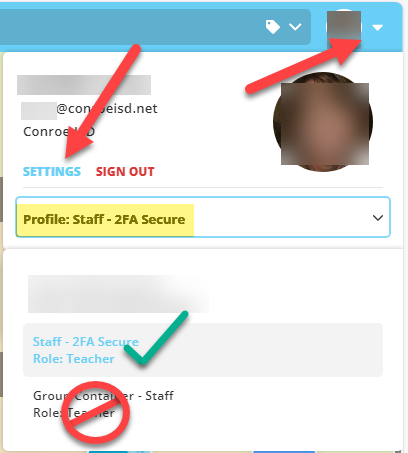
-
Open the profile dropdown menu in the upper right corner.
-
Select Settings. (Note: Please ensure your profile is set to "Staff-2FA Secure" to access these features.)
3. Locate Active Sessions
-
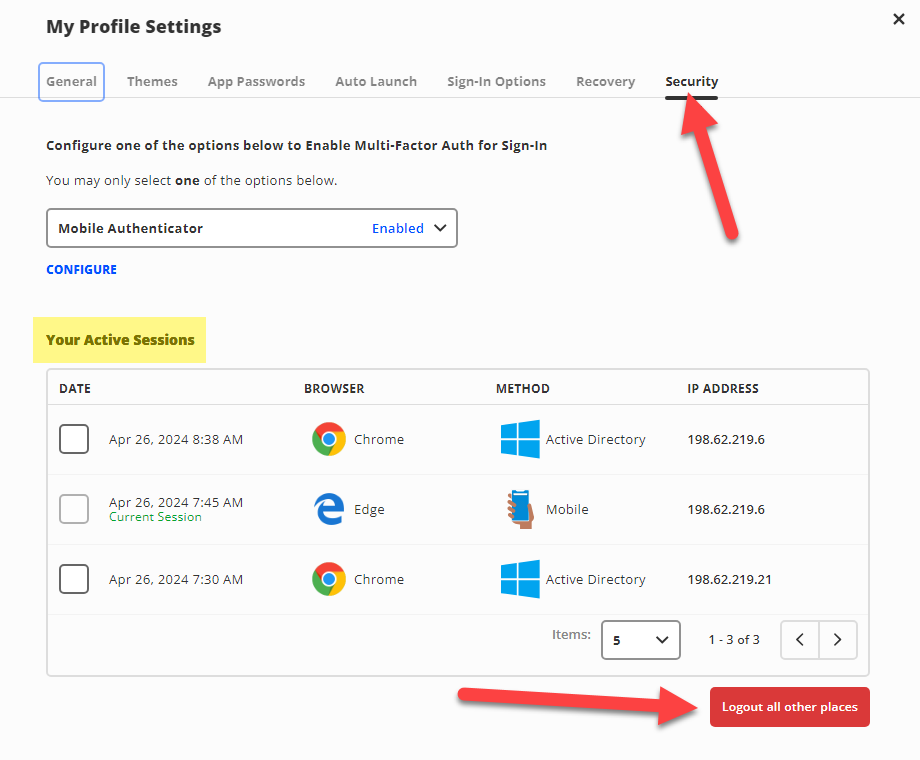
Select the Security tab.
-
Locate the Your Active Sessions section.
-
Below this section, look for the Logout All Other Places option.
4. End Specific or All Sessions
-
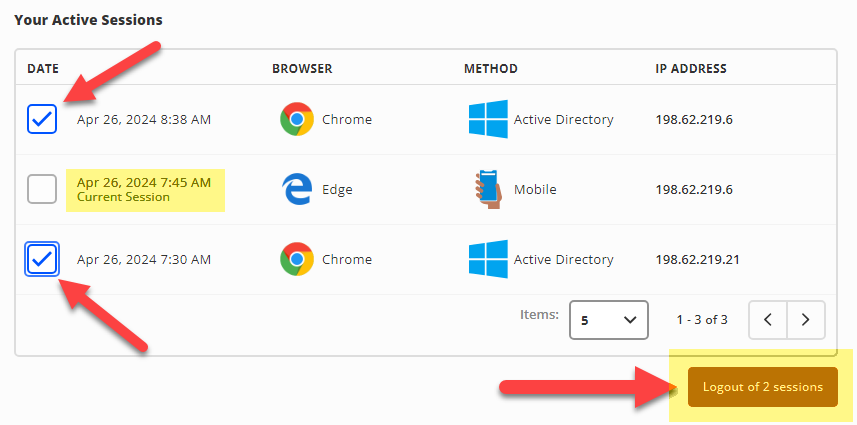
To close specific sessions while keeping your current one active, check the boxes next to the sessions you wish to end.
-
Select the Red Box to confirm. This will display the number of sessions that will be logged out.
Troubleshooting Lockouts
A lockout is a security measure. The three main causes are:
-
Too Many Failed Attempts: System locked account after 5 failed attempts.
-
Too Many Active Devices: You remained logged into your SSO on multiple devices without logging out.
-
Clear Device History/Cache: Devices tend to hold onto old logins and can prevent you from logging in. Clear History and Restart.
You MUST wait until the 15-minute lockout time has finished before trying to log into your SSO again on any device. Do not attempt to login again until that time has expired.
Need additional help? Click here for further assistance.