
When a ticket is submitted in Incident IQ for a staff laptop issue, the device may need to be inspected, reimaged, or replaced. Files stored locally on the device will be lost and cannot be retrieved if a reimage or device replacement occurs. To ensure your documents remain safe, please save your work to the Personal Drive (U:), Campus Shared (S:), or Google Drive.
Files stored only on the laptop desktop or documents folders cannot be retrieved if the device is reimaged or replaced. Please move all important work to a network or cloud drive to ensure it is not lost.
Instructions for saving to a network drive (U: or S:)
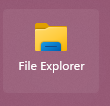
1. Select the File Explorer icon
Select the folder icon located on the taskbar at the bottom of the screen.
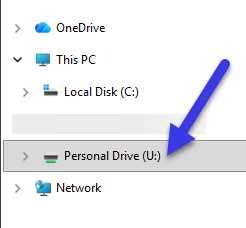
2. Locate the network drive
Find the drive on the left side of the window labeled Personal Drive (U:) or Campus Shared (S:). Please note that you will need to be connected to the Conroe ISD network to see these folders.
3. Copy the documents
Select the files or folders you wish to save from your Desktop or Documents folders. Right-click the selected items and select Copy.
4. Paste the documents
Select the Personal Drive (U:) or Campus Shared (S:) from the menu. Right-click an empty space inside that folder and select Paste.
5. Confirm the files are saved
Open one of the documents from the network drive to ensure it was saved correctly. Once the files are in this location, they are safe and can be accessed from any district computer.
Troubleshooting
Network drive is not visible
If the Personal Drive (U:) or Campus Shared (S:) does not appear in the list or you can’t open the drive, please ensure the laptop is connected to the CISD network.
Need additional help? Click here for further assistance.