
This guide helps you set up a new security method for your Single Sign-In (SSO) account after the Technology Department has reset your settings. Multi-Factor Authentication (MFA) is an extra security step used to verify your identity when you log in. Please note that you can only use one security method at a time.
Recommended Browsers are Chrome, Edge, Safari (Note: Conroe ISD does not support personal devices. Please ensure any VPNs or iCloud Private Relay are disabled.)
1. Sign In to Your Account
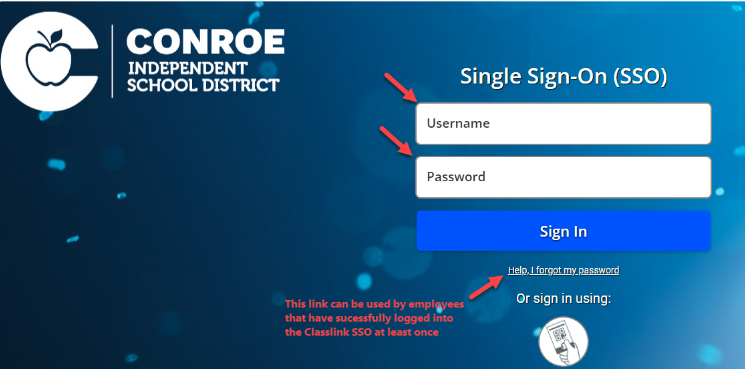
Log in to your SSO from a computer. If you do not remember your password, select the Help I Forgot My Password found under the login boxes and follow this guide here: How to Reset Your SSO Password
2. Choose Your Security Method
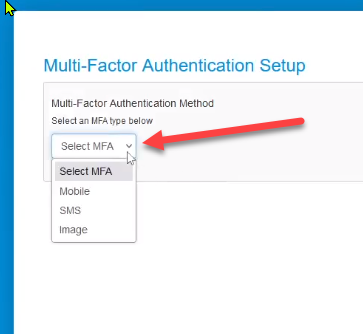
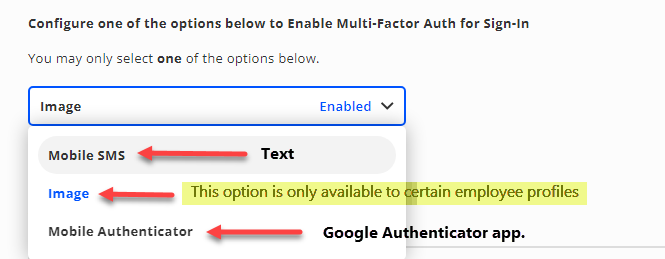
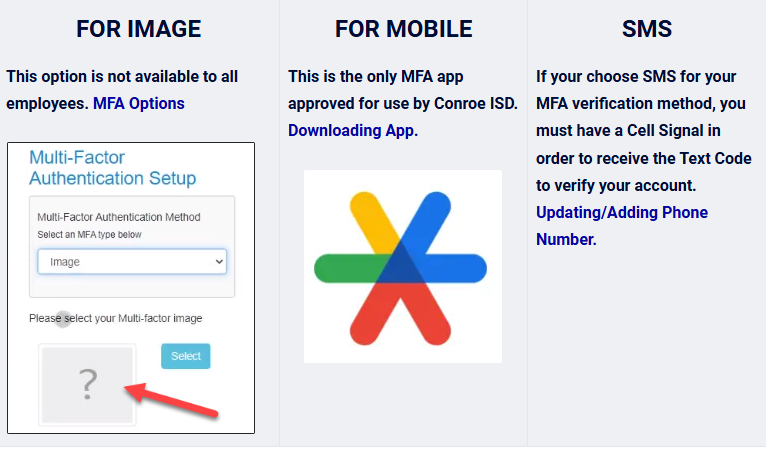
Select the security method you want to use for your account. You may see options for Mobile Authenticator, Mobile Phone (SMS), or Image. Please note that the Image option is not available to all employees.
3. Set Up Your Chosen Option
Follow the instructions on your screen to finish the setup.
-
For Google Authenticator: Please avoid scanning the QR Code with your phone's regular camera. You will need to use the Google Authenticator app to scan it.
-
For SMS (Text): You will need a reliable cell signal to receive the text code. Please avoid this method if your building has a weak cell signal.
How to Change Your Security Method
1. Open Security Settings
Log in to your SSO account. Select your account Settings and then select Security.
2. Update Your Method
Choose a new security option and follow the prompts to save your changes.
Troubleshooting
Google Authenticator Not Working
If you got a new phone and transferred your apps, the old account will not work. Please delete the Google Authenticator app and download it again from your app store to start a new account.
Security Method Is Locked or Broken
If your current security method is not working, you will need to have your settings reset. To contact the Conroe ISD Help Desk, please refer to the "Need additional help?" section below.
Need additional help? Click here for further assistance.