
This guide explains how to install and configure the Google Authenticator app for Conroe ISD Single Sign-On (SSO). This app generates the secure codes needed to access your district accounts. The app is free and there is no login required to use this app.
Important: This app cannot be transferred from an old phone to a new one. If you get a new phone, you must install the app fresh and set up a new code.
If you are unable to log in to your SSO, you must email the Help Desk at help@conroeisd.net to request a reset of your QR Code before starting the setup.
Instructions for Setting Up the Google Authenticator App
1. Download and Open the Google Authenticator App
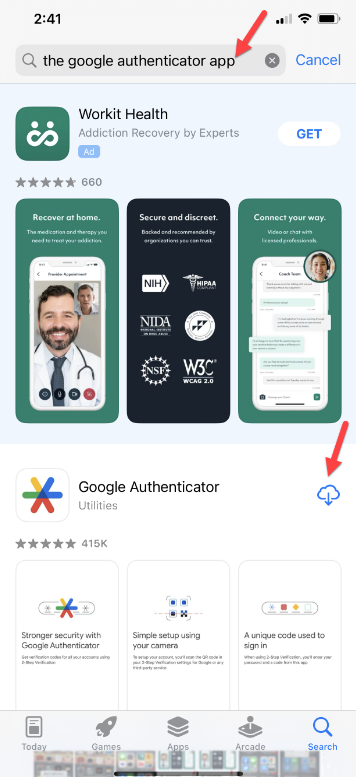
Go to your phone’s App Store (iPhone) or Play Store (Android). Search for Google Authenticator. The correct app is a multi-colored asterisk symbol.
Note: We recommend you avoid transferring the app from an old device, even if your phone suggests it. Always download a fresh copy.

2. Start the Setup Process
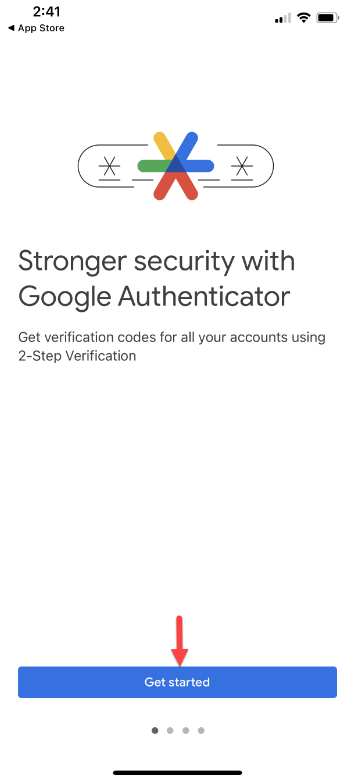
After downloading the Google Authenticator App, Open the app. Tap Get started.
3. Decline the Google Account Login
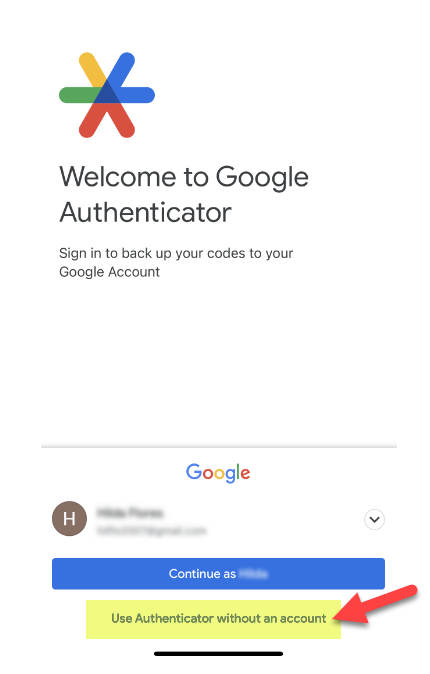
When prompted, click Use Authenticator without an account. Please avoid logging in with Google as it is not needed for this process.
4. Prepare to Scan Your QR Code
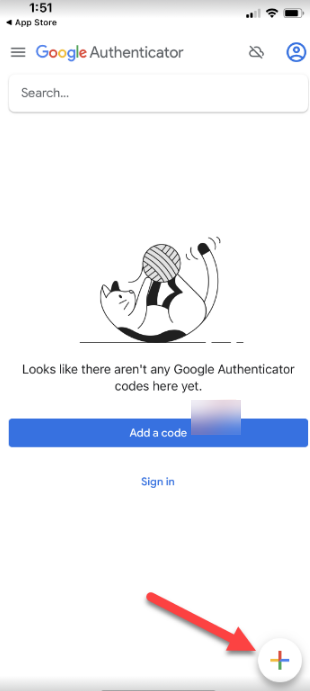
After bypassing the login screen, tap the Plus Sign (+) icon. Your phone may ask for permission to access the camera; please tap Yes.
5. Scan the QR Code from Your SSO Account
Scan the new QR code that appears using the Google Authenticator app (do not use your phone’s standard camera app).
Security Note: You must be inside the Google Authenticator app to scan the QR code. Please do not use your phone's standard camera app.
6. Select Mobile Authentication (First-Time Setup)
Once your QR code has been reset and you log in to your SSO, you will see a dropdown menu to choose your authentication method.
-
Select Mobile.
-
Open your downloaded Google Authenticator app to scan the new QR code.
The new QR code will appear the next time you successfully log in to your SSO.
Troubleshooting
What if I get a new phone?
The connection does not transfer automatically. You must email the Help Desk to reset your QR code, then repeat the "Linking to Your Account" steps above with the new device.
What if the code doesn't work?
Ensure the time settings on your phone are set to "Automatic." If your phone's internal clock is out of sync, the codes will be rejected.
How do I remove old accounts?
Press and hold the old account name, tap the Pencil symbol, and delete it.
What if the code time runs out?
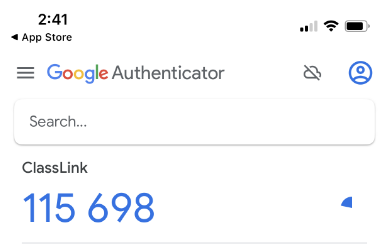
The security codes automatically reset every 30 seconds. Simply wait a few seconds for a new code to generate.
Need additional help? Click here for further assistance.