
This guide explains how to generate a new security code for your login settings. Multi-Factor Authentication (MFA) is a security layer that confirms your identity. You will need a computer and the Google Authenticator app on your phone to complete this process.
Important Notes Before You Begin:
-
New Phone? If you are getting a new phone, you must download a fresh copy of the Google Authenticator app. The app cannot be transferred from an old device.
-
Check Profile: Please ensure your profile is set to Staff-2FA Secure and not Do Not Use-Container Staff. If you update this, your apps will reload automatically.
-
SMS Warning: Short Message Service (SMS) is not recommended due to poor cell reception at many campuses; please use it only as a temporary backup.
Instructions for Resetting your QR Code
1. Log in to Single Sign-On (SSO)
Sign in to your Conroe ISD SSO.
-
If you cannot log in because you lack a code or password, please refer to the "Need additional help?" section below.
2. Open Security Settings
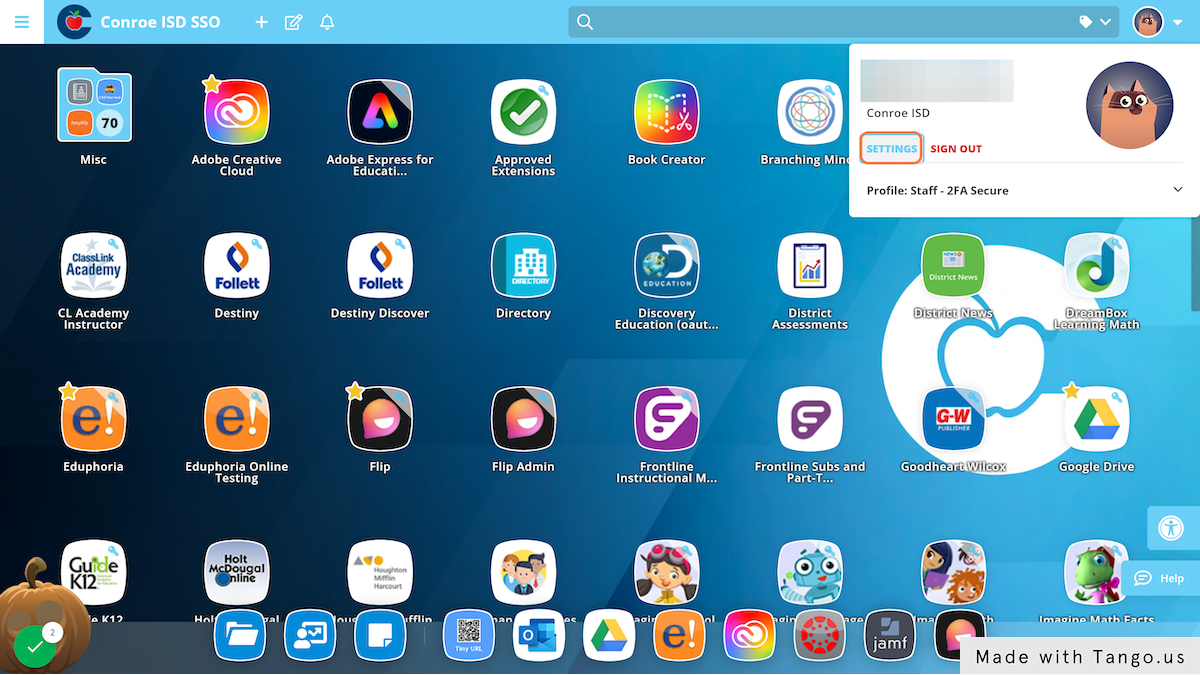
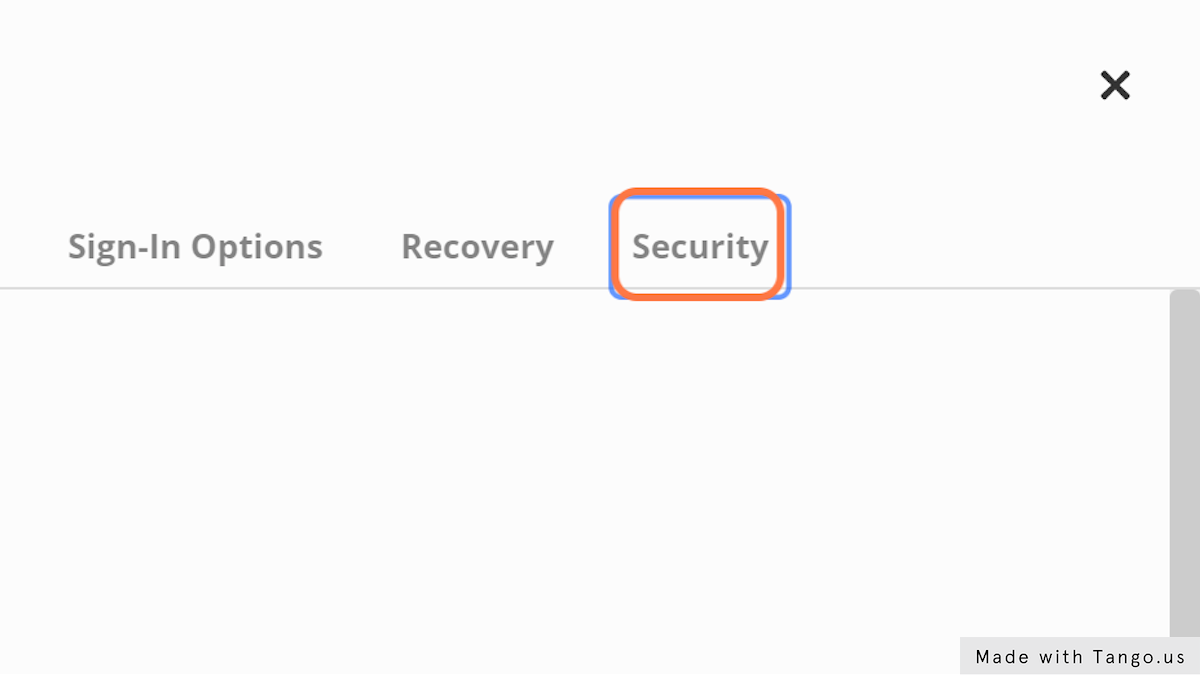
Click the dropdown menu next to your profile image. Select Settings. Click on Security.
3. Configure Mobile Authenticator
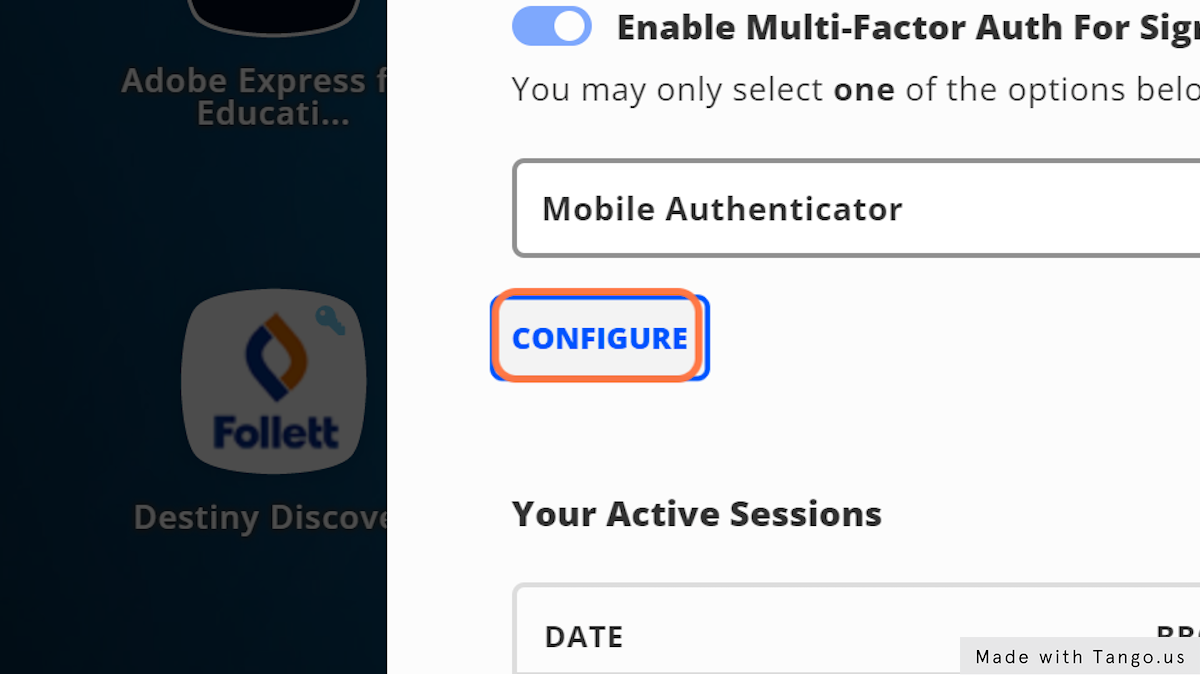
Ensure the dropdown menu shows Mobile Authenticator and select CONFIGURE.
4. Reset the Authenticator
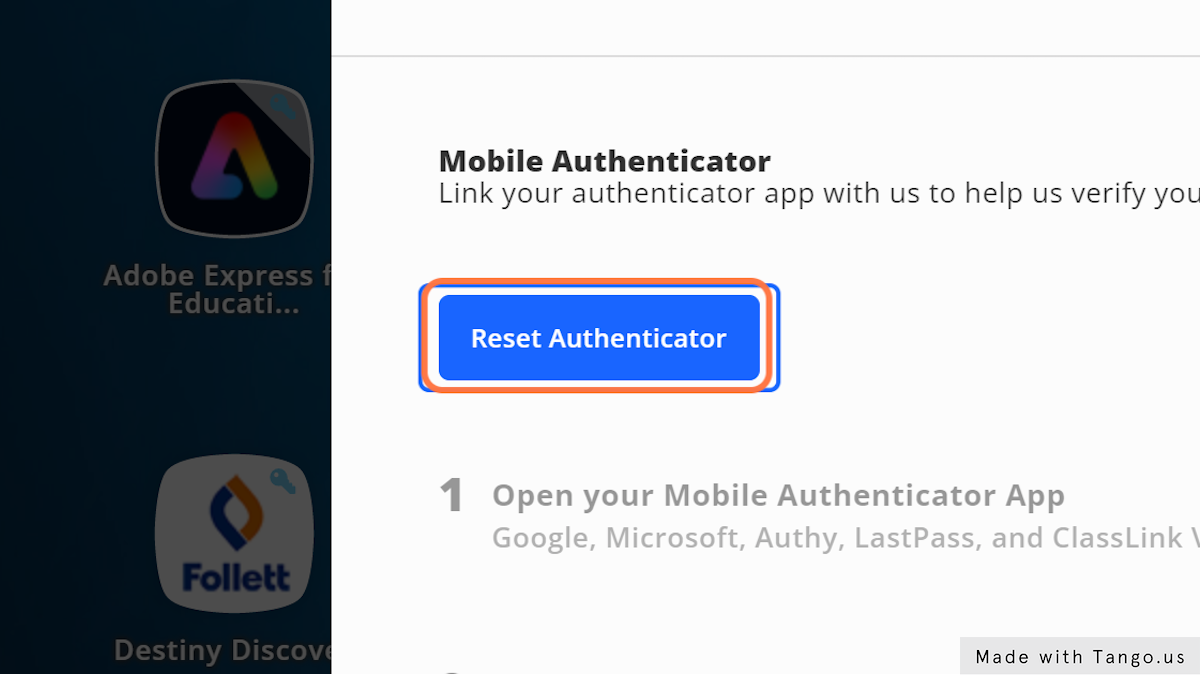
Select Reset Authenticator. A new QR code will appear on your computer screen.
5. Scan the Code
Open the Google Authenticator app on your phone. Please avoid using your phone’s standard camera. Use the app to scan the QR code on your computer.

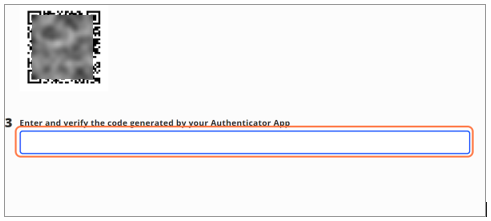
6. Verify and Save
Enter the 6-digit code shown in your app into the computer screen and select Save. Once successful, you will see Mobile Authenticator is Enabled. Ensure the account name in your app shows ClassLink.
7. Clean up Old Accounts
If you have more than one code in the app, the most current one is at the bottom. Please delete any old or extra accounts. Select Close to finish.
Instructions for Changing Verification Methods
Switch to a Temporary Method
If you are planning to get a new phone soon, you can change your method to SMS or Image (if available) to avoid being locked out. Go to Settings, then Security, and select your new method from the dropdown.
Set up Phone Number or Image
Select Configure. For SMS, add your phone number and Save. For Image, click the black and white picture, choose an image, and Save.
Update to a New Phone
Once you have your new phone, download the Google Authenticator app. Log in to your SSO using your temporary method, then follow the "Instructions for Resetting your QR Code" section above to link your new phone.
Need additional help? Click here for further assistance.