
This guide helps you set up a new security code for your Single Sign-On (SSO) account after a reset. Multi-Factor Authentication (MFA) is a security layer that keeps your account safe.
If you have a new phone or phone number, you will need to delete the old Google Authenticator app and download a new one before starting, because this prevents setup failure.
Instructions for Setting Up a New QR Code
1. Sign In to Your Account
Log in to your SSO on a computer.
-
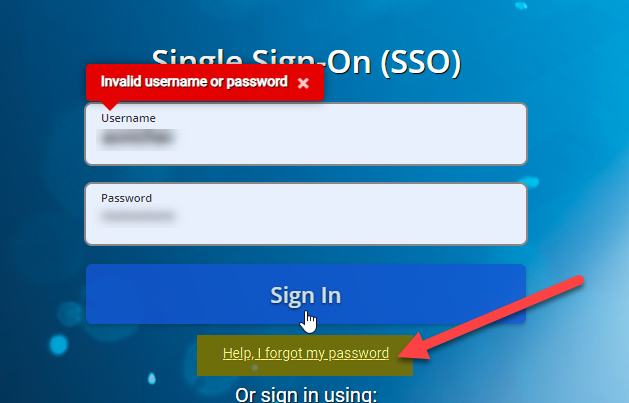
If you have forgotten your password, please use the Help I Forgot My Password link on the login page or follow the guide here: How to Reset Your SSO Password
2. Choose Your Security Method
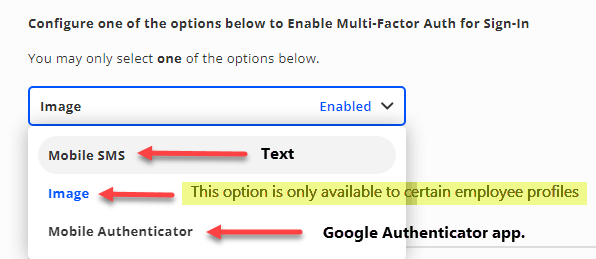
Locate the dropdown box and select Mobile Authenticator as your MFA option.
3. Scan the New Code
Your new QR Code will appear on the screen immediately once Mobile Authenticator is selected.
-
Open the new Google Authenticator app on your phone.
-
Tap the Plus (+) sign.
-
Select Scan a QR Code.
-
Scan the code on your computer screen to link them together.
Need additional help? Click here for further assistance.