
This guide helps you set up and update how you recover your account if you are locked out. You will need to manage these settings through your Single Sign-On (SSO) account.
Recommended Browsers are Chrome, Edge, Safari (Note: Conroe ISD does not support personal devices. Please ensure any VPNs or iCloud Private Relay are disabled.)
Please manage these settings through a web browser. Avoid using the ClassLink app to make these updates because this ensures the settings save correctly.
1. Access Your Profile Settings
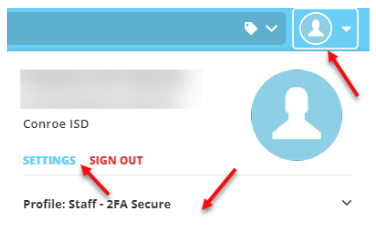
Log in to your SSO. Select your Profile icon in the upper right corner of the home page.
2. Verify Your Profile Type
Ensure your Profile is set to Staff-2FA Secure. If it is set to Group, click the word Group and select Staff-2FA Security from the dropdown menu. Your apps will reload. Select the dropdown menu again and click Settings.
3. Open the Recovery Tab
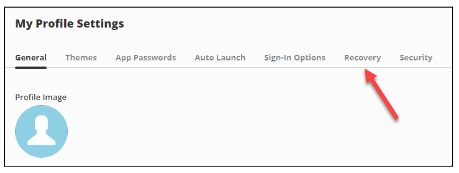
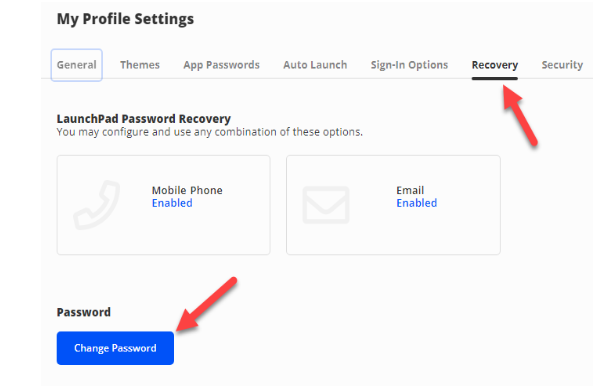
Select the Recovery tab to view your options.
4. Set Up an Email Recovery
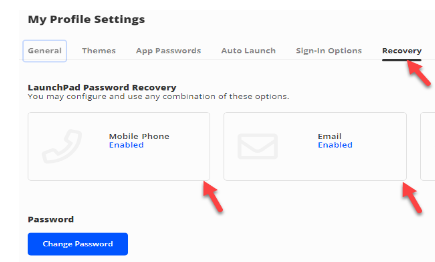
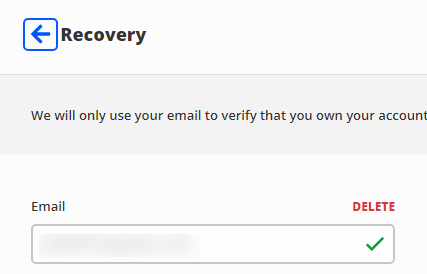
Select the Email box. If you are adding or changing an address, enter a personal email. Please avoid using your Conroe ISD (CISD) email for recovery. Select Save.
You will receive a verification email immediately. You must click the link inside that email before it expires to verify your account, this is a critical time-sensitive step.
5. Set Up a Phone Recovery
Select the Mobile Phone box. Enter your personal cell phone number and select Save. Please avoid using a campus or department phone number.
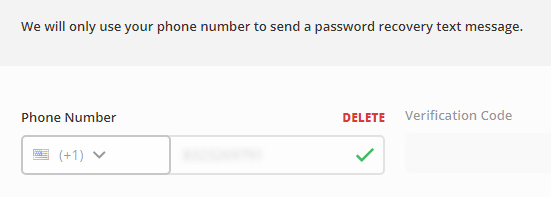
6. Verify Your Phone Number
You will receive a text message with a code. Enter this code into the Verification Code box and select Submit.
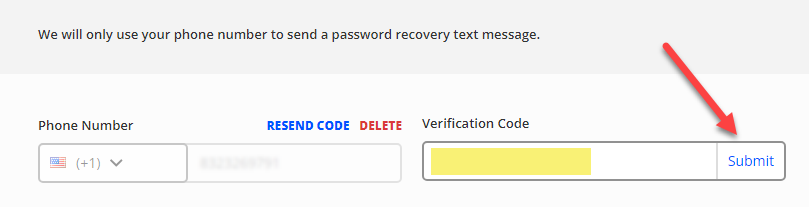
Instructions for Changing Your Password
1. Change Your Password Within SSO
While in the Recovery tab, you can update your credentials. Select the blue Change Password button. You will need to enter your Old/Current Password before typing a New Password.
2. Reset a Forgotten Password
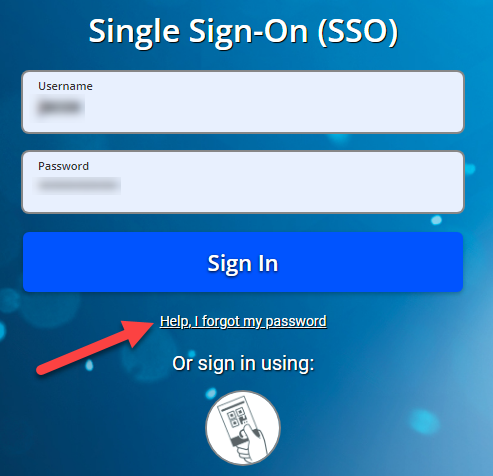
If you do not know your current password, go to the main login page. Select the Help I Forgot My Password to begin the reset process.
Need additional help? Click here for further assistance.