
How to Use the iPad App and JAMF School Issues Form
This guide explains how to use the iPad App and JAMF School Issues Form in Eduphoria. Use this process to report software-related issues that can often be fixed remotely without a physical repair.

If the issue cannot be fixed remotely, the Student Device team will notify you. In that case, please submit a incident IQ ticket and send the iPad in for repair. Here’s how to submit a ticket: How to Submit a Ticket on Your Room’s Assets (Claimed Room)
When to Use This Form
Please submit this form for the following scenarios:
iPads were wiped but did not complete the setup steps.
iPads display the wrong background (e.g., old background instead of the Dark Blue or Light Blue JAMF School background).
iPads will not connect to EDU WIFI.
Apps are not installing, loading slowly, or crashing.
Requesting a device role change (switching an iPad from Staff to Student or Student to Staff).
Other unusual software-related behaviors.
How to Submit the Request
1. Access the Form
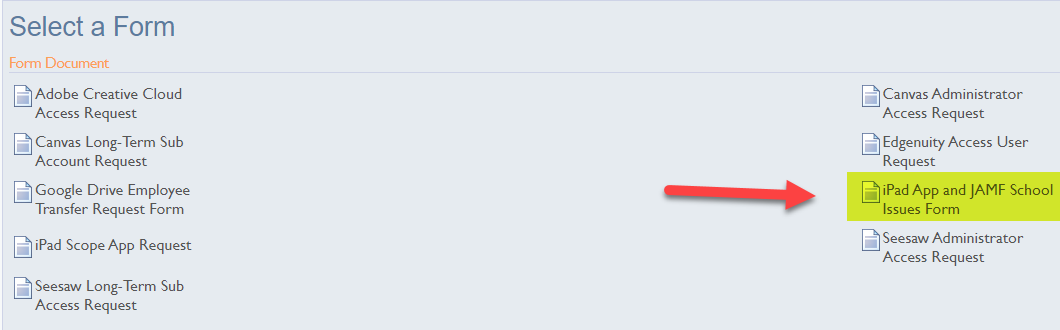
Open Eduphoria from your SSO then open Formspace.
Locate and select the iPad App and JAMF School Issues form.
2. Create the Spreadsheet
The form requires you to upload a spreadsheet containing the device details.
Copy the URL found inside the form description.
Paste the URL into your browser.
Select Make a Copy to save the Google Spreadsheet to your drive.
Note: You only need to do this once. You may reuse this specific Google Spreadsheet for future requests.
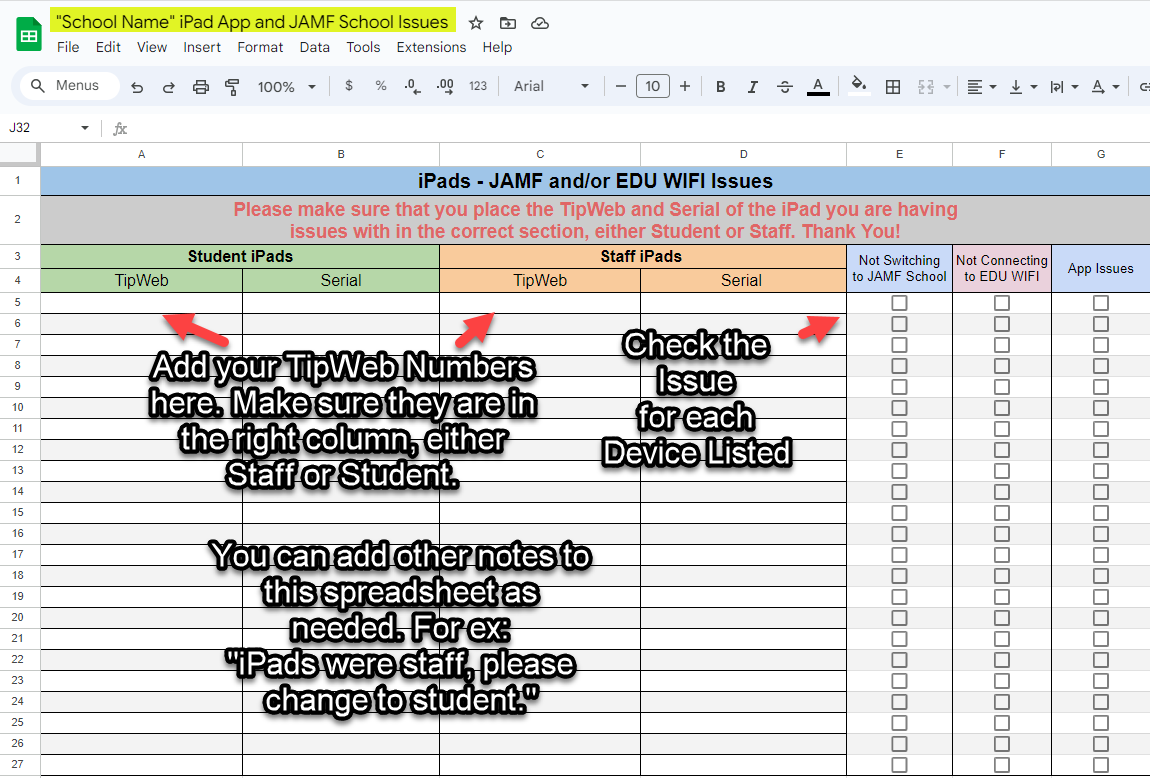
3. Enter Device Details
Enter the iPad TipWeb numbers into the spreadsheet.
Check the box corresponding to the specific issue for each device.
Add any necessary notes in the spreadsheet (e.g., "Change to Staff Device").
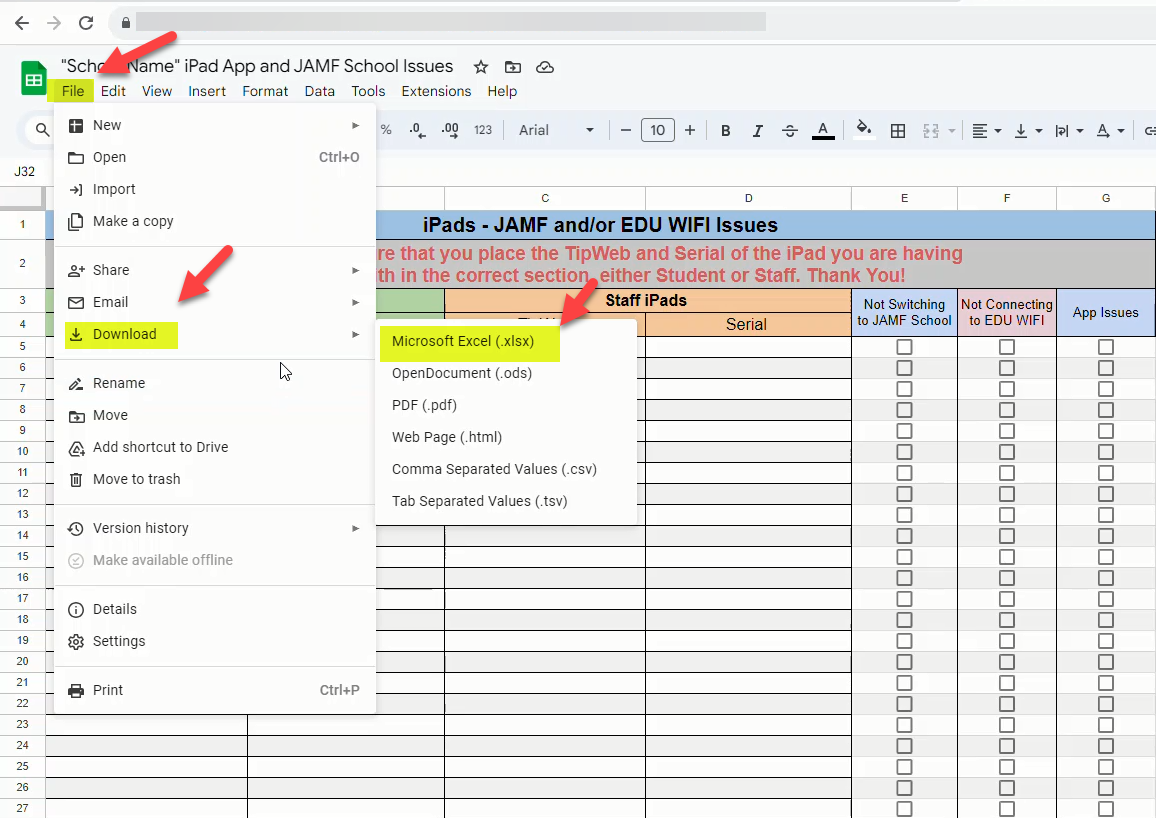
4. Download as Excel
Select File.
Select Download.
Select Microsoft Excel (.xlsx).
5. Upload and Submit
Return to the iPad App and JAMF School Issues form in Eduphoria.
Upload the Excel file you just created.
Select Submit.
Note: The form will not be received if the spreadsheet is missing. This is a required step.
Troubleshooting and Repairs
If the Issue Persists
If you receive an email stating the issue is fixed, but the iPad still malfunctions:
Submit a Incident IQ Ticket.
Send the iPad in for physical repair.
If Remote Fix Fails
If you receive an email stating the issue cannot be fixed remotely:
Submit a Incident IQ Ticket.
Send the iPad in for physical repair.
Need additional help? Click here for further assistance.