
Substitute Setup: First-Time Login & Signing Your (LRA) Letter of Reasonable Assurance
This guide helps new at-will employees set up their district SSO account and sign the required Letter of Reasonable Assurance (LRA). Before you are fully hired as a substitute, you need to complete two specific steps.
Please complete these steps at the following times:
Part 1 (SSO Login): Complete this before your new hire meeting.
Part 2 (Sign Letter): Complete this during your new hire meeting.

If you cannot remember your old password, you can reset it without logging in. Visit the guide here: How to Reset Your SSO Password
Part 1: Setting Up Your SSO Account
1. Access the SSO Login Page
Open a recommended browser and go to the http://sso.conroeisd.net or select the link on the CISD Home Page under Employees.
2. Log In with Temporary Credentials
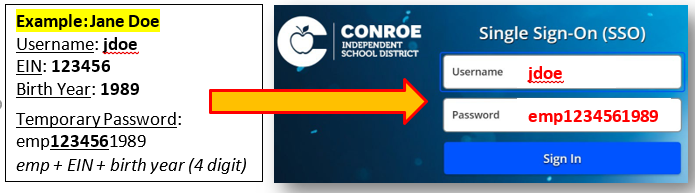
Enter your Username and Temporary Password you were assigned. This information can be found in the LRA/SSO email, or the new hire sheet provided at the meeting.
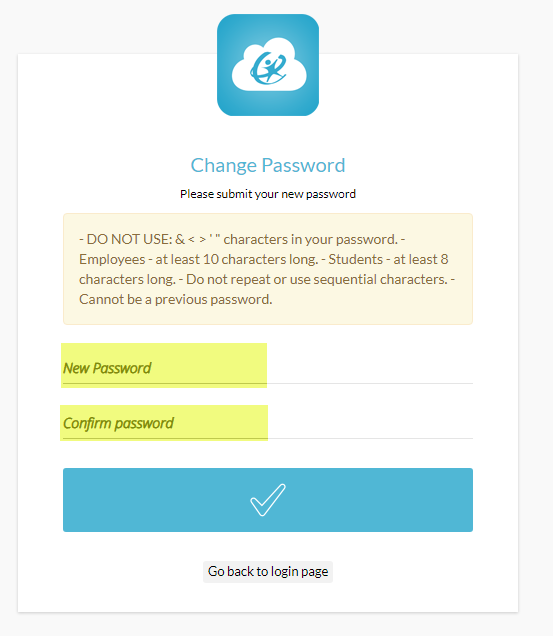
You will be prompted to set a new SSO Password that will work for 90 days before another reset is required.
3. Choose Your Security Method (MFA)
You will see a dropdown menu. Please select one of the following methods to secure your account.
Option A: Mobile Authenticator App (Most Recommended)
Download the Google Authenticator app on your phone. (Note: This is the only approved app. You can find it in the iPhone App Store or Android Play Store).
Open the app and scan the QR code on the screen.

Option B: SMS/Text Message (You must have a cell signal to use this option at the time when needed)
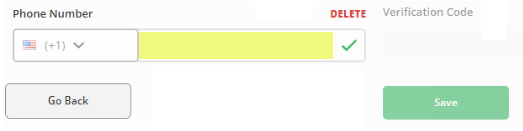
Enter your cell phone number.
Check the box to authorize text messages.
Select Save.
Enter the code sent to your phone and select Verify.
Option C: Image (Not available to all employees & You will need to identify this image every time you log in)
Select the Mountain or Question Mark icon.
Choose an image you will easily remember.
Select Save.
|
4. Set Up Password Recovery
The system will ask you to set up recovery methods in case you forget your password.
Personal Email: Enter a personal email address. Please avoid using your district email, as you cannot access it if you are locked out.
SMS: You may also add text messaging as a backup option. SMS should be used ONLY as a backup, since a strong cell signal is needed to receive the code.
5. Change Your Password
If the system does not ask you to change your password automatically, please follow these steps to change it from the temporary one.
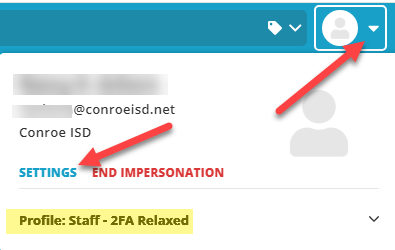
Select your profile picture in the upper right corner.
Select Settings.
Check your Profile Setting: Look at the text under your name. It should say "Staff-2FA Security".
If it says "Group", please change it to "Staff".
Select the Recovery tab.
Select Change Password.
Enter your new password. It must be 10 digits or more.
Part 2: Signing the Letter of Reasonable Assurance (LRA)
1. Open the Employee Access Center (EAC)
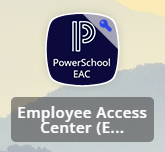
Search for EAC (or Employee Access Center) on your SSO home page.
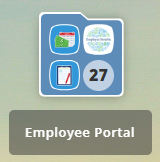
Locate the Employee Portal folder and open the EAC app.
2. Locate the Document
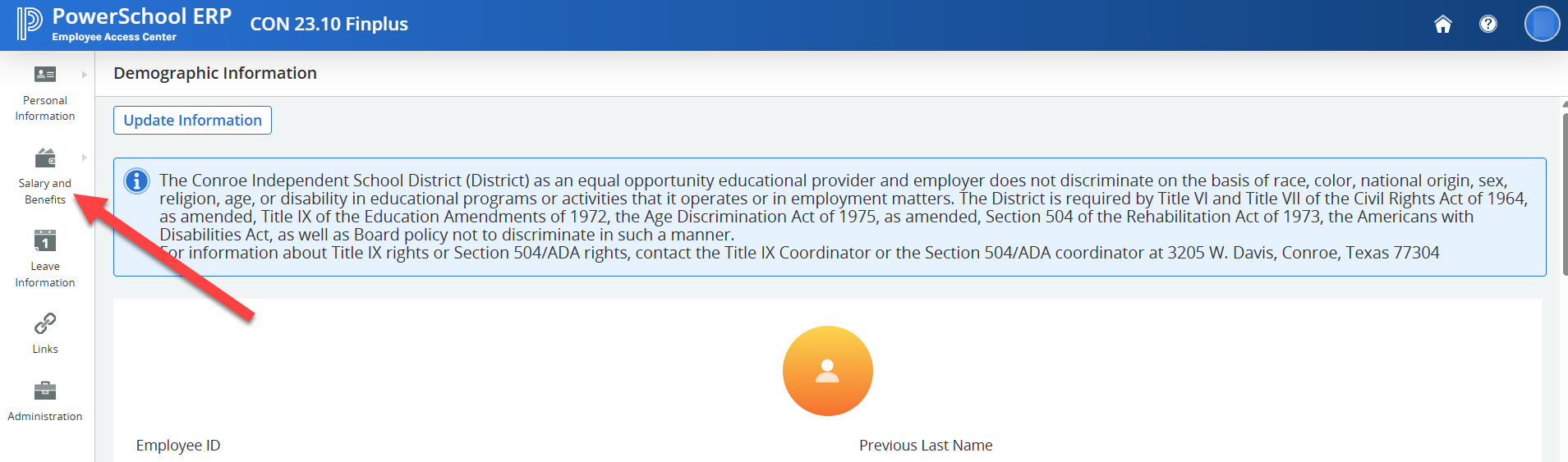
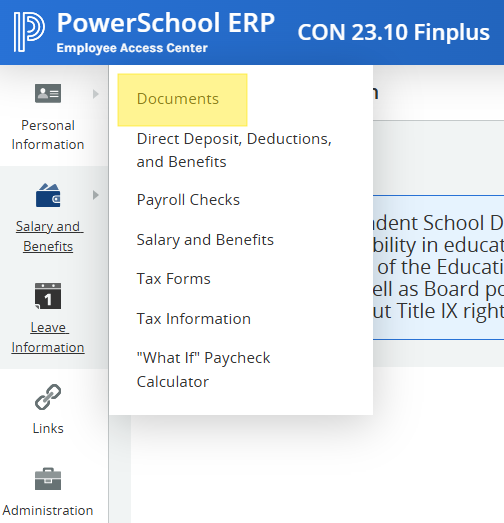
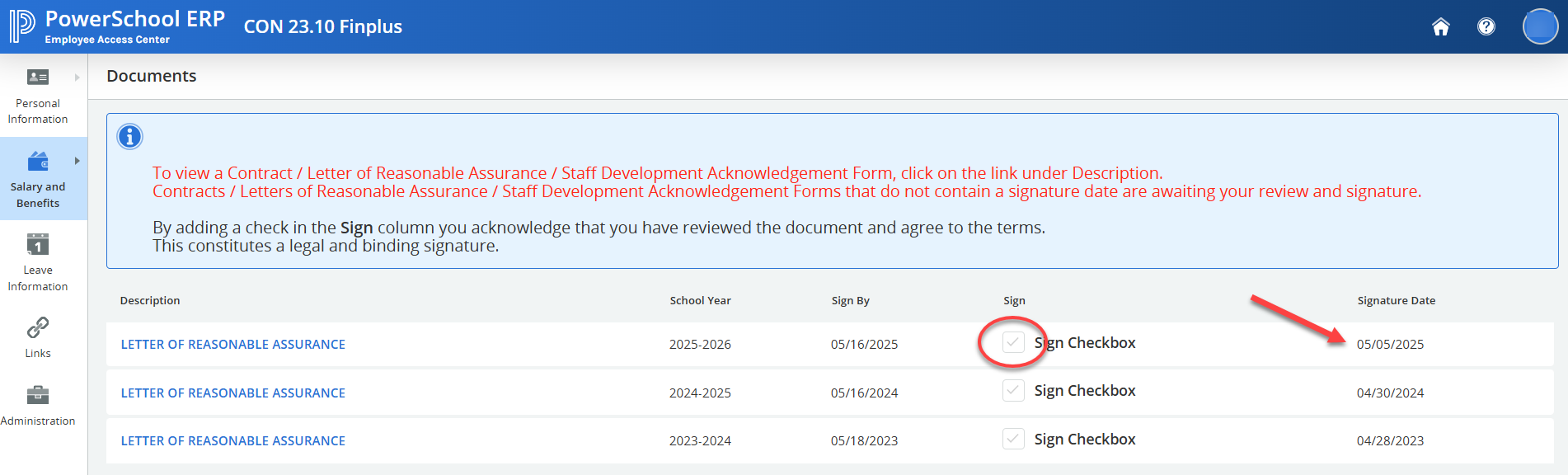
On the menu on the left side, select Documents.
Locate the "Letter of Reasonable Assurance."
3. Sign the Document
Check the box labeled Sign.
Select the Sign Document button.
Wait for the system to process.
When you see a date appear under the "Signature Date" column, you have successfully signed the document.
4. Sign Out
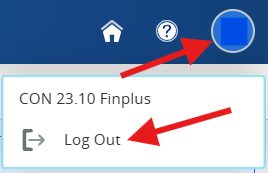
Close the EAC browser tab. Select your profile in the upper right corner of the SSO screen and select Sign Out.

Always Sign Out from your SSO on any device, personal computers, or phones you use to open your account
Need additional help? Click here for further assistance.