
Bulk Verifying Assets Using the incident IQ Mobile App
Follow this guide to learn how to verify and update assets using the Incident IQ Mobile App. The Incident IQ Mobile App allows you to quickly and easily verify and update assets in bulk to your room.

Do you need to install and login to the Incident IQ Mobile App? Visit this document for further assistance: How to Install and Login to the Incident IQ Mobile App
It is recommended that you Bulk Verify no more than 10 Assets at a time.
If you find assets in your room that are not yet in Incident IQ for you to verify, please let your Campus Tech at your location know so they can add them to their Please Add Spreadsheet.
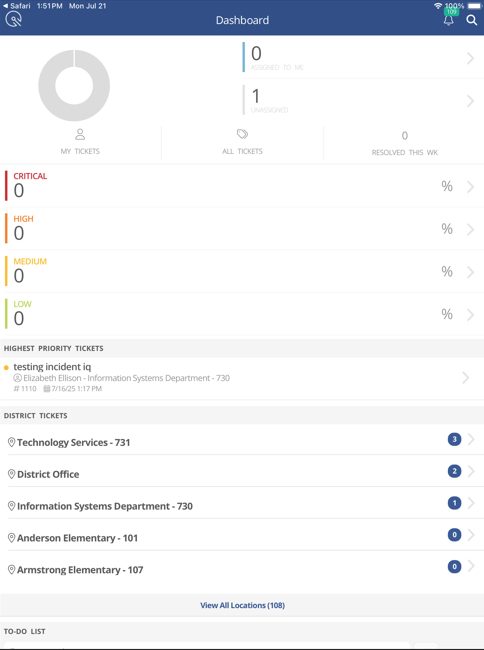
Login to Incident IQ Mobile App.
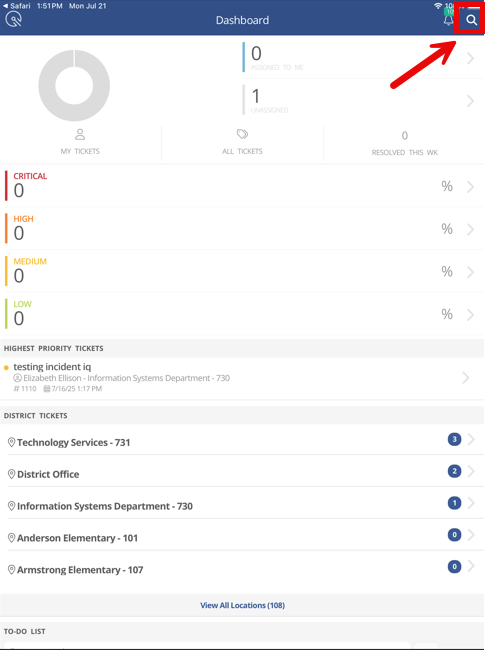
Click on the search icon in the top right corner.
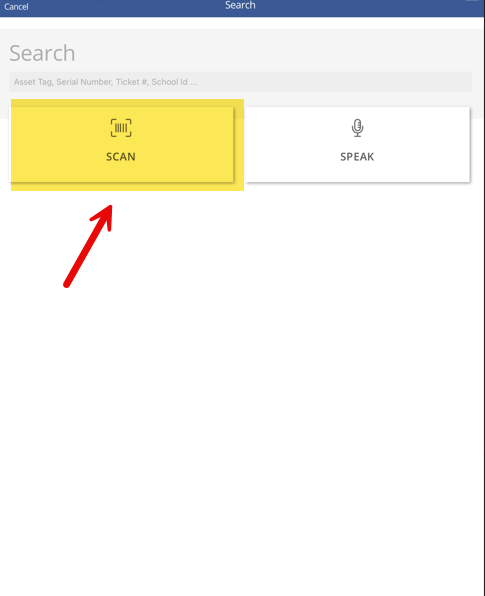
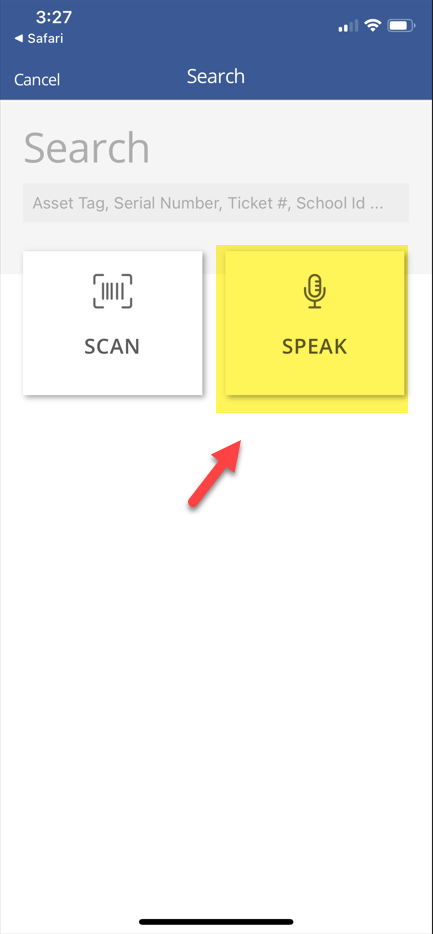
This will pull up the Search Field in the Incident IQ Mobile App. Click on Scan.
The Search Field allows you to search, scan, or speak to find an asset. We are going to focus on the Scan feature since most of your Assets will be scannable but the instructions for using the Speak feature are also below for any Assets that you cannot get to scan.
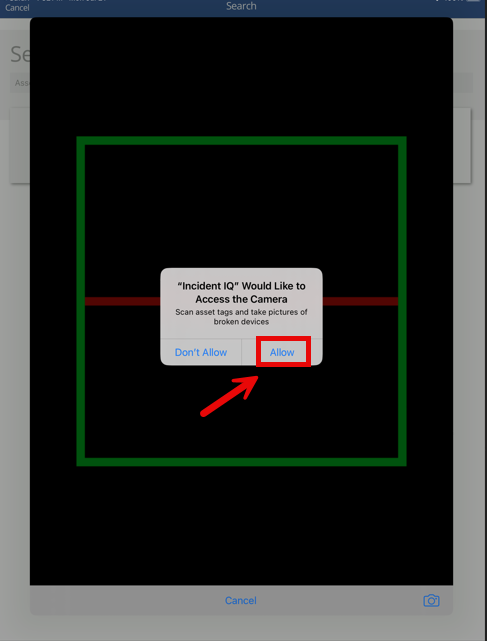
If you are using the Scan option you may be asked to allow the incident IQ app to use your mobile device’s camera. Click Allow.
If you have Assets in your room that you cannot scan because the Asset Tag Barcode is not scannable you can still pull up these these Assets using the Speak Option.
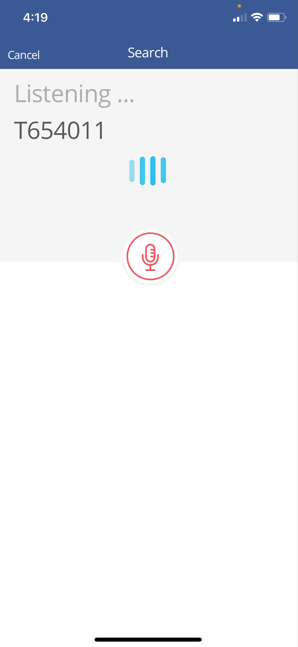
Choose Allow if asked to allow the Microphone and then you will see this screen.

Say the Asset Tag in order including the T number and the IIQ app will show what you said and pull up the Asset:
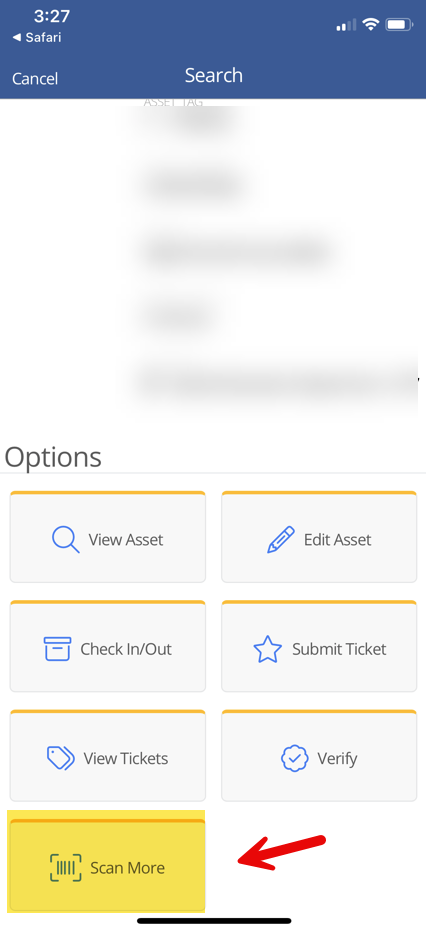
After Scanning or Speaking the Asset that you want to Audit. This will pull up the Asset Info Screen. Click on Scan More.
If you were using the Scan method this will pull up the camera allowing you to scan another Asset. If you were using the Speak method this would pull up the Listening Screen again allowing you to voice another Asset Tag. Repeat the steps above until you have finished scanning or speaking the bulk set of Assets you want to Verify. Click Add to List.
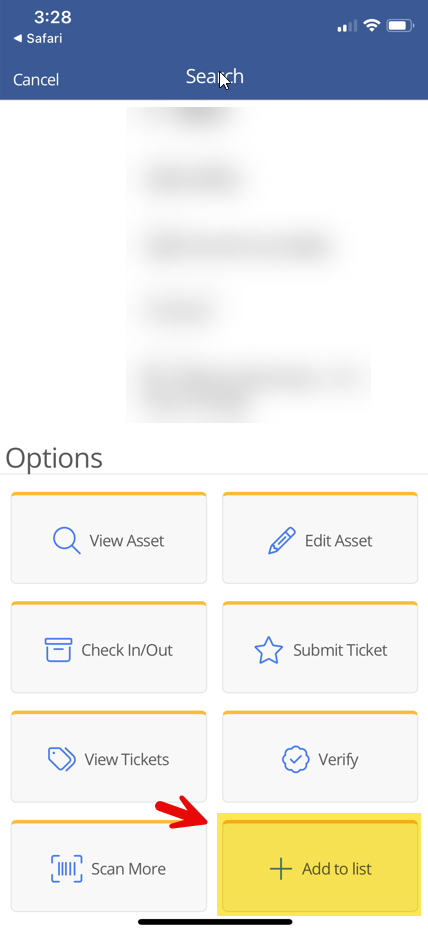
The IIQ App will create a list of the Assets you want to verify.
Notice that the Scan More button is still there so if you want to add additional Assets to your Bulk Verify List you can do that and then just follow steps above again to get back to the Bulk Verify List. If you were using the Speak method this would say “Speak More” instead of “Scan More” on this screen.
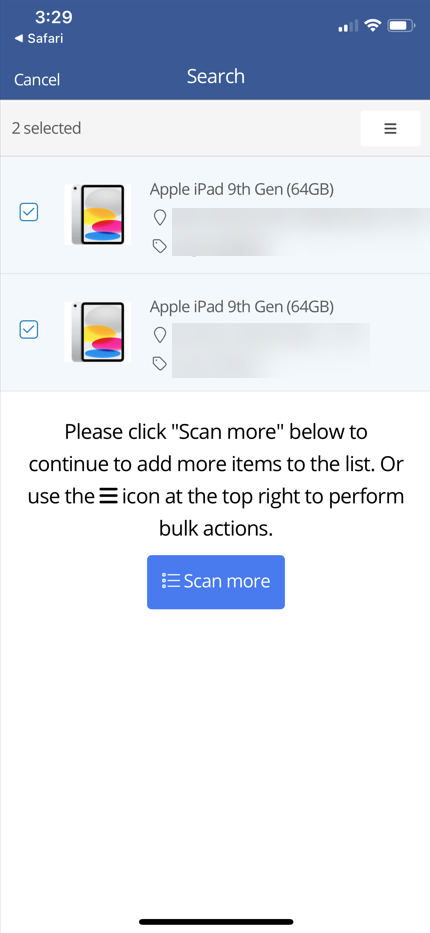
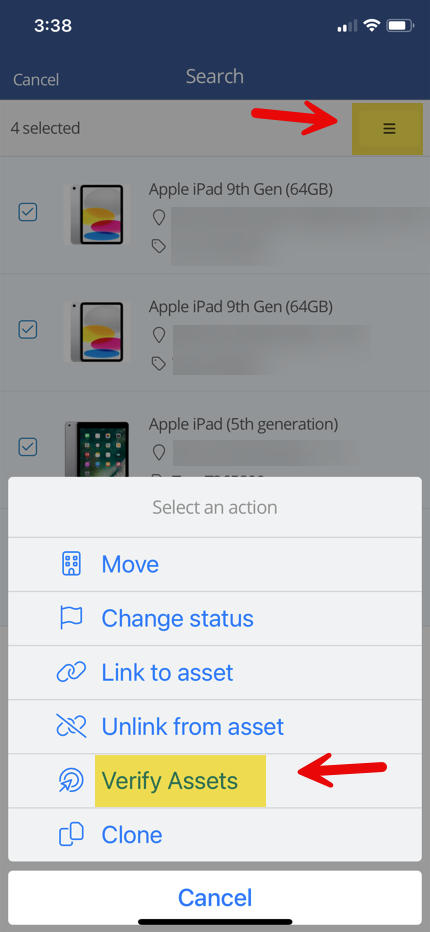
Click the 3 Lines in the right corner to pull up the Bulk Actions Menu. Click on Verify Assets.
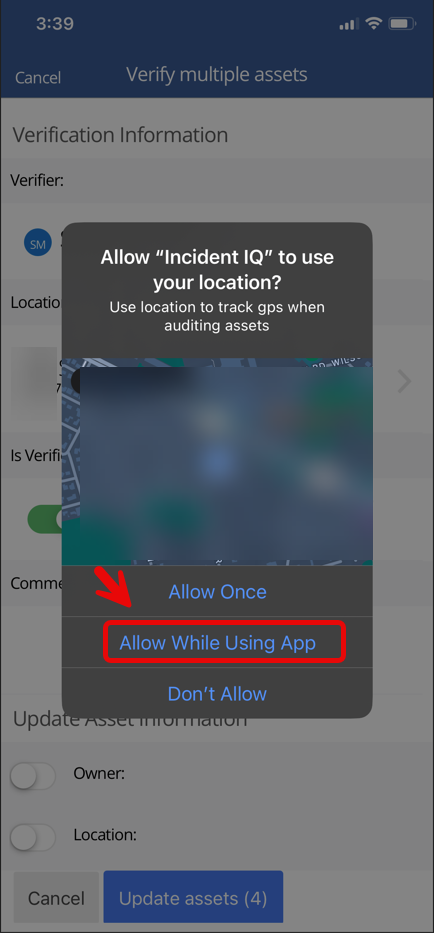
The first time you do this you may see a screen that asks you to “Allow “Incident IQ” to use your location?” Select “Allow while using app”.
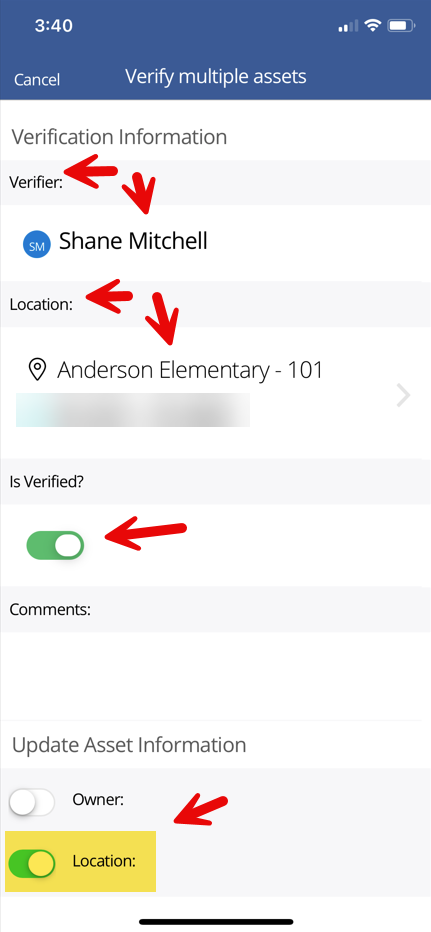
The next screen will show you as the Verifier. Show your location and have “Is Verified” toggled to on. Toggle “Location” to on as well.
This will open up the Room option, click on “Select a room”. You may need to scroll down on the screen to see it depending on the size of your mobile device.
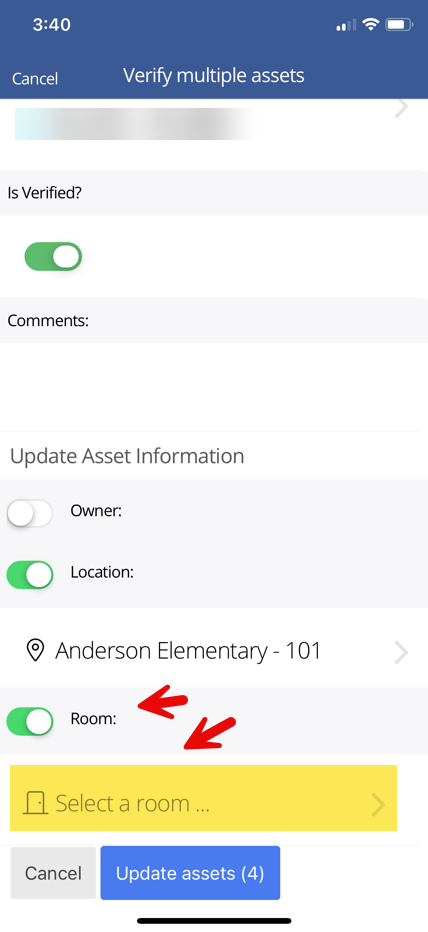
Select your room from the list and then click on Update Assets.
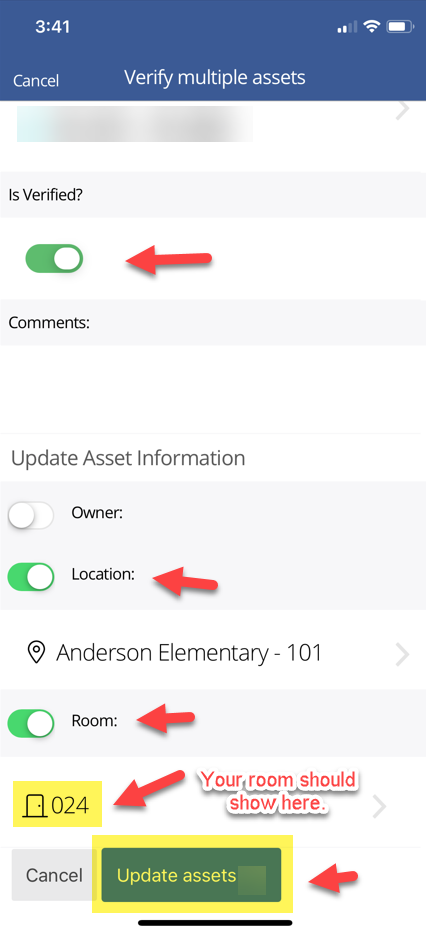
Click Yes, Update Assets.

Congratulations! You have successfully Bulk verified and updated multiple assets in your room using the Incident IQ Mobile app.
Repeat this process for all the assets in your room to complete your room audit.
It is recommended that you Bulk Verify no more than 10 Assets at a time.

If you find assets in your room that are not yet in Incident IQ for you to verify them please let your Campus Tech know so they can add them to their Please Add Spreadsheet.

Still have questions? Visit the Additional Help section for further assistance.