
All Conroe ISD Google accounts are centrally managed by the District to provide students with appropriate security settings, applications, and access to instructional resources.
When a student signs into the Google Chrome browser on a personal Windows or macOS computer using their Conroe ISD Google account, Google treats that Chrome profile as a managed profile. This can occur even though the computer itself is personally owned and is not managed by Conroe ISD.
This behavior is part of how Google Chrome handles managed Google accounts. The District manages the student's Google account and Chrome profile, not the student's personal computer.
What does a managed Chrome profile mean?
While using a managed Chrome profile, Chrome may automatically apply settings configured by Conroe ISD. This can include:
-
District-required Chrome extensions
-
Browser security and content settings
-
Managed bookmarks
-
Other Chrome policies configured for student accounts
These settings apply within the student's managed Chrome profile. They do not mean that the student's personal computer has become a District-managed device.
How do I know if I am using a managed Chrome profile?
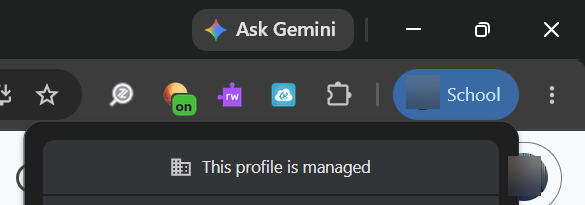
In the top-right hand corner of your Chrome window, it will show “Work” or “School” Click on the button and at the top it will display “This profile is managed”
I don't want to use a managed Chrome profile. Can I still use my District account for schoolwork?
Yes. Students can still access their Conroe ISD Google account and school resources from a personal computer without using their District-managed Chrome profile.
There are two options:
Option 1: Remove the Conroe ISD Chrome Profile
If the student no longer wants the District account signed into the Chrome browser, they can remove the Conroe ISD profile from Chrome.
Removing the Chrome profile from a personal computer does not delete the student's Conroe ISD Google account, but it will remove the content stored within the profile from their device. The student can continue to access District resources by signing into individual websites, such as Google Docs, Google Drive, or other District applications.
To remove your Conroe ISD Chrome Profile:
-
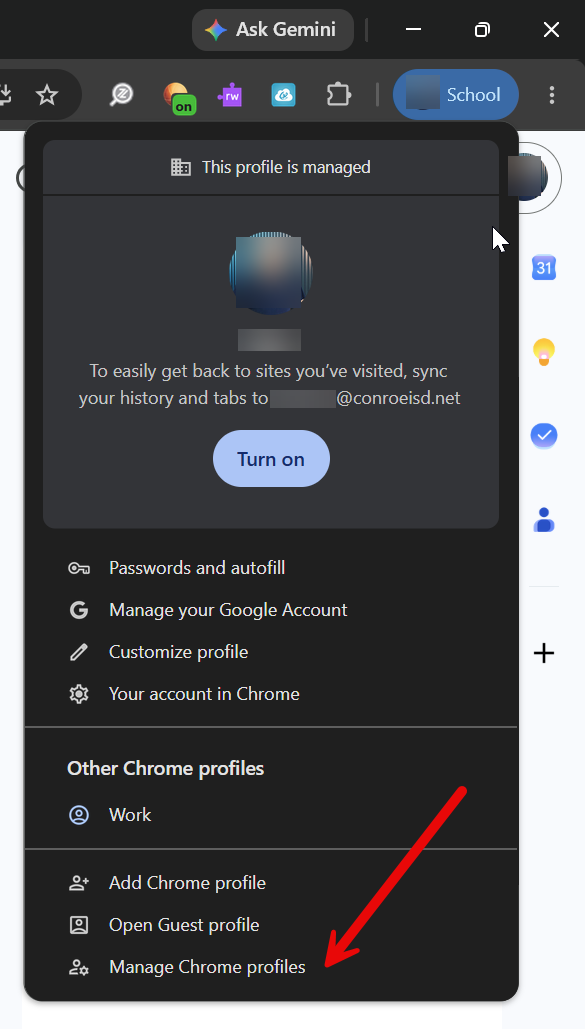
On the top right-hand menu on chrome, you will see either a “School” or “Work” button. Click this button and choose “Manage Chrome Profiles” at the bottom.
-
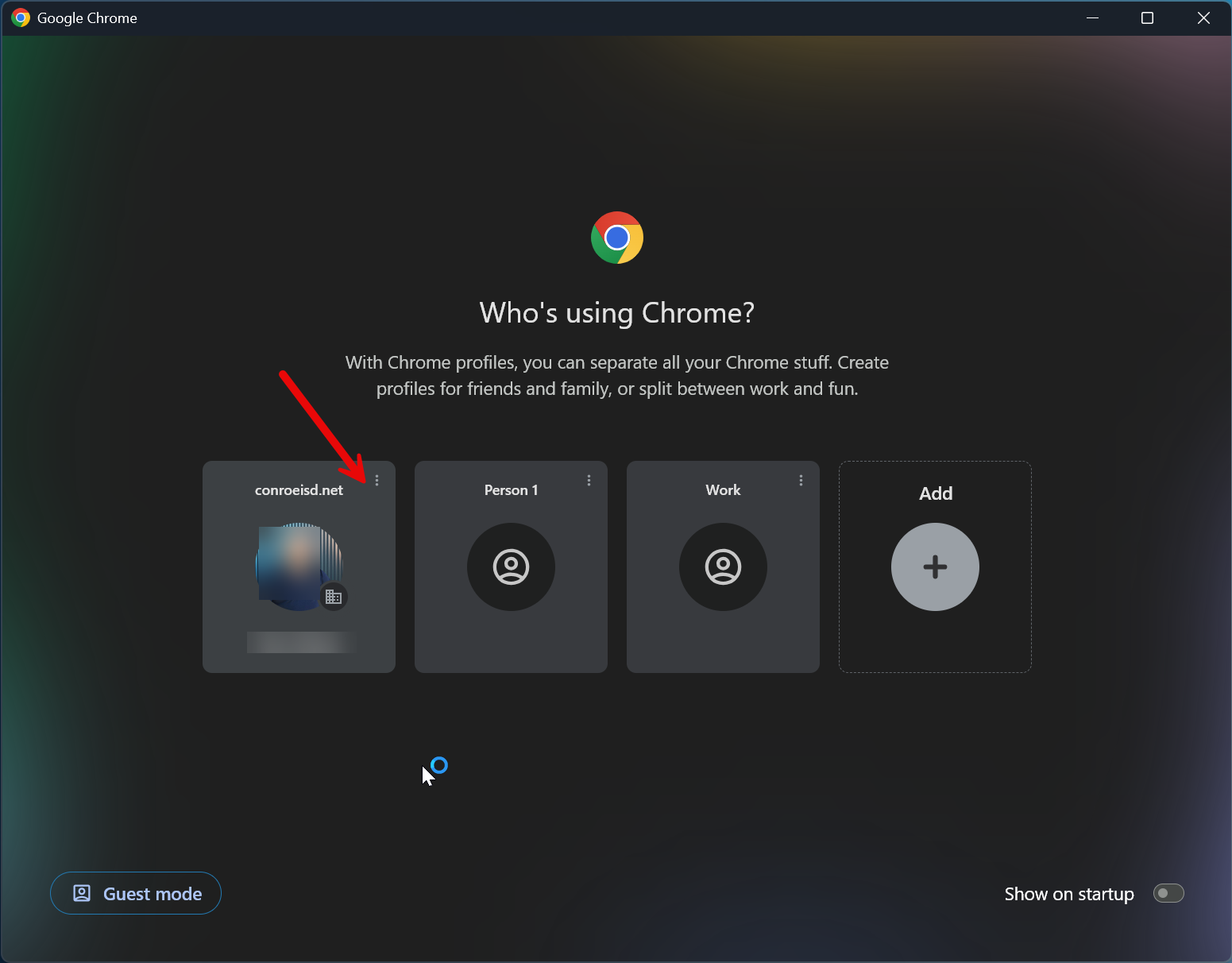
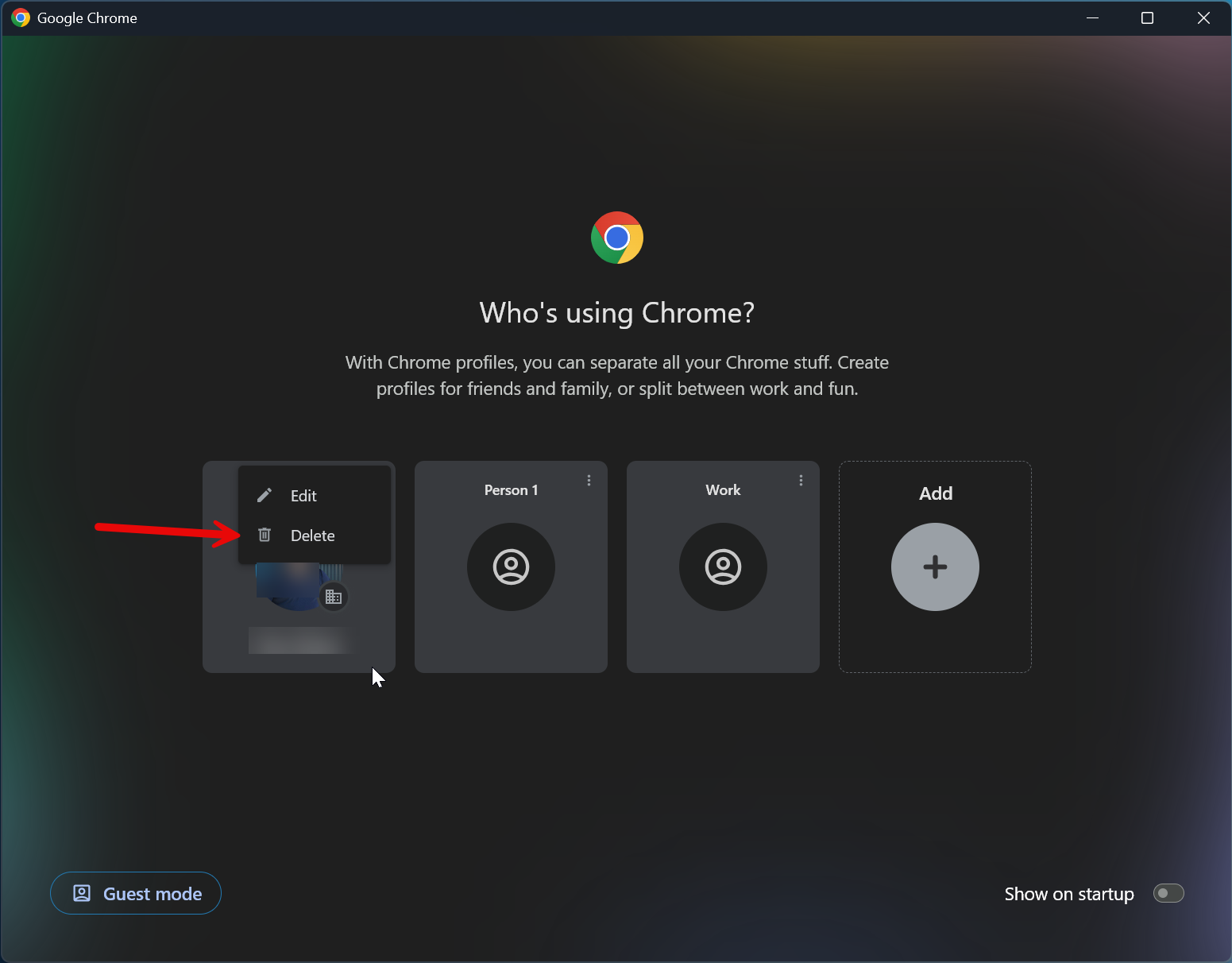
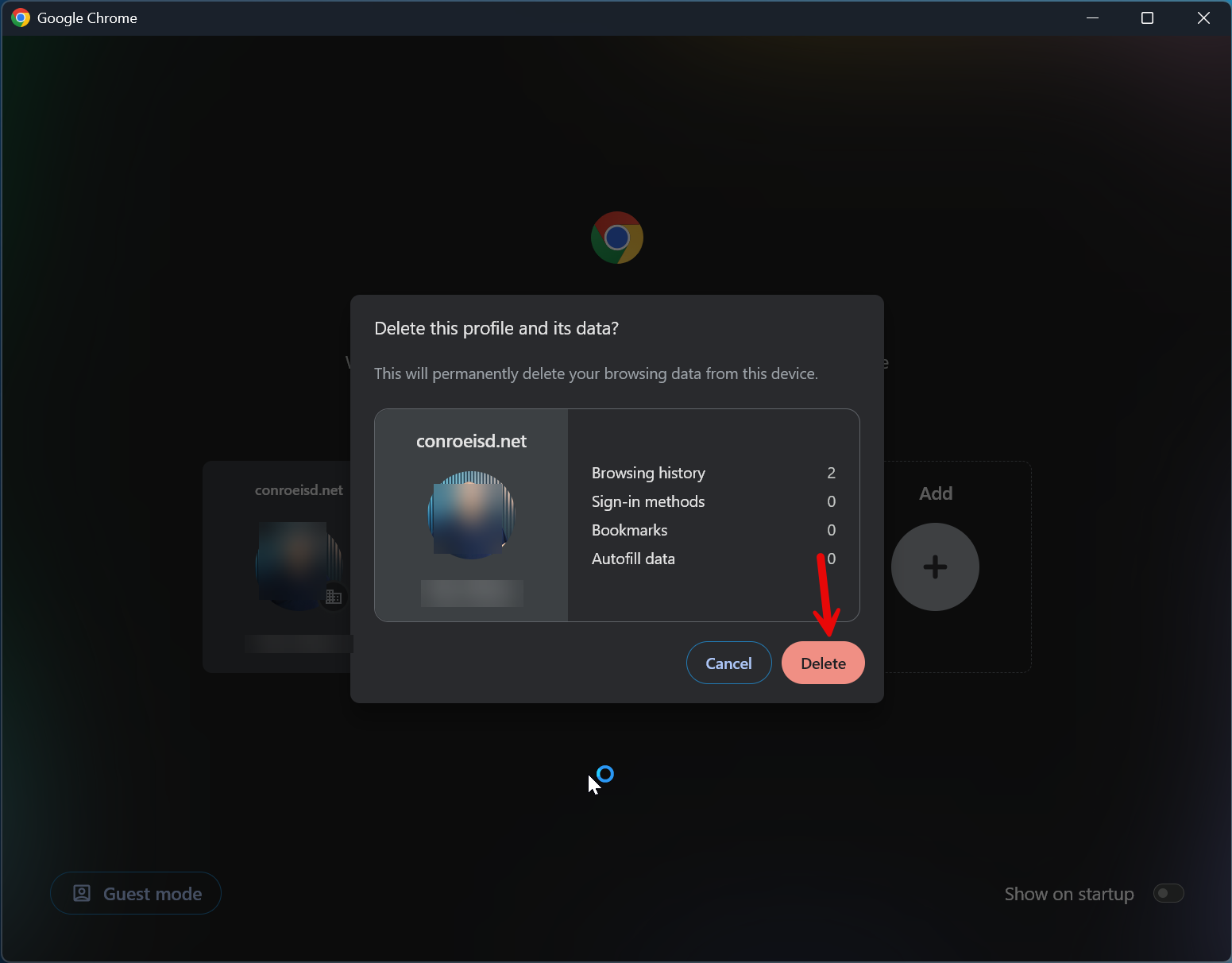
Find your school profile. It may say “conroeisd.net” or “studentmail.conroeisd.net” Click the 3 dots in the right hand corner and choose “Delete”
-
Click Delete on the confirmation dialog
Option 2: Create a Separate Personal Chrome Profile
Students can also create a separate Chrome profile for personal use.
For example, Chrome could have:
-
School Profile — Signed into the student's Conroe ISD Google account and managed by the District
-
Personal Profile — Signed into a personal Google account, or used without a Google account, and not managed by Conroe ISD
Keeping separate profiles allows students to easily switch between school and personal browsing while keeping District-managed settings and extensions within the school Chrome profile.
To add an additional profile:
-
On the top right-hand menu on chrome, you will see either a “School” or “Work” button. Click this button and choose “Manage Chrome Profiles” at the bottom.
-
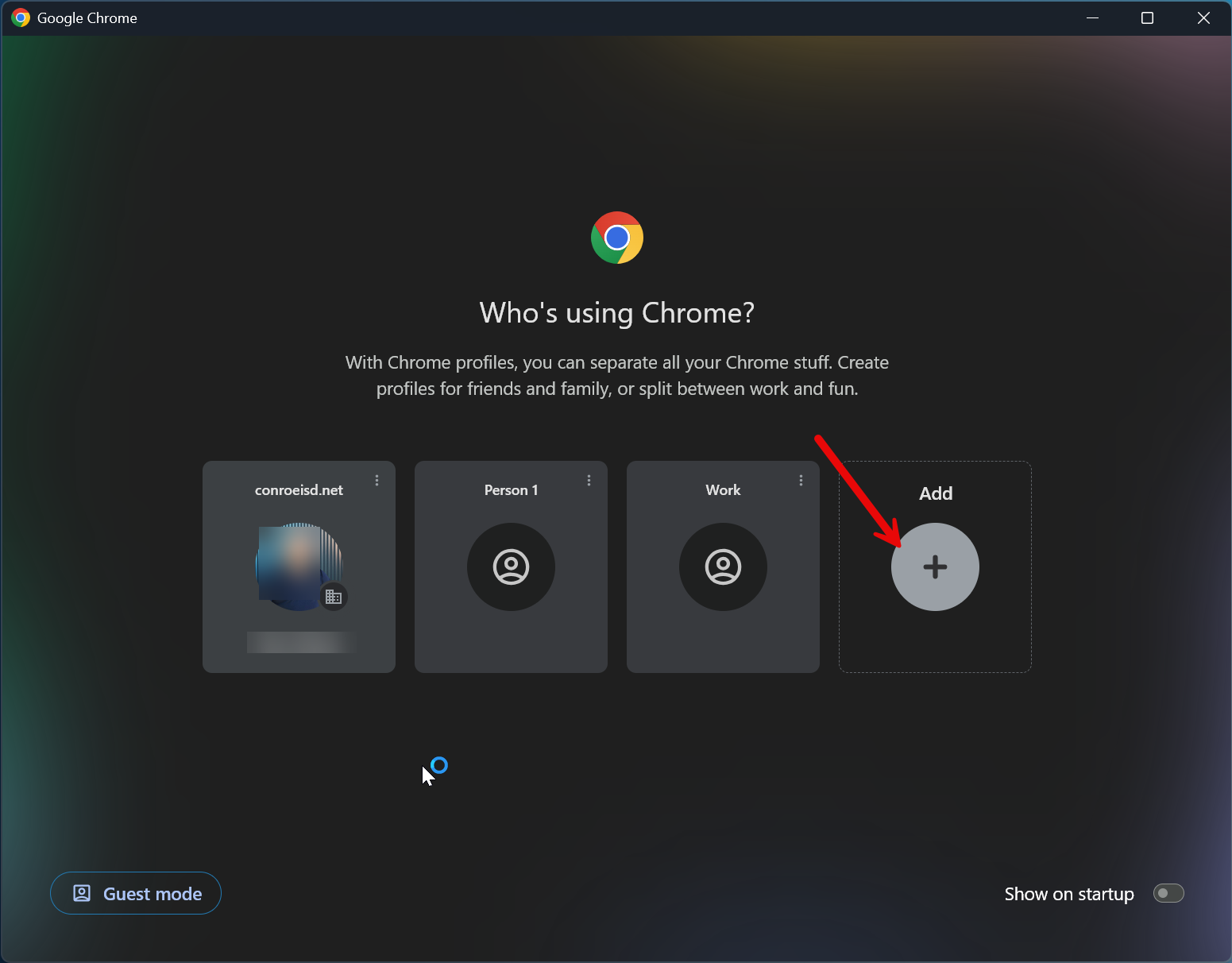
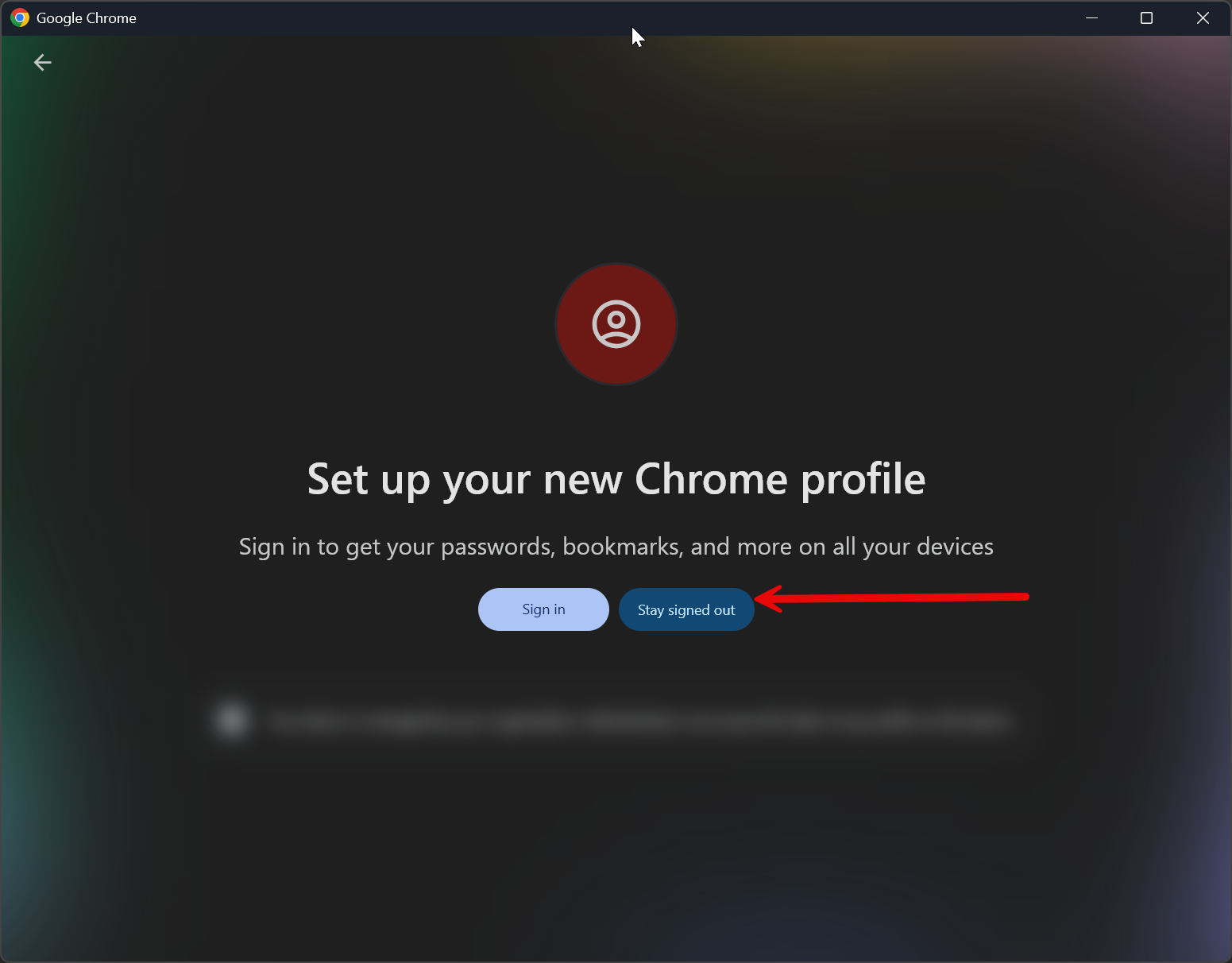
Click the “Add” Button, then click “Stay signed out”
-
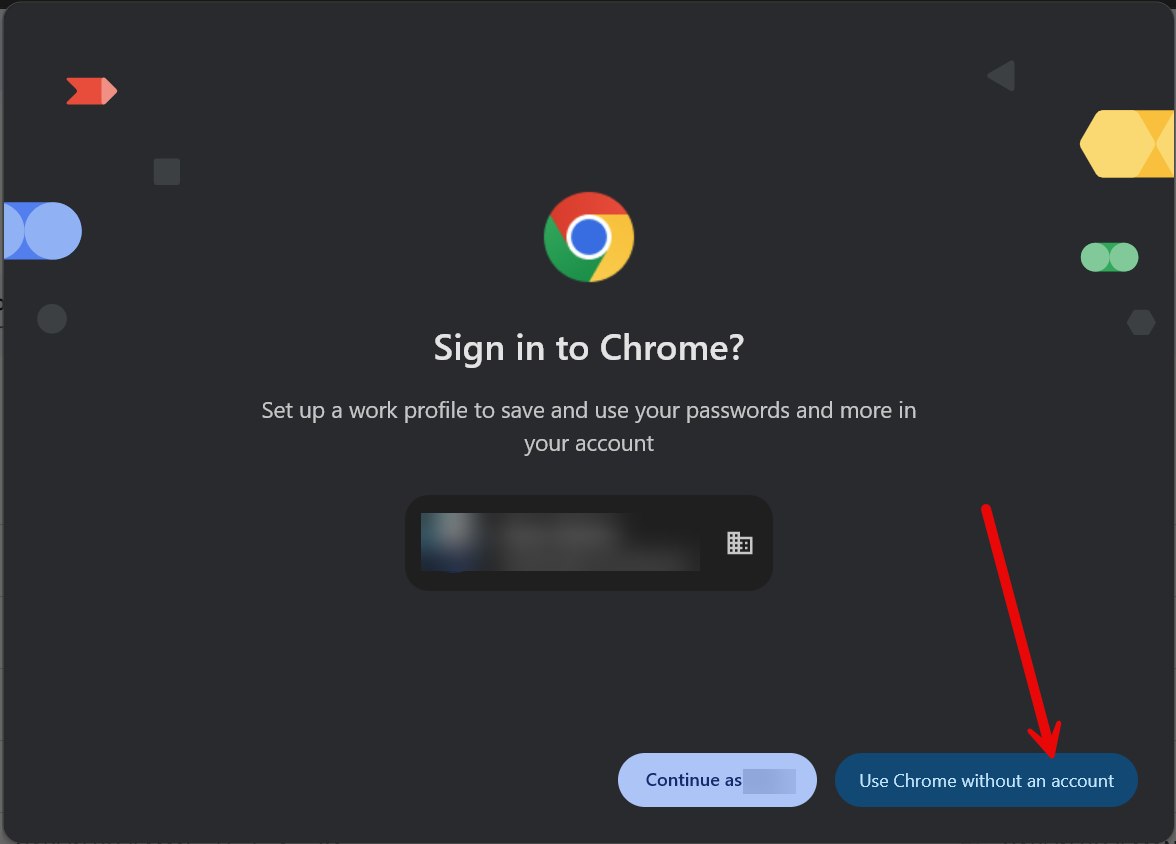
Follow the remaining instructions to finish setting up your non-managed chrome profile. If you ever receive the below prompt after signing into a District Google service, click “Use Chrome without an account”
Signing into a District website or Google service is different from signing into the Chrome browser itself.
Students do not need to sign their Conroe ISD Google account into the Chrome browser in order to access their District Google account or complete schoolwork on a personal computer.