
Beginning with the 2026-2027 school year, Conroe ISD is changing the default password assigned to student accounts.
This update is being made to improve account security. The previous password format, stu + Student ID, has been used for many years and is no longer considered secure.
What is changing? All students will receive a new randomized initial password at the start of the school year. Students will not automatically know this password, so teachers or campus administrators will need to provide it to them on the first day of school.
What the new default password looks like
The new initial student password will be a combination of:
-
two randomized words
-
one random two-digit number
Example: lazyfox27
This format is easier for students to use than a highly complex password while still being much more secure than the previous district standard.
What staff need to know
-
Every student will start the year with a new randomized initial password.
-
Students will not know their initial password in advance.
-
Teachers or campus administrators must provide each student with their initial password on the first day of school.
-
The password can be retrieved in ViewIT on the student demographic page.
-
It can also be retrieved in ViewIT by running a Teacher > General report and selecting the Stu PW checkbox.
Grade-level expectations
|
Grade Level |
How the password will be used |
|---|---|
|
Grades 2 and below |
Students will use their assigned initial password for the entire school year. They will not be required to change it. |
|
Grade 3 and above |
Students will use their assigned initial password for their first login, then they will be required to change it after signing in. |
Password requirements for Grade 3 and above
When students in Grade 3 and above are prompted to change their password after their first login, the new password must meet the following requirements:
-
It must be at least 8 characters long.
-
It cannot be a password the student has used previously.
If a student forgets their password
If a student forgets the password they created, their teacher will need to help reset it.
Use this guide for step-by-step instructions: How to Reset a Student's Password (Teacher of Record)
Important: Teachers of record can reset student passwords using the district process. If a student cannot log in after a reset, follow the troubleshooting guidance in the reset article.
How to run a report in ViewIT as a teacher
-
From the SSO, click ViewIT.
-
Click the Teacher icon in the navigation menu.

-
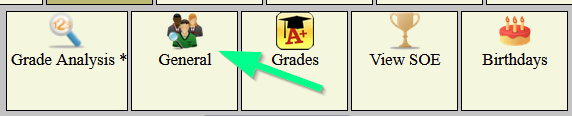
Click the General icon in the navigation menu.
-
Select the Course from the dropdown, then ensure the Stu PW checkbox is selected.
-
Click Submit to view the student passwords for the whole class.

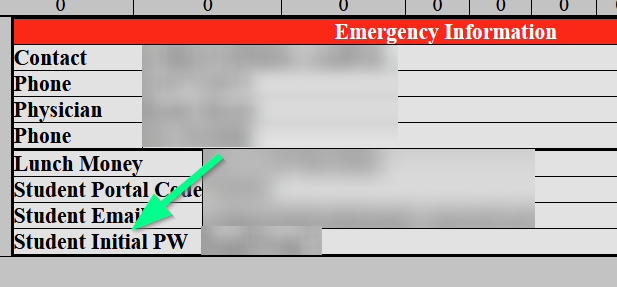
The student password can also be viewed on the student demographic page under the Emergency Information section. It is labeled Student Initial PW.
Parent Portal student account lookup
Parents and guardians can now look up a student’s initial account information in the Parent Portal.
To use this option, the parent or guardian must log in with a valid Parent Portal account. The account must belong to the student’s primary or secondary guardian in the Student Information System.
-
Go to https://parents.conroeisd.net and log in to the Parent Portal.
-
Click the Student Account Lookup app.
-
Verify your identity by entering the 6-digit code sent to the phone number specified for your account.
Reference