
How to add a Device Purchased By Tag to Assets in Incident IQ
Follow this guide to learn how to add a "Device Purchased By" tag to assets on your campus that were purchased by specific departments, such as CTE, SPED, Fine Arts, or Bilingual.

Important Context: Assets purchased by these specific departments should not be included in your standard count of student devices and general campus assets. To keep your inventory counts accurate, you must tag these items using the "Device Purchased By" custom field.
How to Tag Department-Purchased Assets
Step 1: Log In and Rapid Scan
Log into Incident IQ.
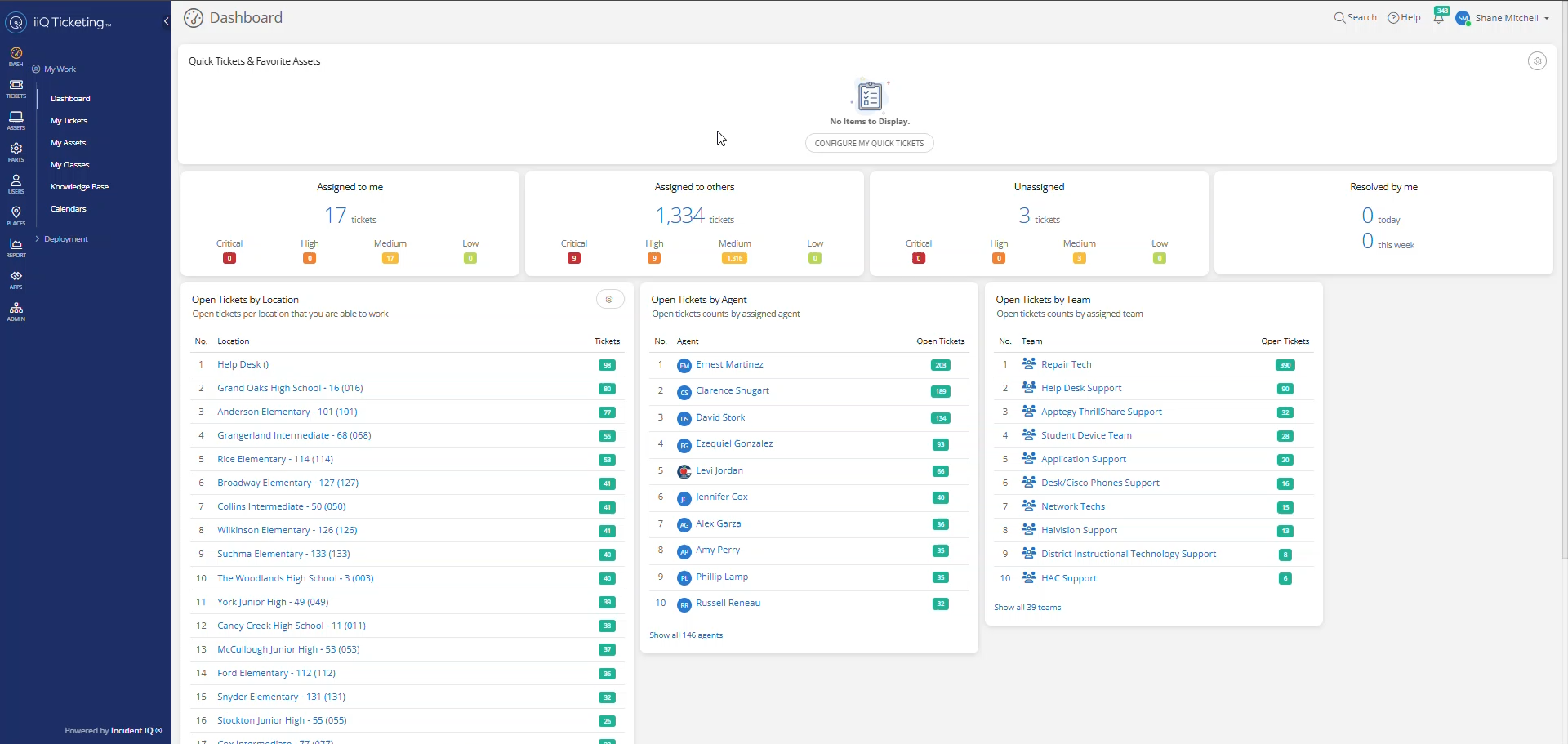
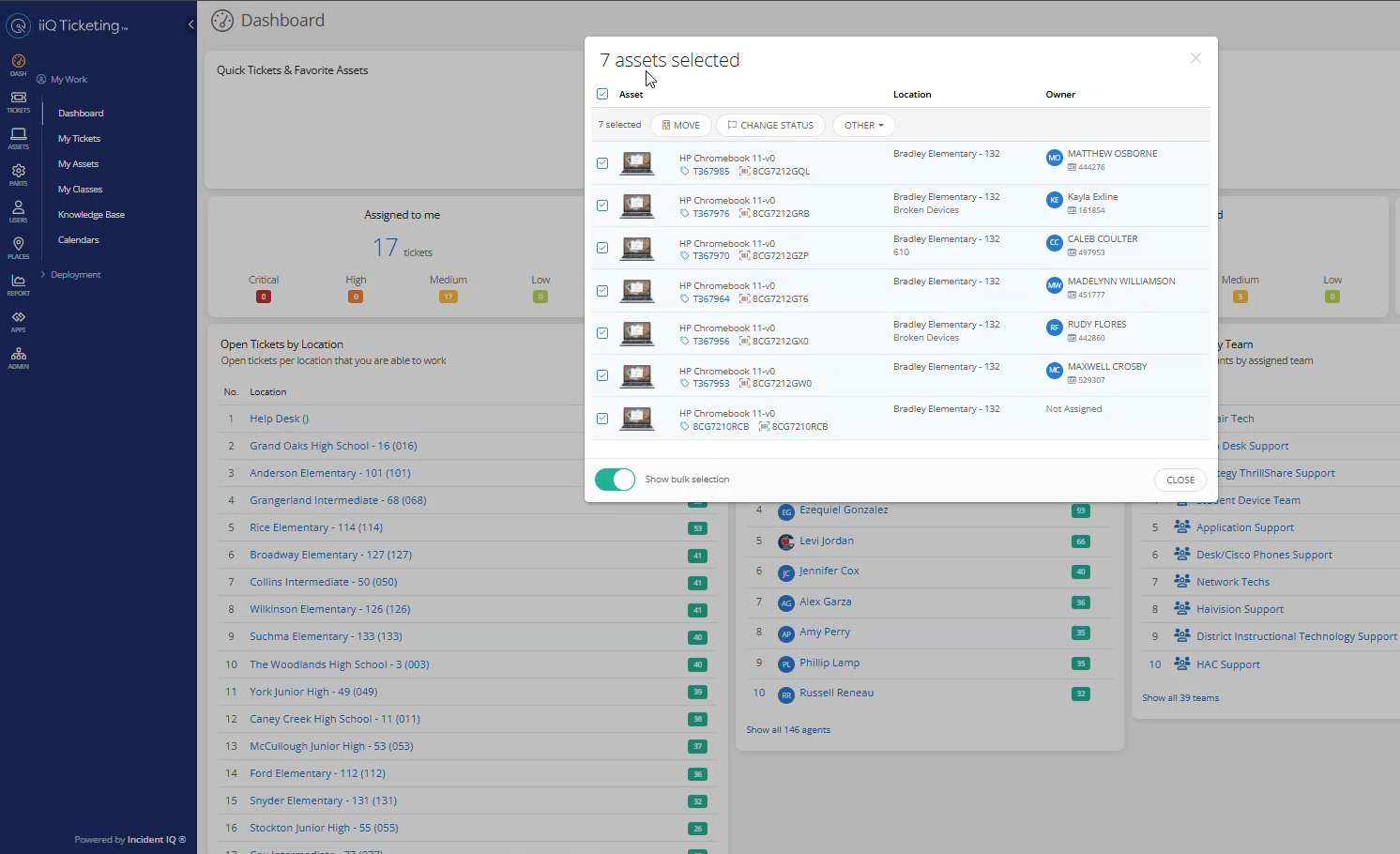
Perform a Rapid Scan of the specific assets you want to tag.

Need help scanning? See our guide on Performing an Audit: Rapid Scanning.
Step 2: Open the 'Set Info' Menu
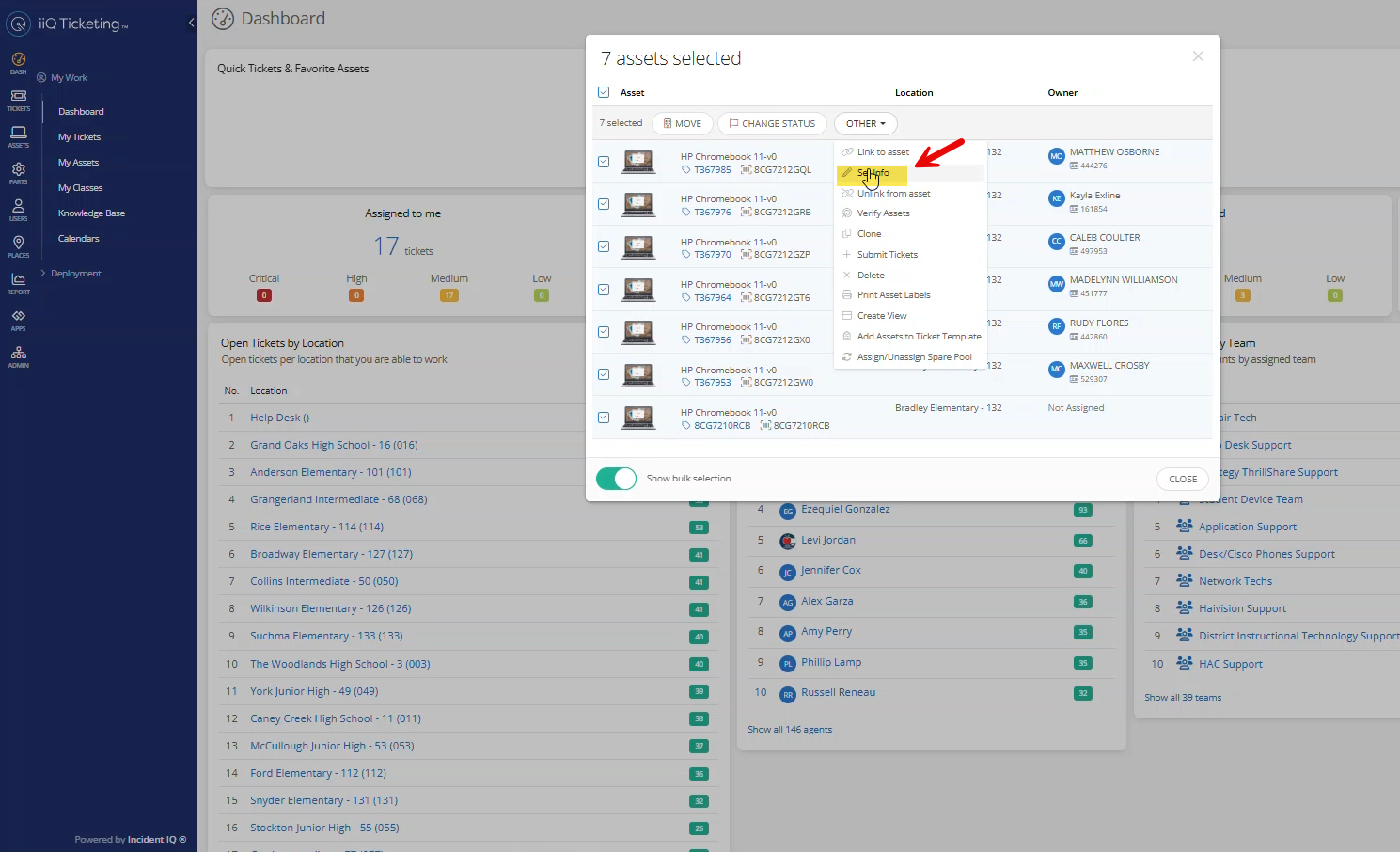
Because you are updating a custom field for multiple assets at once, you will use the bulk update tool. Click on the Other drop-down menu and choose Set Info.
Step 3: Select the Custom Field
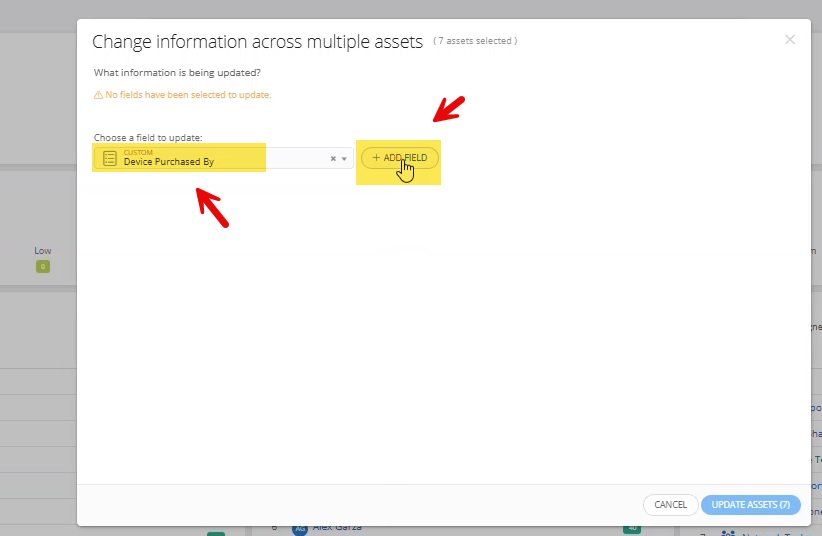
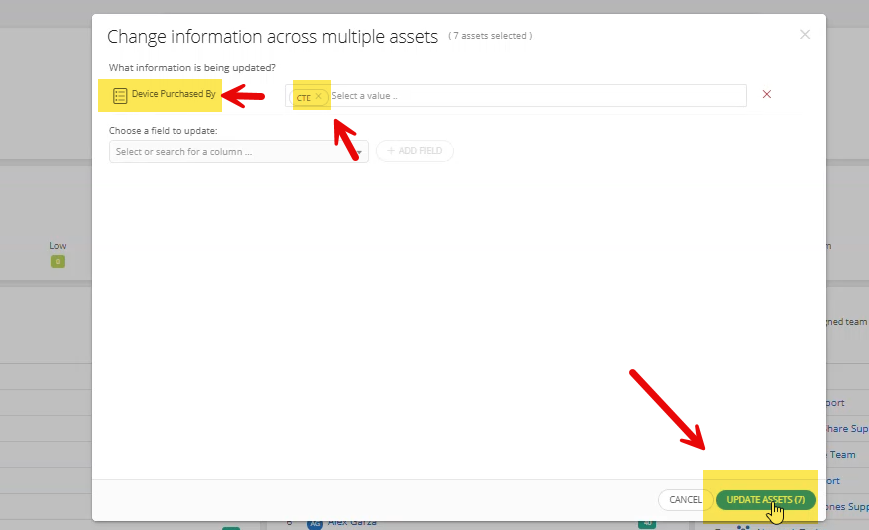
In the Choose a Field to Update menu, select Device Purchased By from the drop-down list, and then click Add Field.
Step 4: Choose the Department
A new field will appear allowing you to select the department that purchased the asset. Click the drop-down and choose the correct department (CTE, SPED, Fine Arts, or Bilingual).
Example: If the assets were purchased by the Career and Technical Education department, select the CTE tag.
Step 5: Update Assets
Once the correct department is selected, click the Update Assets button to apply the tag to all the scanned devices.
Success!
You have successfully added the "Device Purchased By" tag to the assets. They are now properly categorized in the Incident IQ system.

Still have questions? Visit the Additional Help section for further assistance.