
Students: Forgot Your SSO Password? How to Get Back In
What to do if you forget your password: If you forget your ClassLink password, don’t worry! Any one of your scheduled teacher’s can help you get back in.

If you are currently locked out this happens after 5 failed attempts and you will be locked out for 5 minutes. Please wait after the 5 minutes has passed to attempt to log in again.
Step 1: Ask Your Teacher for a Temporary Password
Tell your teacher you need your SSO password reset. They will log into their SSO and create a "Temporary Password" for you.

Teacher Instructions are located here: How to Reset a Student's Password (Teacher of Record)
Step 2: Log In with the Temporary Password
Go to the ClassLink login screen at sso.conroeisd.net and enter your username along with the new Temporary Password your teacher gave you.
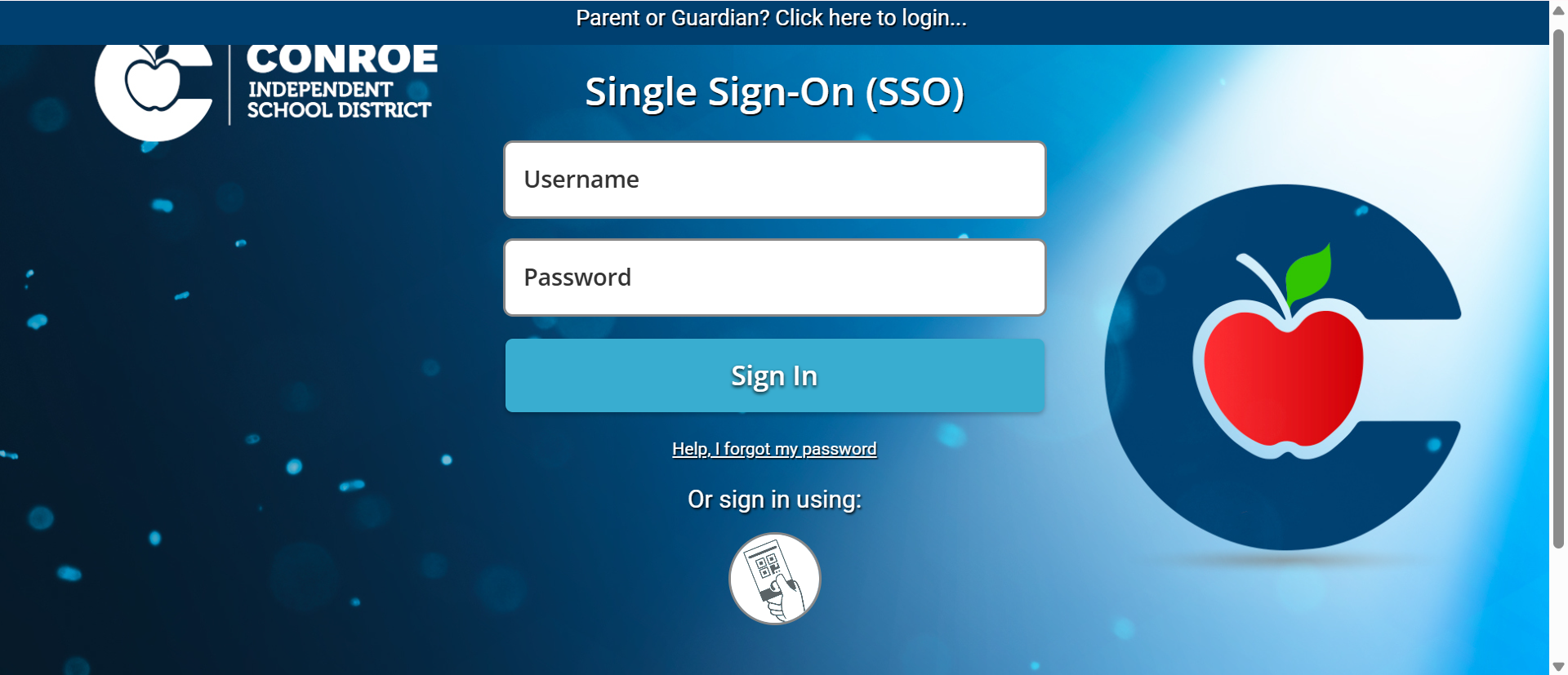
Step 3: Create Your New Password Once you enter the temporary password, the system will immediately ask you to create a brand new password of your own. Type your new, secret password twice to confirm it.
Troubleshooting for Chromebooks: If you are logging into a school Chromebook and see a screen that says "Forgot OLD Password," do not panic! Simply select "Proceed Anyway" or follow the on-screen prompts to clear your local data and bypass the screen.
If you are still experiencing issues, please try and wipe the Chromebook.

Still have questions? Visit the Additional Help section for further assistance.