
How to Reset a Student's Password (Teacher of Record)
Teachers can reset passwords for students in Grades 5-12. You can reset a password for a single student or multiple students at once using the "My Classes" tool.

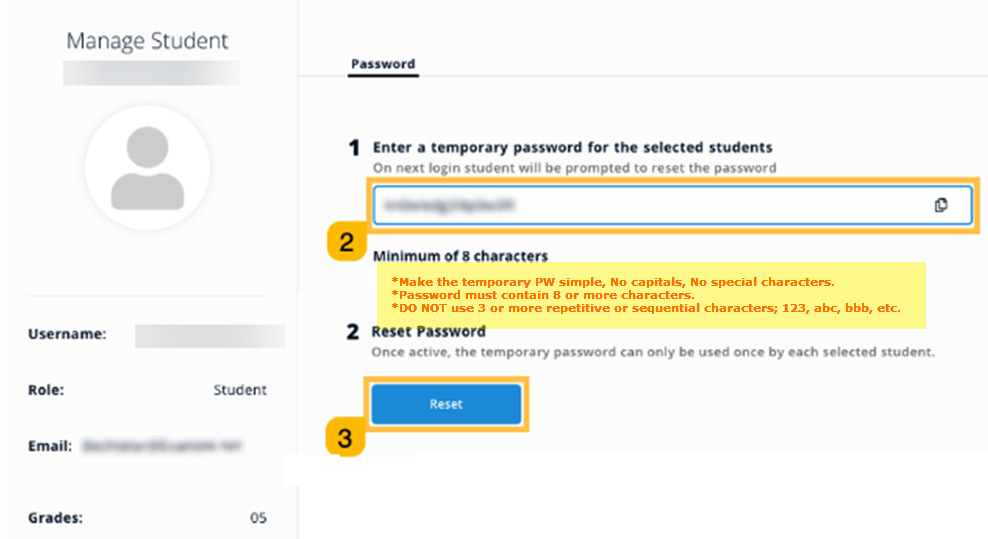
Password Rules: When setting a Temporary Password, do NOT use capital letters or special characters. Use 8 characters or more. Keep it simple (e.g., 'password' or 'student1'). Do not use repetitive sequences like '123' or 'abc'.
Instructions for Resetting Passwords
1. Access My Classes
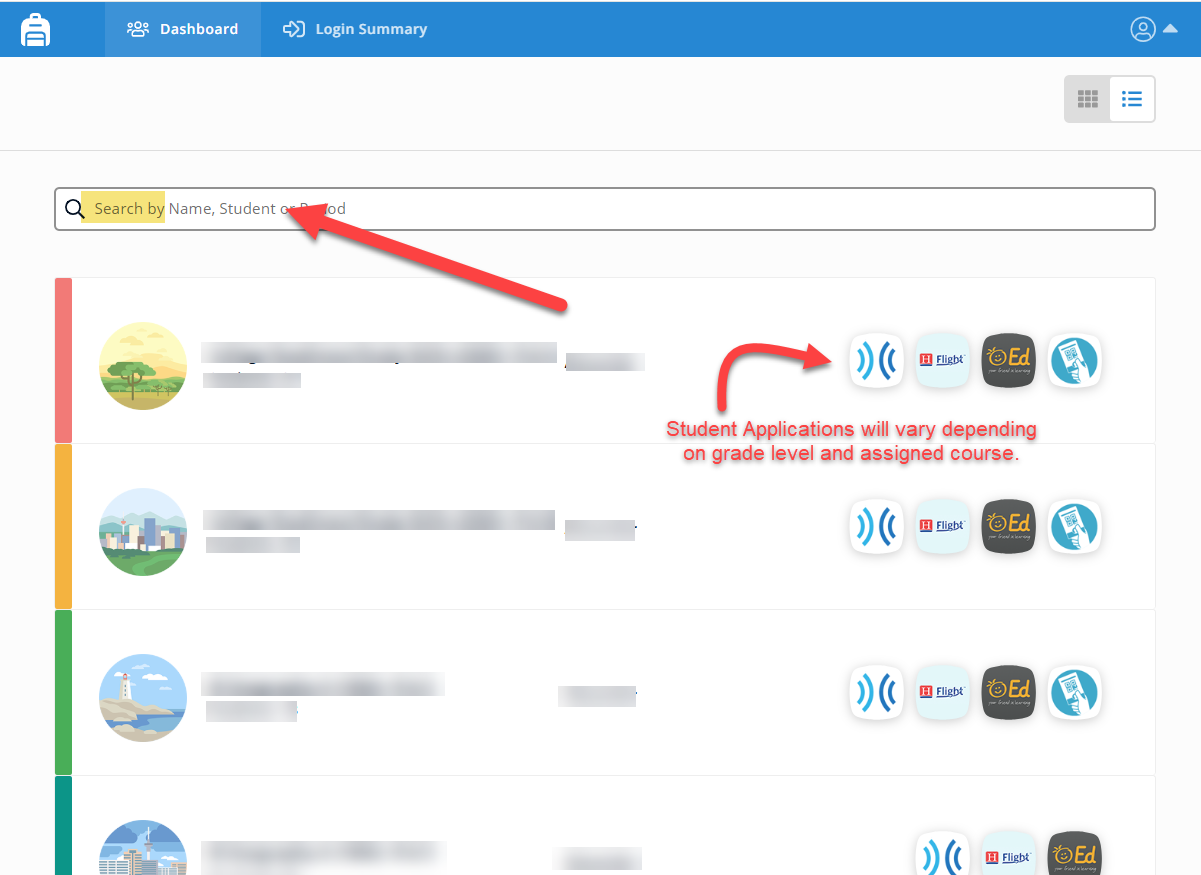
Select the Backpack Icon located at the bottom of your SSO Dashboard. (Note: You will only see this icon if you are a teacher with rostered students).

2. Find the Student
You have two ways to locate a student:
Search All Classes: Type the student's name in the search bar to find them across all your classes.
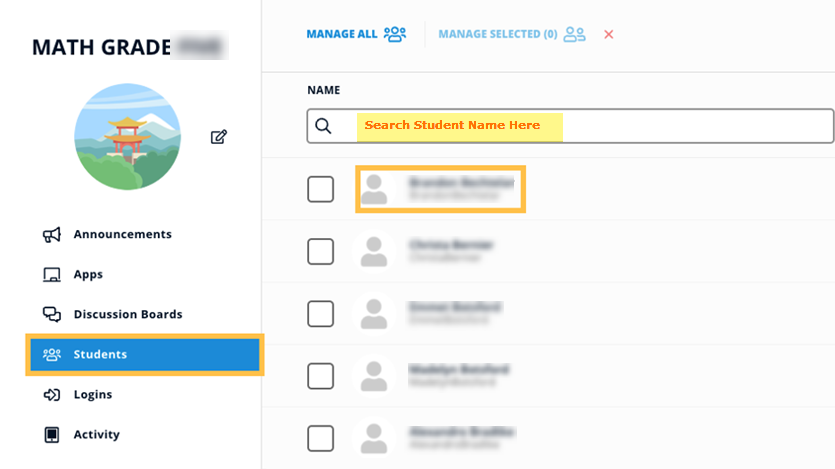
Search Specific Class: Select a class, select Students from the menu, and then search for the name.

(Troubleshooting: If you cannot find a student, please check their spelling in eSchool or View-It. If spelling is correct, confirm with your campus staff member who handles scheduling that the student is rostered to your class).
 |  |
|---|
3. Reset the Password (Individual or Bulk)
You can reset a password for just one student or for the entire class at once.
For a Single Student:
Select the student from the list.
In the slide-over menu, enter a Temporary Password (at least 8 characters, lowercase only).
Select the Reset button.
For Multiple Students (Bulk Reset):
Check the boxes next to the students' names (or check the top box to select the whole class).
Select the MANAGE SELECTED button.
Enter the temporary password and confirm.
Student Login & Troubleshooting
What Happens Next?
On the student's next login, they will be prompted to:
Enter the Temporary Password you just set.
Create a New Password of their own.
Common Issues
MFA Image Issues: If a student cannot remember the Image they chose for verification, please click here for instructions on how to clear their image so they can pick a new one.
"Forgot OLD Password" (Chromebooks): If a student sees a "Forgot OLD Password" screen on a Chromebook, please follow these steps to bypass it.
Stuck on Login: If the student is still unable to log in after these steps, please submit a ticket in Incident IQ (available in your SSO).
Important: In the ticket notes, please write: "Student Needs Cookies Deleted". This ensures the request goes to the correct department immediately.

Need additional help? Click here for further assistance.