
This guide explains how to reset the Multi-Factor Authentication (MFA) for students in Grades 5-12. You will use this tool if a student has forgotten the security picture they need to log in.
Need to reset a password instead? Click here for instructions to How to Reset a Student’s Password.
Instructions
1. Open the Security Center
Locate the Security Center tile on your ClassLink Dashboard.

2. Access MFA Settings
-
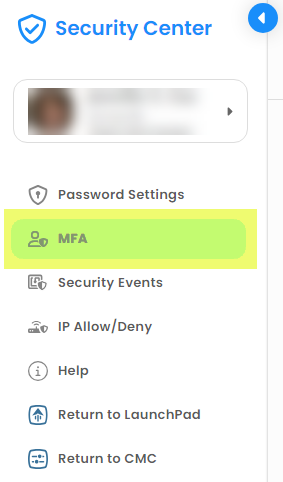
Select MFA from the menu on the left side of the screen.
-
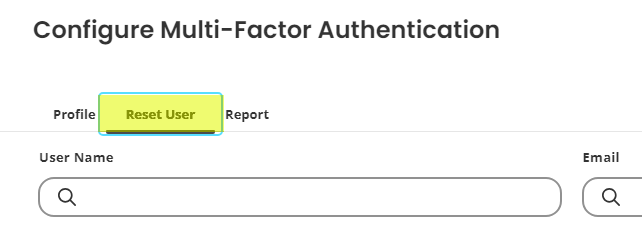
Select Reset User.
3. Search for the Student
Search for the student by entering their Username or Email Address. The user profile will automatically load.

4. Reset the User
Select the Reset User icon.

5. Finish and Exit
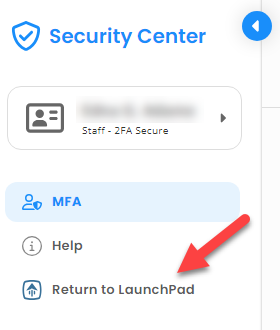
The student will now be prompted to select a new MFA icon (security image) the next time they log in. Select Return to LaunchPad when done.
Need additional help? Click here for further assistance.