
This guide explains how to ensure a students profile is set up correctly, and possibly restore missing applications or fix display errors within the ClassLink Single Sign-On (SSO) portal for the student. These issues often happen when a student’s profile is set to the wrong container group.
Please ensure the profile is NOT set to the option labeled 'DO NOT USE - Container Students'.
Verifying & Updating the Student Profile Container
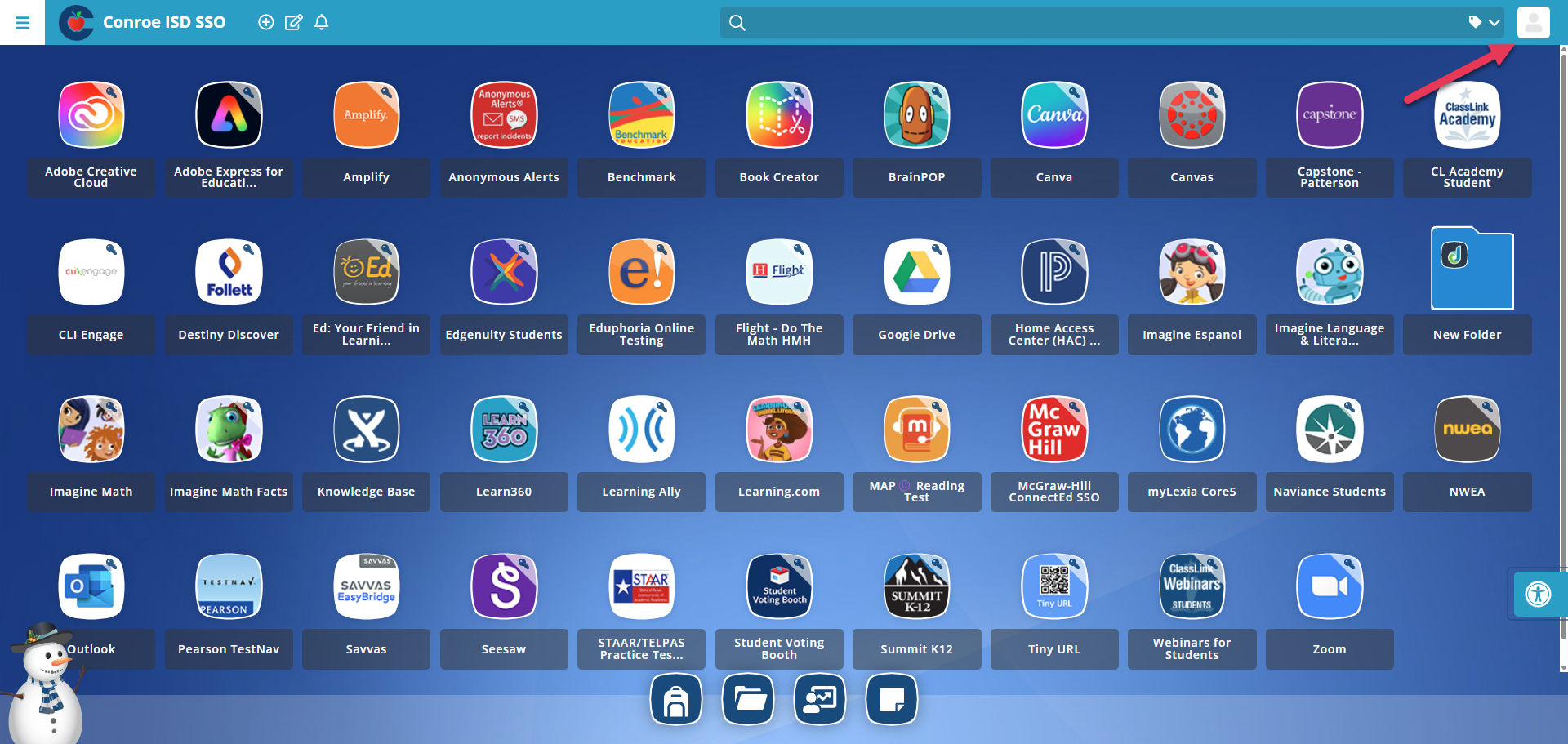
1. Select the Profile Icon
Have the student log in to ClassLink. Select the Profile Icon (avatar) located in the top right corner of the screen.
2. Verify the Current Profile Name
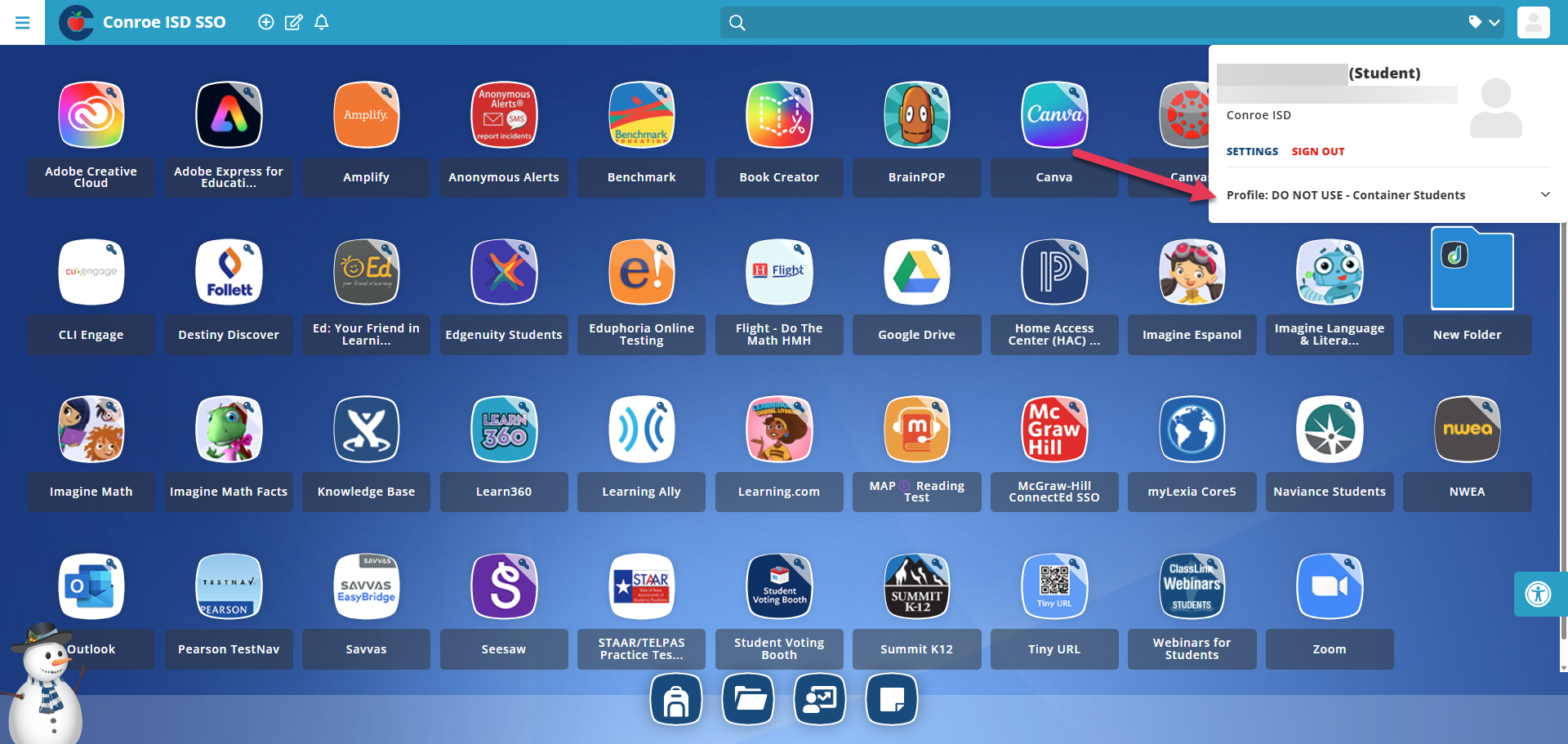
Look at the text listed under the profile picture. It will show the profile that is currently active.
If this text says DO NOT USE - Container Students, the incorrect profile is selected.
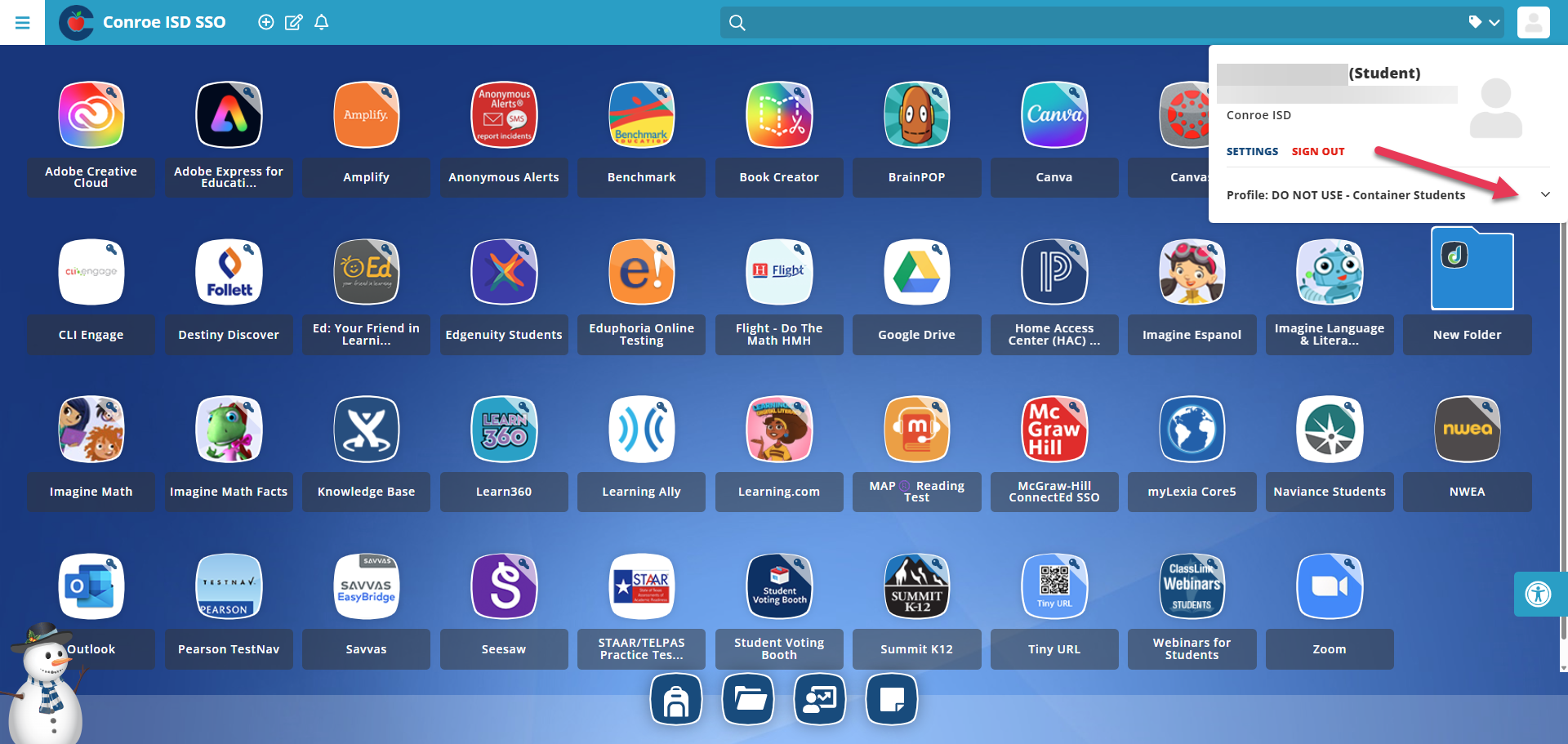
3. Open the Drop-Down Menu
Select the drop-down arrow next to the current profile name to view the list of available options.
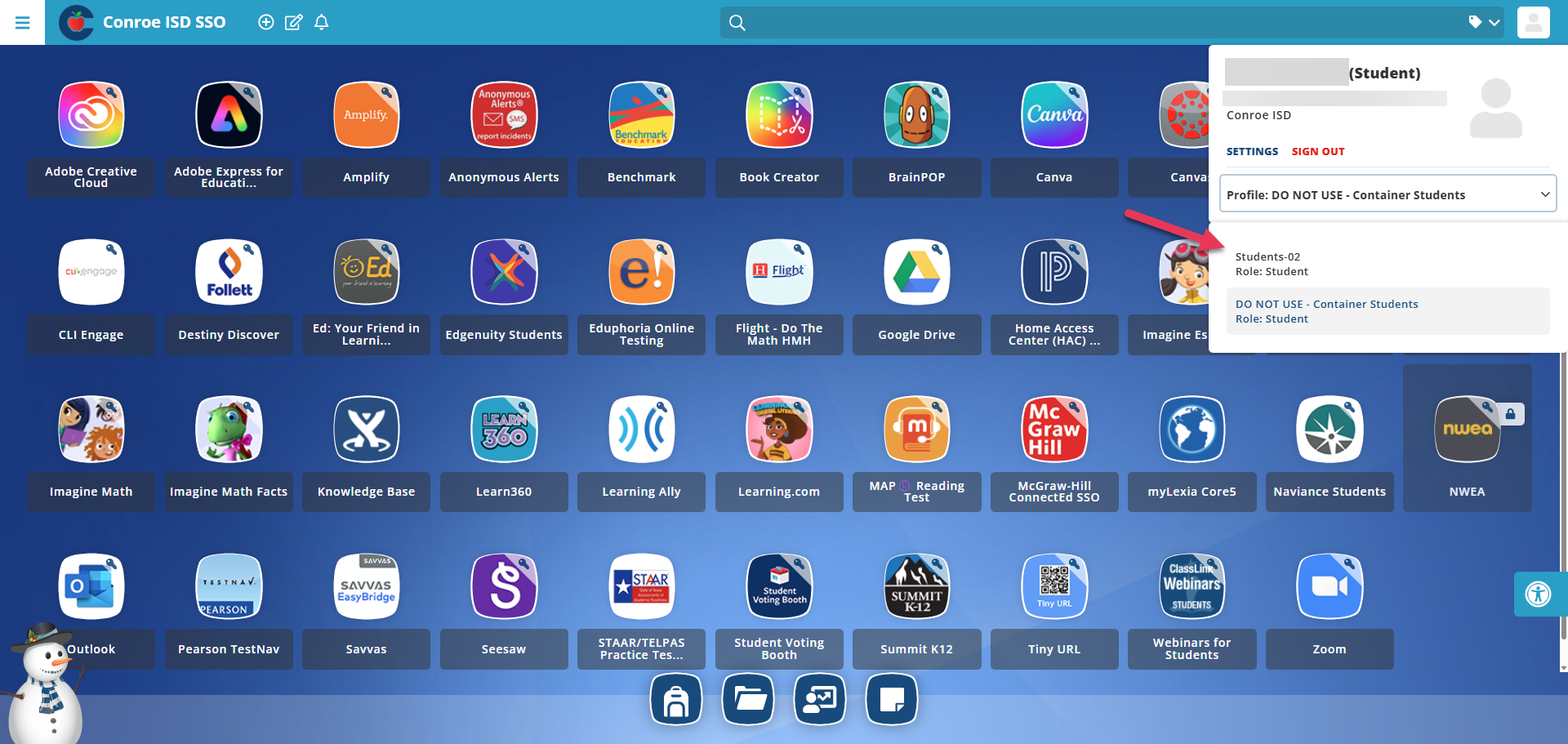
4. Select the Correct Grade Level
Choose the profile that matches the student's specific grade level (for example, Students - 02). The page will refresh, and the correct profile will now appear.
Need additional help? Click here for further assistance.