
This guide explains exactly what to do when a student is locked out of ClassLink, how student passwords work by grade level, when to look up a password instead of resetting it, and who is authorized to perform resets.
Important: A student who enters the wrong password 5 consecutive times is automatically locked out for 5 minutes. During that time, password resets do not bypass the lockout.
Start Here: If a Student Is Locked Out
Follow this protocol before doing any troubleshooting:
-
5 Failed Attempt Timeout: 5 incorrect password attempts trigger an automatic 5-minute security lockout.
-
Do not reset during lockout: Resetting a student's password will not unlock an active 5-minute timer.
-
Do not retry immediately: If the student attempts to sign in again during the 5-minute window, the lockout timer restarts.
-
First action: Have the student wait the full 5 minutes before doing anything else.
Best first step: If the student simply mistyped their password, they may be able to sign in normally once the 5-minute timer expires.
Understanding Student Credentials by Grade Level
Initial student passwords use a randomized format of two words + a two-digit number, such as lazyfox27.
|
Grade Band |
How Passwords Work |
What Staff Should Do |
|---|---|---|
|
PK–2 |
Students use their assigned initial password for the entire school year and are not required to change it. |
If the student cannot sign in after the lockout expires, look up the initial password. Do not reset the password. Teachers use these two methods to find it: Option A: ViewIT Class Roster Report (Teachers) Option B: ViewIT Student Demographic Page (Teachers) Parents can find the initial password here: Option C: Parent Portal Lookup (Parents & Guardians) |
|
Grades 3–12 |
Students use their initial password for their first login only, then are prompted to create a custom password. Grades 3–12 password requirements: Custom passwords must be at least 8 characters long and cannot reuse a previous password. |
If a student forgets a custom password after first login, a teacher reset is required once the lockout period ends. Any of the student's eSchool Teachers of Record can reset the password and MFA by following the linked guides: |
How to Look Up Initial Passwords
Use password lookup when a PK–2 student forgets their password, or when a Grade 3+ student needs their default password for initial sign-in.
Option A: ViewIT Class Roster Report (Teachers)
-
Open ViewIT from your SSO dashboard.
-
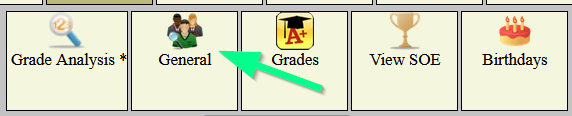
Click the Teacher icon, then select General in the navigation menu.

-
Select the Course section from the dropdown menu.
-
Check the Stu PW box and click Submit to view passwords for all rostered students.

Option B: ViewIT Student Demographic Page (Teachers)
-
Open ViewIT and search for the student.
-
Navigate to the student's demographic profile.
-
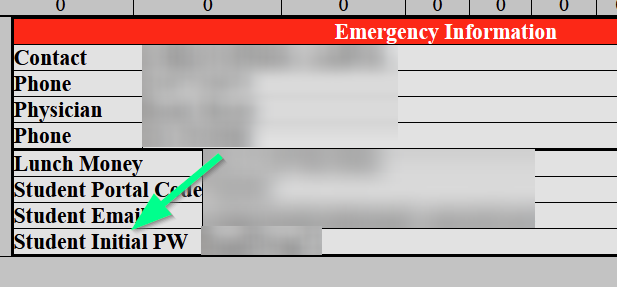
Locate the Emergency Information section.
-
View the credential listed under Student Initial PW.
Option C: Parent Portal Lookup (Parents & Guardians)
-
Go to https://parents.conroeisd.net/ and log in to the Parent Portal.
-
Click the Student Account Lookup app.
-
Verify your identity by entering the 6-digit code sent to the phone number specified for your account.
Please note this is the student’s initial password; it may not be their current password. If the initial password or the password they use does not work, have the student contact any of their teachers, who can reset the student’s password.
What to Do After the 5-Minute Timeout
If the lockout period has expired and the student still cannot access their account, the Teacher of Record can perform a password or MFA reset.
Authorization rules matter:
-
Strict roster requirement: Password and MFA resets can only be performed by any one of the student's official Teacher of Record.
-
eSchool roster validation: The student must be actively rostered to the teacher in eSchool.
-
Unauthorized staff roles: Librarians, counselors, or other non-rostered staff cannot reset a student's password unless the student is officially assigned to their eSchool roster.
How to reset a student's password for teacher of record
How to Reset a Student's Password (Teacher of Record)
How to reset a student's multi-factor authentication (MFA) for teacher of record
How to Reset a Student's MFA Image
Common Scenarios & Actions
|
Scenario |
Root Cause |
Required Action |
Authorized Party |
|---|---|---|---|
|
Mistyped Password 5 Times |
Account locked due to 5 consecutive failed login attempts. |
Wait the full 5 minutes without logging in again. Do not reset the password or attempt to log in. |
Student |
|
New Student / PK–2 Student Needs Password |
Student needs the default initial account password. |
Run the ViewIT report or check the Student Demographics page or Parents to find the initial password in the Student Account Lookup app in their Parent Portal. |
Teacher of Record or Parent |
|
Forgot Custom Password |
Student created a custom password and forgot it. |
Reset the password in the ClassLink Backpack tool after the lockout expires. |
Teacher of Record only |
|
Forgot MFA or MFA issue |
Student can’t remember their MFA image or are having issues with their MFA. |
Reset MFA in the ClassLink Security Center. |
Teacher of Record only |
Frequently Asked Questions
Quick takeaway: Wait out the 5-minute lockout. For PK–2, look up the initial password instead of resetting it. For Grades 3 and above, reset only after the timeout expires, after the student has logged in with their initial password, and only if you are the student's official teacher of record.
Need additional help? Click here for further assistance.