
The Report A Student Absence portal allows you to notify the school of a full-day absence, providing a convenient alternative to phone calls, emails, or handwritten notes. Our goal is to make this process as simple as possible for our families by allowing you to submit these notices at your convenience.
Please keep in mind that this portal is specifically for full-day absences. If your student is arriving late or leaving early, please continue to follow the standard sign-in and sign-out procedures at the school's front office.
Please Note: Official documentation (such as doctor’s notes, college visit verifications, etc.) must still be submitted to the attendance office within 48 hours of the student's return to school.
How to Report an Absence
To submit an absence, follow these steps:
-
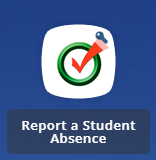
Login to your Parent Portal Account and select the Report a Student Absence app.
If you need assistance setting up your Parent Portal account or signing in, click here for help: Conroe ISD Parent Portal
-
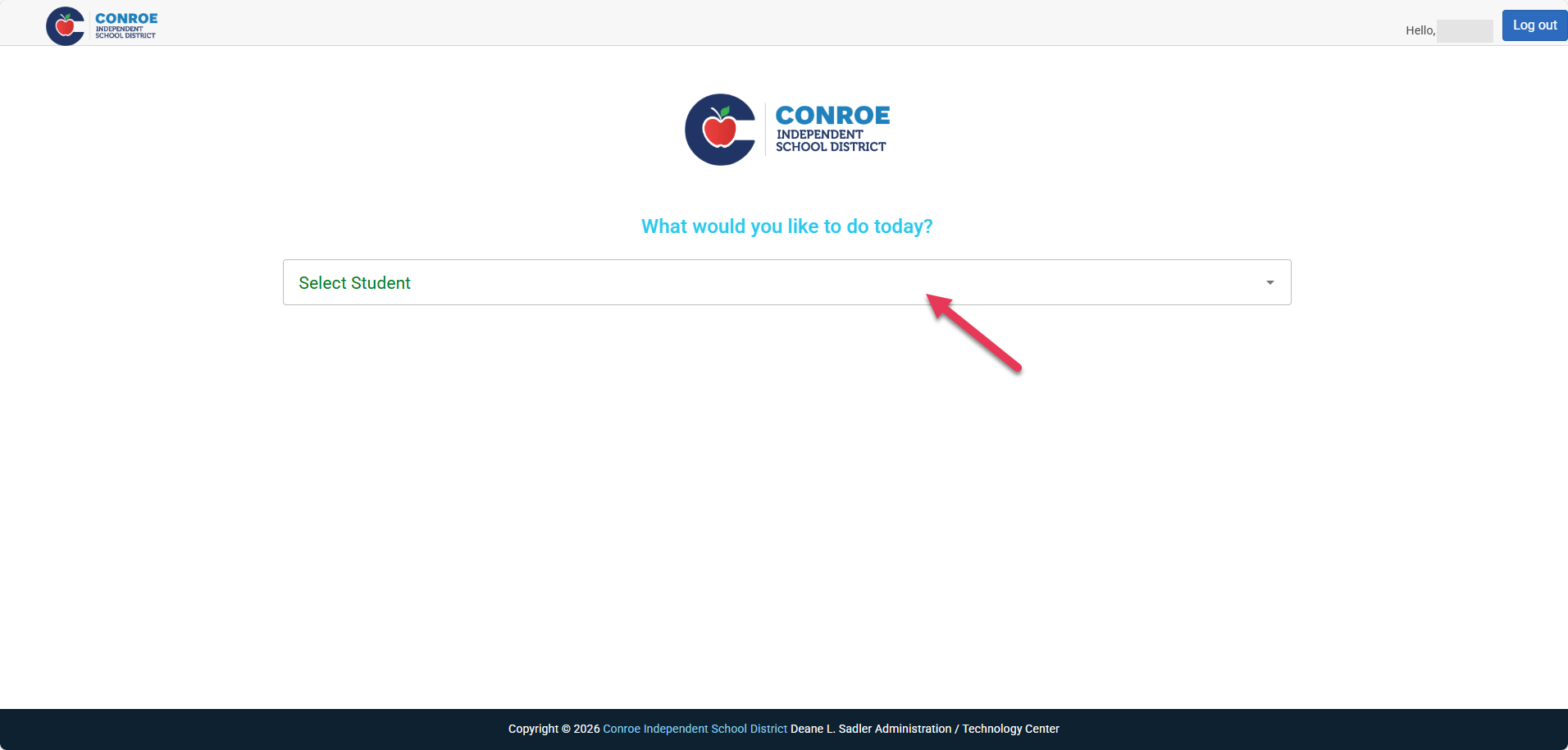
On the main page under What would you like to do today?, use the Select student drop-down to choose the student you are reporting an absence for.
-
Note: You will need to select the student by their username, not their actual name.
-
-
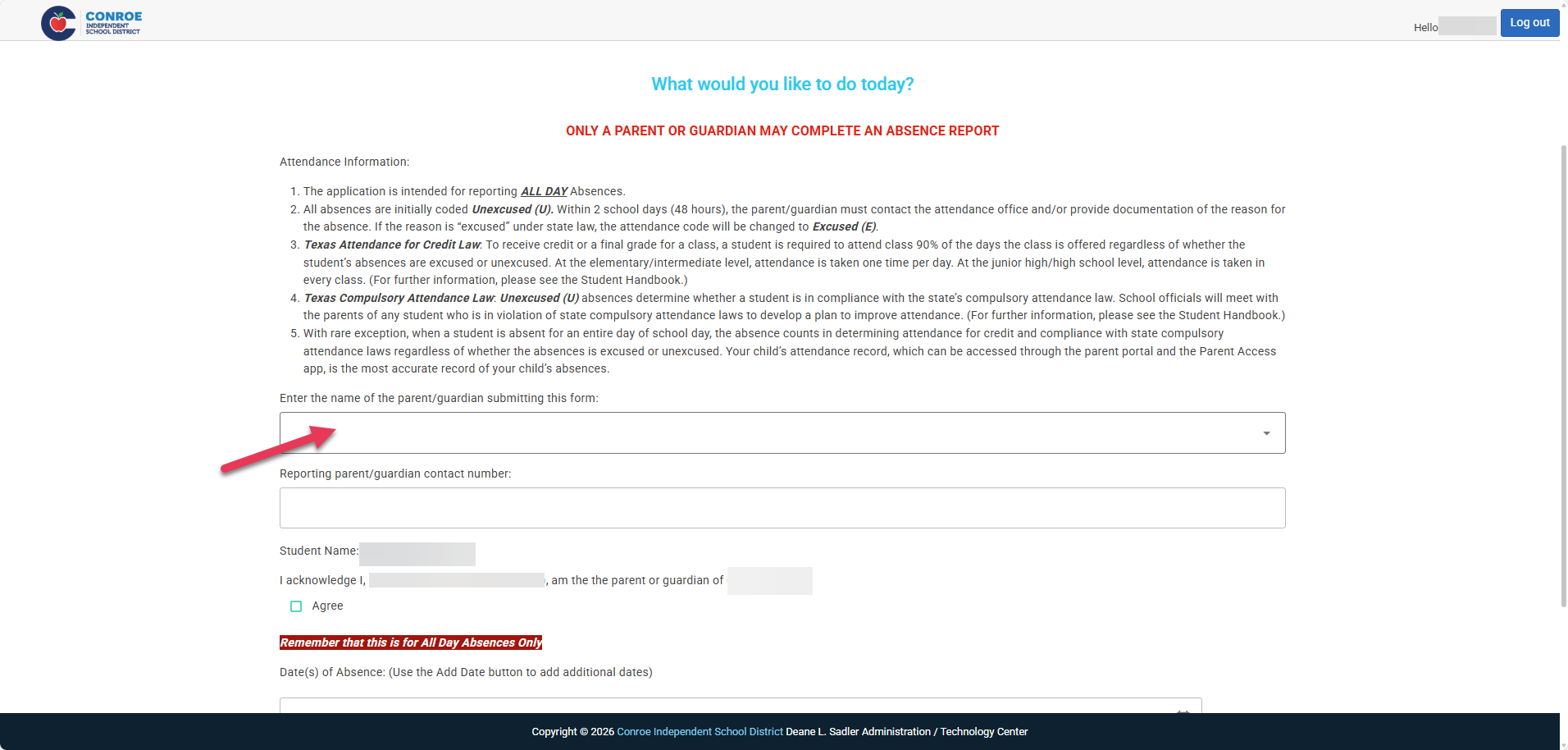
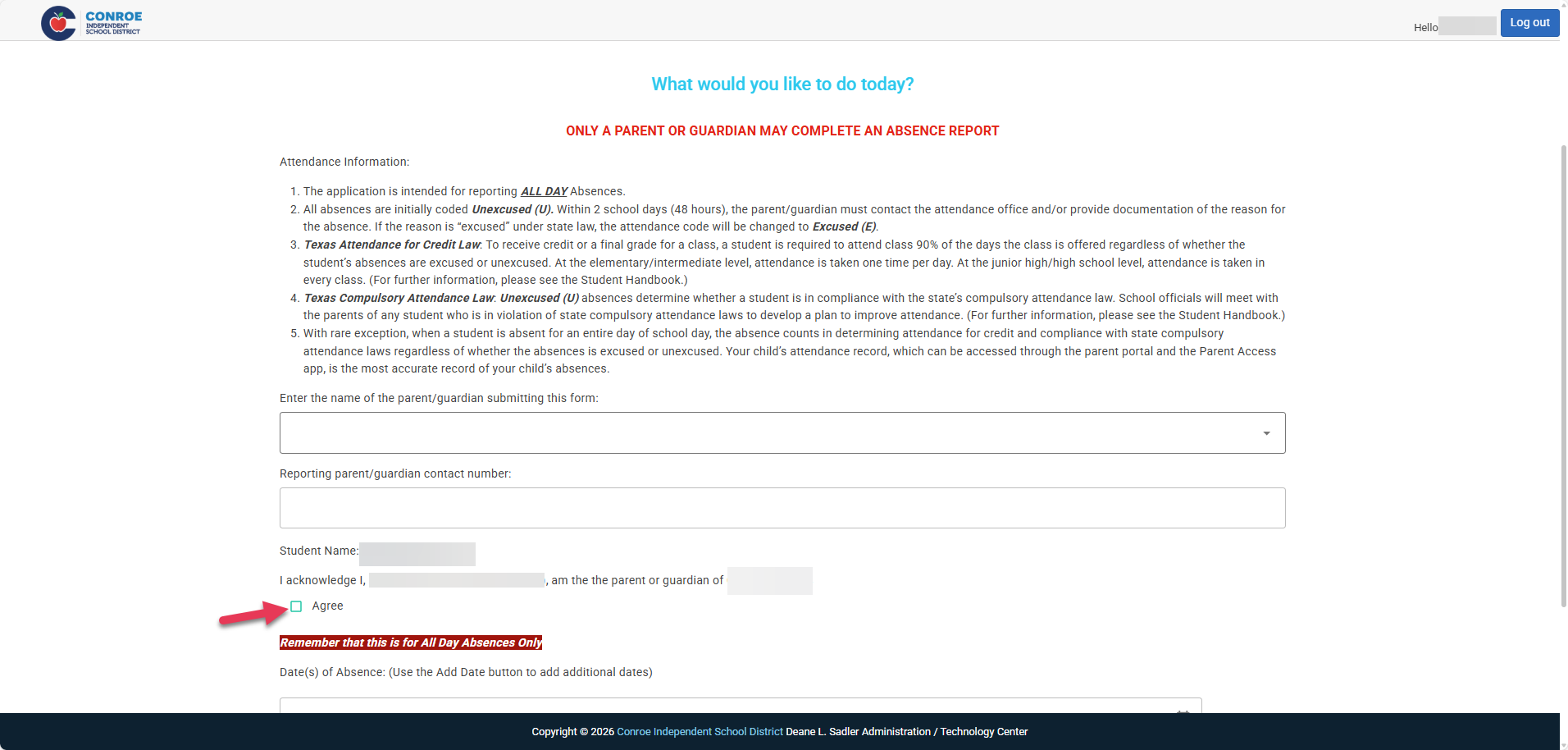
Read the Attendance Information displayed on the screen.
-
Use the drop-down menu to select the Name of the parent/guardian submitting this form.
-
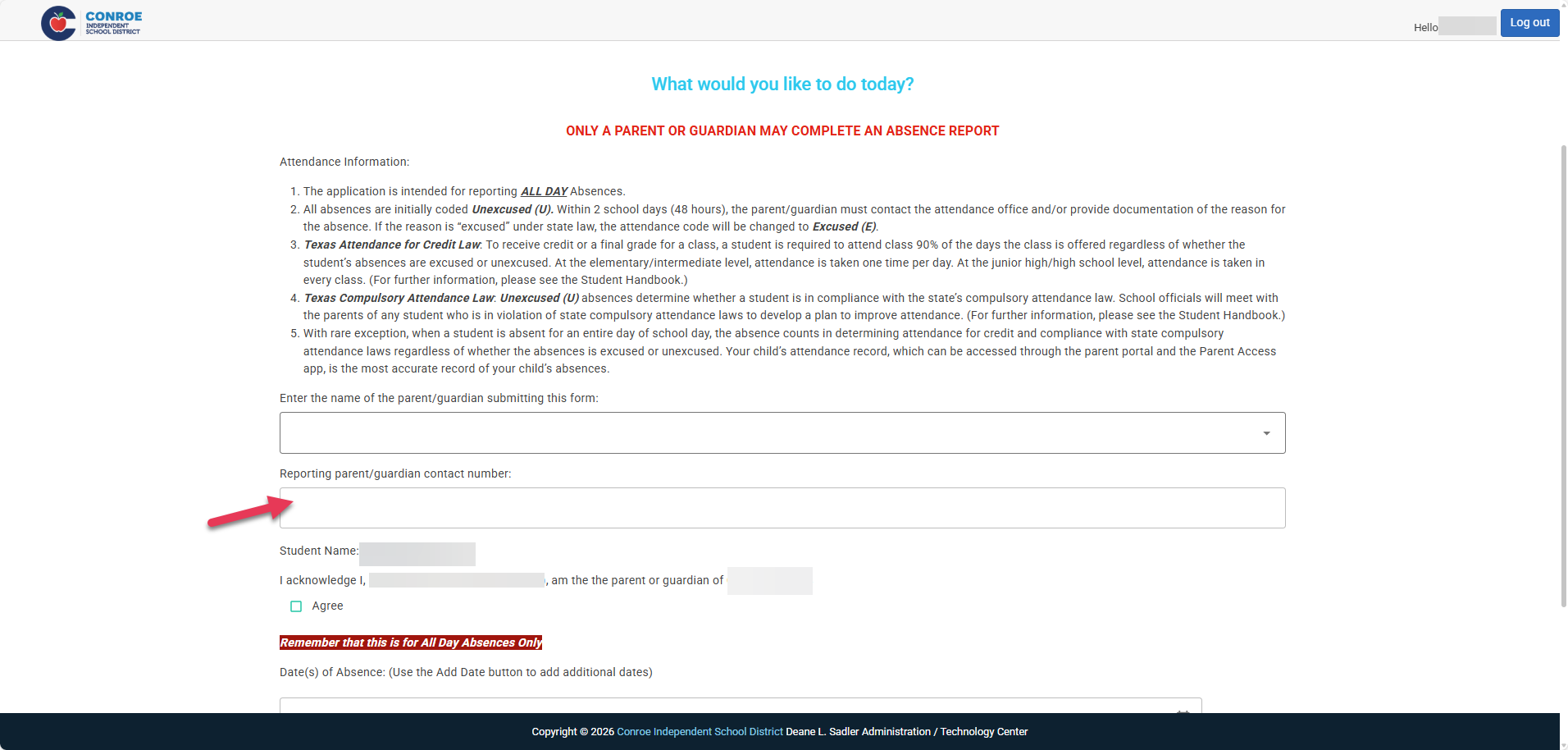
Enter your phone number in the Reporting parent/guardian contact number field.
-
Read the parent/guardian acknowledgment statement and check the I agree box to verify your relationship with the student.
-
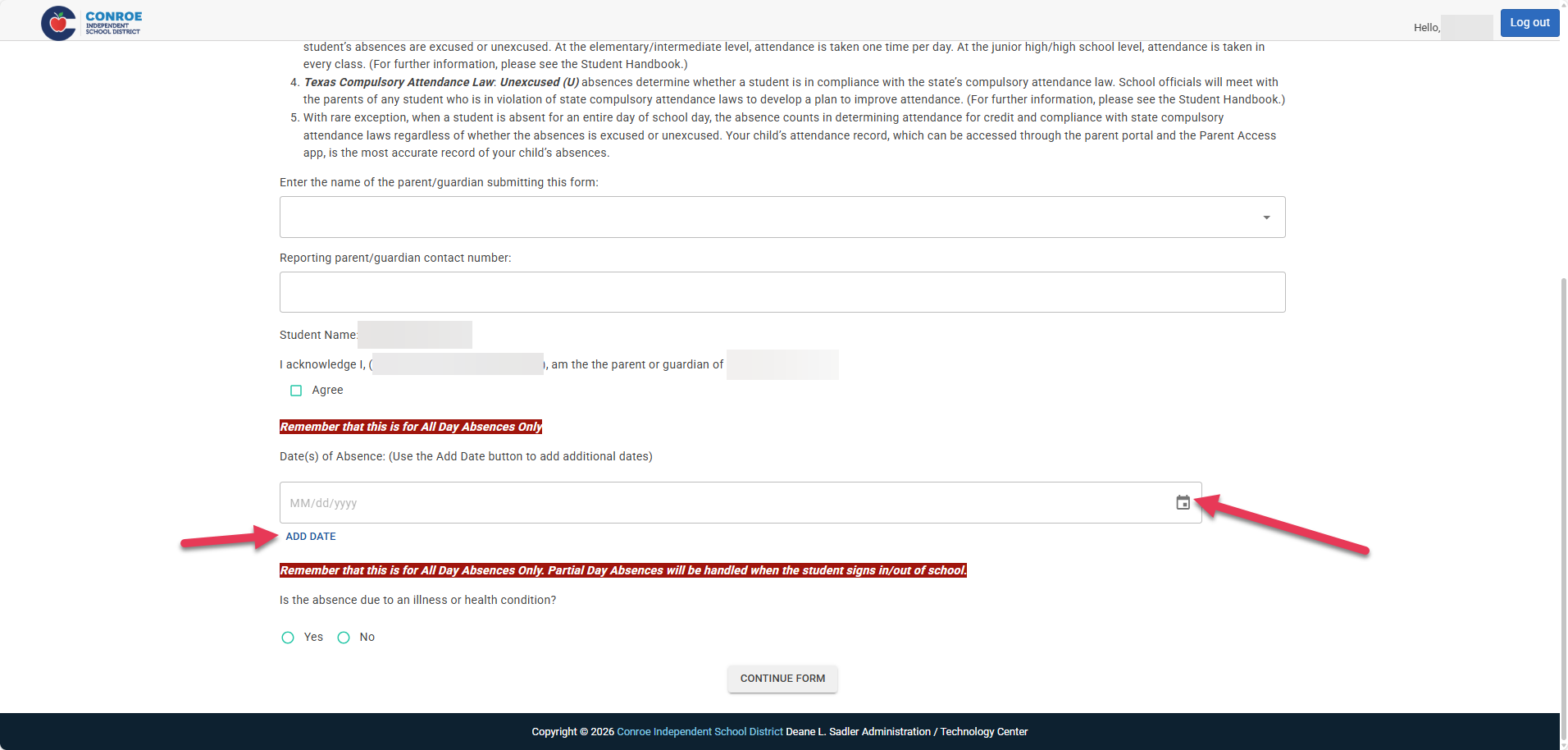
Under Date(s) of Absence, click the calendar icon on the right side to select the date of the absence.
-
Note: If you need to report multiple days, click the Add Date button to enter additional dates.
-
-
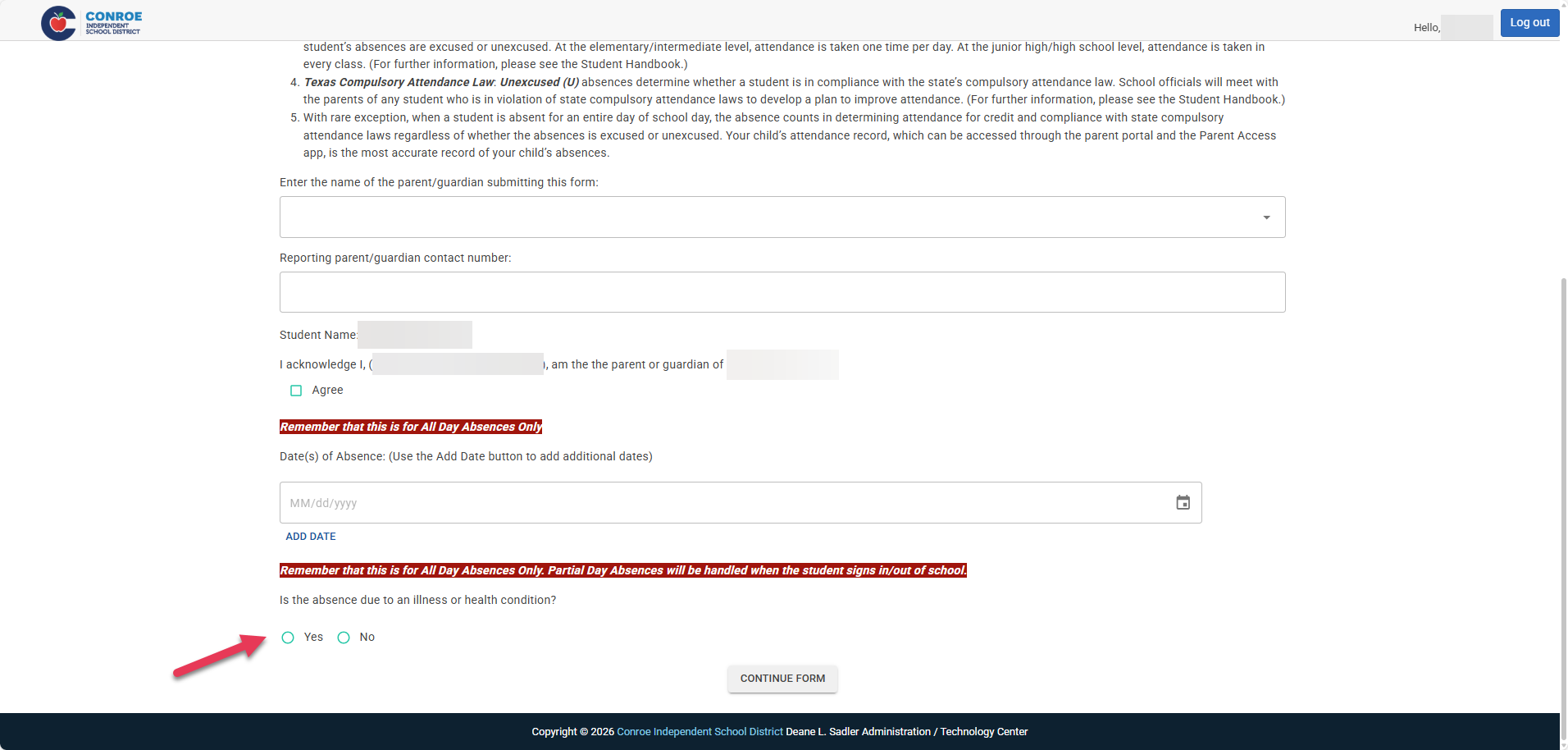
Answer the required health question: Is the absence due to an illness or health condition? by selecting Yes or No.
-
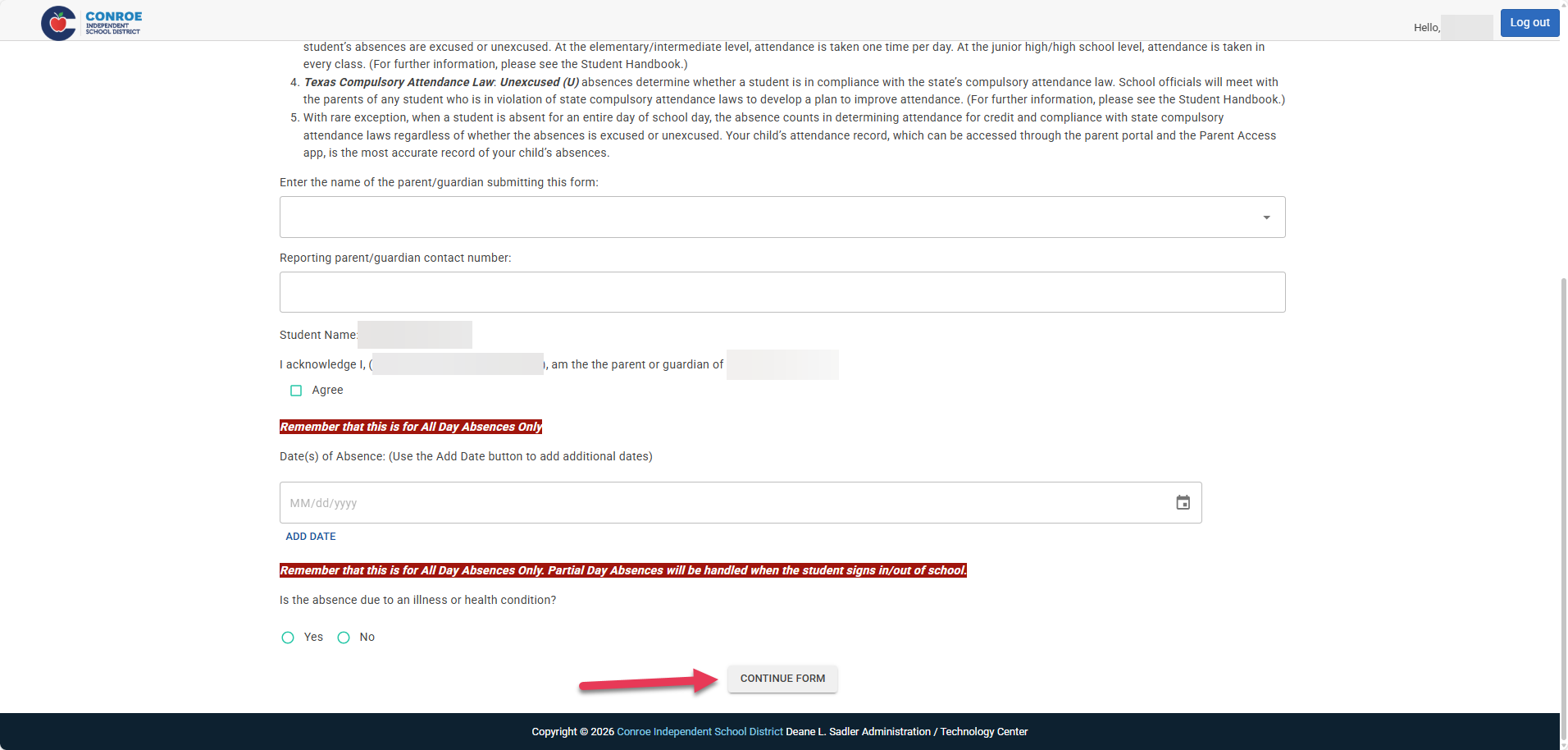
Click Continue Form and proceed through any remaining prompts to finalize your submission.
Helpful Tips
-
All-Day Absences Only: This portal is for reporting full-day absences. If your student is arriving late or leaving early (Partial Day), please follow the standard sign-in/out procedures at the school's front office.
-
Reporting for Multiple Students: If you need to report an absence for another child, scroll to the top of the page and select Forget Form User. This will allow you to go back and select a different student username to start a new form.
Still have questions? Visit the Additional Help section for further assistance.