
How to Claim a Classroom, Office, or Any Other Room in Incident IQ
This guide explains how to claim a specific room (such as a classroom, office, portable, library, cafeteria, gym, etc.) in Incident IQ. Claiming a room allows you to view and manage the technology assets assigned to that space. This is essential for accessing your inventory and submitting support tickets for your equipment.
Instructions for Claiming a Room
1. Access Your Profile
Open Incident IQ from your SSO. Select your Name in the top-right corner, then select My Profile from the drop-down menu.

2. Search for Your Room
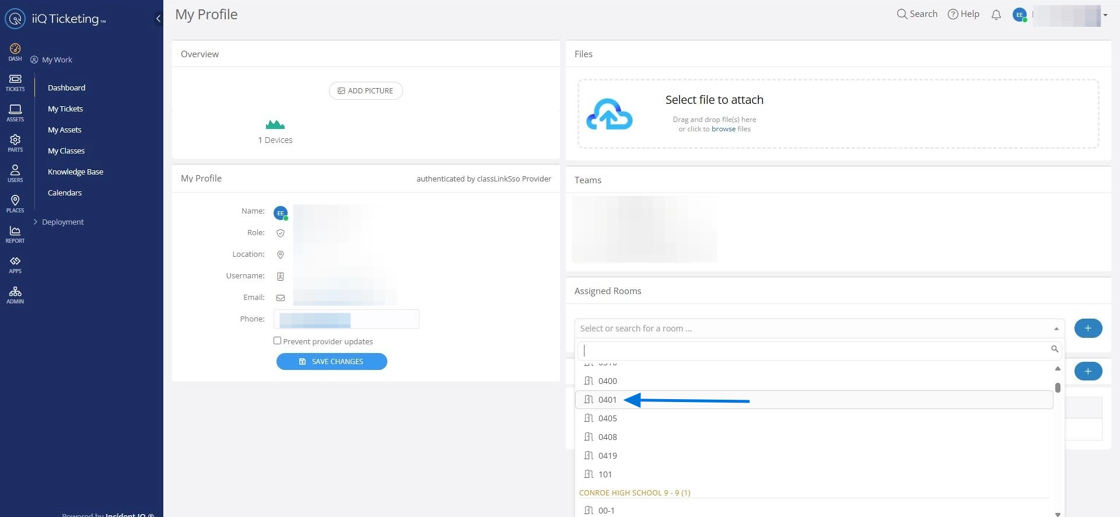
In the profile settings, use the drop-down menu to search for your location.
If you have a room number: Type the number (e.g., "101").
If you do not have a room number: Type the name of the room (e.g., "Cafeteria," "Gym," or "Library").

3. Add the Room
Select your room number from the list. Select the + (Plus) icon to save the location to your profile. The system will save this change automatically.
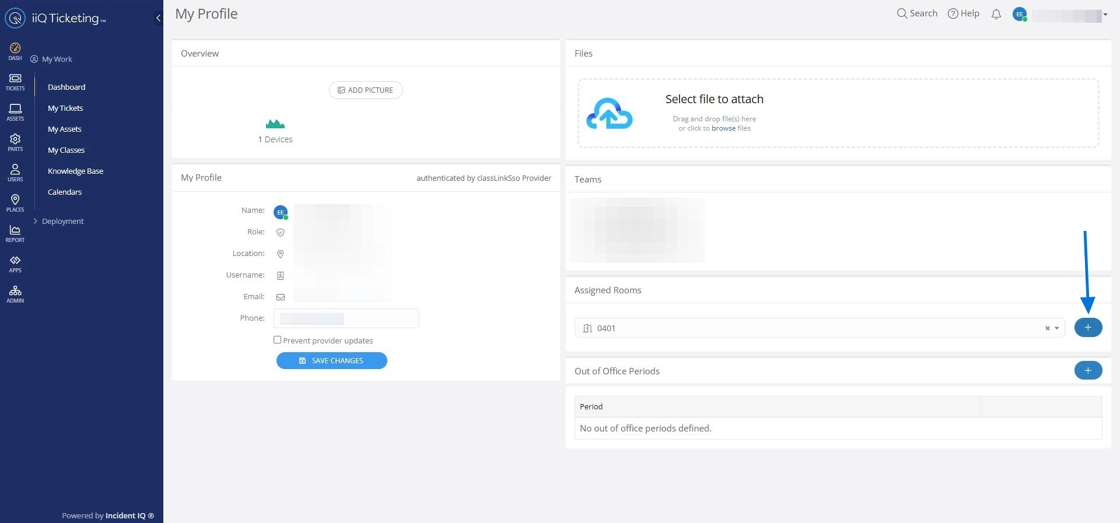

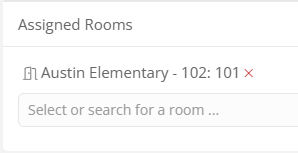
Once claimed, it will be displayed like this, showing the campus name, the building code, and the room number you’ve claimed—for example, Austin Elementary, building code 102, and room number 101.
Verifying and Favoriting Assets
1. Navigate to My Assets
Select My Assets from the left-side navigation menu.

2. View Associated Assets
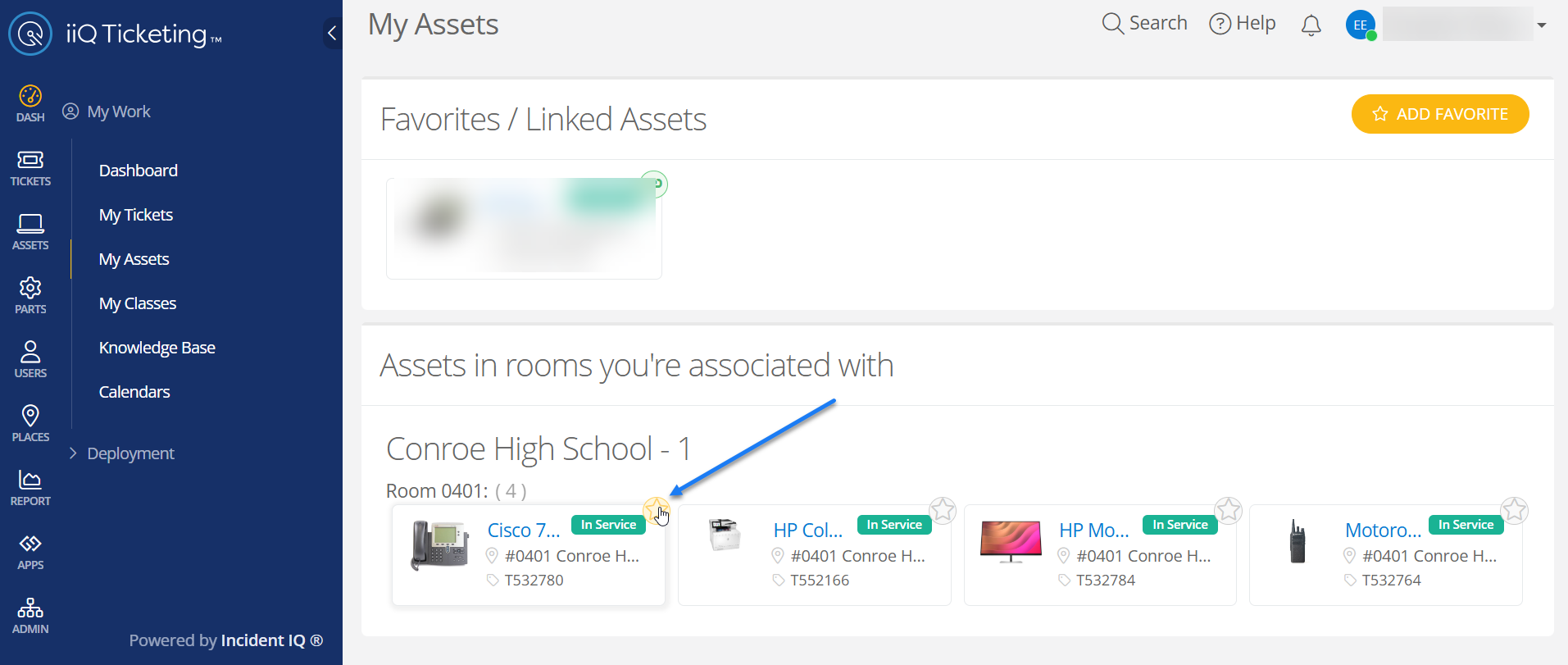
Look for the section titled "Assets in rooms you're associated with." This list displays all devices currently assigned to your claimed room or office.

3. Favorite Frequently Used Items
To make ticket submission faster, you can "favorite" items you use often. Select the Star icon next to an asset to mark it as a favorite. These items will appear in the favorites section of your dashboard for quick access.
Click here to go to the next page: How to Submit a Ticket on Your Room’s Assets (Claimed Room)
Still have questions? Visit the Additional Help section for further assistance.