
Verifying One Assets Using the incident IQ Mobile App
Follow this guide to learn how to verify and update assets using the Incident IQ Mobile App. Follow this guide to learn how to verify and update assets using the Incident IQ Mobile App. If you find assets in your room that are not yet in Incident IQ for you to verify them please let the Campus Tech at your location know.

Do you need to install and login to the Incident IQ Mobile App? Visit this document for further assistance: How to Install and Login to the Incident IQ Mobile App
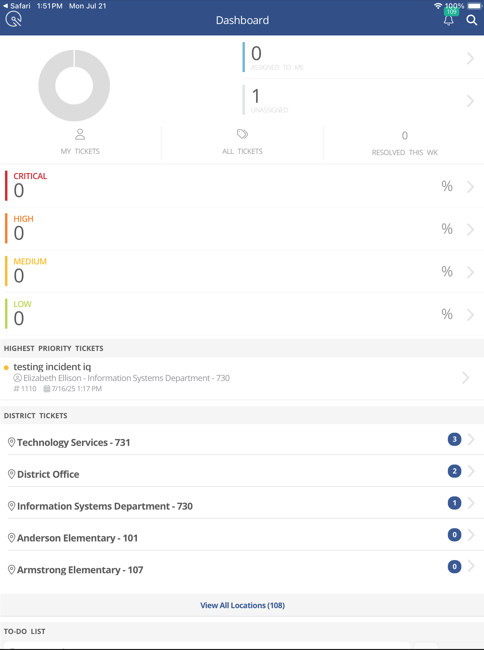
Login to Incident IQ Mobile App.
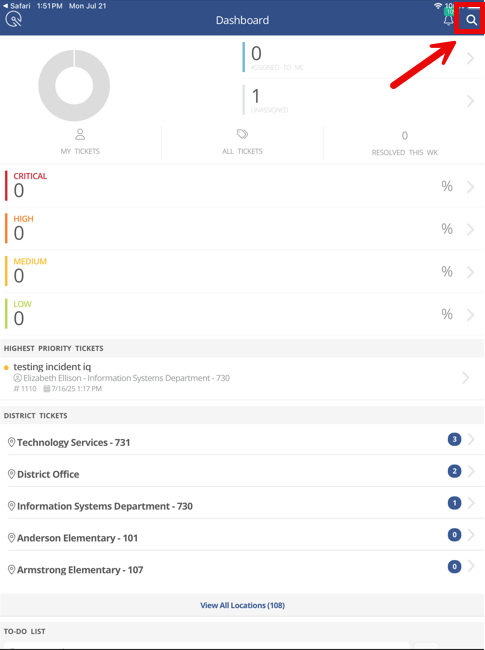
Click on the search icon in the top right corner.
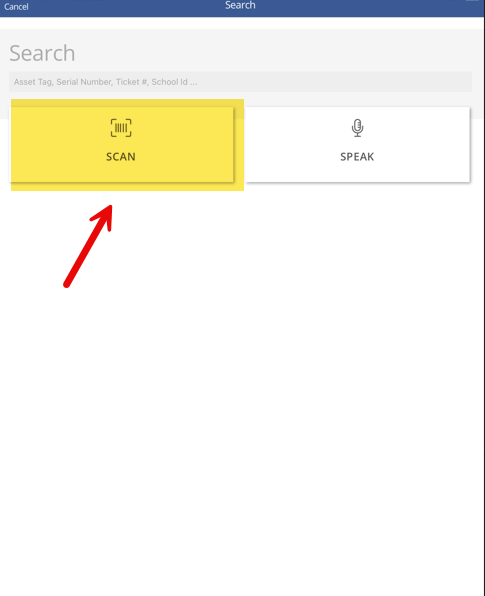
This will pull up the Search Field in the Incident IQ Mobile App. Click on Scan.
The Search Field allows you to search, scan, or speak to find an asset. We are going to focus on the Scan feature.
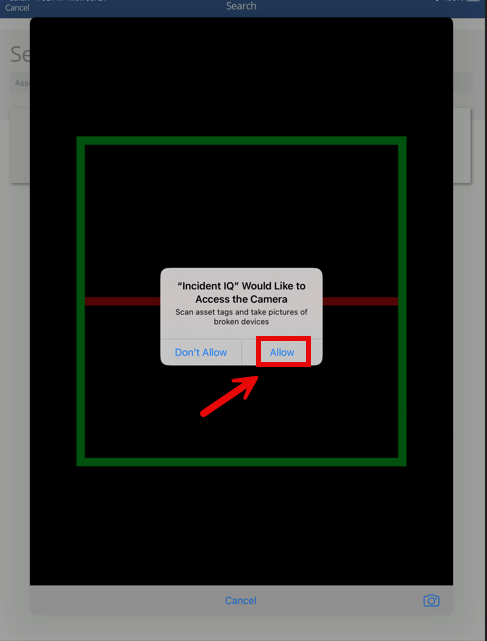
You will be asked to allow the incident IQ app to use your mobile device’s camera. Click Allow.
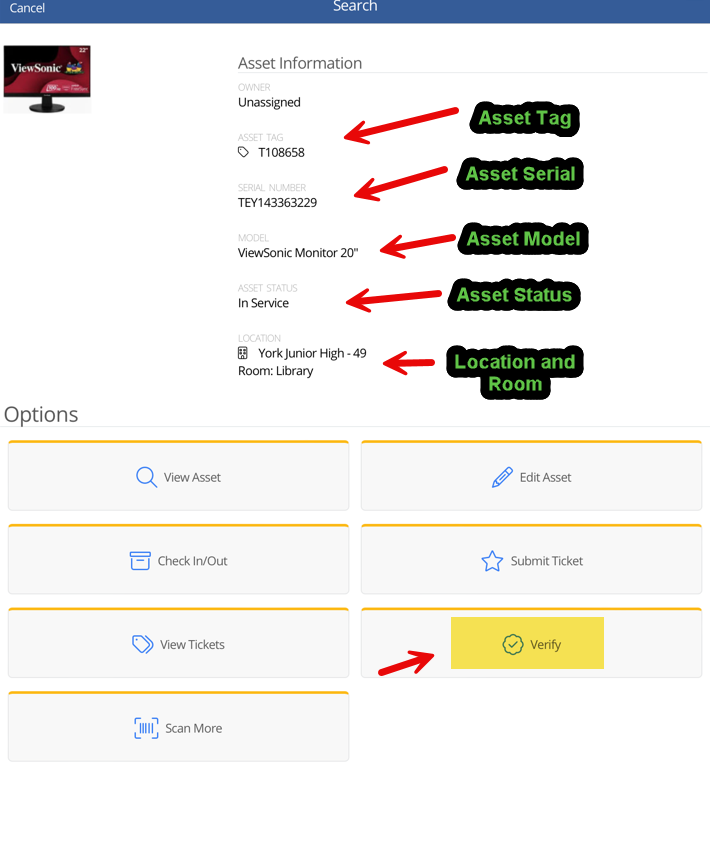
Scan the Asset that you want to Audit. This will pull up the Asset Info Screen. Click on Verify.
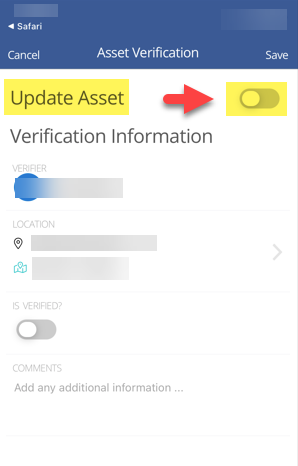
This will pull up the Asset’s Verification Window. If you need to correct the room, location, or both for the Asset then toggle on Update Asset.
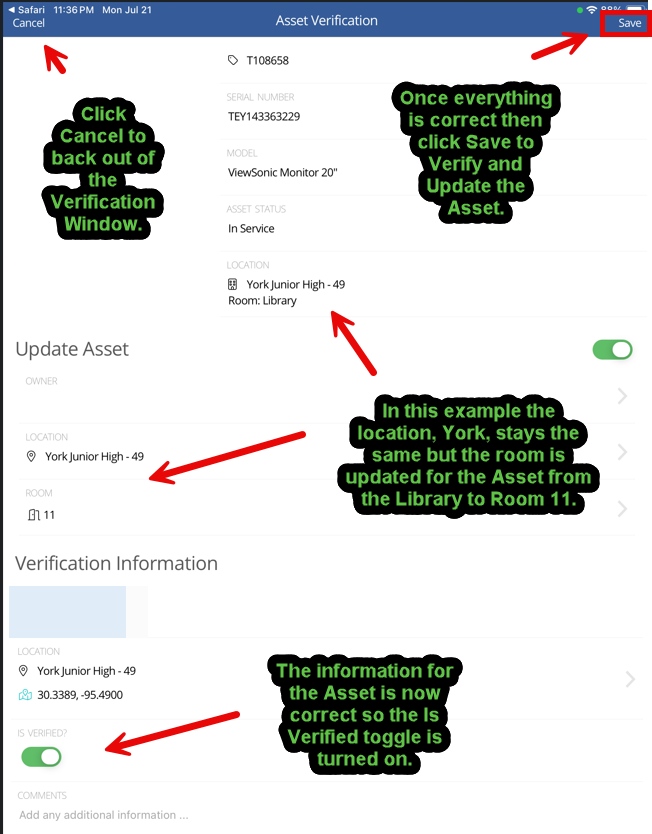
Update the Location, Room, or both for the Asset. Toggle on Is Verified and then click Save. If you need to back out of the verification window you can click Cancel.
Congratulations! You have successfully verified and updated an asset in your room using the Incident IQ Mobile app.
Repeat this process for all the assets in your room to complete your room audit.

If you find assets in your room that are not yet in Incident IQ for you to verify then please let the Campus Tech at your location know.
Click here to go to the next page: How to Submit a Ticket on an Asset

Still have questions? Visit the Additional Help section for further assistance.