
This page is a starting point for staff who need to access Laserfiche. Use it to understand how to request access, where to sign in, and how to open Laserfiche Forms.
Laserfiche access is not automatic. If you cannot open the repository or forms, first verify that you have submitted the correct access request in Eduphoria Forms.
What you can do from here
-
Request access to the Laserfiche repository
-
Sign in to the Laserfiche web client
-
Open Laserfiche Forms
-
Find the future guide for approving forms
Quick reference
|
Task |
Where to go |
What to use it for |
|---|---|---|
|
Request repository access |
Eduphoria Formspace in SSO |
Submit access requests for Laserfiche |
|
Open Web Laserfiche repository |
Sign in to the Laserfiche web client using windows authentication. If you cannot access and you are expecting access, please email twolf@conroeisd.net |
|
|
Open Laserfiche Forms |
Access forms, inbox items, and forms process tasks |
1. Request access to the Laserfiche repository
If you need access to the Laserfiche repository, submit an access request through Eduphoria Forms. You do not need to complete this if you only need access to Laserfiche Forms.
The exact forms available to you in Formspace may depend on your role or department. If you do not see your role / department please email twolf@conroeisd.net to have your department added.
-
Open Eduphoria from Single Sign-On (SSO).
-
Go to Formspace.
-
Select the Submit New Form button at the bottom left hand corner
-
Locate the Technology: Access Request Category
-
Select Laserfiche Employee Records User Access Request form.
-
Complete the form with the required user and access details.
-
Submit the request and wait for approval.
2. Sign in to the Laserfiche repository
Once your access has been approved, use the Laserfiche web client to sign in to the repository.
Using the web client is the standard way to access the Laserfiche repository for most users. If you find that the web client is too slow, please email twolf@conroeisd.net to request access to the Laserfiche Repository Client
-
Open a web browser.
-
Sign in with your district credentials, if prompted.
-
Username = EMPLOYEES\username
-
Password = Your SSO Password
-
-
Open the Laserfiche repository you have been granted access to.
-
More Information - Detailed Guide
3. Access Laserfiche Forms
Use the Laserfiche Forms web address when you need to complete or interact with forms.
Laserfiche Forms and the Laserfiche repository use related but different web locations. If one link does not take you to the area you need, verify that you are using the correct URL.
-
Open a web browser.
-
Go to lfweb.conroeisd.net/Forms.
-
Sign in with your district credentials, if prompted.
-
Username = EMPLOYEES\username
-
Password = Your SSO Password
-
-
Open the form, inbox, or task you need.
-
More Information - Detailed Guide
4. Approving forms
-
Access Laserfiche Forms Website.
-
Sign in with your district credentials, if prompted.
-
Username = EMPLOYEES\username
-
Password = Your SSO Password
-
-
Once you are in, you should be within the Inbox of Laserfiche.
-
On the left you will see a section to select between My Tasks and Team Tasks
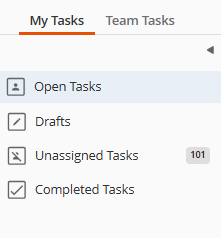
My Tasks
-
If you Inbox is empty, that means you have no forms that need to be approved.
-
If you have tasks within your inbox you will see them as rows within the Inbox interface.
-

Click on the Blue Link - This will be the name of the task assigned to you. Within this inbox you can filter by a column. Just click the filter icon

-
Process Column - Name of the Form that was sent to be approved.
-
Task Column - Name of the task for the stage the form is in currently.
-
Instance Column - Metadata information about the form.
-
Date Assigned Column - The date the form was submitted.
-
Due Date Column (Optional) - The date a task is Due
-
Priority (Optional) - The priority of the task (Medium / High / Urgent)
-
-
Review the form and then Approve / Reject the form.
-
Once you are done an email confirmation might be sent to you.
-
When you are complete with all your tasks, your Inbox will now be empty.

Team Tasks
-
By default you will be in My Tasks
-
Select the Team Tasks button on the left hand side to switch.
-
Sometimes a form submission will be assigned to a team.
-
If a team is assigned the task, the form may automatically assign a person on that team to review it.
-
In the instance that the form is not setup to automatically assign tasks, you will find this section.
-
You may select the task and assign it to yourself or if you are a manager, you can assign it to a specific person.
-
If you are a manager, you can right click on the task and select reassign.
-
Select the employee you want to assign the task too.
-
Still have questions? Visit the Additional Help section for further assistance.