
This guide explains how to request temporary Teacher Access Center (TAC) access for a substitute teacher. The access allows the substitute to enter attendance and grades for the regular classroom teacher during the temporary assignment.
How to Submit the form
Step 1: Access Eduphoria Formspace
1. Open Eduphoria
-
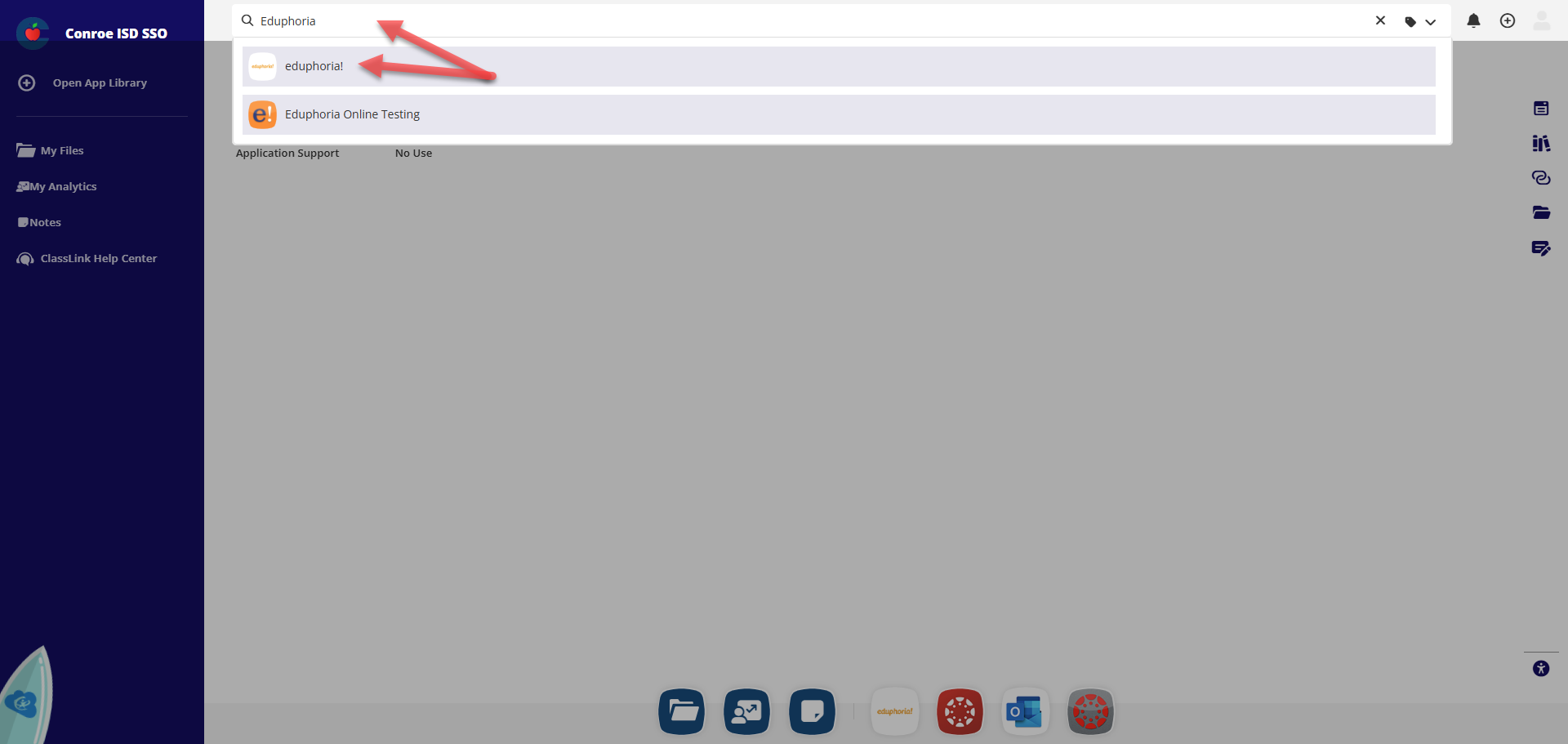
Log in to your Single Sign-On (SSO).
-
In the SSO search bar, type Eduphoria.
-
Select the Eduphoria application.
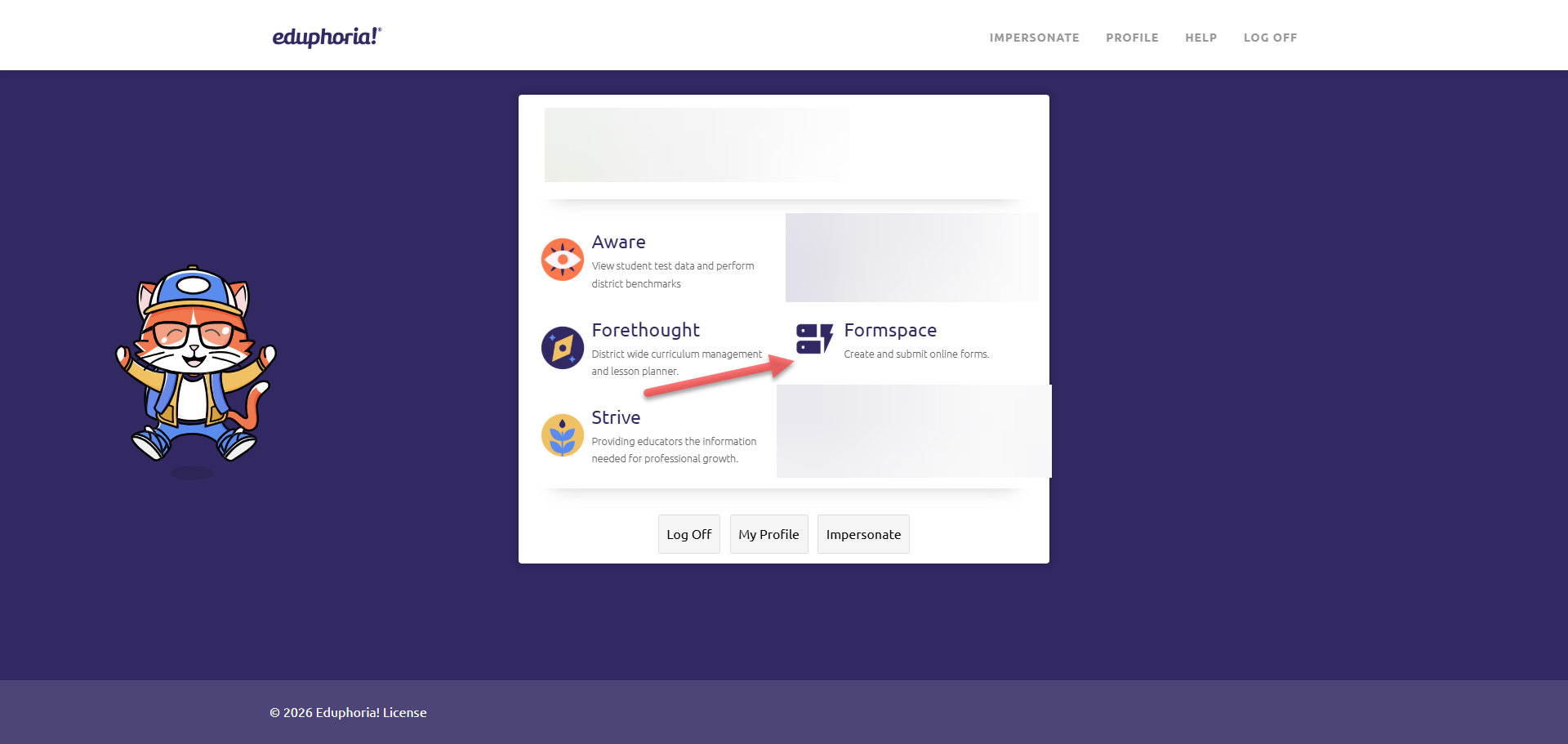
2. Open Formspace
From the main menu, select Formspace.
Step 2: Start a New Form Request
-
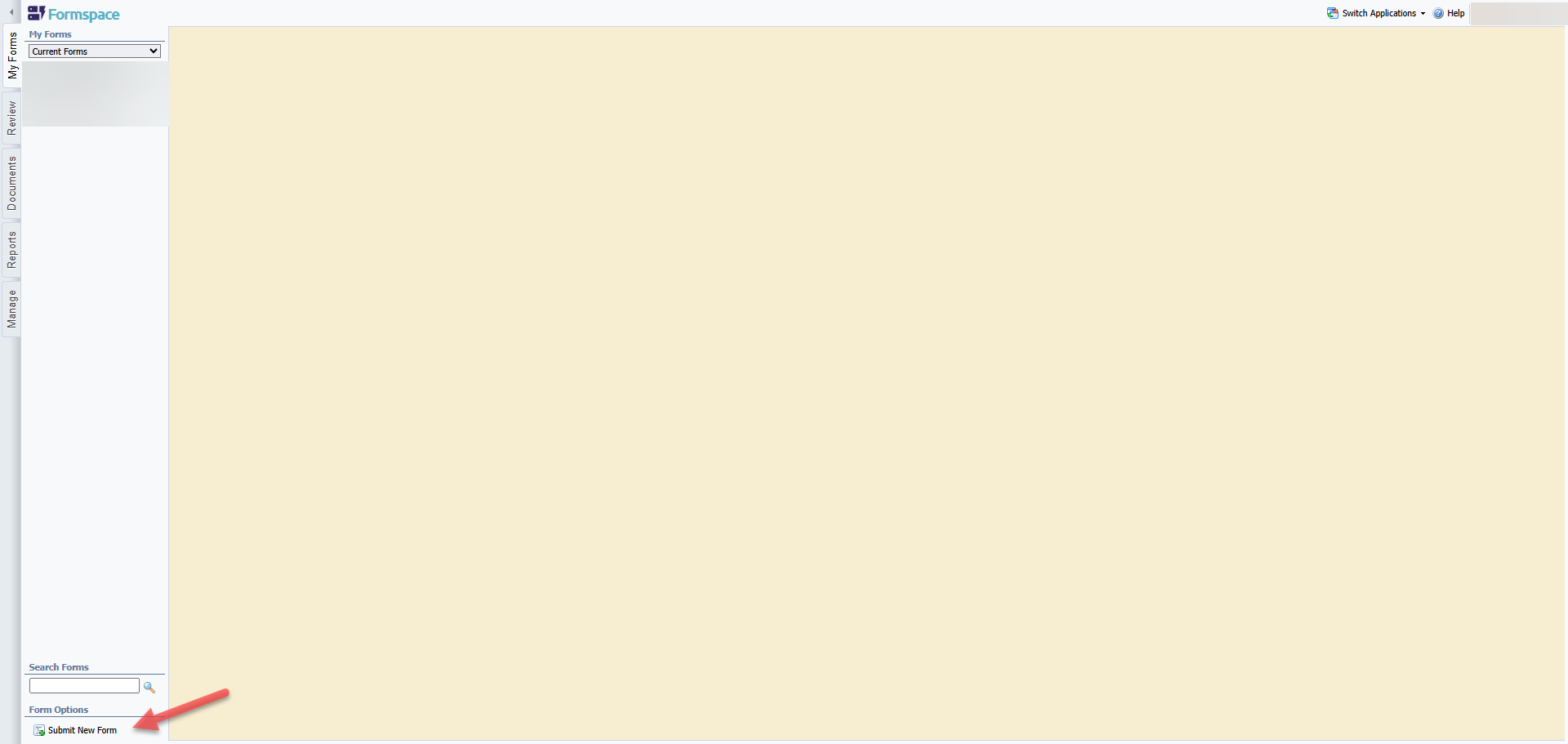
Locate the menu panel on the bottom-left side of the screen.
-
Select Submit New Form.
Step 3: Choose the Form
-
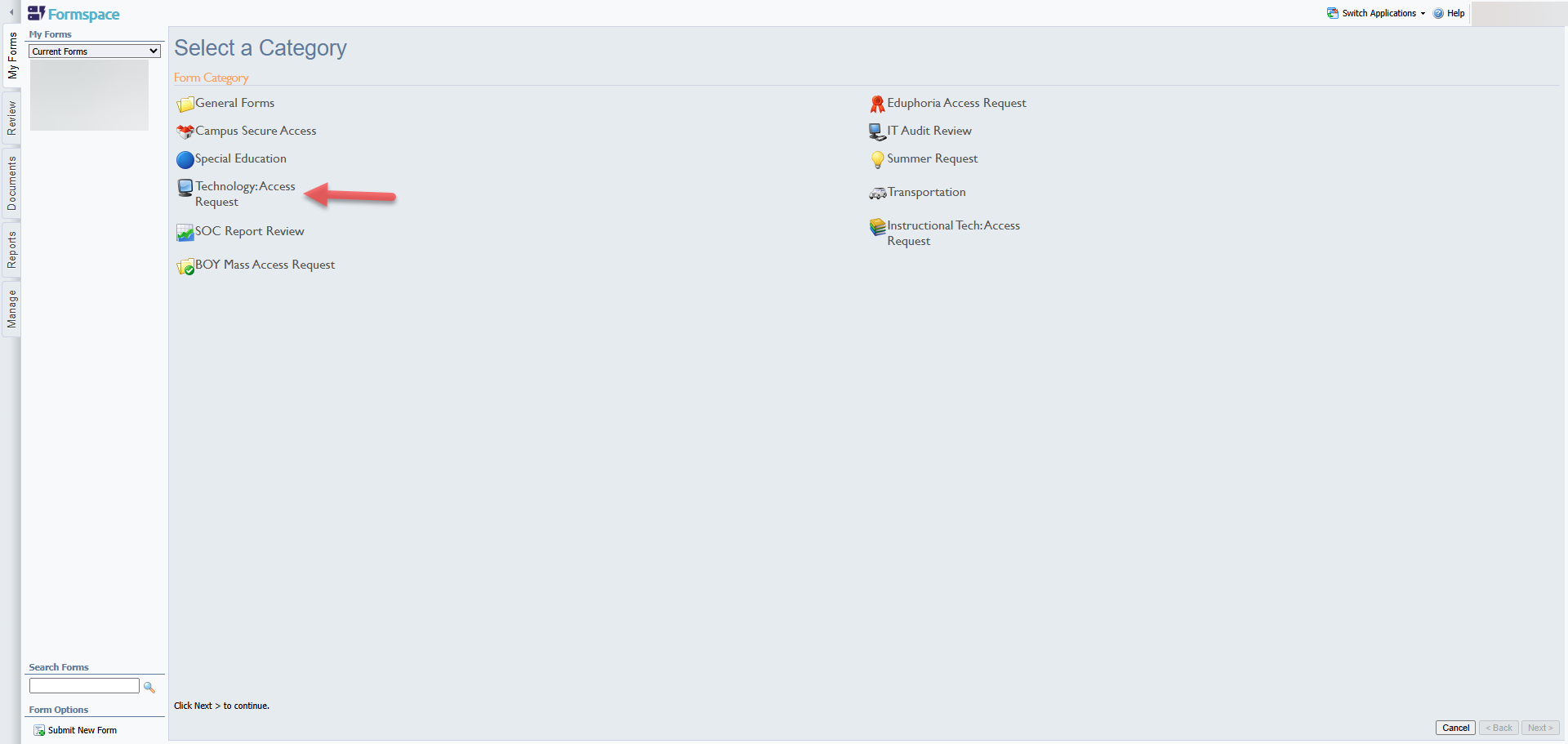
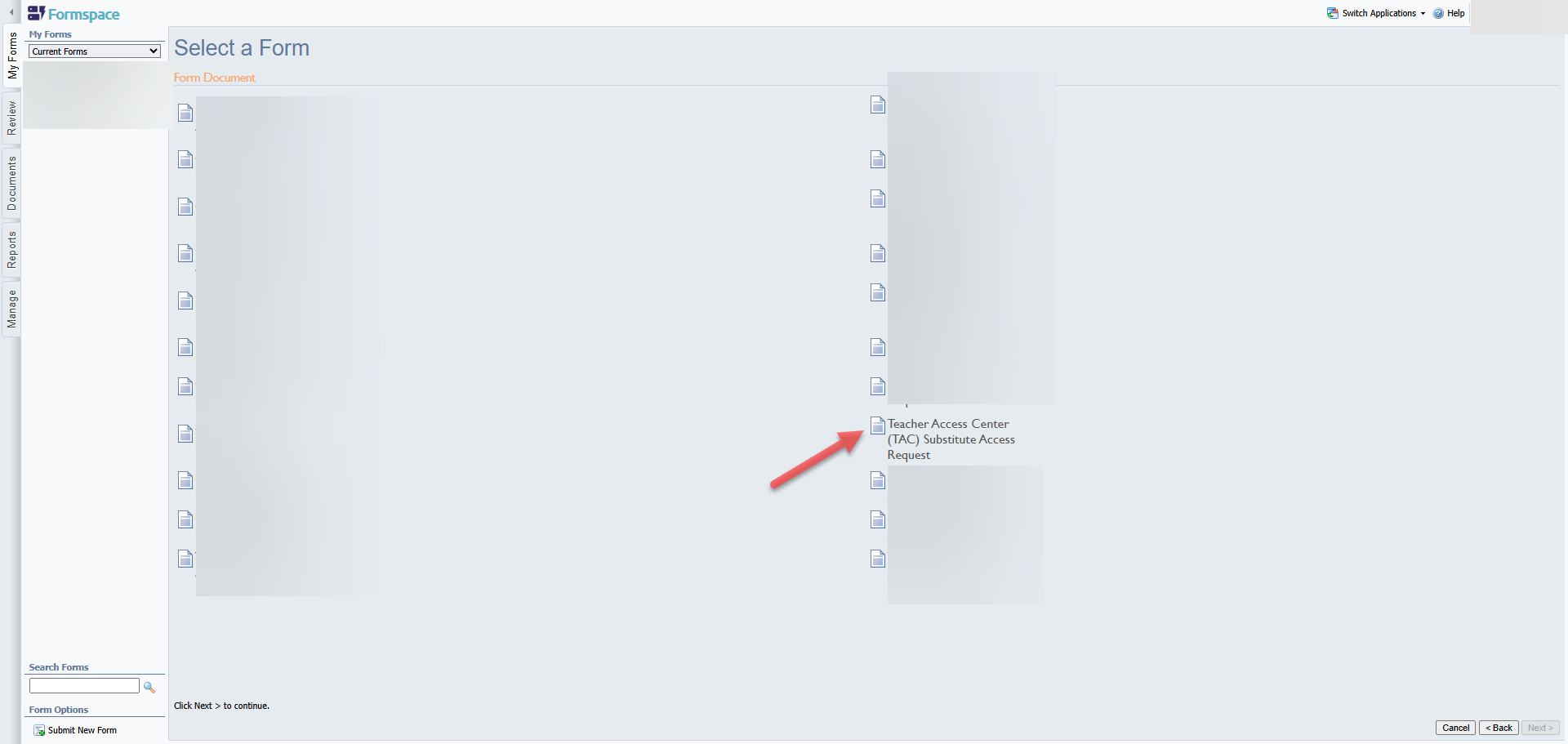
Under the form categories, select Technology Access Request.
-
Select Teacher Access Center (TAC) Substitute Access Request.
Step 4: Enter Request Details
-
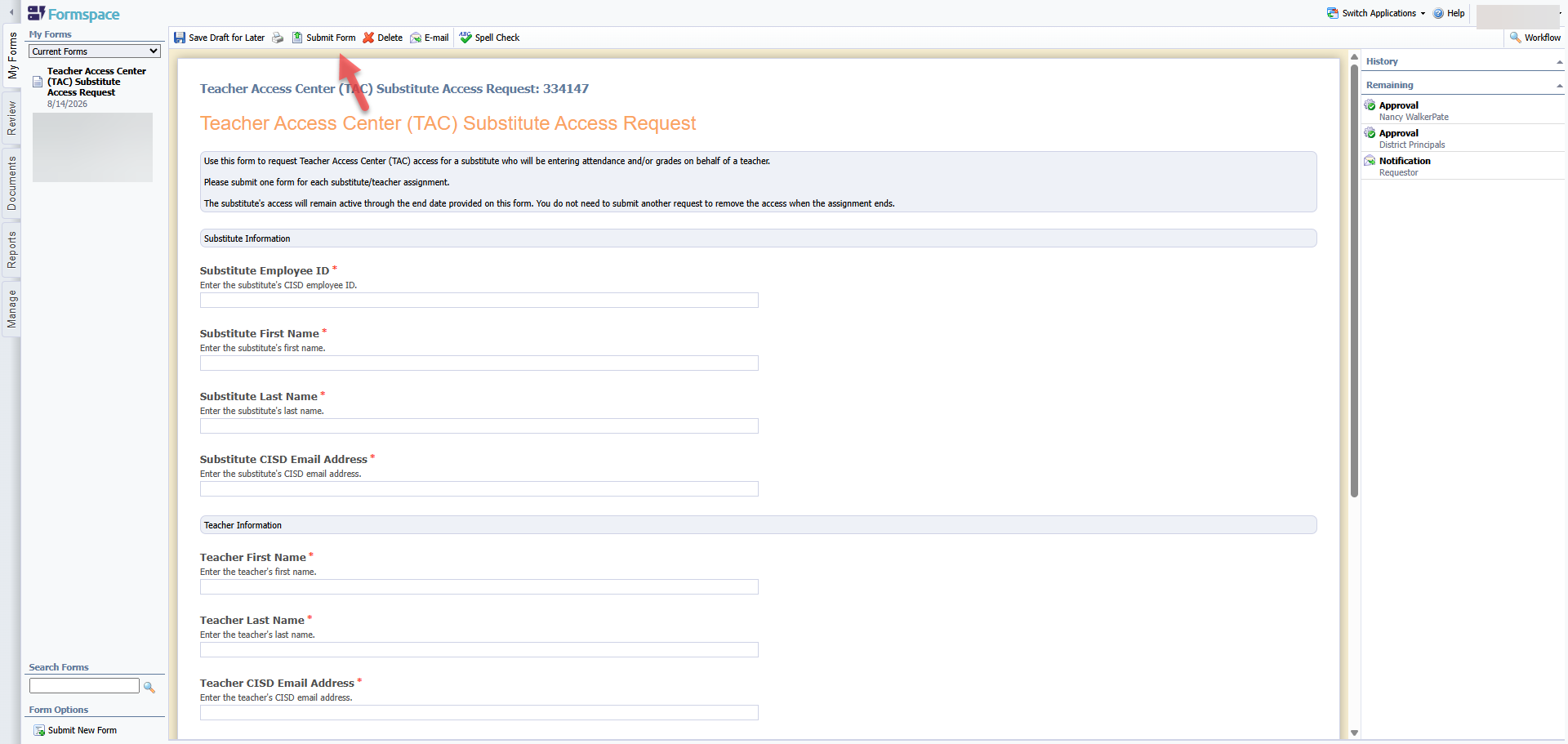
Substitute Teacher Information: Enter the substitute teacher’s information.
-
Regular Classroom Teacher Information: Enter the information of the teacher being covered.
-
Assignment End Date: Select the final date the substitute will need TAC access.
Step 5: Submit and Track the Request
-
Select Submit at the top or bottom of the form.
-
After submission, the workflow appears on the right. The next step is approval by the campus principal.
-
After the campus principal approves, the TAC Support Team will review the form, grant TAC access, and set the end date.
Important: TAC access expires automatically on the submitted assignment end date. If the substitute’s assignment is extended, access will not extend automatically. Submit a new request form in Eduphoria Formspace for the additional dates.
Still have questions? Visit the Additional Help section for further assistance.