
Use this guide to request access to Frontline Special Education through Eduphoria Formspace. You will need to sign in to your district Single Sign-On (SSO) account to complete and submit the access request form.
Step 1: Open Eduphoria
-
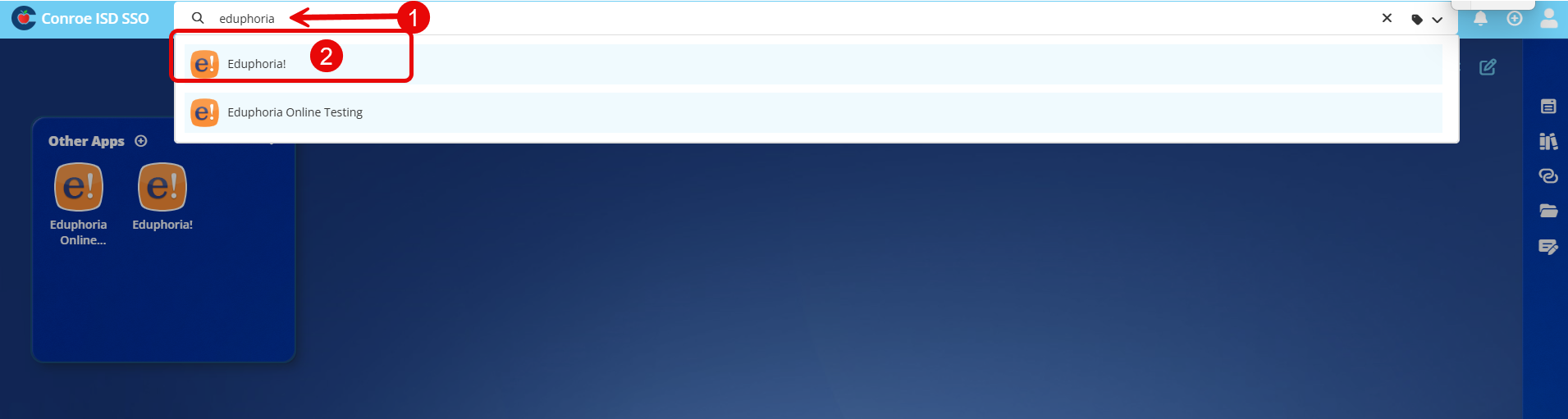
Sign in to your district SSO.
-
Select Eduphoria from your available applications.
Step 2: Open Formspace
-
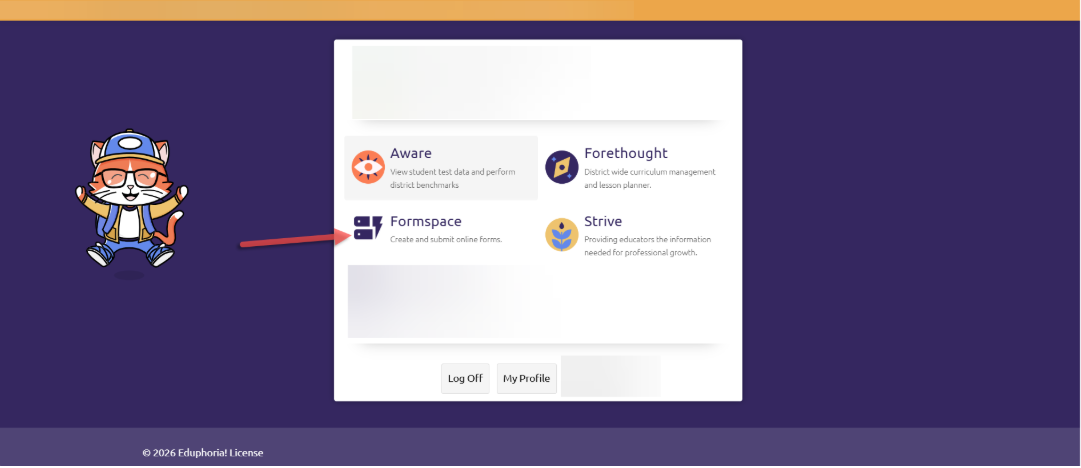
From the Eduphoria homepage, select Formspace.
Step 3: Start a New Form
-
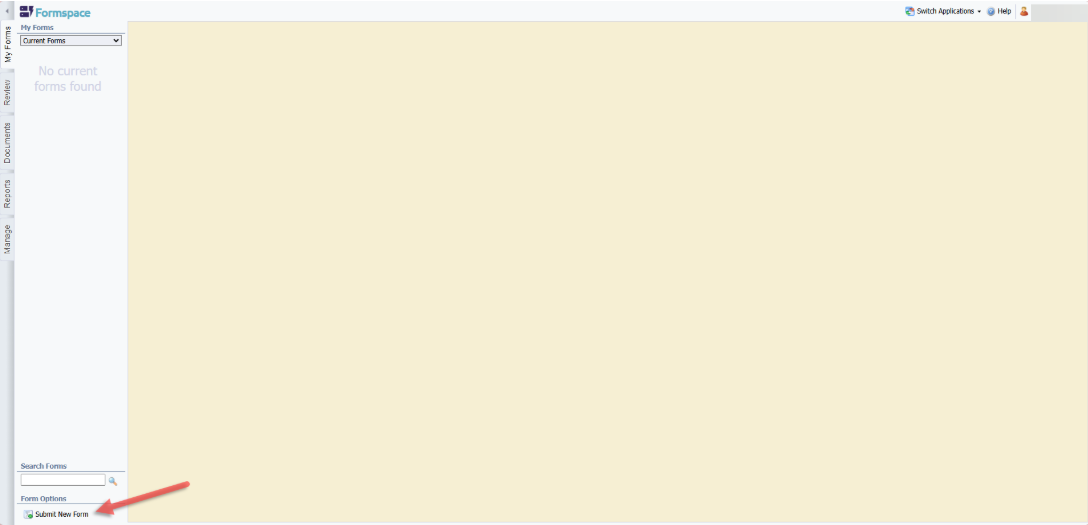
In Formspace, click Submit New Form.
Step 4: Select the Request Category
-
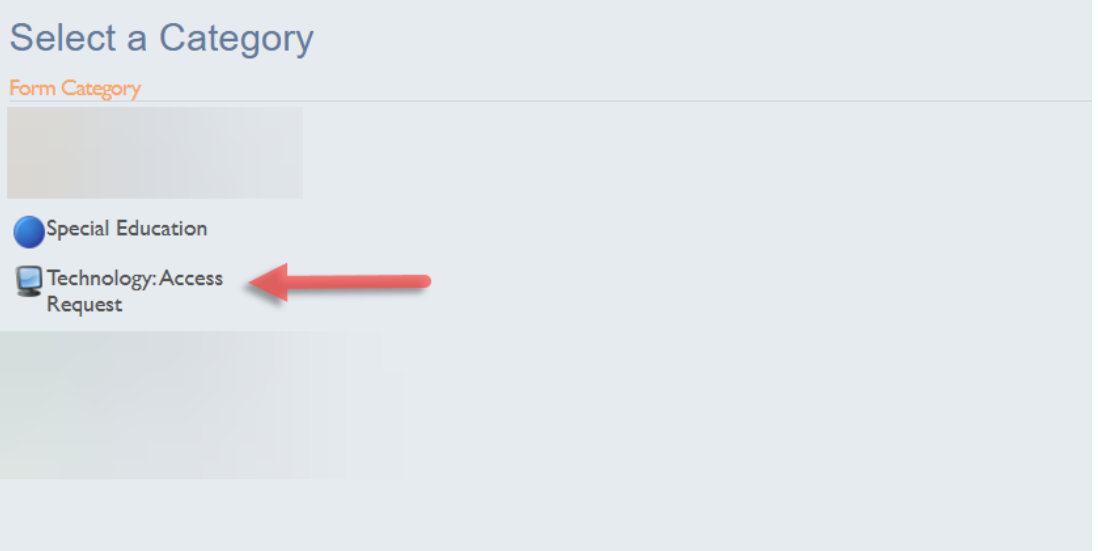
Under Select a Category, choose Technology: Access Request.
Step 5: Select the Frontline Access Request Form
-
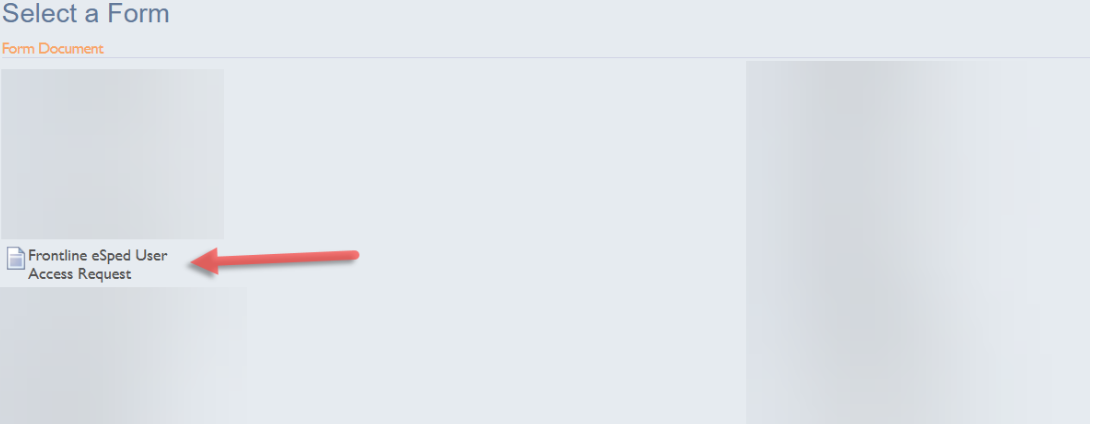
Select Frontline eSped User Access Request from the available forms.
Step 6: Complete and Submit the Request
-
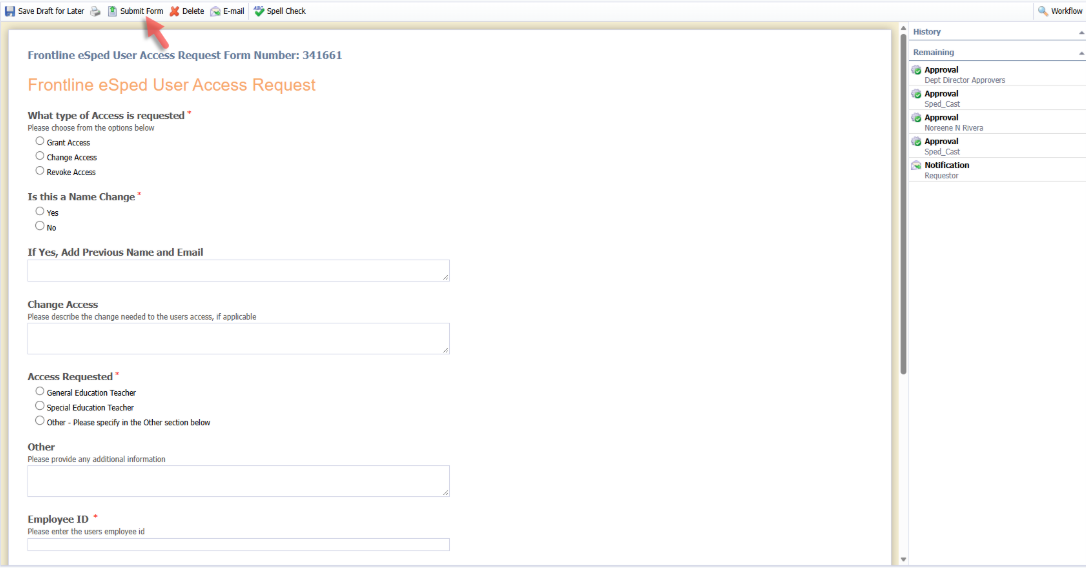
Complete all required fields in the access request form.
-
Review the information for accuracy.
-
Click Submit Form.
How to Track Your Request
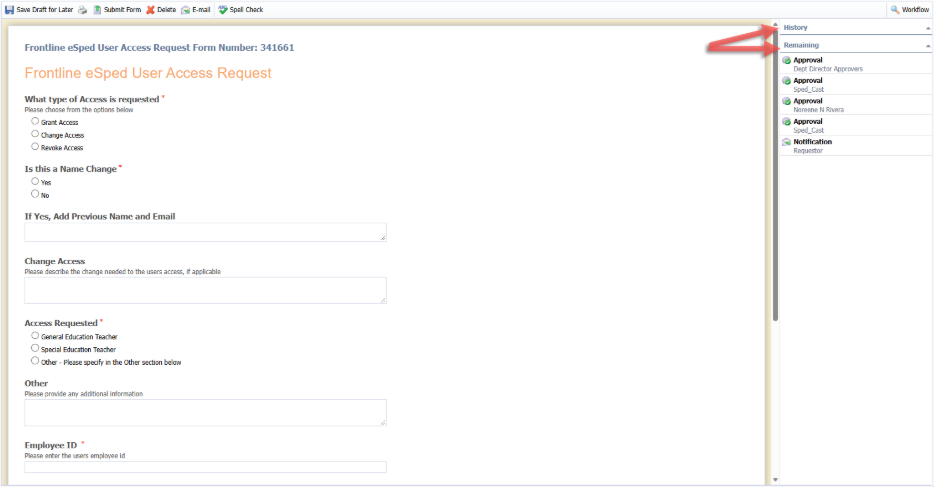
After submitting the form, you can follow its progress using the workflow panel.
-
History: Displays steps that have already been completed in the approval workflow.
-
Remaining: Displays steps that are still pending.
Need additional help? Click here for further assistance.