
This guide explains how to access and add SAVVAS digital textbooks to your class through the Conroe ISD Single Sign-On (SSO) portal.
Textbook Information
Textbook adoptions change periodically. For information about specific textbooks, visit the Instructional Materials page.
Accessing SAVVAS Textbooks
1. Open SAVVAS
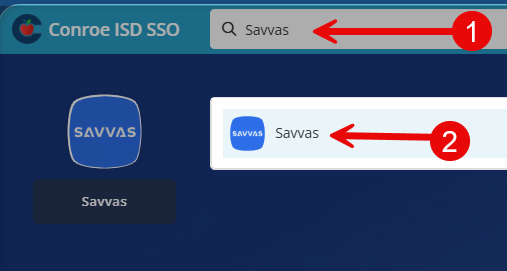
Open the Conroe ISD Single Sign-On (SSO) portal. Search for Savvas, then select the Savvas tile.
2. Set UP Your SAVVAS Class
To set up your SAVVAS class and add your textbook, follow the Rostering in SAVVAS Realize instructions.
If Your Textbook Does Not Appear
If the textbook you need does not appear in the list of options for your class, follow the steps below to update your SAVVAS products.
1. Open Settings
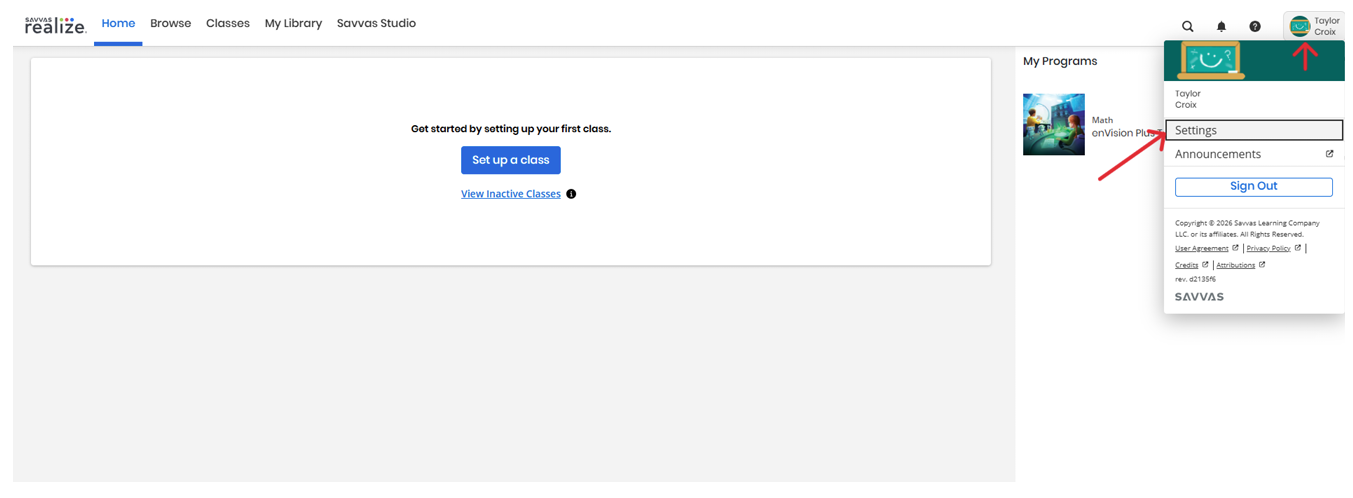
From the SAVVAS Realize homepage, select your name in the top-right corner and choose Settings.
2. Update Your Products
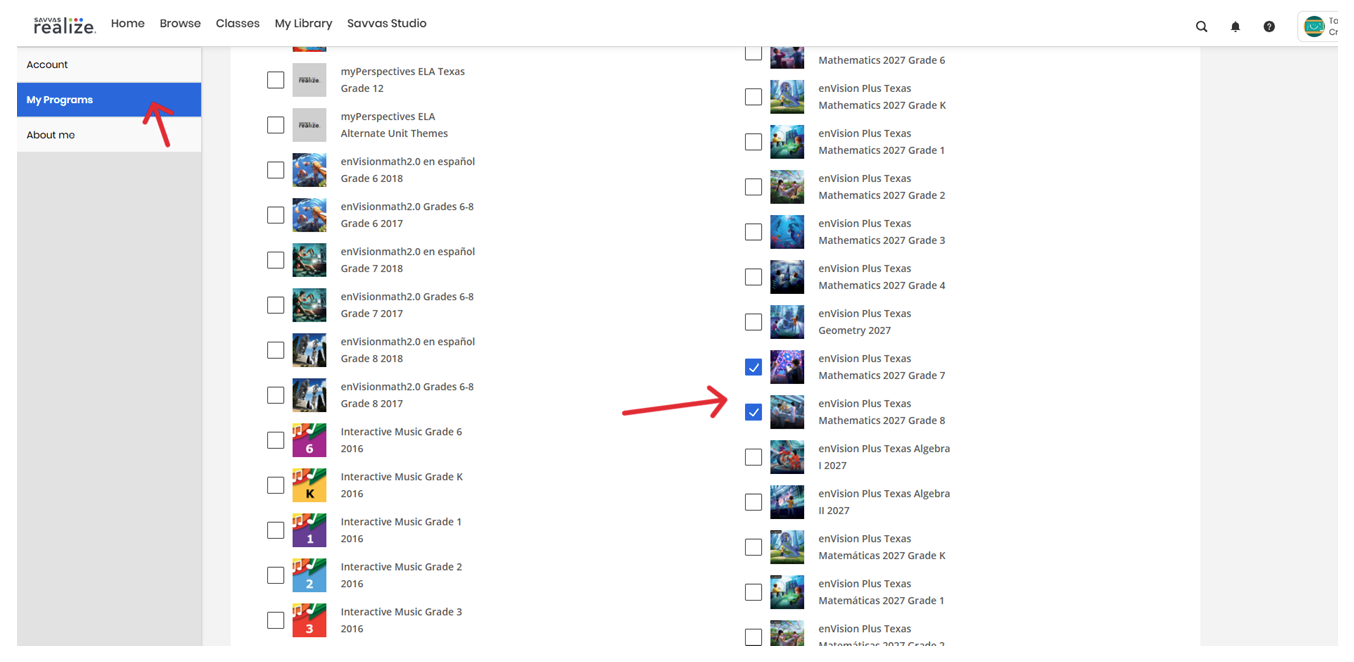
Select the Products tab. Deselect any old books you no longer need, select your new books, and click Save at the bottom of the page.
3. Add the New Product
You should now be able to add the new product to your class.
Still have questions? Visit the Additional Help section for further assistance.