
In most cases, District-managed Chromebooks and Windows computers will automatically identify your account and apply the appropriate ContentKeeper filtering policies without requiring you to sign in.
During the initial rollout of ContentKeeper and while the filtering agent is being deployed across the District, you may occasionally be prompted to sign in, even when using a District-managed device. This is expected behavior and will become less common as the deployment is completed.
If you are using a personal or unmanaged device while connected to the Conroe ISD network, you will need to sign in to ContentKeeper. Signing in allows the system to identify your account and apply the appropriate internet access policies.
Logging in:
You will only be prompted to sign in after attempting to access a website that is blocked by the default filtering policy. If you are using a personal device, or a District-managed device that does not yet have the ContentKeeper filtering agent installed, you will see a block page similar to the one shown below.
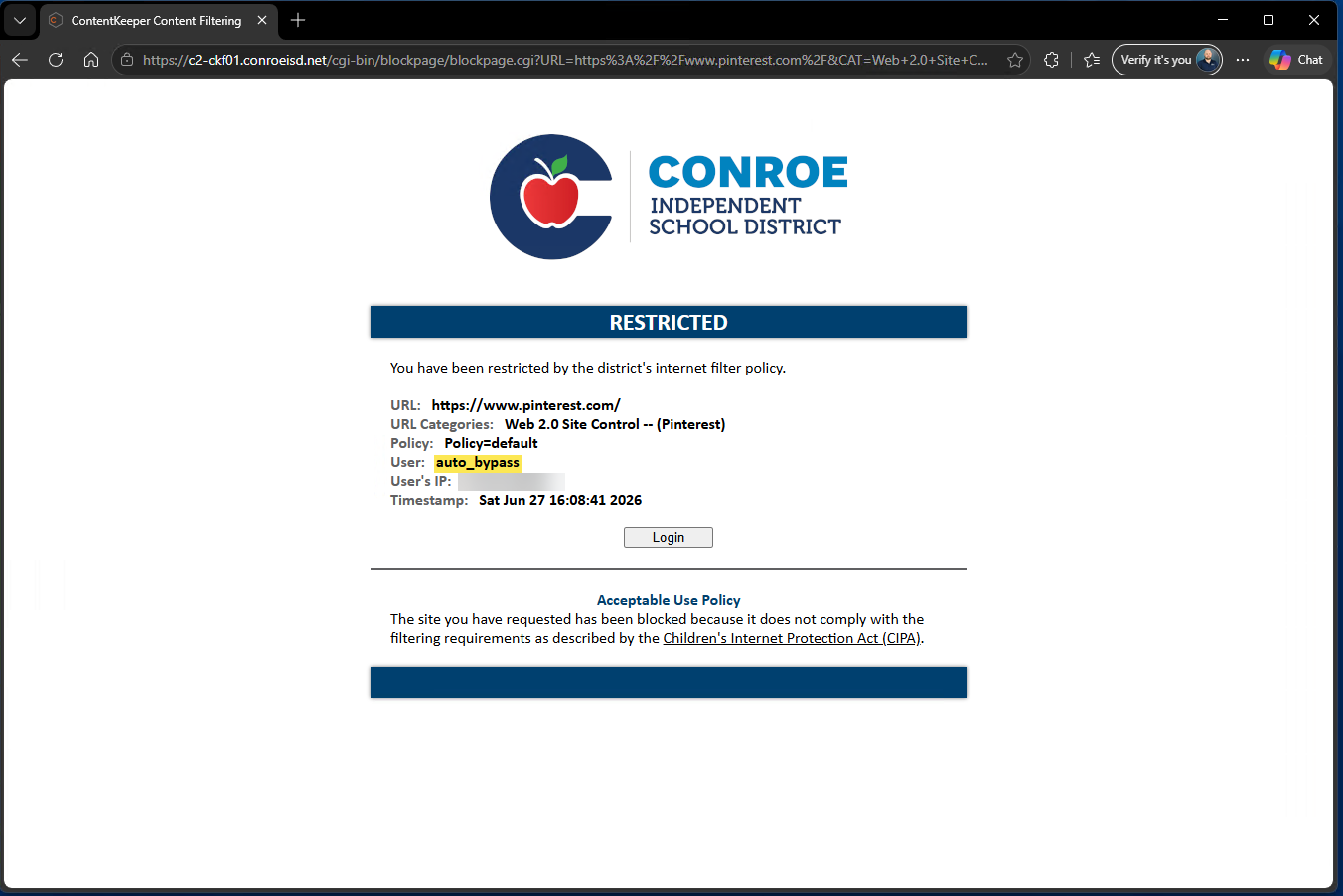
If the User field displays auto_bypass, ContentKeeper has not identified who is using the device and is applying the default filtering policy, which is the most restrictive policy. To sign in, click or tap Login.
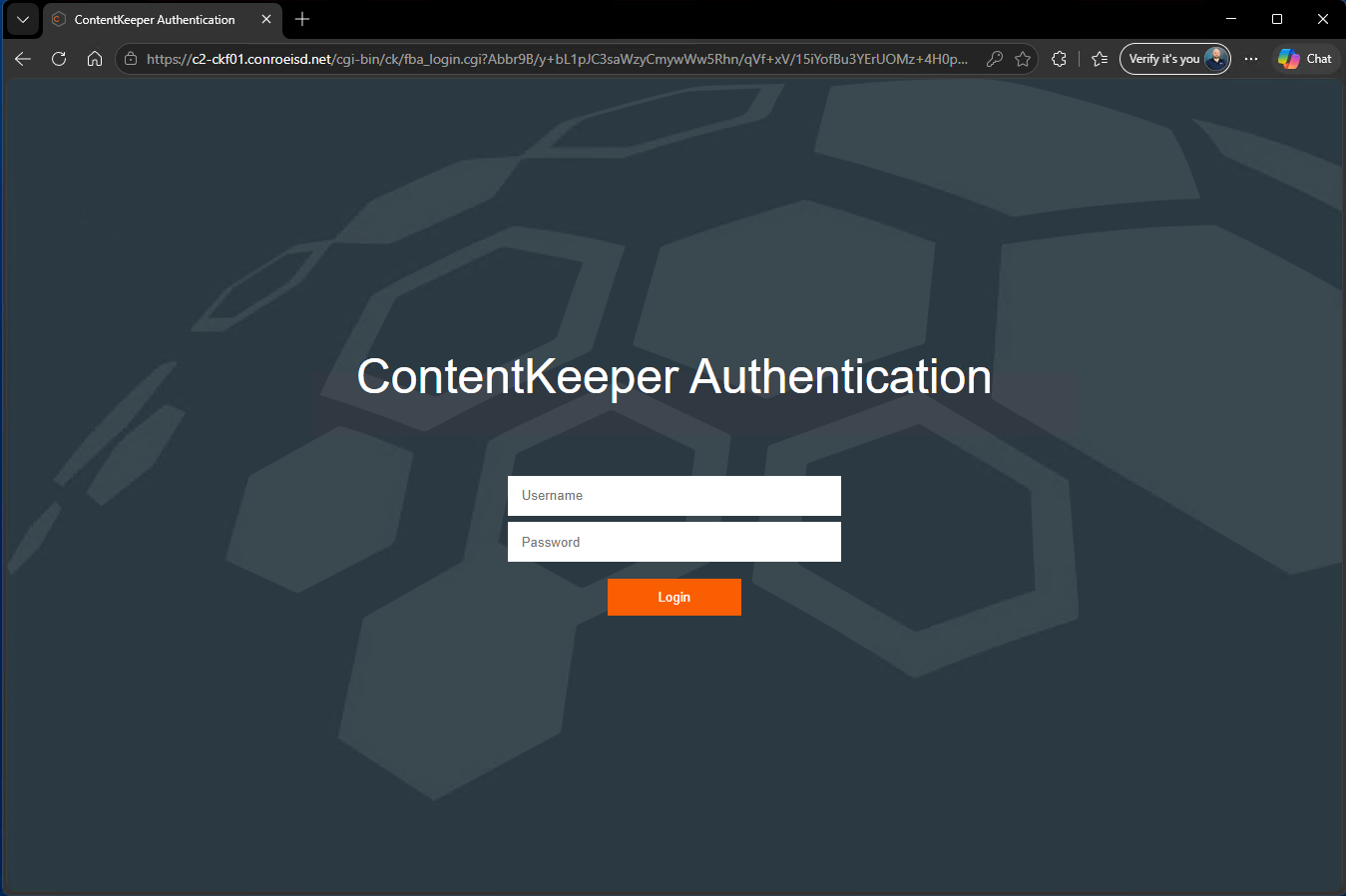
On the ContentKeeper Authentication page, enter the same username and password you use to sign in to your computer or ClassLink.
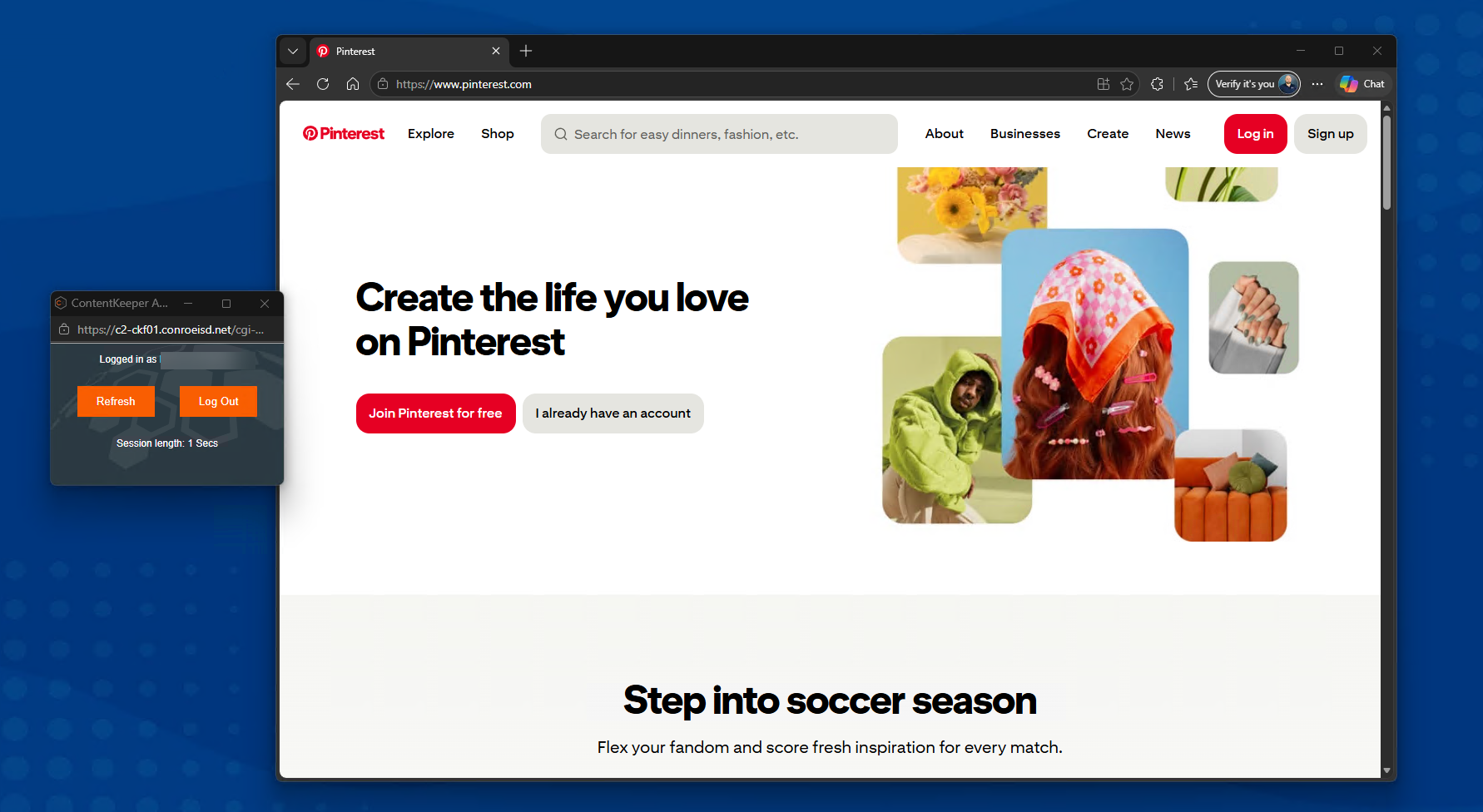
After successfully signing in, you will be returned to the website you originally attempted to access. A small ContentKeeper Session window will also open, displaying your current authentication status.
If you are using a shared computer, leave this window open (you may minimize it) and click Log Out when you are finished using the computer. Otherwise, your authenticated session will remain active for up to 24 hours.
If you need assistance, please contact the Technology Services Help Desk.