
This guide will walk you through the steps to log into your school's ClassLink Single Sign-On (SSO) portal using a QuickCard. A QuickCard is a unique QR code given to students that allows them to log in instantly without having to type a username or password.
Step-by-Step Instructions
Step 1: Open your SSO
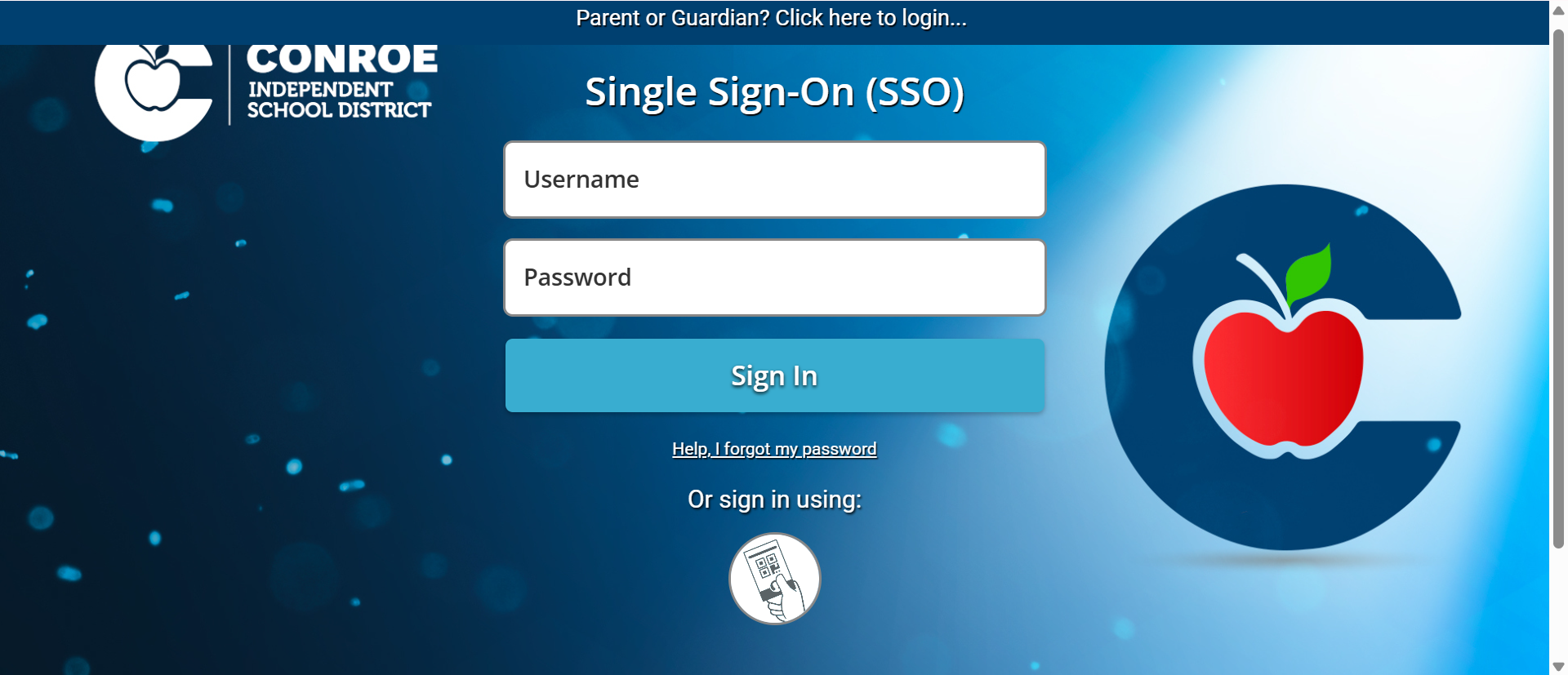
Open your web browser (like Google Chrome, Safari, or Edge) and go to sso.conroeisd.net
Step 2: Select the "QuickCard" Option
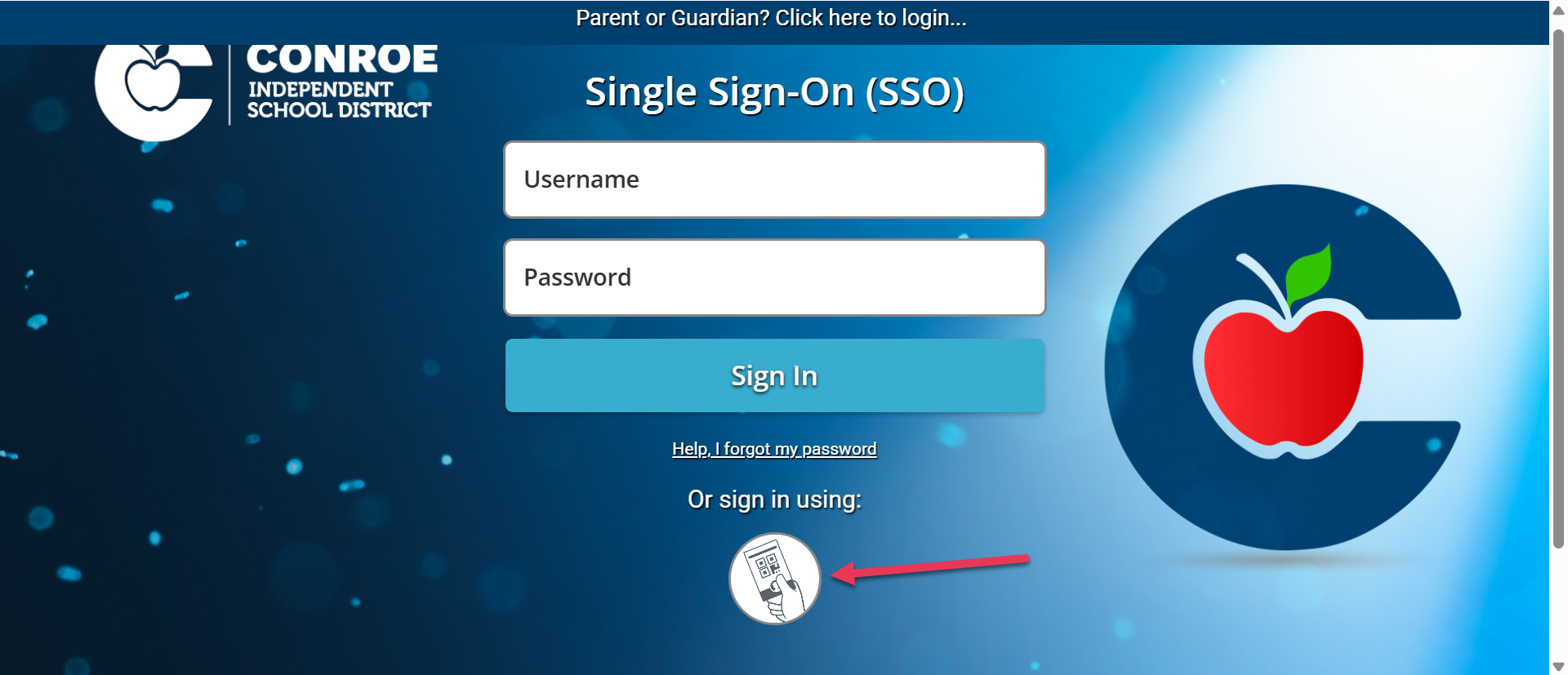
On the login screen, instead of typing a username and password, look for the button that has an icon of a QR code and select it.
Step 3: Allow Camera Access (First Time Only)
If this is your first time using a QuickCard on this device, your web browser will ask for permission to use your camera. A small pop-up box will appear in the top-left corner of your screen. Click Allow while visiting this site.
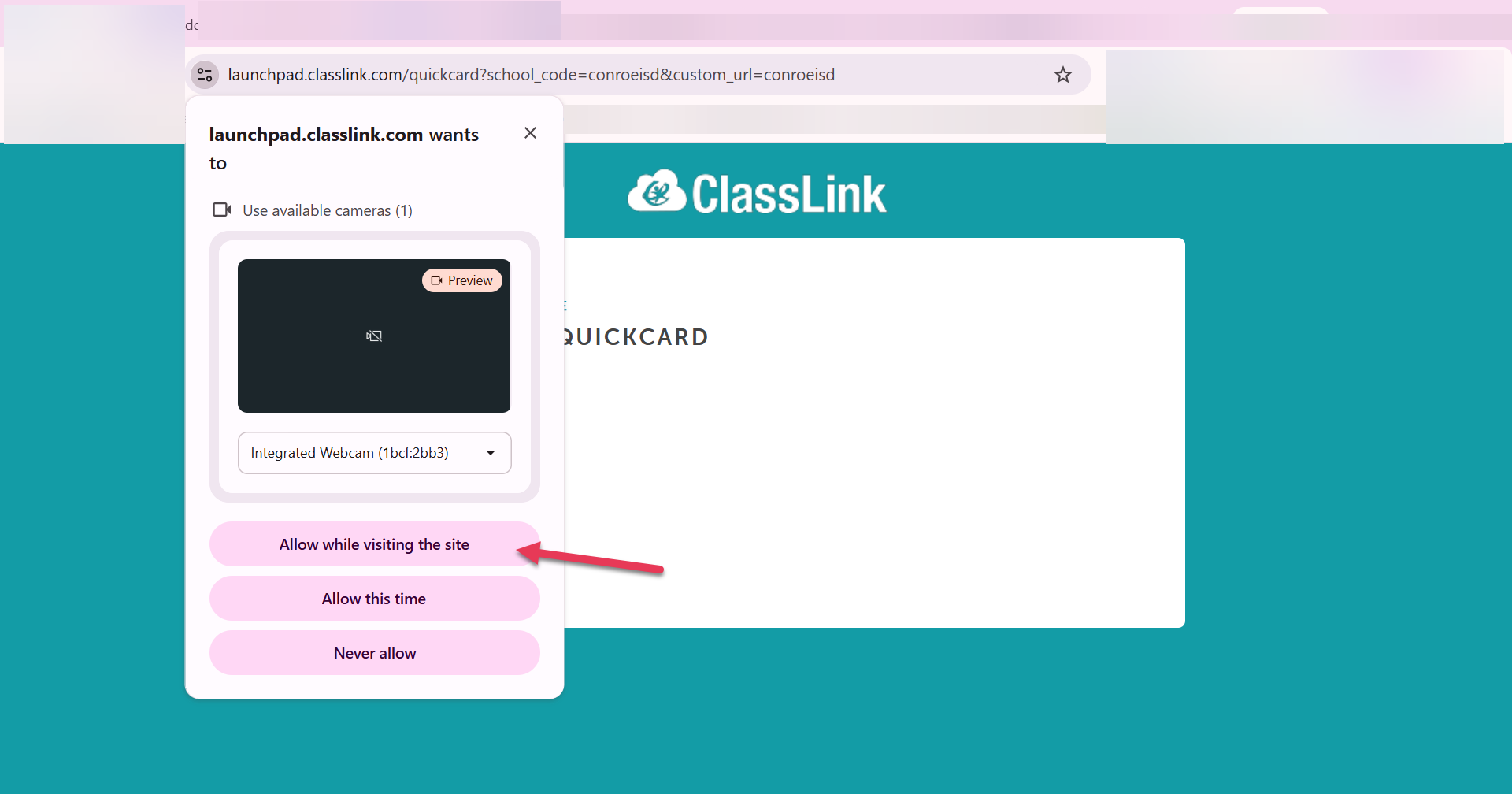
Important: If you click "Never allow," the scanner will not work.
Step 4: Scan Your QuickCard
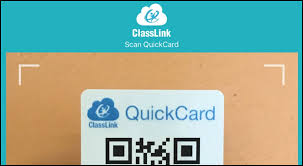
Your screen will now show a video feed from your webcam. Hold your physical QuickCard up to the camera. Make sure the entire QR code is visible inside the frame on your screen.
Step 5: Welcome to Your Dashboard!
Once the camera recognizes the code, the screen will load, and you will be taken directly into your CISD SSO dashboard.
Troubleshooting Common Issues
If you are having trouble logging in, try these quick fixes:
-
My screen is black or the camera isn't turning on: You may have accidentally blocked camera access. Look for a small camera icon with a red "X" in the URL address bar at the top of your browser. Click it and change the setting to "Allow," then refresh the page.
-
The camera sees the card, but it won't log me in: Make sure you are in a well-lit room. If there is a glare on the card or if the room is too dark, the camera cannot read the code. Try tilting the card slightly or moving to a brighter spot.
Still have questions? Visit the Additional Help section for further assistance.