
This guide explains how Conroe ISD employees can install the Microsoft Office 365 desktop applications (Word, Excel, PowerPoint, etc.) on personal or district devices. It also covers how to remove access from old devices if you have reached your license limit.
Each employee is granted 5 licenses to use across multiple devices. To access saved documents and full features after installation, you will need to remain logged into the Single Sign-On (SSO) portal and open your Outlook Email app.
Accessing the Installation Menu
1. Log in to the Portal
Navigate to your Conroe ISD SSO and log in. Open the Outlook Email app.
2. Open the App Launcher
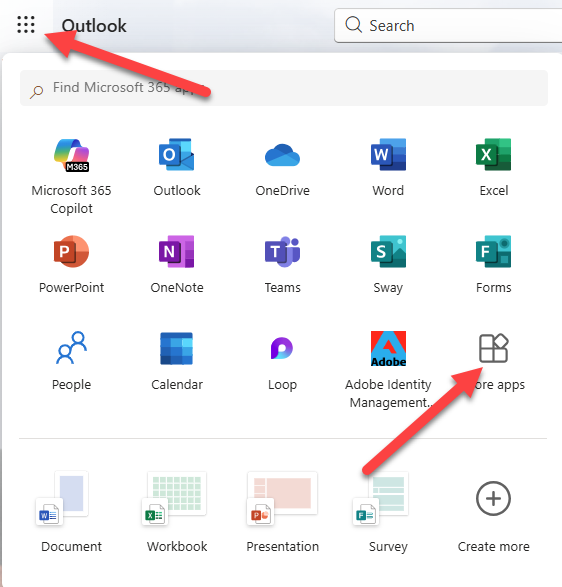
In the top corner of the screen, select the Waffle icon (the square grid of dots).
3. Select More Apps
Click on More Apps in the menu that appears. This will take you to your Office 365 dashboard.
Installing Office on a Device
1. Locate the Install Button
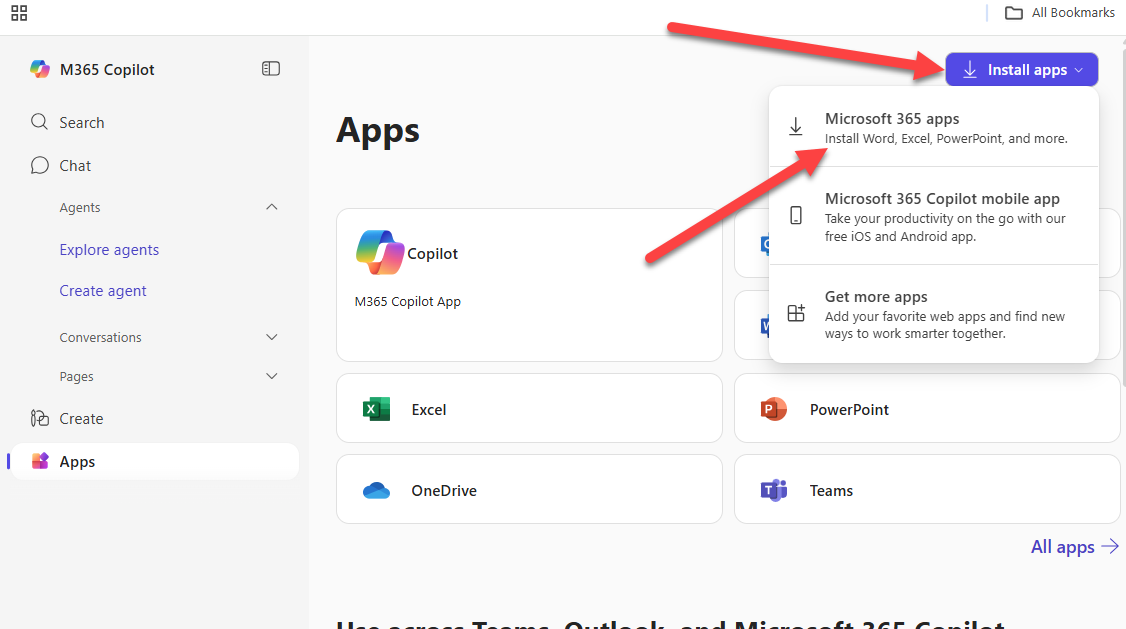
On the right-hand side of the dashboard screen, select the Install apps button.
2. Download the Installer
From the dropdown menu, select Microsoft 365 Apps. Alternatively, you can select Apps & Devices and then click Install Office.
3. Run the Setup
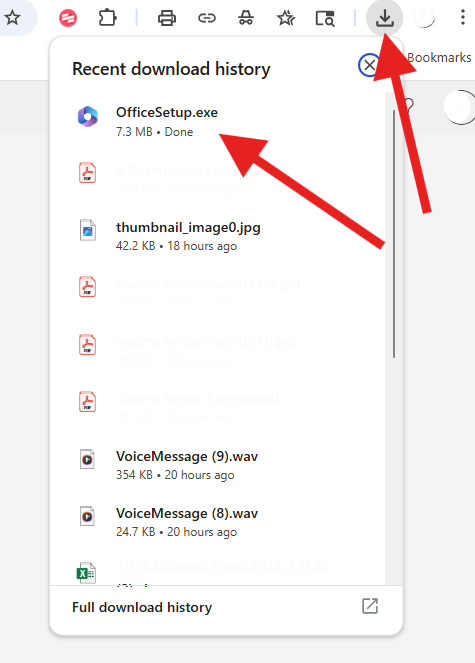
A download will appear in the upper right corner of your browser. Click the Download Arrow or the file name (e.g., OfficeSetup.exe). Follow the on-screen prompts to complete the installation.
Removing Licenses from Old Devices
If you have used all 5 of your licenses, you must remove a device from your account before installing Office on a new one.
1. Go to Apps & Devices
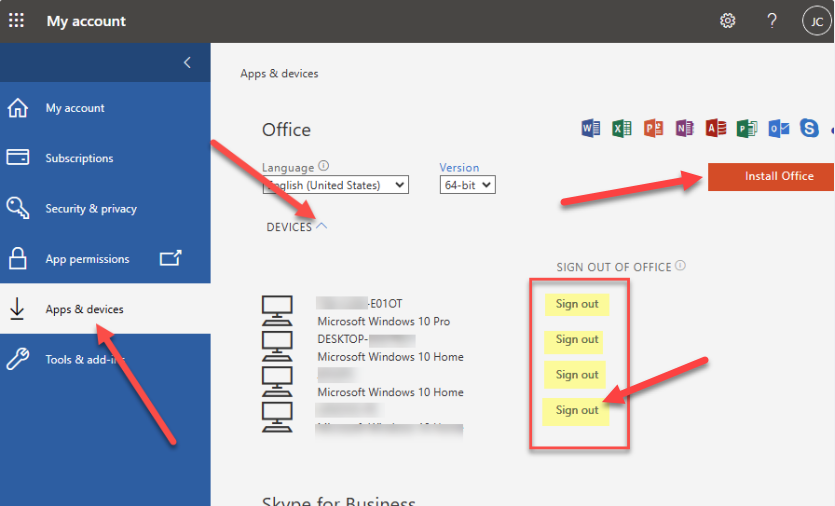
From your Office dashboard, select Apps & Devices.
2. View Active Devices
Look for the Office section and select the arrow next to Devices. This will show a dropdown list of all computers where you have previously installed the software.
3. Deactivate a License
Locate the device you no longer use and select Sign Out. This will free up a license for your new device.
Need additional help? Click here for further assistance.